
10 Best MD Editors for Developers & Writers in 2026
Find the best MD editor for any workflow. Our 2026 guide reviews 10 top tools for developers, writers, and RAG pipelines, from Obsidian to Typora.

You open a Markdown file in one editor, paste in notes from Slack, ask an LLM to clean it up, then push the result into a knowledge base or RAG index. That workflow breaks faster than it should. Tables get rewritten, heading levels drift, front matter disappears, and diff review turns into guesswork.
That is the test for the best MD editor. The tool has to feel good for writing, but it also has to preserve structure under repeated edits, exports, sync jobs, and AI-assisted rewrites. In practice, the editors that hold up best keep files plain, make formatting changes predictable, and let you inspect what changed before that content reaches retrieval, embedding, or publishing systems.
I judge these tools through that lens. Good typography matters. Fast search matters. Clean export matters more if the same document also feeds Claude, ChatGPT, internal agents, or a chunking pipeline. Teams that sync notes across tools run into this quickly, especially if they need a reliable process for syncing Markdown with Notion and Obsidian without introducing app-specific clutter.
The editors in this guide solve different problems. Some are better for long-form drafting. Some are better for linked research notes, local-first archives, or browser-based collaboration. The useful comparison is not which app has the flashiest preview. It is which one keeps your Markdown clean enough to survive real production use.
1. Obsidian

Obsidian is the best MD editor for people who treat Markdown as infrastructure, not just a writing format. It stores your notes as plain local .md files, which means your content stays portable and easy to inspect with other tools. That matters when a note starts as research, turns into a prompt library, and later becomes source material for retrieval.
The core app is free, the vault model is simple, and the graph view plus backlinks are still among the best ways to see how a body of notes connects. If you're building internal knowledge bases, legal matter notes, or RAG-ready source docs, Obsidian's biggest strength is that it doesn't hide your files behind a database-first workflow.
Why it works for AI-heavy note systems
For LLM work, Obsidian does two things well. It keeps heading structure stable, and it lets you extend the editor without giving up plain-text storage. That's a strong combination if you need note templates, YAML front matter, callouts, or chunk-friendly sectioning.
A practical pattern is to draft in Obsidian, keep source files in Git or synced storage, then move cleaned exports into a conversion or ingestion step only when needed. If you're connecting vaults across tools, this guide on syncing Markdown with Notion and Obsidian is useful for avoiding duplicate-source mess.
- Best for: Linked notes, research repositories, long-lived documentation, prompt libraries
- Watch for: Collaboration is weaker unless you add paid services or external sync
- Less ideal for: Teams that need browser-based co-editing with comments and approvals
Practical rule: If your files need to outlive the app that created them, Obsidian is one of the safest bets on this list.
Website: Obsidian
2. Typora
Typora is what I recommend when someone wants Markdown without feeling like they're using Markdown. Its in-place rendering stays clean, so headings look like headings and tables look like tables while you write. For many writers, that removes the friction that split-pane editors never quite solve.
It also has one of the better export paths among desktop Markdown apps. If your workflow ends with PDF, HTML, or DOCX delivery, Typora usually gets there without much cleanup. Support for tables, footnotes, front matter, math, and Mermaid diagrams makes it surprisingly capable for technical docs.
Where Typora fits best
Typora is strongest when the main job is drafting and shipping polished documents. It's not trying to be a networked knowledge base or a collaborative workspace. That focus is a plus if you're tired of plugin hunting and just want a writing surface that stays out of the way.
The catch is sync and collaboration. You bring your own file sync, and there's no shared editing model built into the app. If your team mostly writes solo and reviews later, that's fine. If several people need to edit the same Markdown doc live, this won't be enough. For a broader look at this style of writing experience, see this breakdown of the WYSIWYG MD editor approach.
Typora is one of the few editors that makes Markdown feel invisible without turning the file into something opaque.
Website: Typora
3. iA Writer
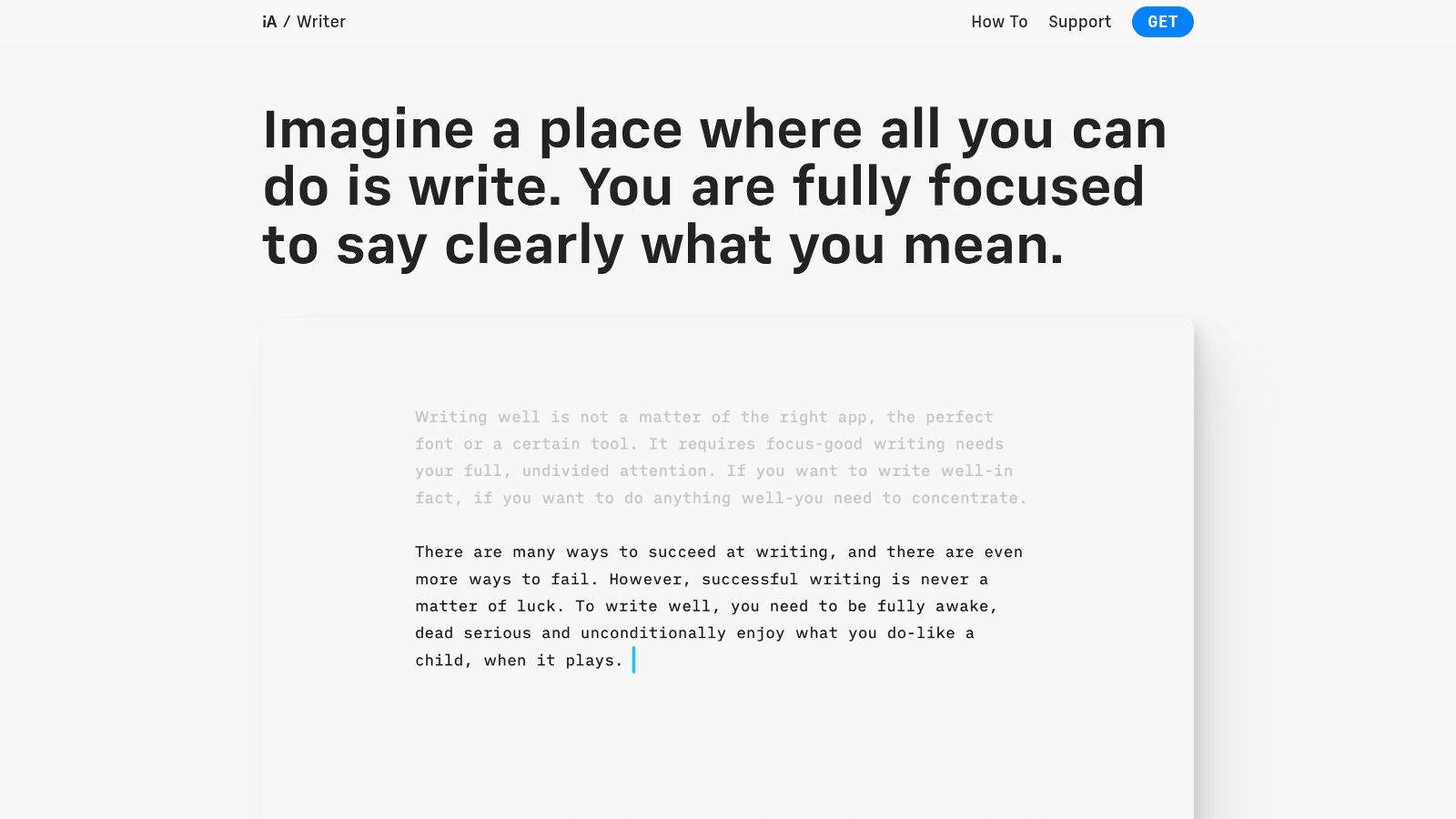
iA Writer is the best MD editor for people who draft better when the interface gets out of the way. It has a restrained, minimal writing surface, strong focus features, and syntax-aware highlighting that helps you spot structure without turning the screen into a control panel.
That makes it especially good for articles, essays, technical explainers, and clean first drafts. If you tend to over-tinker in Obsidian or over-format in richer editors, iA Writer pushes you back toward text and structure.
Best use case
I like iA Writer most for early drafting and editorial passes. The app is stable, predictable, and rarely asks you to think about anything except the sentence you're on. For AI-era workflows, that's more useful than it sounds. Clean drafts with obvious heading hierarchy are easier to feed into downstream conversion, review, and chunking tools later.
Its limits show up when you move from solo writing to shared document operations. Collaboration is limited, and buying per platform won't appeal to everyone. But if your process is draft first, publish later, it's one of the least distracting tools available.
- Strong fit: Writers, technical bloggers, solo documentation work
- Mixed fit: Teams that need comments, shared revisions, or synchronized review
- Weak fit: Large interconnected note systems
Website: iA Writer
4. MarkText
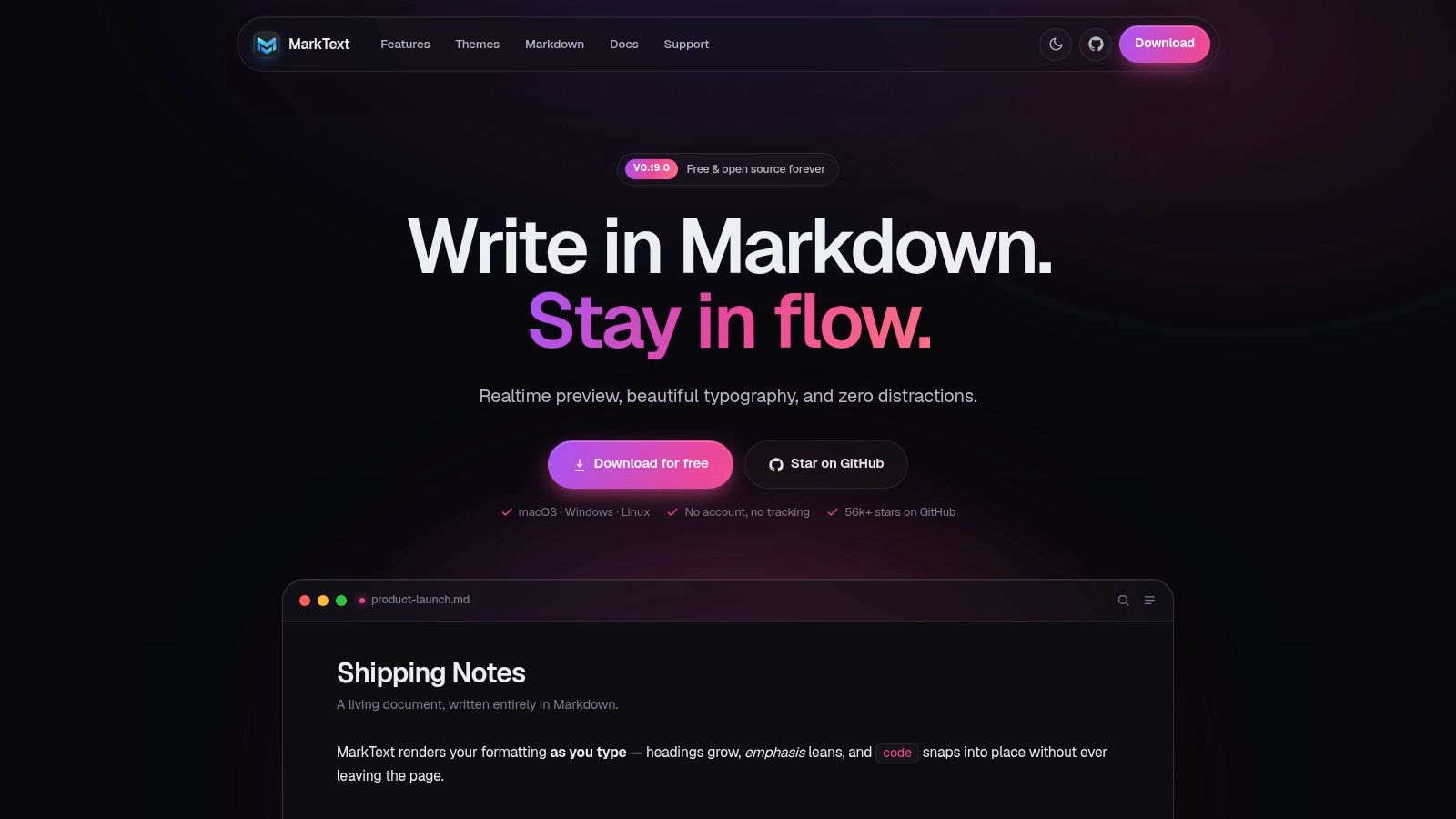
MarkText works well for a common setup. You need a free desktop editor, you want live preview without splitting the screen, and you do not want your Markdown tied to a proprietary workspace.
That middle position is its value. MarkText gives you in-place rendering similar to Typora, but keeps the workflow local and file-based. It handles tables, math, diagrams, front matter, and themes without adding much friction. For everyday docs, README files, internal notes, and lightweight technical writing, that is usually enough.
The practical advantage shows up later in the pipeline. If you use Markdown as source material for LLM prompts, embeddings, or RAG indexing, cleaner files save time. MarkText generally stays close to plain Markdown, so headings, lists, code blocks, and metadata remain easy to inspect before you send content into chunking or conversion tools. You spend less time cleaning up editor-specific artifacts.
Where MarkText fits best
I would pick MarkText over heavier tools when the job is straightforward writing and editing, not building a larger knowledge system. It is approachable for people who want visual feedback while still keeping readable source underneath. The trade-off is ecosystem depth. You do not get the plugin range of Obsidian or the research workflow of Zettlr.
If you're still getting comfortable with Markdown itself, a short refresher on Markdown basics helps before you judge editors by preview quality alone.
- Best for: Free local editing, open-source preference, lightweight technical docs
- Trade-off: Smaller ecosystem than Obsidian and fewer workflow extensions
- Good sign: Clean Markdown output that works well in AI and RAG document pipelines
Website: MarkText
5. Zettlr
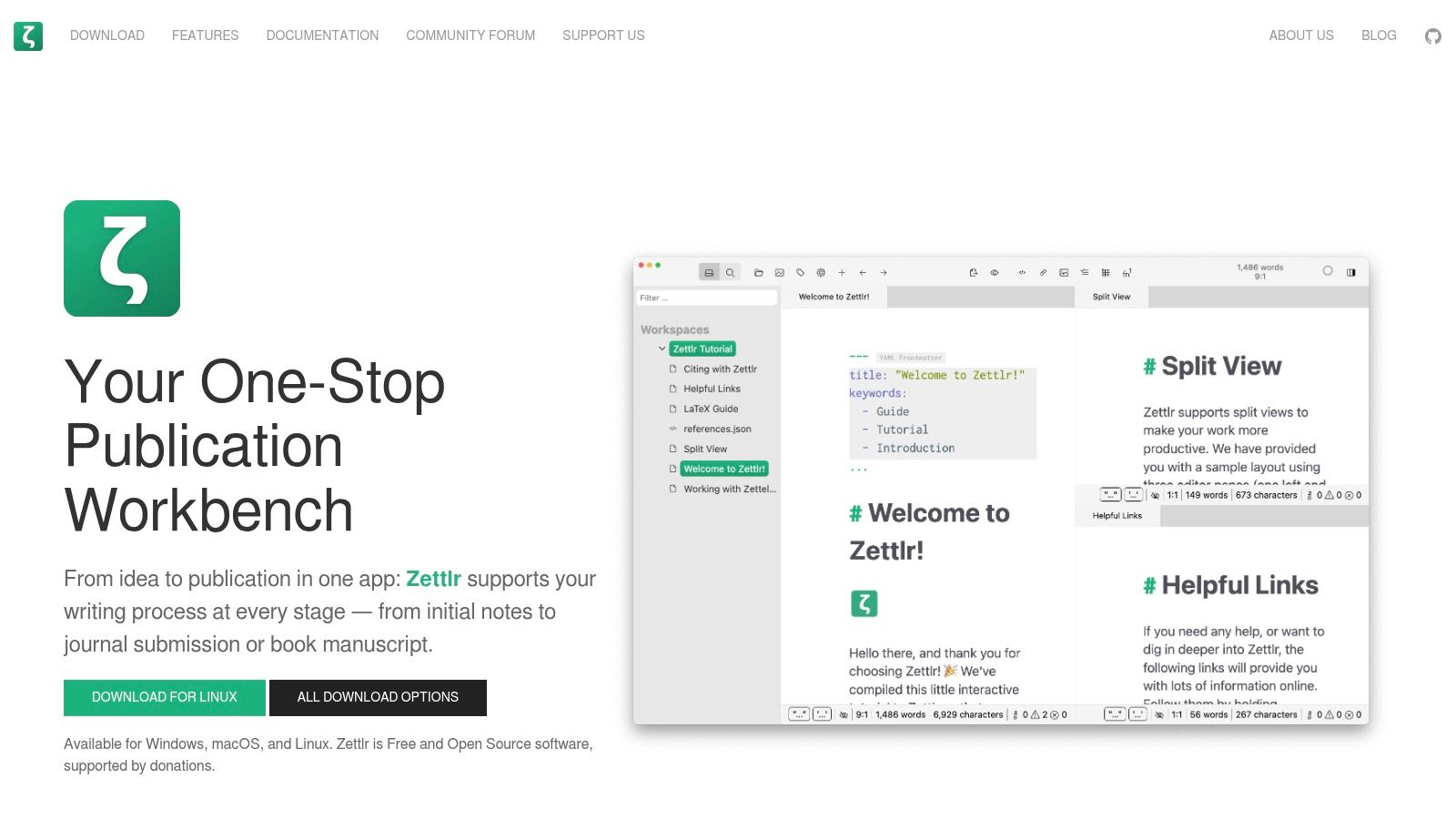
Zettlr is one of the few Markdown editors that feels built around long-form academic and research output instead of general note-taking. Citation support, reference manager integration, and Pandoc-based export profiles make it a serious tool for papers, drafts, and structured submissions.
That matters if your Markdown files need to survive beyond your editor and move into review systems, publication workflows, or institutional archives. Zettlr handles that transition better than minimalist writing apps.
Where Zettlr stands out
A key advantage is structure. Researchers often need headings, citations, metadata, and export paths that stay consistent across revisions. Zettlr supports that without forcing a cloud account or hiding files in a proprietary backend.
For RAG and retrieval use cases, this makes Zettlr more useful than it first appears. Academic teams often have dense source documents that need to remain inspectable. A local Markdown workflow with citations preserved is easier to audit than a rich-text document that was exported late in the process.
If your document has footnotes, references, and a submission target, Zettlr is far more practical than a minimalist editor pretending to be enough.
Website: Zettlr
6. StackEdit
StackEdit is the browser-first option that still feels like a real Markdown editor. You open it anywhere, write in the browser, and sync with services like Google Drive, Dropbox, or GitHub. That makes it handy when you move between devices or work in environments where local app installs are restricted.
It also supports multiple Markdown flavors and can publish to blog platforms, which gives it more range than a basic web editor. For quick edits, shared machines, or lightweight content work, it's easy to recommend.
Best for browser-first workflows
StackEdit works well when convenience matters more than local power. You can draft from nearly any device, recover work through cloud sync, and keep content in familiar storage services rather than inside one vendor's isolated workspace.
The trade-off is scale and depth. Large doc sets, complex note systems, and repository-style organization aren't its strong side. I also wouldn't choose it for heavy AI prompt-library maintenance or long-lived knowledge graphs. It's better as a flexible writing surface than as a durable content hub.
- Use it for: Cross-device editing, quick publishing, low-friction browser access
- Skip it for: Deep local knowledge management, large file collections, advanced collaboration review
- Nice bonus: Offline support helps when browser access is available but connectivity is uneven
Website: StackEdit
7. Dillinger
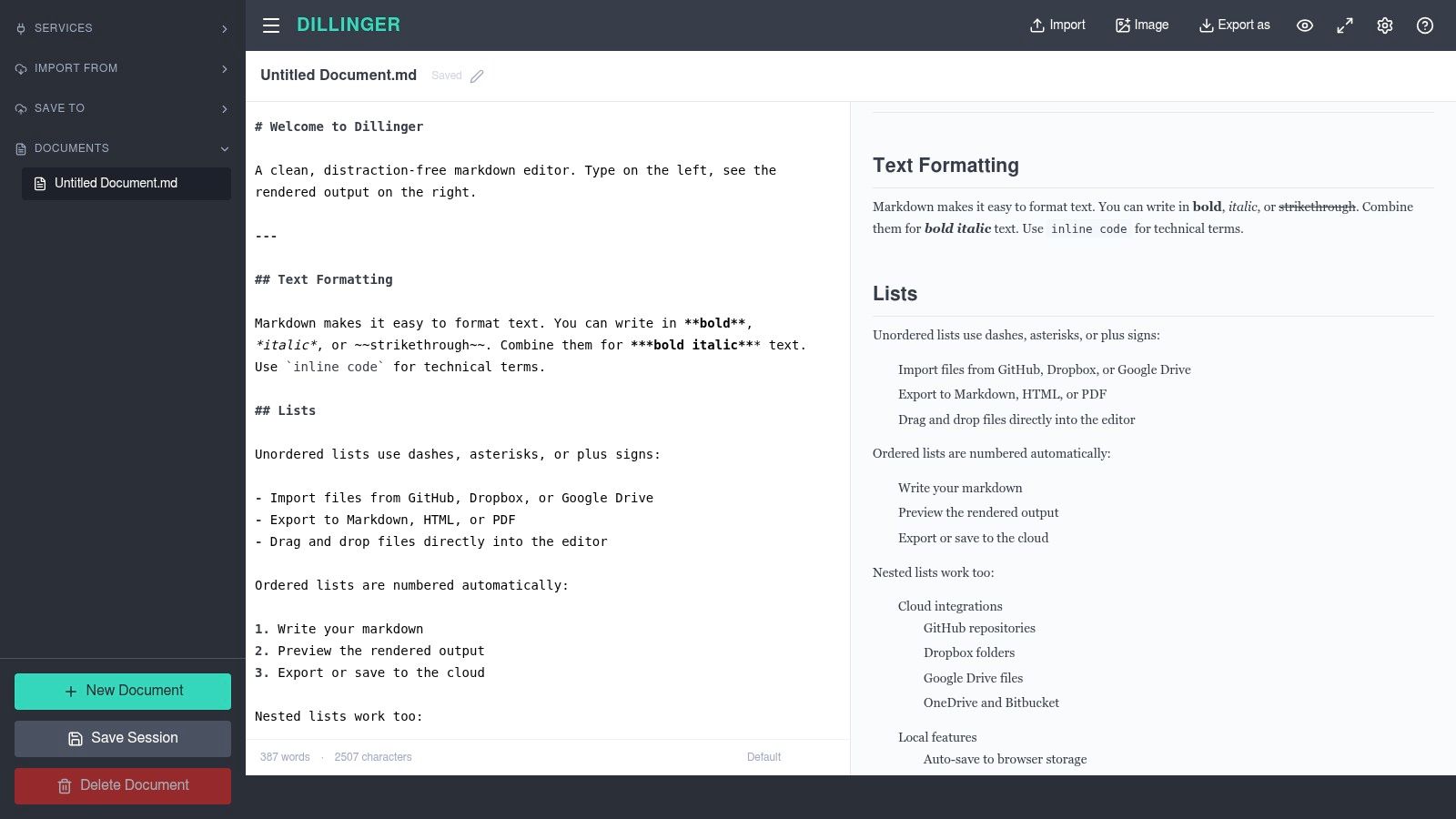
Dillinger feels like a developer made a Markdown editor for fast browser work and stopped before adding anything unnecessary. It uses the Monaco editor, so the writing surface is immediately familiar if you spend your day in VS Code or similar tools. Live preview, import and export, cloud connectors, and keyboard-friendly editing are the reasons to use it.
It's not the most elegant app on this list, but that isn't really the point. Dillinger is about speed.
What it does well
This is the editor I'd reach for when I need to open Markdown fast, make changes, export, and move on. It supports Vim and Emacs keybindings, autosave, and a clean enough split view for short docs, READMEs, and quick publishing drafts.
Its limits are equally clear. It's still a web app, and long-form writing features are thin compared with desktop editors built around drafting. If your files are central to a larger AI pipeline, I'd also want more control over storage and organization than Dillinger is meant to provide.
Fast browser editing is Dillinger's whole job, and it does that job well.
Website: Dillinger
8. Joplin
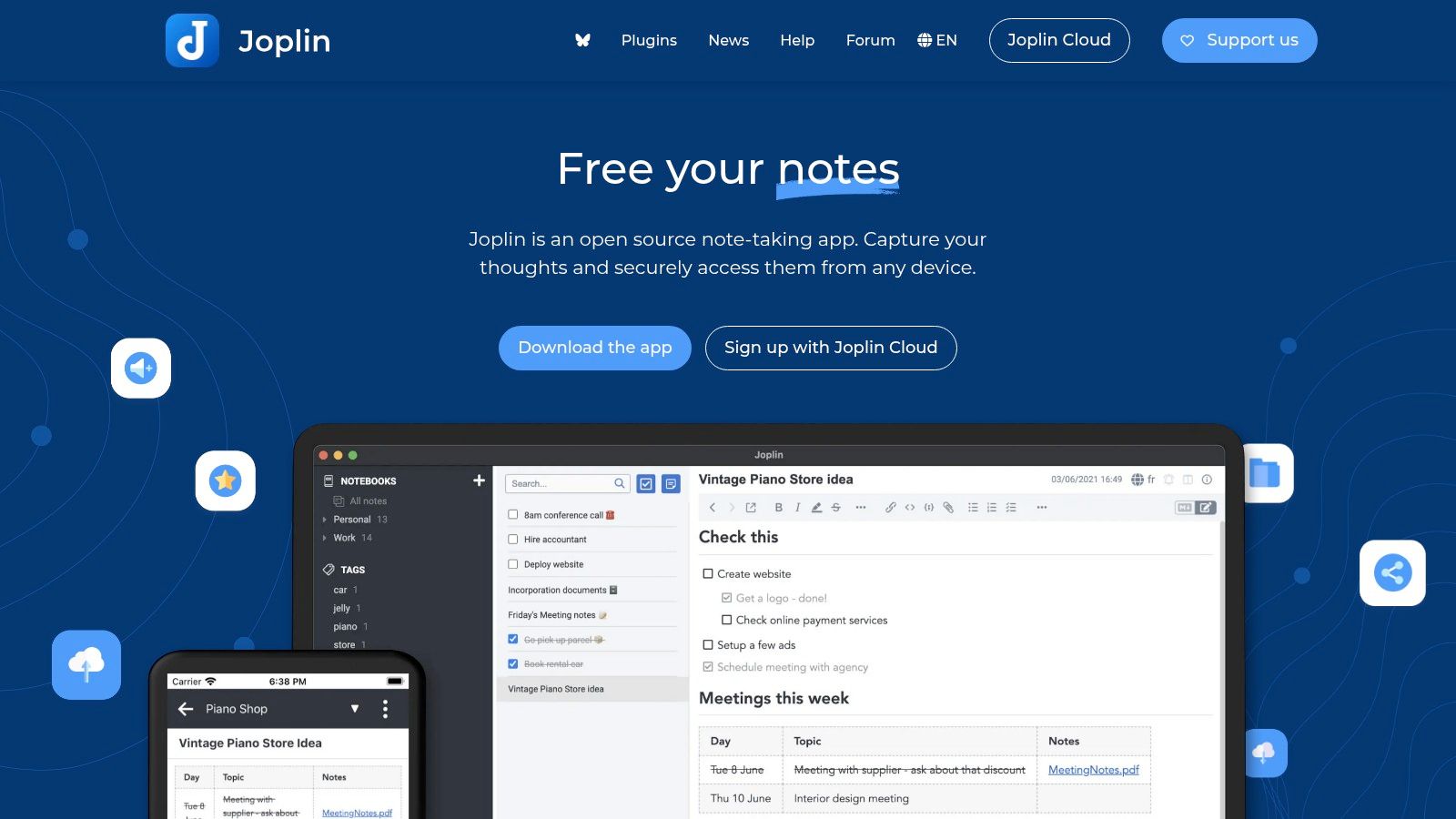
Joplin is one of the better choices when privacy, encryption, and multi-device access matter as much as editing comfort. It supports Markdown notes, desktop and mobile apps, a terminal client, plugins, and sync through either Joplin Cloud or third-party storage. That gives it a lot more deployment flexibility than polished writing apps usually offer.
For teams with compliance concerns or users who don't want their notes locked into one hosted platform, that flexibility matters.
When Joplin is the right call
Joplin works best when your Markdown notes are part of a larger operational system. That could be research archives, internal documentation, clipped reference material, or private knowledge collections you want available across devices. Encryption and storage choice make it attractive in those cases.
The downside is interface weight. It isn't as uncomplicated as iA Writer or as visually smooth as Typora. But if the decision comes down to elegance versus control, Joplin leans hard toward control. That's often the right trade for sensitive material and distributed teams.
- Best for: Privacy-conscious users, self-directed sync, mixed desktop and mobile use
- Less ideal for: Pure long-form drafting where interface calm matters most
- Worth noting: Plugin support helps close some workflow gaps without giving up data control
Website: Joplin
9. Inkdrop
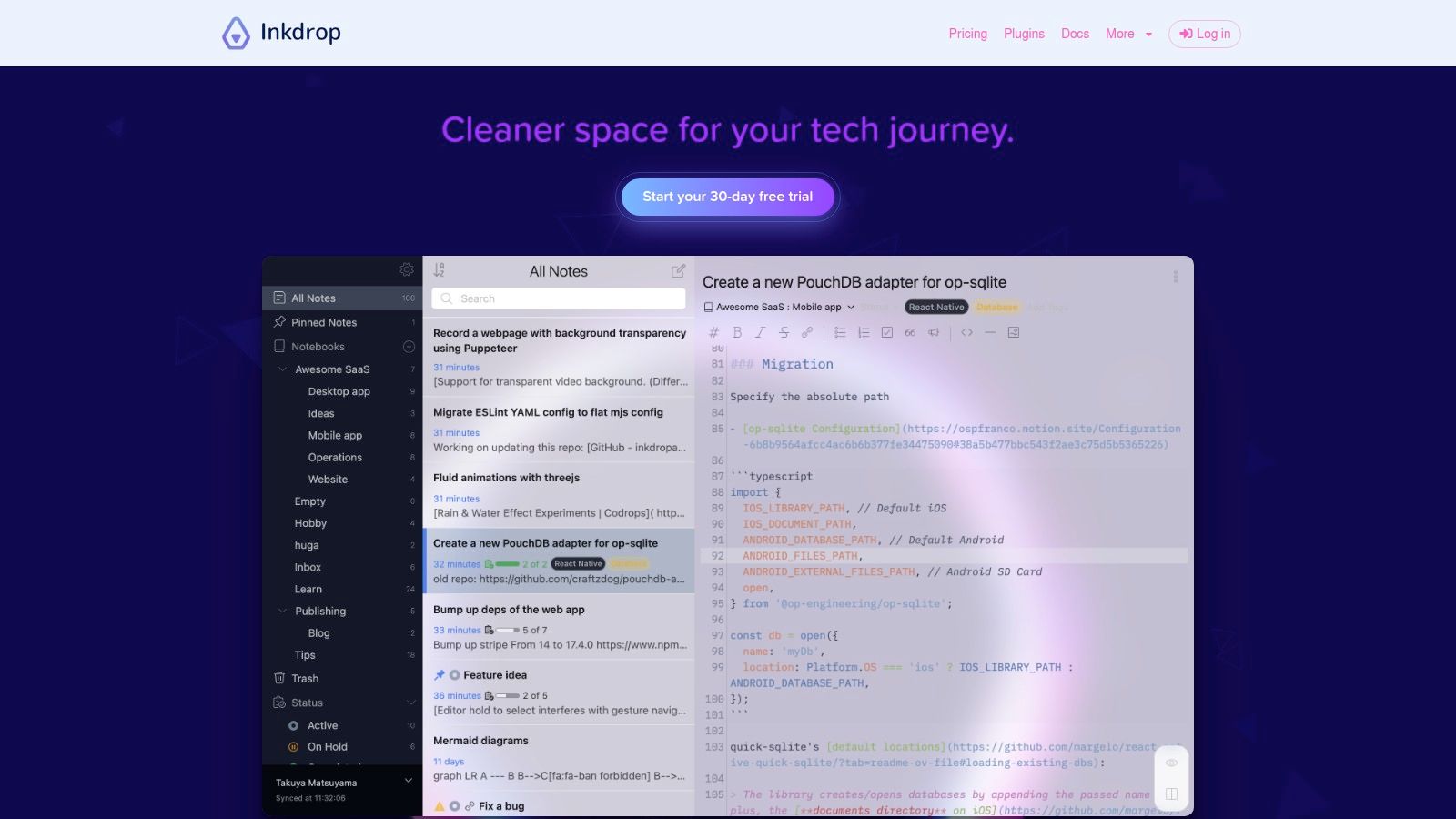
Inkdrop is aimed squarely at developers who want a Markdown note app that syncs reliably and doesn't feel brittle once the note library grows. The interface is polished, the plugin model is familiar, and the option to self-host sync through a CouchDB-compatible backend gives technical users more control than most commercial note apps offer.
It isn't trying to be a publishing-first writer like Typora or a research workstation like Zettlr. It's a durable dev notes environment.
Best fit
Inkdrop makes sense when your Markdown lives across desktop and mobile, and you care about keeping a large body of technical notes organized without constant maintenance. Architecture notes, snippets, ops runbooks, and AI experiment logs all fit naturally.
The trade-off is ecosystem size. Obsidian still has a broader extension universe, and Joplin offers a more overtly open, privacy-forward posture. Inkdrop wins on day-to-day polish for developers who want sync that just works and are comfortable paying for that convenience.
Website: Inkdrop
10. HedgeDoc
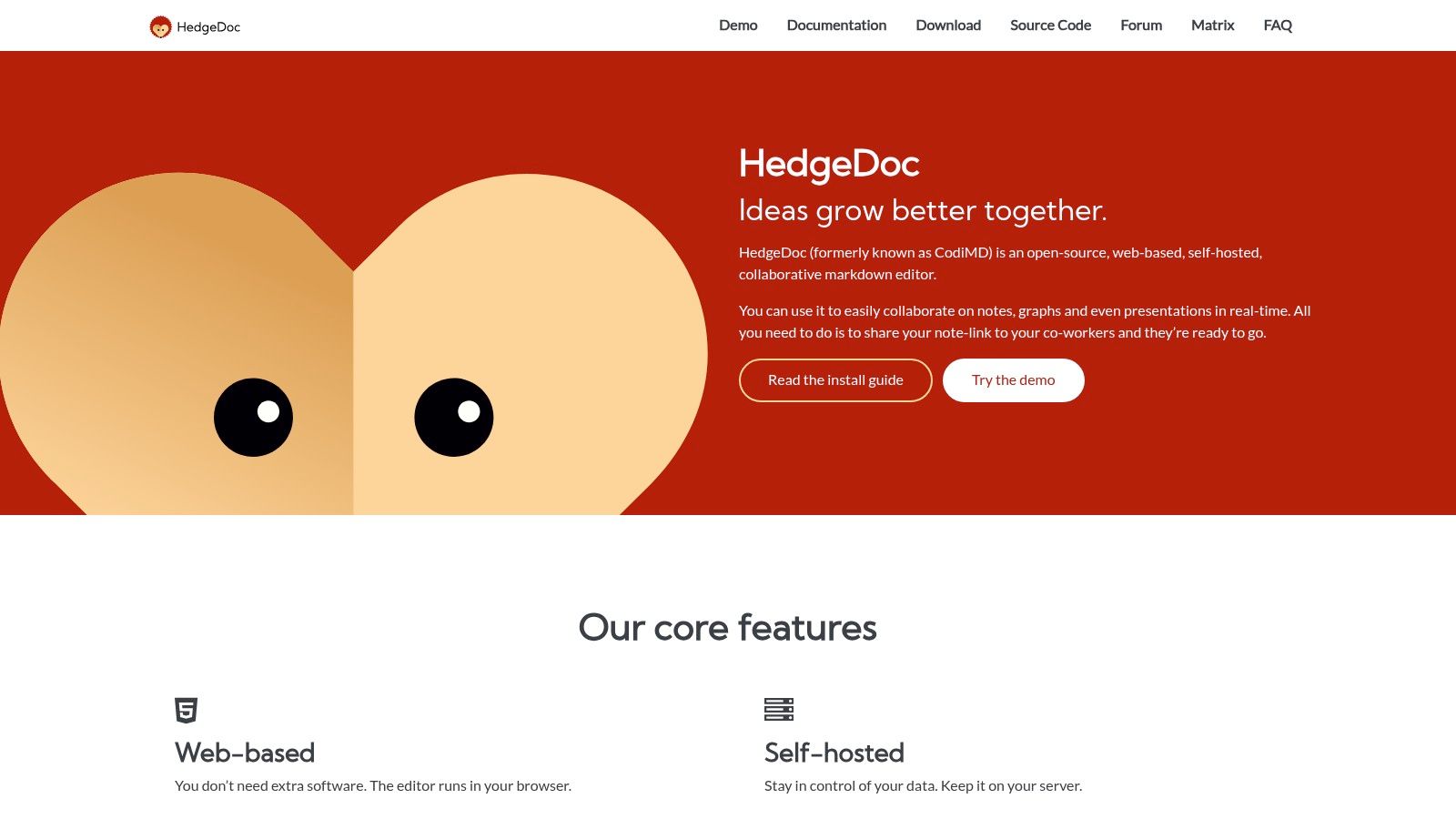
A shared incident doc, research brief, or prompt library falls apart fast when one person is editing Markdown locally and everyone else is commenting in chat. HedgeDoc fixes that by putting collaborative editing at the center instead of treating it as an afterthought.
It is a web-based, self-hostable Markdown editor built for teams that need multiple people in the same document at once. Real-time editing, revision history, permissions, diagrams, and presentation mode are all part of the package. That matters for engineering teams, research groups, and internal documentation owners who want Markdown to stay usable all the way from drafting to review.
HedgeDoc also fits modern LLM and RAG workflows better than many desktop-first editors. If your team is building prompt sets, evaluation notes, knowledge base drafts, or retrieval-ready docs, a browser-based editor with shared access lowers the friction. Everyone works in plain text, the output stays portable, and you avoid cleaning up a pile of proprietary formatting before sending files into embedding, chunking, or indexing pipelines.
The trade-off is obvious. You have to deploy and maintain it yourself, so this is not the low-effort pick for solo writing. The interface is functional rather than polished, and it does not offer the deep local knowledge-management features you get from Obsidian or the refined writing experience of Typora.
For teams that care more about clean collaborative Markdown than desktop niceties, HedgeDoc is a serious option.
- Best for: Real-time team editing, shared prompt and knowledge docs, self-hosted review workflows
- Not ideal for: Users who want a polished local desktop writing app
- Special strength: Collaborative Markdown with direct control over hosting and document flow
Website: HedgeDoc
Top 10 Markdown Editors: Feature Comparison
| Product | Core features | UX (★) | Price (💰) | Audience (👥) | Standout (✨🏆) |
|---|---|---|---|---|---|
| Obsidian | Local .md vaults, backlinks, graph view, plugins, cross‑platform | ★★★★☆ | 💰 Free core; paid Sync/Publish | 👥 Researchers, legal, RAG users | ✨ Portable, plugin ecosystem · 🏆 Extensible knowledge graphs |
| Typora | True in‑place rendering, math, Mermaid, strong exports | ★★★★★ | 💰 One‑time license (affordable) | 👥 Writers wanting WYSIWYG Markdown | ✨ Seamless live preview · 🏆 Polished writing UX |
| iA Writer | Focus mode, syntax‑aware highlighting, reliable exports | ★★★★☆ | 💰 One‑time per platform | 👥 Focused writers/drafters | ✨ Minimal, distraction‑free editor · 🏆 Predictable pricing |
| MarkText | In‑place rendering, KaTeX, Mermaid, theming (MIT OSS) | ★★★★☆ | 💰 Free (MIT open‑source) | 👥 Open‑source users & local file fans | ✨ Strong theming + no telemetry · 🏆 OSS freedom |
| Zettlr | Zotero/JabRef integration, Pandoc exports, privacy‑first | ★★★★☆ | 💰 Free (open‑source) | 👥 Academics & long‑form authors | ✨ Citation + Pandoc pipeline · 🏆 Publication-ready exports |
| StackEdit | Browser editor, offline support, Drive/Git sync, blog publish | ★★★★ | 💰 Free web app (cloud integrations) | 👥 Bloggers, cross‑device editors | ✨ Direct publishing & sync · 🏆 Zero‑install convenience |
| Dillinger | Monaco editor, live preview, cloud import/export, keybindings | ★★★★ | 💰 Free web app | 👥 Developers & quick editors | ✨ VS Code keybindings in browser · 🏆 Fast dev‑friendly edits |
| Joplin | Notes with E2EE, web clipper, plugins, cloud/self‑host sync | ★★★★ | 💰 Free core; optional paid cloud | 👥 Privacy‑sensitive users & teams | ✨ E2EE + self‑hostable sync · 🏆 Privacy‑first notes |
| Inkdrop | Cross‑platform apps, cloud sync, plugin ecosystem, self‑host option | ★★★★ | 💰 Paid subscription (cloud) | 👥 Developers with large note sets | ✨ Self‑hostable sync backend · 🏆 Stable sync for devs |
| HedgeDoc | Real‑time collaboration, self‑hostable, slides & diagram support | ★★★★ | 💰 Free (self‑host) | 👥 Teams needing on‑prem collaboration | ✨ Google‑Docs style co‑editing · 🏆 Full data control |
Final Thoughts
You finish a clean Markdown draft, drop it into Git, feed it into an embedding job, and then spend an hour fixing broken tables, odd HTML, or editor-specific junk before the file is usable. That is usually where the real editor choice shows up.
The best MD editor is the one that keeps your Markdown predictable after save. Writing comfort matters, but file behavior matters more if your notes move through version control, static site generators, sync services, or LLM and RAG pipelines.
Typora and iA Writer still make sense for focused drafting. They stay out of the way and help you finish. Obsidian, Joplin, and Inkdrop are better fits when Markdown is your long-term working format for notes, documentation, internal knowledge, or prompt libraries, because they support an ongoing system instead of a single document.
Zettlr stands out for citation-heavy and formal writing. StackEdit and Dillinger are useful when you need browser access fast or cannot install local software. HedgeDoc solves a different problem entirely. It gives teams shared editing, self-hosting options, and better control over collaborative review than the solo-first editors in this list.
That difference matters in AI workflows. If you plan to chunk documents for retrieval, store them in a vector database, or reuse them across prompts, the cleanest editor is not always the safest choice. The better choice is often the editor that produces stable headings, readable lists, plain links, and minimal hidden formatting, so your Markdown stays machine-friendly without cleanup.
My shortlist is practical:
- Choose Obsidian if your notes are growing into a linked knowledge base that may later feed search, retrieval, or agent workflows.
- Choose Typora if you want a polished writing experience and usually export finished documents rather than automate against raw files.
- Choose iA Writer if focus and speed matter more than plugins or workflow customization.
- Choose Zettlr if your work depends on citations, academic structure, or reliable Pandoc output.
- Choose HedgeDoc if several people need to work in the same Markdown file at the same time and you want control over hosting.
- Choose Joplin or Inkdrop if sync, privacy, and long-term note management matter more than pure writing aesthetics.
If you also publish newsletters or essays beyond technical docs, it's worth comparing your editor setup with broader tools for Substack creators, because publishing workflows usually fail at different points than documentation or AI ingestion workflows.
Protect the pipeline. A good editor helps you write. The right editor leaves you with Markdown that still works six months later, in Git, in your docs stack, and in the LLM tools that depend on clean structure.
If you're using Markdown as the handoff format for AI work, Markdown Converters is worth a look. It turns PDFs, DOCX files, web pages, scans, spreadsheets, and other messy inputs into clean, structured Markdown that's easier to feed into Claude, ChatGPT, and RAG pipelines. That's especially useful when your editor is only one part of the workflow and the primary challenge is getting reliable Markdown from everything upstream.
Related Articles
Top 10 Windows Markdown Editor Free Tools for 2026
Find the best Windows Markdown editor free for your needs in 2026. Our list covers top tools for developers, writers, and LLM workflows, with detailed reviews.
Read articleTop 10 Markdown Editor Open Source Tools for 2026
Discover the best markdown editor open source for 2026. We review 10 top tools for writers, developers, and AI engineers, from VSCodium to Joplin.
Read articleMarkdown Reader Windows: Best Tools for 2026
Markdown reader windows - Find the best markdown reader for Windows in 2026. Compare top tools to open, edit, and preview Markdown files effortlessly
Read article