
Top 10 Windows Markdown Editor Free Tools for 2026
Find the best Windows Markdown editor free for your needs in 2026. Our list covers top tools for developers, writers, and LLM workflows, with detailed reviews.
You're probably dealing with a pile of source material that doesn't agree with itself. A policy draft lives in DOCX, the vendor manual arrived as a PDF, meeting notes sit in a web app, and the reference spec is buried in a GitHub repo. If your end goal is documentation, a CMS article, or a retrieval pipeline for an LLM, the bottleneck usually isn't writing. It's normalizing all that input into something clean enough to trust.
Markdown has become the practical middle layer for that job. It's readable in plain text, portable across tools, and structured enough for GitHub, static site generators, knowledge bases, and AI ingestion. That matters more now because generic editor reviews still focus on nice preview panes and writing comfort, while many teams need Markdown that preserves headings, tables, lists, and chunk boundaries for downstream AI use. That gap is real, and Markdown Converters called it out directly in its review of Windows Markdown tools.
A good free Windows Markdown editor doesn't just make writing pleasant. It needs to fit the full path from source material to final destination. Sometimes that means opening a local .md file and editing by hand. Sometimes it means cleaning OCR output from a scanned PDF before feeding it into a RAG index.
What to Look For in a Free Markdown Editor
I care about five things.
Live Preview: You need to catch broken lists, tables, and heading structure before export.
Portability: Local files beat lock-in. Portable builds are even better on restricted Windows machines.
Export Options: Some people only need .md. Others need HTML, PDF, or DOCX somewhere in the pipeline.
Extensibility: Plugins matter when the editor is your daily workspace.
LLM-Readiness: Clean structure matters more than flashy formatting if the content is heading into embeddings, chunking, or prompt context.
Practical rule: If your editor makes Markdown look pretty but quietly mangles headings, tables, or callouts, it's the wrong editor for AI-heavy work.
Below are the ten free tools I'd consider for Windows in 2026, with the trade-offs that matter in day-to-day use.
1. Markdown Converters Editor
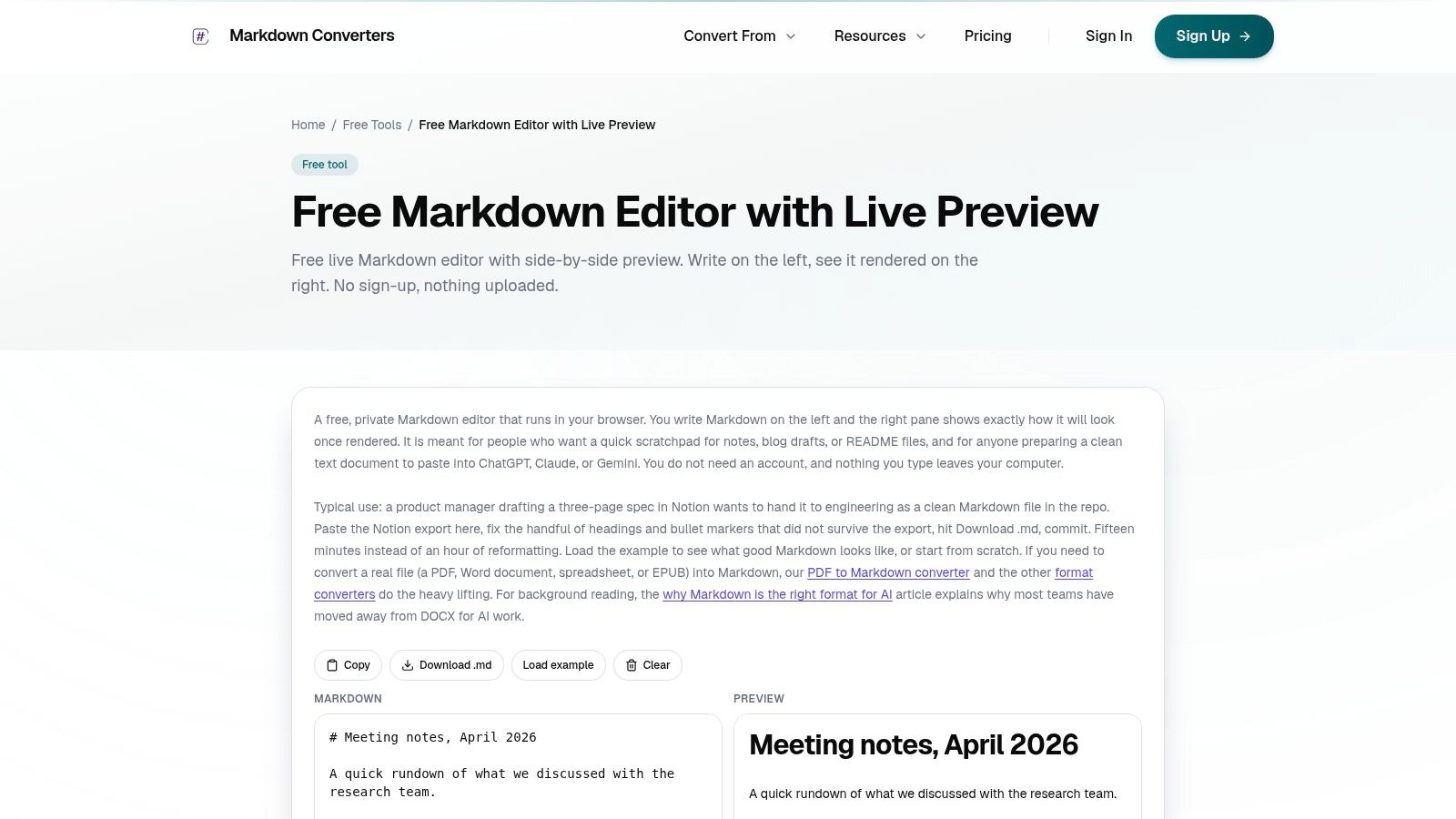
A common Windows Markdown job starts before you ever open an editor. You pull text out of a DOCX, scrape a web page, or run OCR on a PDF. Then you spend the next ten minutes fixing broken headings, flattened lists, and ugly table output. That is the problem Markdown Converters Editor is built to solve.
It works best as the cleanup stage in a larger pipeline. You convert first, inspect the Markdown beside the conversion workflow, then fix structure before the file goes to GitHub, a CMS, or an LLM ingestion process. That matters if your source content was never clean to begin with.
Best use case
I would choose this tool for repair work, not for long writing sessions.
It is a strong fit when a scanned PDF becomes Markdown with OCR artifacts, a DOCX import brings over inconsistent spacing, or HTML extraction leaves behind noisy formatting. In those cases, a lightweight editor tied to conversion is faster than opening a heavier workspace just to normalize headings and lists.
The main advantage is predictable output. If you care about retrieval quality, chunking, or prompt assembly, clean heading structure and trimmed markup usually matter more than editor polish. Teams comparing tools in that category should also look at open-source Markdown editor options for Windows, especially if they want a broader writing environment after cleanup.
Where it fits in a real workflow
A practical workflow looks like this:
- Convert: Start with DOCX, PDF, web content, or OCR output.
- Repair: Fix heading levels, normalize bullet lists, clean tables, and remove conversion noise.
- Route: Send the finished Markdown to a repo, a publishing system, or an LLM pipeline for RAG.
That end-to-end path is what makes this editor different from writing-first apps. It is less about drafting from a blank page and more about getting messy source material into a usable Markdown file without extra tool switching.
For comparison, this breakdown of Markdown writing apps is useful if your priority is drafting and note-taking rather than conversion cleanup.
The trade-offs are clear:
- Best for conversion cleanup: Good choice for OCR output, imported documents, and copied web content that needs structural repair.
- Fast for short editing passes: Paste, review, fix, and export with very little setup.
- Weak for full authoring: Long documents, plugin-heavy workflows, and deep version control are better handled in a broader editor.
- Practical for AI pipelines: Cleaner Markdown usually produces more stable chunks and fewer surprises during ingestion.
If you also need file export beyond raw Markdown, pair it with a broader publishing step such as this guide for exporting documents.
2. Visual Studio Code
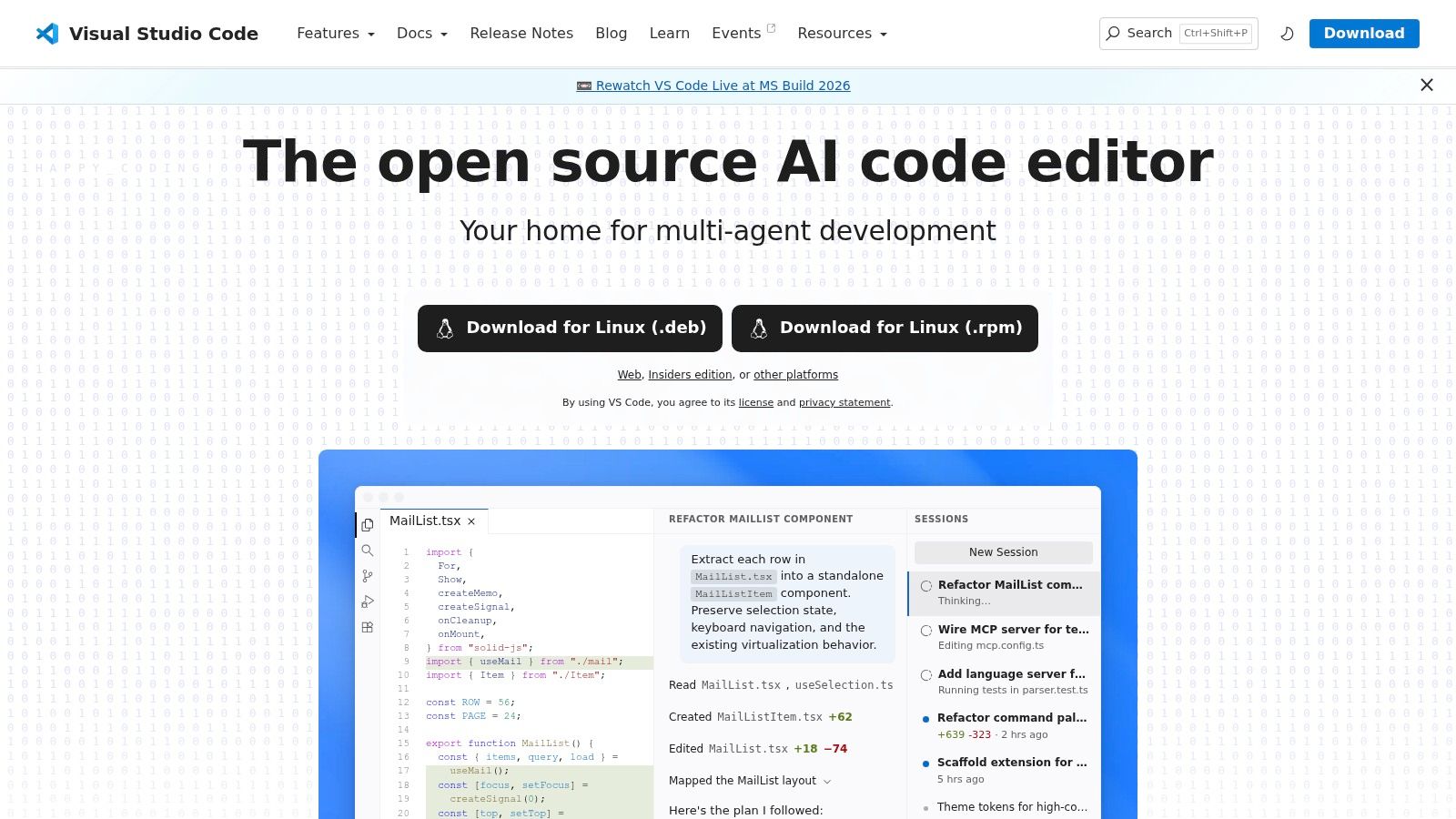
A common Windows workflow starts outside the editor. Someone hands you a DOCX from legal, a PDF from sales, or scraped notes that need cleanup before they can go to GitHub, a CMS, or an indexing pipeline. VS Code works well in that middle stage because you can fix structure, inspect raw Markdown, preview output, and commit the final file without changing tools.
It earns that role through adoption and breadth. VS Code has over 150 million monthly active users globally, according to SourceForge's market overview of Markdown editors. That scale matters for practical reasons. Teams can standardize on it, extension support is mature, and it is easy to find solutions when Markdown is only one piece of a larger documentation or engineering workflow.
Why it keeps winning
VS Code is strongest when Markdown is tied to delivery. You can convert source files elsewhere, clean the Markdown here, run linting, check links, preview diagrams, review diffs, and push to a repo in one workspace. That is a good fit for docs teams, developer relations, technical SEO work, and LLM prep where chunk quality depends on clean headings, lists, and frontmatter.
Setup is the trade-off. The built-in Markdown support is good enough for basic writing, but the editor gets much better after you add a few extensions for linting, table editing, frontmatter, or richer preview. People who want a quieter writing environment often find VS Code too busy. People who already work in repositories usually accept that trade-off because Git, search, and project-wide editing save time every day.
I recommend it for users who edit Markdown as part of a broader pipeline, not as an isolated writing task.
If your priority is source control, automation, and extension flexibility, VS Code is one of the safer picks on Windows. If you want fewer moving parts, a dedicated tool from this list may feel better. Readers comparing it with other open-source Markdown editors for Windows should pay close attention to one question. Are you mainly writing, or are you cleaning and routing files through a larger system?
3. Obsidian

A common Obsidian workflow starts before you write a finished document. You pull notes from PDFs, convert a DOCX brief into Markdown, clip web research, and drop everything into a local vault. From there, Obsidian is less about polishing one article and more about organizing source material so it can later move into GitHub, a CMS, or an LLM indexing pipeline.
That is its real strength on Windows. Obsidian keeps your notes as plain Markdown files, so your research stays portable. If you decide six months later that the final destination should be a docs repo instead of a note vault, you still have usable .md files rather than content trapped in a proprietary database.
Where Obsidian shines
Obsidian works best for people who build context before they publish. Researchers, technical writers, product teams, and solo developers often need a place to collect fragments, connect ideas, and gradually turn rough inputs into structured Markdown. Backlinks, tags, and the graph view help with that kind of work because they surface relationships you would miss in a simple folder tree.
I like it most for upstream work. It is a strong staging area for converted source files, meeting notes, clipped references, and draft outlines. Once the structure is clear, the content can move downstream into a publishing repo or a retrieval system with much less cleanup.
The trade-off is maintenance. Obsidian can stay fast and focused if you keep the setup simple, but the plugin ecosystem makes it easy to build a complicated workspace that only makes sense to its owner.
- Best for connected research: Linked notes and backlinks are useful when one document grows out of many sources.
- Good file ownership: Local Markdown files are easy to back up, sync, script against, or pass into another tool.
- Weaker for strict production editing: If your main job is validating frontmatter, checking diffs, and shipping docs through a repo every day, a code-first editor usually fits better.
Choose Obsidian if your Markdown workflow begins with gathering and shaping information. It is less convincing as a final stop for formal publishing, but very good at the messy middle where raw source material becomes something worth publishing.
4. Joplin
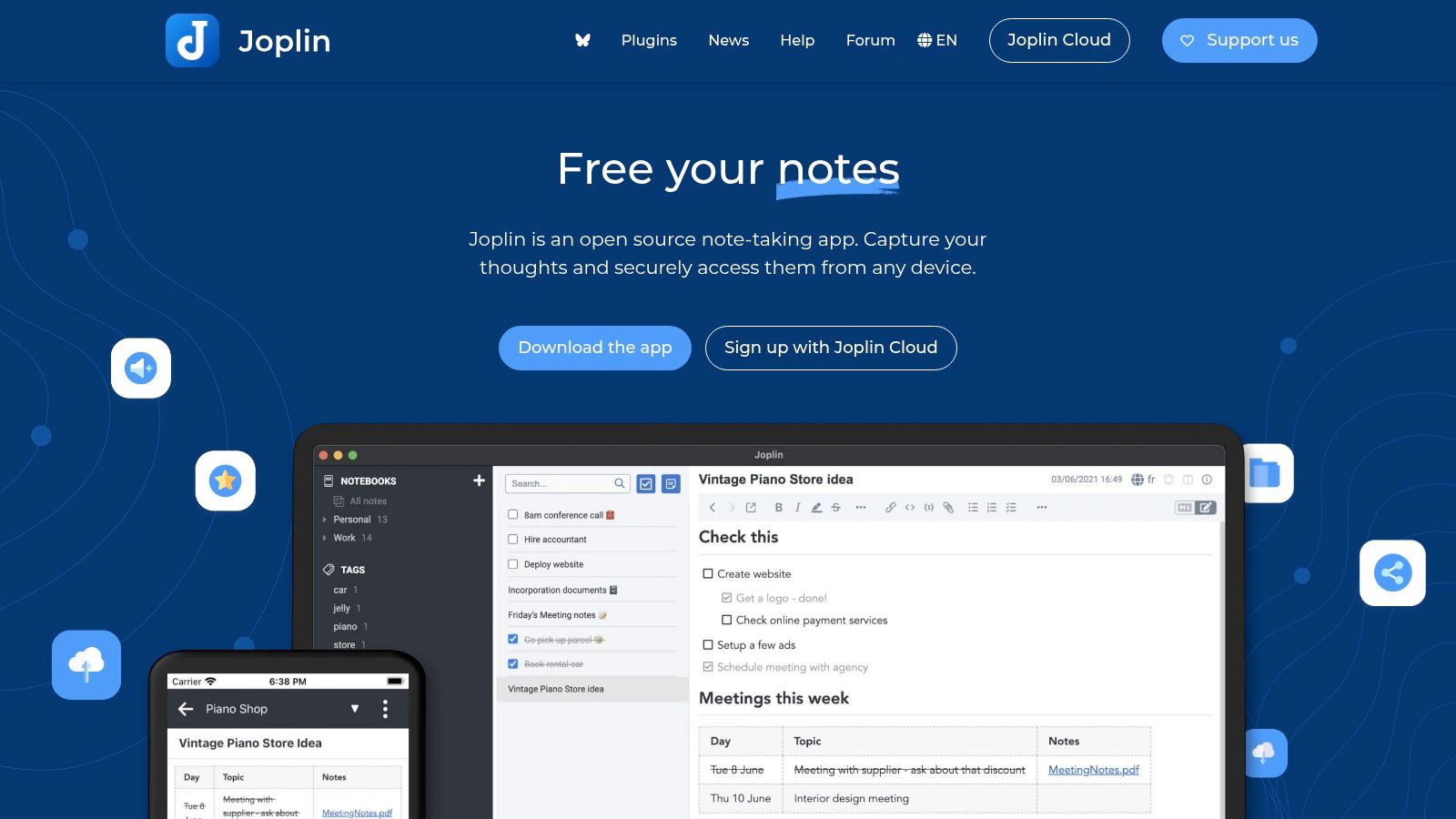
A common Windows workflow looks like this: notes arrive from meetings, clipped web pages, and converted DOCX or PDF files, then they need to be cleaned up, tagged, synced, and reused somewhere else. Joplin handles that middle layer well. It is less about polished publishing and more about keeping Markdown-based source material under your control while it moves toward GitHub, a CMS, or an internal RAG pipeline.
That distinction matters. Joplin is a note-first app, but it respects Markdown enough to fit into real document workflows instead of trapping content in a proprietary format. If your upstream process includes imports and conversions, it pairs naturally with a WYSIWYG Markdown editor workflow when some contributors need a friendlier editing surface before the files settle into plain Markdown.
One reason Joplin still gets recommended is its long-standing open-source position. The Windows Club's roundup of free Markdown editors for Windows cites the 2019 State of Markdown Editors summary and notes Joplin's fully free model with optional donations. The reference is dated, but the underlying point still holds. Joplin remains attractive to users who care about ownership, sync choice, and predictable access to their notes.
Where Joplin fits best
Joplin makes sense for workflows that need more than a text editor:
- Controlled sync: You can sync across devices without handing everything to a single vendor.
- Encryption: Useful for client notes, internal research, or draft material that should not sit exposed in cloud storage.
- Structured note management: Notebooks, tags, and search help when raw source material turns into many small Markdown files.
- Cross-platform coverage: Desktop, mobile, and terminal access are practical if you capture notes in different places.
The trade-off is the editing experience. Joplin is capable, but it does not feel as refined as tools built primarily for writing or code review. I would choose it for collecting and organizing source content, especially if that content may later feed documentation, knowledge bases, or LLM retrieval sets. I would not choose it as my main environment for heavy docs-as-code work where diff visibility, repo integration, and extension depth matter more.
If you want a grounded, open-source note system that keeps Markdown portable, Joplin is still a sensible pick. For adjacent options, this guide to open-source Markdown editors is worth a look.
5. Notepad++ with MarkdownViewer++ plugin
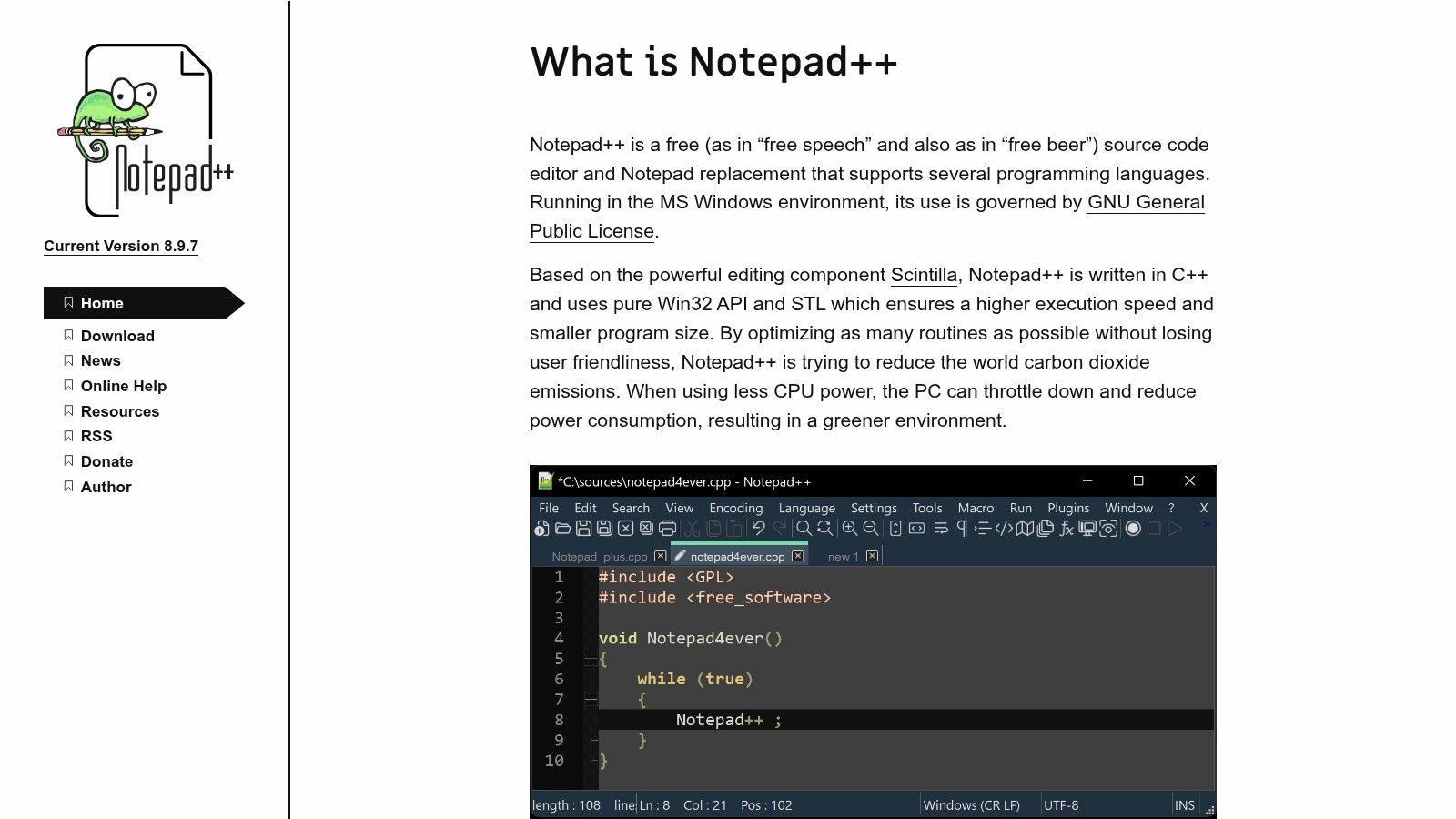
Sometimes the right answer is the least glamorous one. Notepad++ with a Markdown preview plugin is still a solid setup on Windows if you care about speed, low overhead, and portability more than modern UX.
This is the editor I'd keep on a locked-down Windows machine or an older laptop where Electron apps feel sluggish.
When this setup makes sense
The core attraction is native Windows efficiency. Notepad++ launches fast, handles plain text cleanly, and doesn't demand much from the system. Add MarkdownViewer++ and you get the missing preview layer without changing the editor's lightweight feel.
The trade-off is obvious. You have to build the experience yourself. There's no polished all-in-one Markdown environment here, and the preview setup depends on plugin compatibility and your willingness to tinker.
For fast edits on local files, a boring native tool often beats a feature-rich app that takes longer to open than the edit itself.
Pick this if you already use Notepad++ for logs, scripts, and config files and want Markdown support in the same tool. Don't pick it if you want frictionless preview, modern writing modes, or a richer note ecosystem.
6. Zettlr
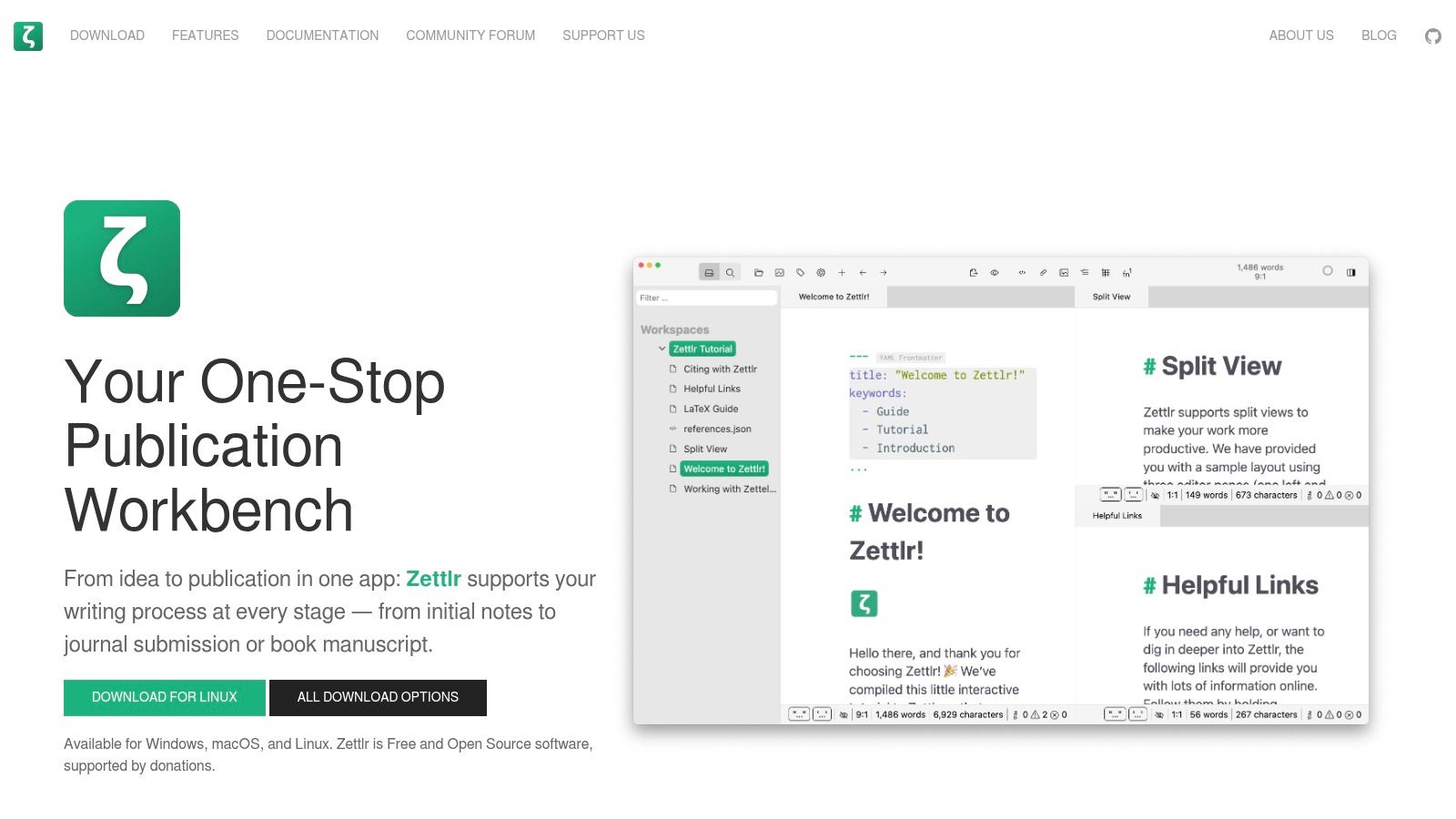
Zettlr is one of the few free tools that feels intentionally built for researchers instead of developers. You can tell from the project organization, tagging, search, and export posture. It's not trying to be minimal. It's trying to help you manage real writing projects.
That makes it a strong fit for academic work, technical reports, and long documents with citations and references.
Best fit
If your Markdown eventually has to become something else, Zettlr earns attention. It works well when the workflow is write in plain text, maintain structure, then export to formats colleagues or publishers still expect. For users moving between Markdown and more traditional document outputs, that bridge matters.
Its weakness is the same thing that gives it power. It's heavier than a simple editor and can feel like too much if all you need is quick note-taking or README editing.
- Best for structured long-form work: Research notes, papers, and technical manuscripts fit naturally.
- Good export posture: Useful when Markdown is the drafting format, not the final deliverable.
- Less appealing for quick edits: It's a project workspace, not a scratchpad.
If Obsidian feels too note-centric and VS Code feels too developer-centric, Zettlr often lands in the sweet spot.
7. Mark Text
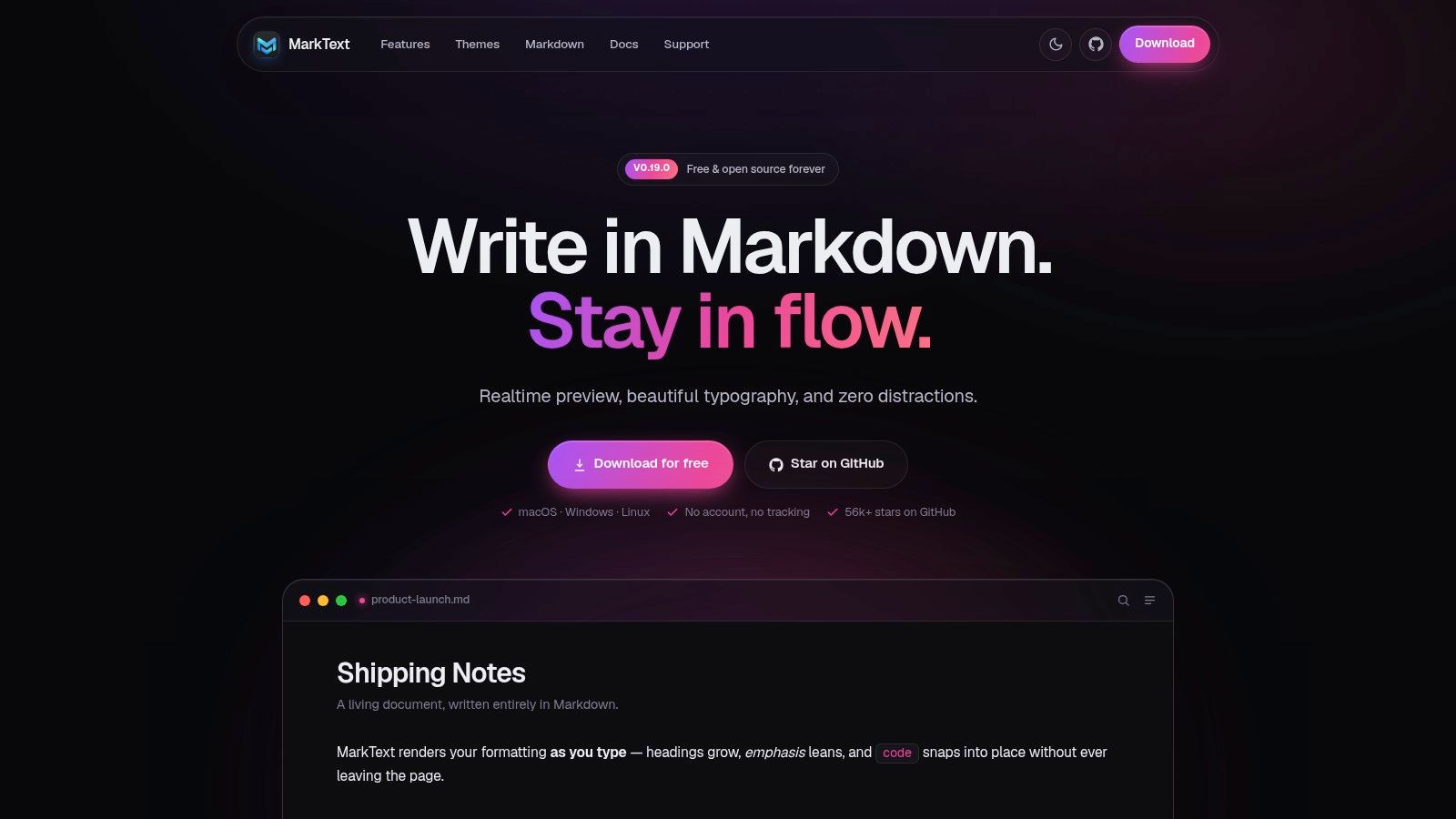
You get a DOCX from legal, clean it up into Markdown, and need to review it without staring at raw syntax for the next hour. Mark Text fits that part of the workflow well. It gives you in-place preview, so headings, tables, code blocks, and math read closer to the final document while you edit.
That makes it a practical choice for writers, editors, and documentation teams who want a calmer interface than VS Code and less note-management overhead than Obsidian or Joplin.
What it does well
Mark Text works best in the middle of the pipeline. Draft in it, clean converted files, fix formatting after import, and prepare content for GitHub, a CMS, or an LLM ingestion step where readable Markdown structure matters. If your source material starts as DOCX or PDF, this style of editor is easier to use during cleanup because you can catch broken headings, awkward tables, and list issues visually instead of reading raw markup line by line.
The trade-off is clear. Mark Text is strong for writing and light editing, but weaker once your process depends on advanced export options, plugin depth, or frequent project-level automation.
- Best for visual Markdown editing: The Typora-style experience keeps documents readable while you work.
- Useful for cleanup after conversion: Good for normalizing imported Markdown before publishing or indexing.
- Less reliable for edge-case formatting: Complex tables and export-heavy workflows need testing before you adopt it for production use.
If you want more context on this style of editing, this guide to a WYSIWYG Markdown editor explains the trade-offs well.
8. ghostwriter
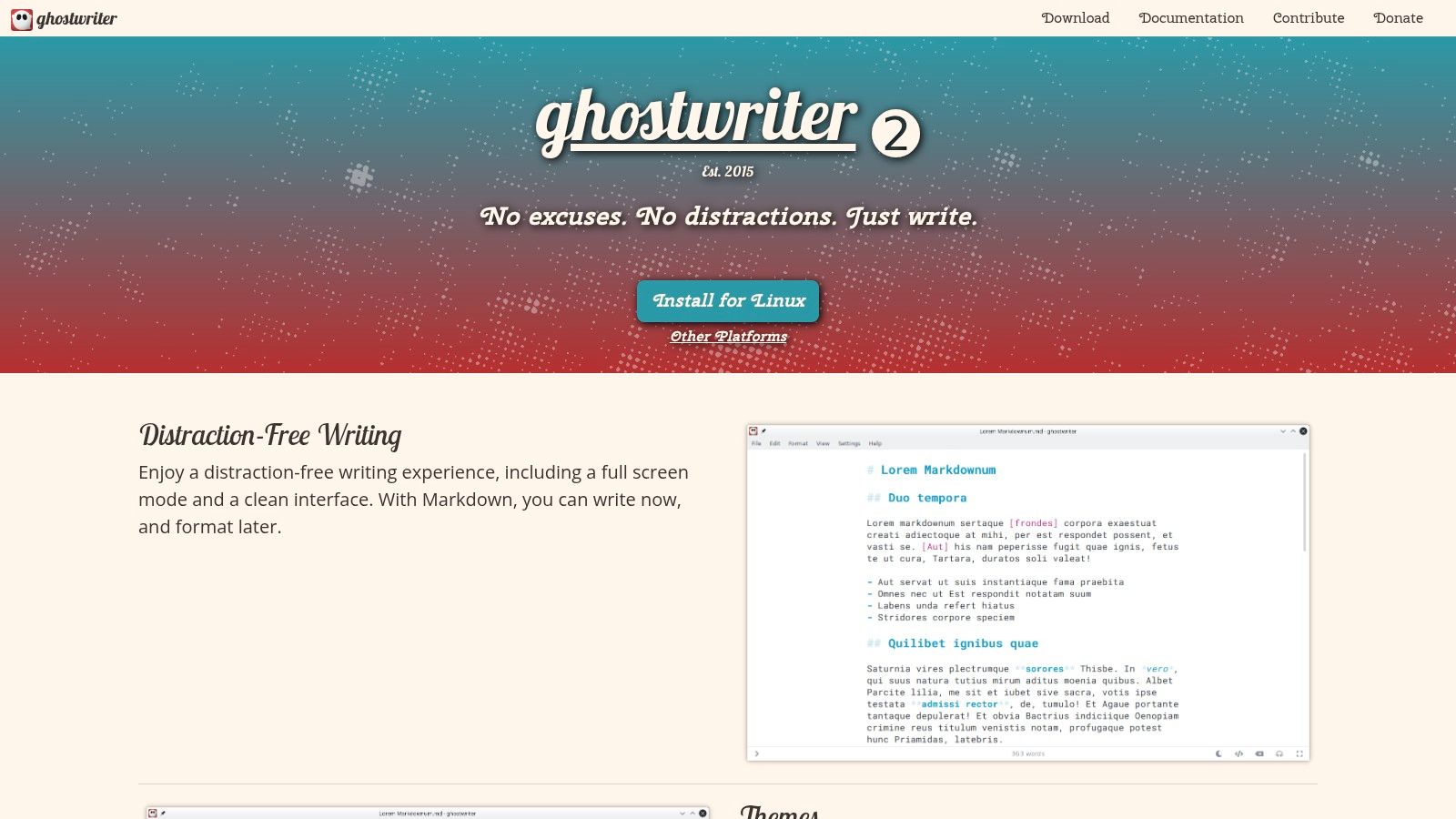
ghostwriter is for people who care about writing flow more than platform ecosystems. It keeps the interface out of the way, offers session and document statistics, and handles long-form drafting better than many general-purpose code editors.
I wouldn't use it as my hub for docs-as-code. I would use it for drafting chapters, essays, and clean prose.
Why writers like it
The strength here is focus. ghostwriter doesn't try to become your second brain, your Git client, and your publish pipeline all at once. That restraint is useful. It gives you metrics, preview styles, and image handling without burying the editor under plugin complexity.
Its limitations show up later in the workflow. You'll still need another system for sync, collaboration, or deeper deployment. That's fine if you know it going in.
A focused drafting tool is valuable when your biggest risk is distraction, not missing features.
Choose ghostwriter when you want a dedicated free Windows Markdown editor for writing itself. Use something else when the file lifecycle includes Git review, CMS deployment, or AI preprocessing.
9. QOwnNotes
QOwnNotes is easy to overlook, but it solves a very specific problem well. Some users want local Markdown files, optional self-hosted sync, and a native-feeling app that doesn't carry Electron overhead. That's exactly where QOwnNotes fits.
Its integration with Nextcloud and ownCloud makes it especially practical in environments where self-hosting matters.
Who should choose it
The best case for QOwnNotes is a privacy-conscious workflow that still needs synchronization. You keep plain files, use a light desktop app, and can connect it to a storage system your organization controls. That's a very different profile from browser-first or cloud-native note apps.
The trade-off is polish. Compared with Obsidian or VS Code, the ecosystem is smaller and the interface feels more utilitarian. But if your priority is local control and low resource usage, that's often a fair exchange.
This one is easy to recommend to technical users who don't need trends, themes, or a giant plugin marketplace. They need a fast note editor that stays out of the way.
10. StackEdit
A common StackEdit use case starts before you ever type a sentence. You receive a DOCX from legal, a PDF from a client, or raw notes from another team. You convert that material to Markdown, clean up headings and lists, then need a fast place to review and publish from a Windows machine that you may not control. StackEdit fits that handoff step well because it runs in the browser and starts instantly.
That zero-install model is a compelling reason to use it. On locked-down corporate laptops, shared workstations, and short review sessions, a browser tab is often the only editor you can count on.
StackEdit works best for lightweight editorial work. Draft cleanup, comment-driven revisions, quick formatting checks, and publishing to a blog or knowledge base are all reasonable fits. If your Markdown is headed to GitHub, a CMS, or an LLM ingestion pipeline, StackEdit can handle the middle part of the workflow as long as the job is mostly editing rather than heavy project management.
The trade-off is control. Browser storage and cloud connections are convenient, but they are still the wrong fit for sensitive source files, regulated content, or document processing that needs to stay fully local. The limitations of browser-first and offline Markdown workflows are discussed directly in the MDLook GitHub project, especially around offline use and OCR-related gaps.
I'd choose StackEdit for temporary access, fast reviews, and simple publishing paths. I would not use it as my primary Windows Markdown environment for large documentation sets, source-heavy conversion work, or private material that should never leave a local machine.
Top 10 Free Windows Markdown Editors, Feature Comparison
| Product | Core features | UX / Quality ★ | Price / Value 💰 | Target & USP 👥 ✨ |
|---|---|---|---|---|
| Markdown Converters Editor 🏆 | LLM‑aware editor; preserves headings, tables, callouts; predictable chunking | ★★★★★, preview & token‑lean edits | Free tool with platform; team/enterprise plans 💰 | 👥 RAG builders & prompt engineers · ✨ Token‑efficient Markdown, provenance metadata · 🏆 Recommended |
| Visual Studio Code | Live Markdown preview, Mermaid, extensions, local runs | ★★★★, powerful & extensible | Free 💰 | 👥 Developers & docs teams · ✨ Huge extension ecosystem |
| Obsidian | Local .md storage, backlinks, graph view, plugins | ★★★★, research‑focused UX | Free core; paid sync/publish 💰 | 👥 Knowledge workers & researchers · ✨ Graph/backlink network |
| Joplin | Cross‑platform notes, E2EE, flexible sync (OneDrive/WebDAV) | ★★★, reliable & privacy‑focused | Free open‑source; optional cloud 💰 | 👥 Privacy‑minded users · ✨ E2EE + self‑hosted sync |
| Notepad++ (+ MarkdownViewer++) | Lightweight native editor; live preview via plugin | ★★★, very fast, low overhead | Free 💰 | 👥 Windows power users · ✨ Portable, low‑resource |
| Zettlr | Project/workspace, citation support, Pandoc export | ★★★★, academic/publishing ready | Free open‑source 💰 | 👥 Researchers & writers · ✨ Built‑in citation & Pandoc exports |
| Mark Text | In‑place (Typora‑style) preview, focus modes, theming | ★★★★, distraction‑free | Free open‑source 💰 | 👥 Writers & bloggers · ✨ WYSIWYG‑like minimal editor |
| ghostwriter | Writer metrics, drag‑drop images, multiple previews | ★★★, focused long‑form UX | Free 💰 | 👥 Long‑form authors · ✨ Session stats & writing goals |
| QOwnNotes | Native Markdown, Nextcloud/ownCloud integration, light | ★★★, native, low resource | Free open‑source 💰 | 👥 Self‑hosters & sync users · ✨ Native Nextcloud sync |
| StackEdit | PWA offline, Drive/Dropbox integration, publish options | ★★★, browser‑first, collaborative | Free; cloud integrations 💰 | 👥 Quick editors & remote users · ✨ No‑install PWA + cloud publish |
Beyond the Editor Building Your Complete Markdown Workflow
The editor is only one stage. The more important decision is how content enters and leaves that editor.
A lot of teams still start too late. They open a Markdown app and begin cleaning by hand, even though the underlying problem started upstream with a bad PDF export, a scanned contract, or a mangled HTML page. That wastes time and introduces inconsistency. If the source material is messy, the first tool should be a converter that can normalize structure before editing starts.
There's also a practical AI angle. Reviews of free Windows Markdown editors often focus on standard writing features and ignore whether the output is suitable for chunking, retrieval, or prompt construction. That matters because heading integrity, list structure, and table preservation have direct impact on LLM ingestion quality. It also matters because token-lean Markdown can reduce context usage significantly, which is one reason teams are moving docs and records into Markdown before analysis.
For broader documentation teams, this overlaps with a bigger operational problem. Good source material reduces friction later when you publish docs, reuse content, or feed internal systems. That's one reason technical teams spend so much time solving context lag with documentation instead of just choosing prettier editors.
Choosing the Right Editor for Your Workflow
For Developers VS Code, Notepad++
If your Markdown lives next to code, infrastructure docs, changelogs, and Git history, VS Code is usually the strongest choice. It keeps everything in one workspace and scales from simple README edits to full doc-site maintenance. Notepad++ is the fallback when speed, low overhead, or portability matters more than a polished Markdown experience.
The practical split is simple. VS Code is better for teams and systems. Notepad++ is better for fast local edits on Windows.
For Researchers and Knowledge Workers Obsidian, Zettlr
Obsidian is the better pick when your main job is collecting, linking, and revisiting knowledge over time. Zettlr is stronger when that research turns into formal writing that needs export discipline.
I'd choose Obsidian for reading notes, project thinking, and source synthesis. I'd choose Zettlr for papers, reports, and manuscript-style work where document structure and output matter more than backlinks.
For AI and RAG Pipelines
Most generic editor reviews fall short on this aspect. If your end goal is embeddings, vector search, agent prompts, or grounded answers, the workflow should start before the editor. Ingest the messy source material first. That might mean scanned PDFs, DOCX files, exported slides, messy HTML, or photographed notes.
A tool like Markdown Converters is useful at that front end because it transforms those mixed inputs into structured Markdown with preserved headings, lists, tables, and other anchors. From there, use the platform's lightweight editor for cleanup when the task is fast and structure-focused. If you need heavier review, split-pane editing, version control, or repository integration, move the cleaned Markdown into VS Code.
That sequence works well:
- Normalize input: Convert PDFs, docs, scans, or web pages into Markdown.
- Clean structure: Fix heading hierarchy, tables, metadata, and chunk boundaries.
- Finalize for ingestion: Store the result in Git, push to a CMS, or send it to vectorization and LLM pipelines.
The best editor for AI work isn't always the most comfortable one for writing. It's the one that preserves clean structure and doesn't sabotage retrieval quality.
Installation Tips Installers vs. Portable Apps
On Windows, setup details matter more than most reviews admit. Installers are fine on your own machine, but portable builds are often better for consultants, regulated environments, or anyone working across multiple systems.
Use installers when you want file associations, automatic updates, and OS-level integration. Use portable apps when you need to carry your workspace on removable storage, avoid admin rights, or test tools without committing your machine to them.
A few practical habits help:
- Keep one lightweight fallback: Notepad++ or another portable editor is useful when a heavier app breaks or can't be installed.
- Separate drafting from conversion: Don't force your main editor to handle OCR or source normalization if another tool does that better.
- Test your real files: Tables, footnotes, callouts, and exported HTML reveal weaknesses fast.
The best Windows Markdown editor free option isn't the one with the longest feature list. It's the one that fits the entire content lifecycle. Source conversion, cleanup, authoring, versioning, publishing, and AI ingestion all matter. Pick the tool that makes your actual workflow cleaner, not the one that wins a beauty contest in a screenshot.
If your Markdown workflow starts with PDFs, DOCX files, web pages, scans, or handwritten notes, Markdown Converters is the practical place to begin. It gives you one pipeline to convert messy inputs into clean, structured Markdown, then refine that output for GitHub, a CMS, or an AI retrieval system without wasting time on copy-paste cleanup.
Related Articles
10 Best MD Editors for Developers & Writers in 2026
Find the best MD editor for any workflow. Our 2026 guide reviews 10 top tools for developers, writers, and RAG pipelines, from Obsidian to Typora.
Read articleTop 10 Markdown Editor Open Source Tools for 2026
Discover the best markdown editor open source for 2026. We review 10 top tools for writers, developers, and AI engineers, from VSCodium to Joplin.
Read articleMarkdown Reader Windows: Best Tools for 2026
Markdown reader windows - Find the best markdown reader for Windows in 2026. Compare top tools to open, edit, and preview Markdown files effortlessly
Read article