
Markdown Reader Windows: Best Tools for 2026
Markdown reader windows - Find the best markdown reader for Windows in 2026. Compare top tools to open, edit, and preview Markdown files effortlessly
You've got the file already. It's a README from a vendor, a changelog from engineering, or a stack of notes someone dropped into Slack, and Windows either opens it in Notepad or doesn't help at all. The fix isn't just “use a prettier app.” A good markdown reader windows setup needs to render structure, keep up with live edits, and, increasingly, produce clean output that downstream LLM and RAG workflows can trust.
Why Windows Does Not Open .md Files and What Your Reader Actually Has to Do
Many users arrive here after double-clicking a .md file and seeing raw text or a useless default association. Windows treats Markdown like ordinary text unless you install something that understands the format, so the file opens, but the structure doesn't. That's why a README looks broken in Notepad even though the file itself is fine.
A real Markdown reader has to do more than hide hash marks and asterisks. It needs to parse headings, lists, tables, links, code blocks, images, and task items and then render them in a way that matches the Markdown dialect you work with. For many teams, that means GitHub Flavored Markdown behavior, because README files, changelogs, and technical docs are usually written for that ecosystem, not for plain text editors.
Practical rule: if a tool only makes Markdown look nicer but breaks tables, code fences, or diagrams, it isn't really solving the problem.
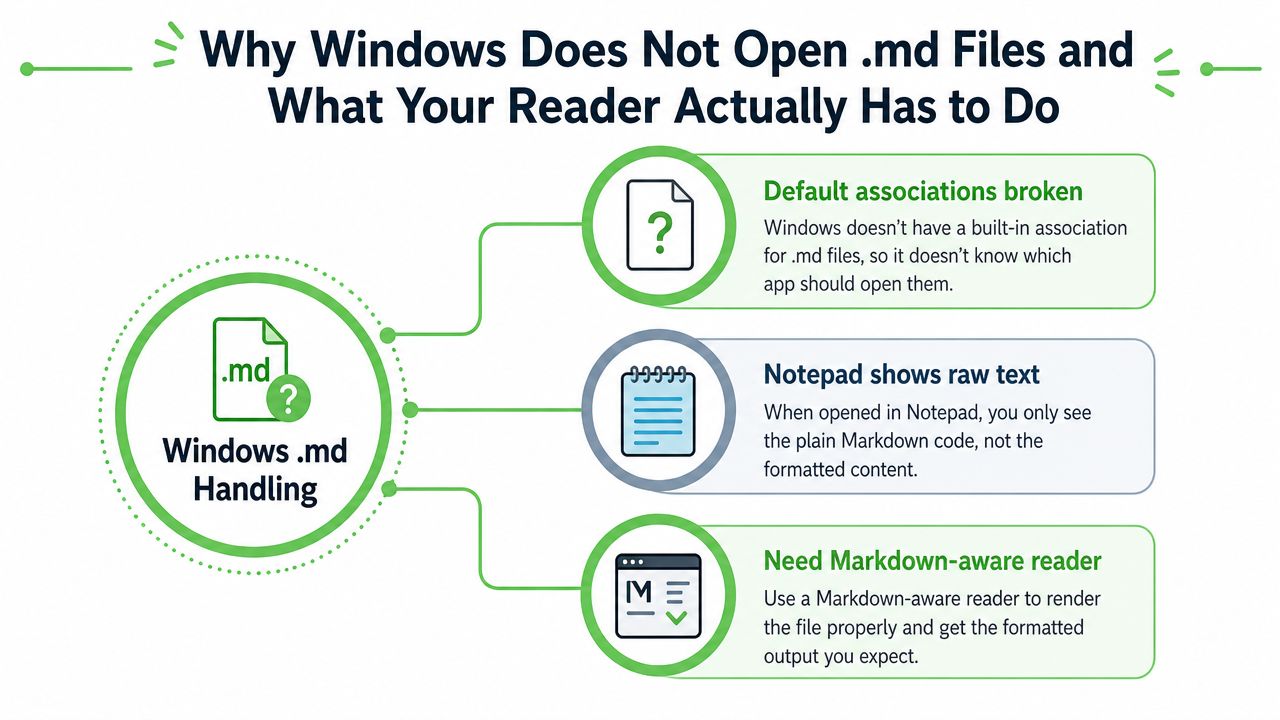
The practical split is simple. Dedicated desktop readers are for people who want to open files and read them cleanly. Browser extensions are for fast preview inside Chrome, Edge, or Firefox. Code editors with preview are for people who write and read in the same workflow. Microsoft's own Windows app listing for Markdown View shows the need for a native app that opens .md files, while browser-based readers broaden access without forcing a separate editor install, as described in the guide to viewing .md files.
The best choice depends on what you open most often. If you mostly inspect files, choose a viewer. If you keep editing and checking changes, choose a preview workflow. If you live inside docs and code, choose an editor that renders Markdown properly instead of fighting it. The next sections break those options into the setups that hold up on Windows.
The Three Tool Categories That Actually Work on Windows
A Windows Markdown workflow usually lands in one of three lanes, and each lane has a different job. The mistake I see most often is asking one tool to be both a perfect reader, a fast previewer, and a full editor. That's how teams end up frustrated with sluggish startup times, broken renderings, or a preview that's missing the very features they care about.
Dedicated desktop readers
Dedicated desktop readers are the closest thing to a true open and read experience. They're a good fit for legal teams reviewing client notes, analysts scanning documentation exports, or anyone who wants a lightweight window without a full editing stack. Microsoft Store listings and other standalone viewers are usually strongest when you care about quick launch, offline access, and a simple click-to-open flow.
Their main strength is focus. They stay out of the way and usually do one thing well, render Markdown cleanly. That makes them easier to standardize across a mixed Windows environment where not everyone wants VS Code or a heavier knowledge base tool. The trade-off is that these readers often stop at viewing, so if you need live authoring or plugin-heavy diagrams, they can feel limited.
Browser extensions
Browser extensions are the fastest way to view Markdown in the environment already open. The Markdown Reader project supports Chrome, Edge, and Firefox, and its auto-refresh behavior is especially useful when you edit a file in another app and want the browser preview to update immediately. That matters on Windows because it cuts down on app switching.
This category works best when teams value speed and portability. It's also useful when you're moving between machines, because the browser stack is already there. The downside is that browser-based reading can be less elegant for heavy local files or more technical rendering needs, especially when your workflow depends on diagrams, math, or large nested documents. For a quick, low-friction preview, though, it's hard to beat.
Code editors with preview panes
Code editors make the most sense when reading and writing happen side by side. VS Code, Typora, and Obsidian are the usual names here, and they're the right choice when you need a live preview, editing controls, and support for technical blocks in one place. If your Markdown includes code snippets, Mermaid diagrams, or math, this category often gives you the cleanest working surface.
The trade-off is noise. Editors bring menus, sidebars, and project context that a pure reader doesn't need. That's fine for developers and technical writers, but it can be overkill for business users who just want to inspect a document. A quick comparison from the earlier Markdown file reader overview is useful here, because it helps you separate reading-only needs from editing-heavy workflows.
Setting Up Your Reader and Live Preview on Windows
The cleanest Windows setup depends on whether you want a viewer, a browser preview, or a full editing surface. For a dedicated reader, install a Microsoft Store app that registers .md and .markdown files, then set it as the default app for those extensions in Windows settings. Once that association is in place, double-clicking a README or changelog opens the rendered view instead of raw text, which removes the biggest source of friction for non-technical users.
For browser-based preview, install a Markdown extension in Chrome, Edge, or Firefox and turn on auto-refresh if the extension supports it. That's the part that matters most in real use. You can keep your editor open in one window and the preview in another, then save changes and confirm formatting immediately without exporting or reloading the file manually. That's especially useful for distributed teams because the browser is already part of the normal desktop stack.
If you work in VS Code or Obsidian, use the split-preview layout and make sure GitHub Flavored Markdown rendering is enabled. Add the right extension support for Mermaid or KaTeX if your documents include diagrams or math, then keep the preview pane beside the source file so you can verify structure as you write. This is the setup that holds up best for technical teams, because it lets the file itself stay the source of truth while the preview acts as a live quality check.
For documentation-heavy teams doing location-specific content, a practical geo targeting guide 2026 can help when your Markdown includes region-specific messaging that needs to stay aligned across previews, exports, and localization notes. The point isn't marketing. It's keeping your document workflow consistent when the same source file feeds multiple audiences.
Keep the preview close to the source file. If you're tabbing across three apps to confirm one table, the workflow is already too heavy.
Turning Other File Types Into Clean Markdown on Windows
Most Windows desks don't start with Markdown. They start with PDFs, DOCX files, scanned images, exported web pages, and email attachments. That's why the reader is only the last step. If upstream files are messy, the reader will faithfully display messy structure, and that gets painful fast when you're trying to review, search, or feed content into an LLM.
A conversion layer helps here because it standardizes the input before it reaches the reader. Markdown Converters supports a broad set of inputs, including PDF, DOCX, PPTX, XLSX, HTML, CSV, JSON, XML, images, ZIP archives, EPUB, email files, RTF, and OpenDocument formats, and the web app lets you drag and drop content or paste a URL into the conversion flow. Standard conversion is the right first move for digital files with real text. If the source is scanned, photographed, or handwritten, AI Vision is the mode that can recover structure from the image itself.
Use the right mode for the source
Standard conversion works best when the document already contains selectable text. It's the cleaner path for reports, policies, slide decks, and webpages because headings, lists, tables, and links can be preserved directly. AI Vision belongs in the cases where the text layer is missing or unreliable, such as scanned contracts, photographed notes, or degraded PDFs that OCR has to interpret first.
The practical test is simple. If you can search and copy meaningful text from the source file, standard conversion usually makes sense. If you can't, use the image-aware path. For web pages, a conversion step also keeps the document format more predictable than ad hoc scraping, which helps when you need stable downstream parsing. A useful external reference for people comparing scraping approaches is compare Firecrawl scraping performance, especially if your team pulls content from the open web and wants a normalized Markdown output before it ever reaches a reader.
Feed the output into analysis tools cleanly
Once the content is in Markdown, you can move it into an editor, a browser reader, or an indexing pipeline. The value of that format is that it gives you consistent anchors for headings and lists, which makes later retrieval easier. That also makes it a better bridge between human review and machine processing, because the same file can support manual inspection and structured ingestion without another conversion pass.
Markdown Converters also exposes a REST API and MCP integrations for Claude, ChatGPT, and Cursor, which means document conversion and retrieval can happen inside the tools people already use. That matters for teams that don't want copy-paste between chat, browser, and local files. The cleaner the conversion output, the less you have to second-guess the reader later.
A Real Workflow From a Scanned PDF to a RAG-Ready Markdown File
A legal team gets a 400-page scanned contract PDF. The text layer is weak, the tables are hard to inspect, and the review team wants both a readable file and a version that can be indexed for retrieval. The first step is OCR in AI Vision mode so the document becomes structured Markdown instead of a flat text dump. The aim is to preserve headings, tables, and section breaks, then flag the regions where the source image is too low quality to trust blindly.
Once the Markdown is generated, the file can be checked in a reader on Windows without switching tools. That matters because the same normalized structure that makes the document usable for humans also makes it easier to chunk for a vector store. The format choice starts to pay off for LLM work, because token-efficient Markdown can reduce prompt token usage by up to 70% compared with raw PDF or HTML uploads, which expands the practical context window for analysis.
The workflow is cleaner when the output stays faithful to the source hierarchy. A heading becomes a heading, a table stays a table, and the review team can spot where OCR needs another pass. For a document like this, the biggest risk isn't speed, it's silent structural damage. If the conversion flattens the sections, retrieval quality drops and the reader loses the context needed for verification.
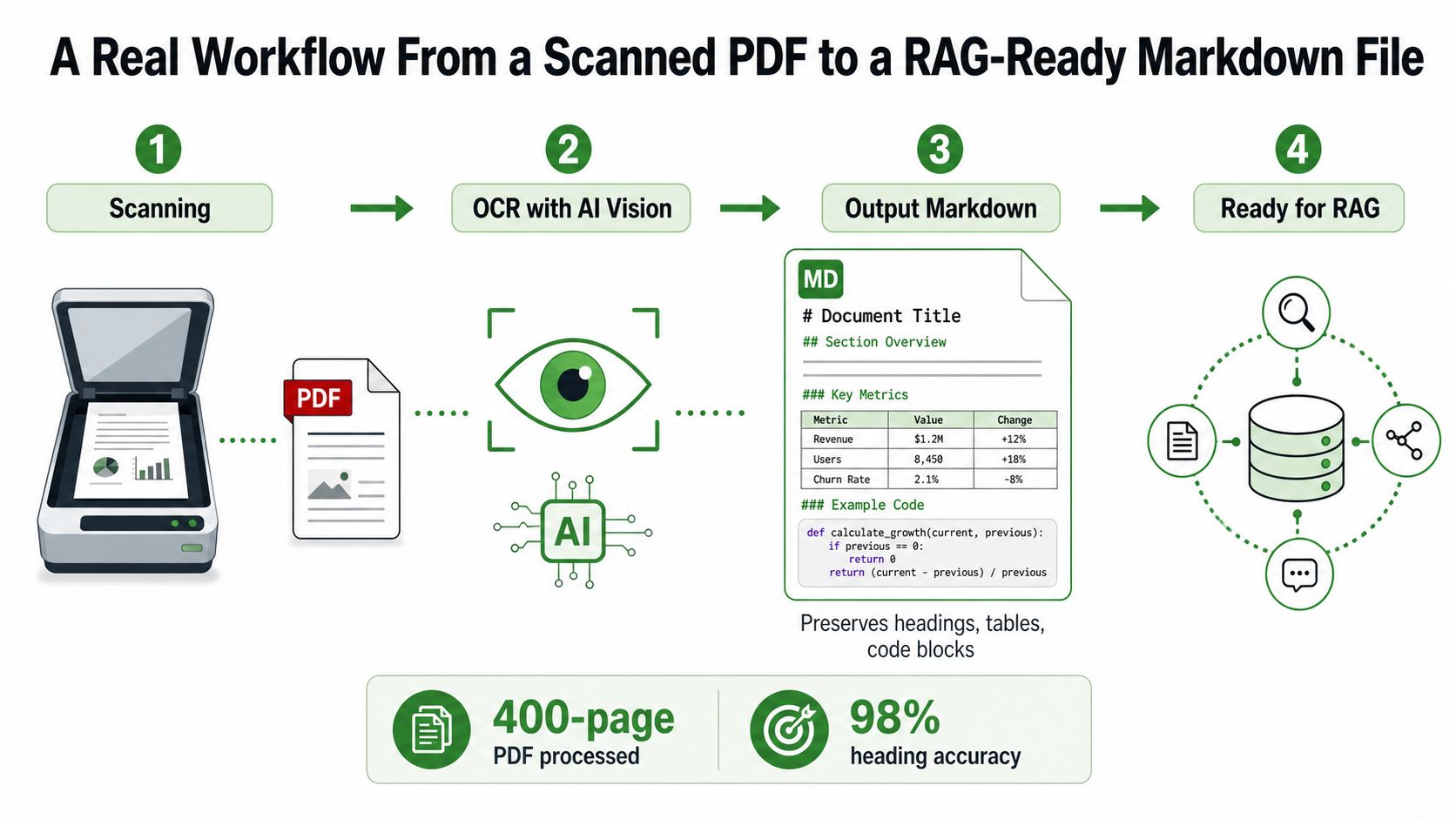
A practical way to think about it is this. The reader is for validation, the Markdown file is for reuse, and the chunked output is for search. The conversion step has to satisfy all three, or the pipeline becomes brittle.
A useful companion reference for teams building document workflows is the OCR scanned documents guide, because scanned inputs are where most downstream failures begin. And if you're comparing document extraction paths against web-to-Markdown pipelines, the Markdown-to-PDF guide is a helpful reminder of how output formats change once the source text is normalized.
Performance Tips and Troubleshooting for Large Markdown Files
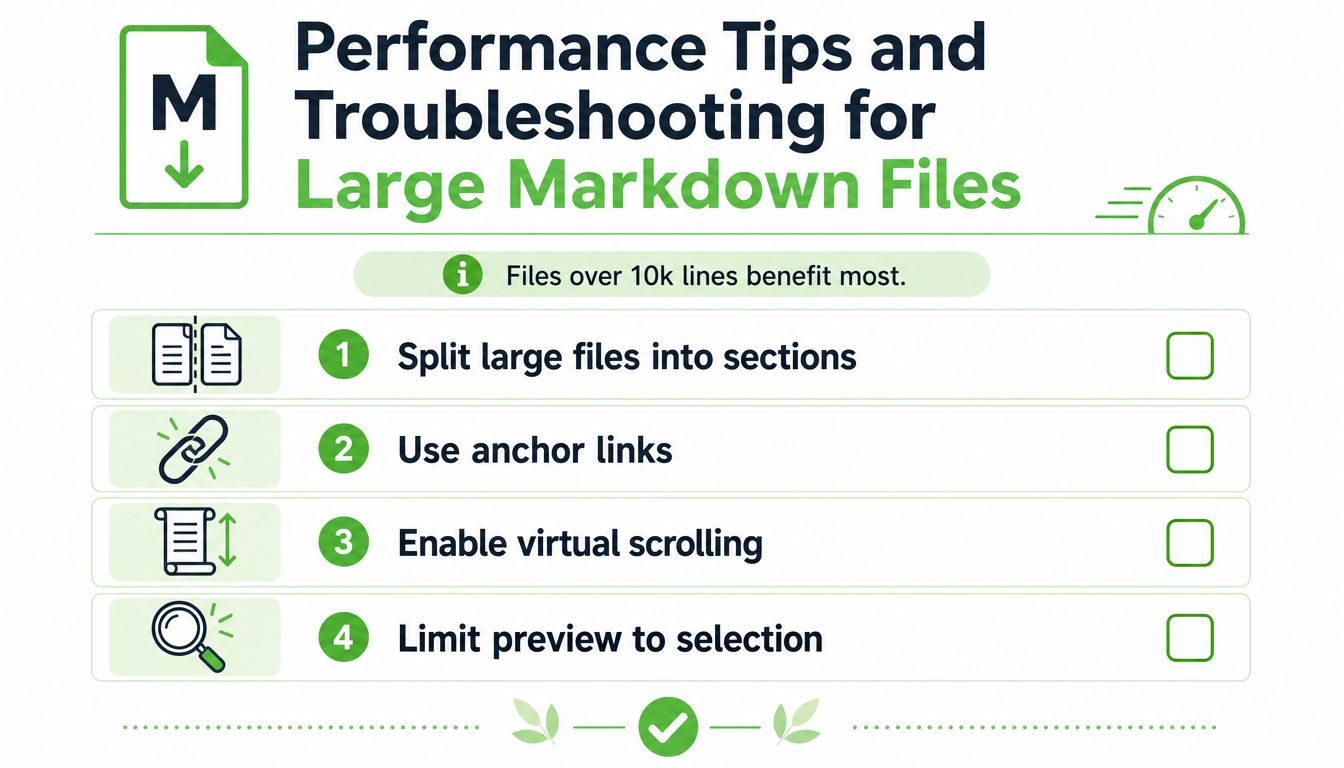
Large Markdown files don't fail gracefully. Once a file gets long enough, the reader can slow down, line numbers become less useful, and preview rendering starts to feel sticky. Files over 10k lines benefit most from the usual cleanup moves, especially when you're dealing with technical docs, stitched research notes, or knowledge base exports.
The best fix is structural, not cosmetic. Split oversized documents into linked sections, then use anchor links so the reader can jump directly to the relevant place. If the file is image-heavy or packed with embedded diagrams, move it into a fuller editor like Obsidian or VS Code instead of forcing a lightweight reader to carry the load. For blocks like Mermaid, Vega-Lite, or KaTeX, render them only where they're needed, not everywhere in the document tree.
The common Windows-specific issues are usually simple. If Notepad hijacks the file association, reset the default app for .md and .markdown. If preview doesn't refresh after an edit, check whether the browser extension or editor is watching the right file path. If the text looks garbled, reopen the file with the right encoding instead of assuming the document is corrupted. If a download or email attachment triggers a warning, move the file to a trusted folder before opening it.
If the reader is fighting the file, the file is probably too large, too mixed, or too far from plain Markdown.
A short setup checklist helps on new machines. Confirm the association, confirm preview refresh, confirm encoding, and confirm that the tool can render the blocks your team uses. If those four checks pass, the reader is doing its job, and you can move on to the content instead of the plumbing.
If you're standardizing a Windows Markdown workflow for your team, start with a clean reader, then make the upstream conversion reliable so the files are worth reading. Markdown Converters is built for exactly that handoff, so if you want cleaner Markdown from PDFs, web pages, scans, and chat-based workflows, start with Markdown Converters and build the rest of your pipeline on top of it.
Related Articles
Top 10 Windows Markdown Editor Free Tools for 2026
Find the best Windows Markdown editor free for your needs in 2026. Our list covers top tools for developers, writers, and LLM workflows, with detailed reviews.
Read articleBest Markdown Writing App: Top Tools for 2026
Discover the best markdown writing app for your needs. We review 10 top tools for developers, writers, & researchers, covering LLM, academic, & API uses.
Read articleHow to View MD Files: Quick & Easy Methods
Stuck with an MD file? Learn how to view MD files easily on Windows, Mac, online, or in your editor. Get quick fixes & LLM workflows.
Read article