
How to Download a Folder from Dropbox Without Losing Your
Learn how to download a folder from Dropbox quickly and easily, with step-by-step instructions for 2026.
You've got the folder link, the deadline is close, and the files inside are a mess of subfolders, images, PDFs, and maybe a few things teammates are still editing. Hitting Download in Dropbox looks easy enough, until the ZIP comes down half-broken, the browser stalls, or the structure you need for review gets flattened into a local headache. The job isn't just getting the folder out of Dropbox, it's getting it out in a way that still makes sense when you open it on your machine, hand it to a teammate, or feed it into an AI workflow.
Why Downloading a Dropbox Folder Is Trickier Than It Looks
The button says Download, but the result you need can be very different. Sometimes you only want a local copy for a quick handoff. Sometimes you need a folder that keeps syncing so the latest files are always there. Sometimes the downloaded content has to stay organized enough for OCR, review, or an AI ingestion pipeline.
That is why the process catches people off guard. Dropbox's help docs treat folder download as a manual, user-initiated action, not an automated export path, and the web app packages the folder as a ZIP before it reaches your computer (Dropbox help on downloading folders). That matters because ZIPs have to be created, transferred, and then extracted locally, and the extraction step is where structure can go sideways. Nested subfolders can flatten into a single visible level after extraction if the unzip tool or destination path handles the archive badly, which is a real problem when you expected the original hierarchy to survive intact.
Practical rule: if you care about the folder's structure after download, you need to think about the path out of Dropbox, not just the click on Download.
Permissions and destination still matter too. You can only download what you are allowed to access, and the result is usually just a separate local copy, not something that stays in sync unless you deliberately use a syncing method. If the folder is headed for secure handling or downstream conversion, plan that workflow early and keep it aligned with best practices for data security.
Downloading a Folder Through the Dropbox Web App
Use the browser route when you need a quick snapshot and the folder is not a moving target. Log in to dropbox.com, open the folder, then select Download. Dropbox packages folder downloads as a ZIP, so the result lands in your local downloads area first and needs to be extracted before you can work with the files.
Single folder versus multiple folders
For one folder, the flow stays simple, select it and download it. For several folders, check the boxes beside each item first, then use the action bar to pull them down together. Dropbox handles these selections as compressed archives, which keeps the nested structure inside the ZIP if your unzip tool preserves it correctly.
A practical detail that helps in crowded team spaces is the preview behavior in grid view. Hover across a folder and you can inspect its contents without opening it, which saves time when folder names are vague and you are trying to avoid grabbing the wrong archive. The official help page walks through the basic folder-download behavior in more detail (Dropbox help on downloading folders).
For folders under 1 GB, the web download typically completes in under 2 minutes on standard broadband. That makes the browser route fine for a clean one-off copy, especially if the folder is stable and nobody is still editing it.
Before you click through, verify the account and the folder name, then expect a ZIP file unless your browser is configured differently. If you need to inspect the archive structure or convert it after download, ZIP conversion guidance is the next step once the file is safely on your machine.
When the Desktop App Beats the Web Download
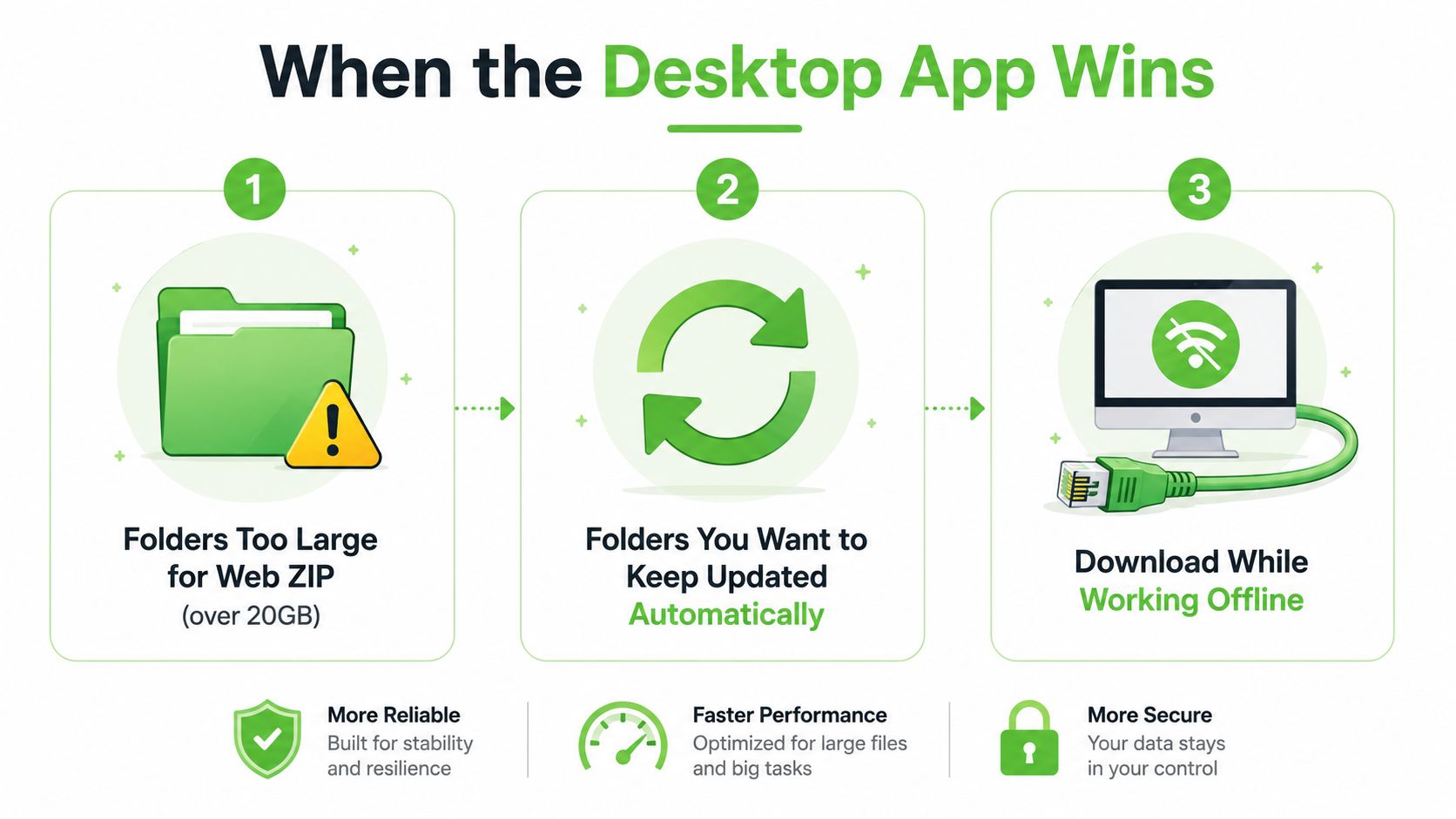
The browser is convenient, but the desktop app wins when the folder isn't a one-off. It also wins when the folder is changing underneath you, because a synced local folder stays aligned with Dropbox instead of freezing a single moment in time. That matters a lot for shared team folders where files arrive late, names change, or nested folders get reorganized.
Why syncing is often cleaner than downloading
Dropbox's desktop client gives you a local Dropbox folder on your machine after you sign in and set your sync preferences. The official help page on locating that folder explains that once the desktop app is installed and connected, you can find the local Dropbox path in File Explorer or Finder, and you can also adjust sync settings from the app's preferences (Dropbox help on locating the Dropbox folder). That means you're not just copying data, you're choosing how much of it lives on disk.
Selective sync is the key move when the folder is large or sprawling. You can keep only the folders you need on the local machine, while leaving the rest in the cloud. Smart Sync adds another useful layer, because it can keep content visible in the local Dropbox folder without pulling every file down immediately.
The cleanest advantage is simple. A synced folder is easier to verify and easier to keep current than a one-time ZIP. If the team keeps adding files, syncing avoids the “downloaded too early” problem that a snapshot can't solve.
Handling Folders Larger Than Dropbox Will Let You Download
Large Dropbox folders fail in predictable ways, and the web app usually gives you the least room to recover. Dropbox's help documentation says folders can be downloaded only if they're under 250 GB uncompressed and contain fewer than 10,000 total files, with files inside nested folders still counting toward that limit. In real use, that means a folder can look fine in the browser and still break once the archive crosses the threshold or the transfer hits a network snag.
What to do when the folder is too big
The first move is usually to stop treating the browser as the default path. If the folder is large enough to trip the web cap, the desktop app is often the cleaner route because it gives you a local working copy and avoids building a giant ZIP in the browser. For repeatable exports, the Dropbox API is a better fit, especially if you need scripted retrieval, scheduled pulls, or a process you can run the same way every time.
Third-party transfer tools can also help when the folder is awkwardly structured or too large for a single browser download. They are useful when you need chunked movement, selective retrieval, or a path that can handle interruptions without starting from scratch. The trade-off is obvious. You get more control, but you also take on another tool to configure and trust.
| Method | Folder size | Skill level | Best for |
|---|---|---|---|
| Web download | Smaller folders that fit comfortably in the browser | Low | Quick one-time copies |
| Desktop sync | Large or changing folders | Low to medium | Ongoing work and local access |
| API or scripted export | Complex, repeatable, or automated retrieval | Medium to high | Engineering and pipeline use |
For teams comparing broader storage approaches, compare secure data storage solutions before deciding where the folder should live after download. If the end goal is later processing, the better question is whether the download path preserves the folder structure cleanly enough for reuse, not whether it looks fastest on paper.
That matters for AI and RAG workflows, where a messy export can turn into a messy ingestion job. If the folder is going to be converted after download, a clean ZIP export is easier to parse, and ZIP handling guidance is the kind of reference that helps once the archive is local. The main point is simple. For large folders, pick the method that preserves fidelity and gives you a reliable handoff into the next step.
Downloading Folders on Android and iOS
Mobile Dropbox is useful for grabbing files fast, but it isn't the same as doing a full desktop download. On both Android and iOS, you'll usually open the three-dot menu on the folder and choose Download or use an offline option, but the result depends on the app and the device's storage behavior. For a quick review on the move, that's fine. For a long-term local copy, mobile is usually the weaker path.
iPhone and Android behave differently
On iOS, large individual files can hit the 1 GB cap mentioned in Dropbox's help documentation, and iPhone users often need a third-party app if they want to extract ZIP files locally. That makes iOS better for lightweight review than for serious folder handling. Android is usually more flexible with local file access, but it still doesn't replace a desktop sync when you need a dependable copy of a whole directory.
The Make available offline option is easy to confuse with a true download. It does let you access content without a connection, but it keeps the files inside the Dropbox app's offline cache instead of giving you a standalone folder you can move around freely.
- Use mobile download when you need a quick offline look at a small folder.
- Use offline availability when you want temporary access inside Dropbox.
- Use desktop sync when you need the folder as a real local working copy.
The best mobile choice depends on the end state you want. If you plan to edit, convert, or upload elsewhere, a real desktop copy is safer. If you just need to review a few documents before a meeting, mobile is enough.
Fixing the Most Common Dropbox Download Errors
The failures look random, but the fixes are usually boring and specific. Most of the time, the error falls into one of four buckets, size, access, network, or account state. If you know which bucket you're in, you stop wasting time repeating the same click.
Match the symptom to the fix
- Your folder is too large. The browser can't package it cleanly. Split the folder into smaller parts, or move to the desktop app if you need the whole thing.
- You do not have permission to download this folder. You're either in the wrong account or the owner hasn't granted download access. Sign in with the right Dropbox account, or ask the owner to adjust permissions.
- Download keeps failing or timing out. The browser, VPN, or network is getting in the way. Retry in a clean browser session, disable the VPN if one is active, or switch to the desktop app.
- The Download button is greyed out. The session may need to be refreshed, or the folder could be tied to a paused or restricted account. Re-authenticate, clear the cache, and check the folder's account status.
Don't keep retrying the same browser action when the folder is already pushing the limits. That usually burns more time than switching methods once.
The pattern is simple. If the issue is size, stop using the browser. If the issue is access, fix the account. If the issue is instability, use the desktop client. The quickest route is the one that matches the failure mode, not the one that looks nearest on screen.
Quick Reference for Picking the Right Download Method
A messy shared folder on Dropbox usually forces a choice faster than people expect. If you only need a one-time copy and the folder is small enough to package cleanly, the browser is the simplest route. If the folder is still changing, or you want the local copy to stay in step with the team, the desktop app is the better call because it behaves like a normal synced folder instead of a one-off export.
Use the browser for a quick grab. Use the desktop app for ongoing work. Use a scripted export or API path only when the folder has to feed a repeatable workflow, such as an automated cleanup step or an AI pipeline that keeps reprocessing the same source set.
Time matters too, because the methods fail in different ways. A browser download is usually the fastest to start, but it can slow down or stop when the folder is large or awkwardly nested. A desktop sync takes longer to set up, yet it is often the safer choice when you care more about finishing cleanly than about getting a ZIP immediately. A scripted export is the most specialized option, and it makes sense only when someone on the team already needs that automation.
The trade-off is not just speed. It is also what happens after the download finishes.
If the end goal is search, review, or RAG prep, the cleanest result is usually the one that preserves folder structure and avoids manual cleanup later. A locally synced folder gives you that structure with fewer surprises, and a clean ZIP works well if you plan to convert it right away. For that handoff, a quick look at offline vs online document converters helps explain why local processing often reduces friction.
For file types, the same rule applies. PDFs, Office files, and mixed document sets are easier to handle when they stay together through the download and conversion step. Loose files that arrive in a half-broken browser export tend to create extra cleanup work, while a synced folder or a packaged archive keeps the source set intact enough for tools that expect structure.
If you want the shortest decision path, use this order. First, ask whether the folder has to keep syncing. If yes, use the desktop app. If no, ask whether you need an immediate one-off copy. If yes, use the browser. If the folder is headed into a repeatable extraction or conversion workflow, skip both and use the method that lets you automate the handoff without redoing the same download later.
Related Articles
Markdown Reader Windows: Best Tools for 2026
Markdown reader windows - Find the best markdown reader for Windows in 2026. Compare top tools to open, edit, and preview Markdown files effortlessly
Read articleOCR Handwriting Recognition: A Practical Guide for 2026
Unlock the power of your handwritten data. Our guide to OCR handwriting recognition covers methods, metrics, and how to integrate it into RAG workflows.
Read articleHow to Fix Broken Links: A Complete 2026 Guide
Learn how to fix broken links. Our 2026 guide offers step-by-step detection, URL updates, redirects, & monitoring for WordPress, GitHub Pages, & static sites.
Read article