
How to View MD Files: Quick & Easy Methods
Stuck with an MD file? Learn how to view MD files easily on Windows, Mac, online, or in your editor. Get quick fixes & LLM workflows.
You've probably already done the most natural thing. Someone sent you a .md file, you double-clicked it, and instead of a clean document you got a wall of symbols, hashes, asterisks, and bracketed links.
That's not because the file is broken. It's because Markdown is meant to be rendered, not just opened as plain text. The confusing part is that many devices still don't make that easy for regular users. If you've ever had a similar problem with other “looks simple but opens badly” file types, it helps to discover ways to open MSG files too, because the pattern is the same. The file itself is fine. The default viewer just isn't the right one.
The Frustration of the Unreadable MD File
A raw Markdown file is just text with lightweight formatting markers. # means a heading. * can mean emphasis or a list item. Brackets and parentheses usually mean a link. When a proper viewer renders that file, it becomes readable. When the wrong app opens it, you just see the markup.
That gap is bigger than many people expect. There's a documented “massive lack of Markdown VIEWERS” in the consumer space, with users describing awkward multi-step workarounds just to read a formatted .md file, while Windows often opens the file in Notepad and mobile platforms commonly require separate app installs instead of offering a simple built-in viewer, as discussed in this user thread about Markdown viewing friction.
The file usually isn't the problem. The viewing path is.
This is why the question “how to view md files” has so many different answers. The right method depends on who you are and what you need right now.
If you only need to read one file, the fastest fix is usually your browser. If you write Markdown every day, a dedicated desktop editor is better. If you live in VS Code or a terminal, you should stay inside that environment instead of bouncing between apps. And if the Markdown is heading into an AI or retrieval workflow, viewing is only the first checkpoint. Structure matters as much as readability.
Quickest Ways to View MD Files Online
If you need a formatted view in the next two minutes, online methods are the best starting point. They avoid local setup, they work on locked-down machines, and they're easy to hand off to non-technical coworkers.
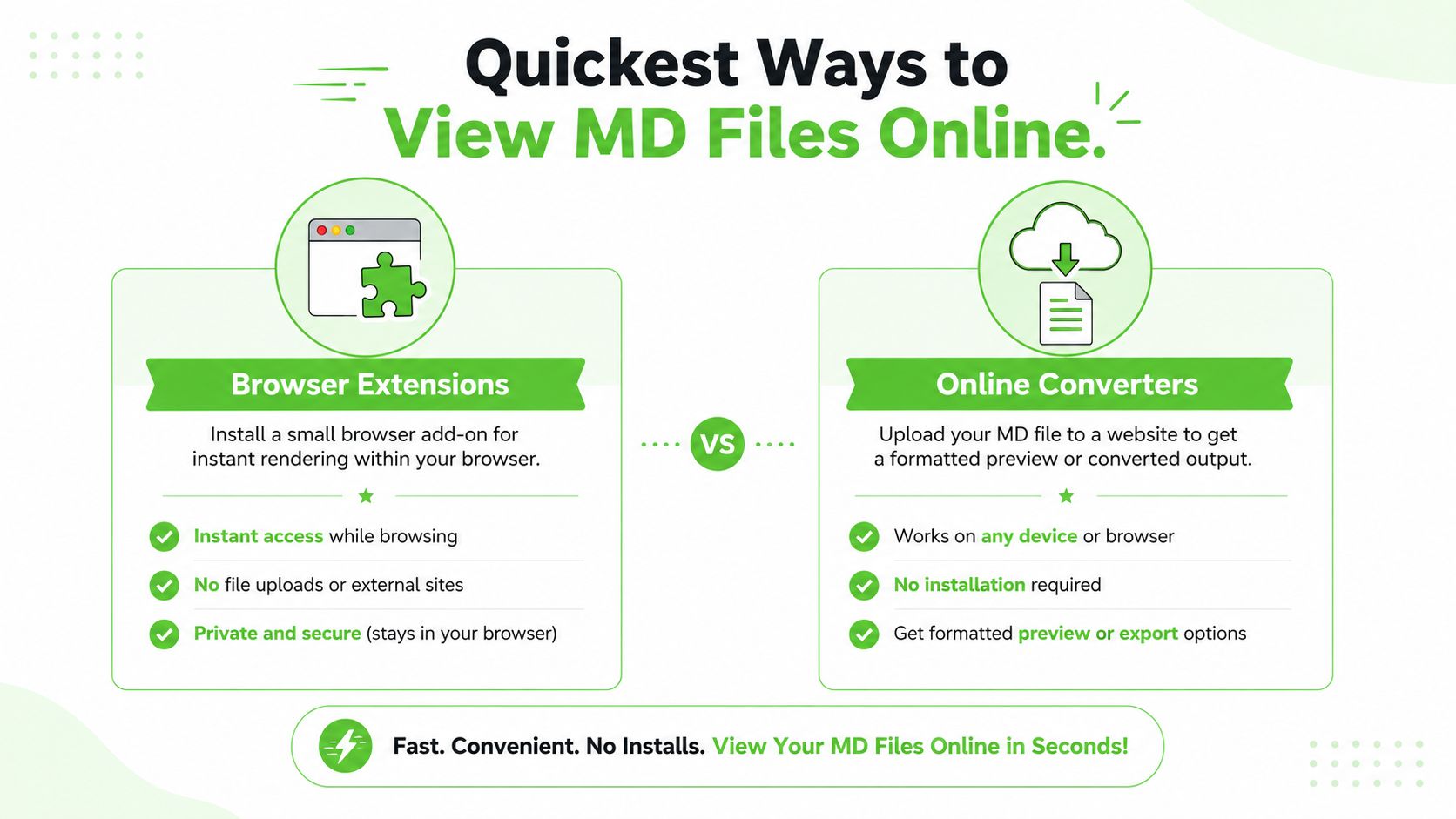
Use a browser extension when you have the file locally
A browser extension is the quickest “feels native” fix. Once installed, it lets your browser render Markdown instead of showing raw text.
That approach works well when you:
- Already have the file downloaded: You don't need to paste content anywhere.
- Only need reading, not editing: Rendering is the goal.
- Want repeat use: It's a better setup than repeatedly searching for online viewers.
Look for a Markdown reader extension in Chrome or Firefox, then open the file in the browser. Some extensions support drag-and-drop. Others automatically render .md files when opened directly.
Practical rule: If you'll open Markdown more than once a week, install a browser extension instead of relying on ad hoc copy-paste.
The trade-off is privacy and consistency. Browser extensions vary in how they handle local files, styling, and embedded elements. For internal documents, some teams prefer not to route content through browser add-ons at all.
Use an online preview tool when installation is blocked
If you can't install anything, use a web-based previewer. Paste the raw Markdown into one pane and read the rendered output in the other. This is the easiest answer for someone who asks how to view md files without changing their machine.
A good example is this client-side Markdown editor, which previews the Markdown in the browser. Client-side tools are especially useful because the conversion happens locally in the browser tab rather than requiring a more complicated desktop setup. If you need rendered HTML output instead of just a preview, this Markdown to HTML tool is also a practical option.
Use this route when:
- You're on a company laptop and can't install extensions.
- A stakeholder just needs to read one document before a meeting.
- You want a visual check before sending Markdown to someone else.
A few cautions matter here:
- Sensitive content: Don't paste confidential files into random sites.
- Large documents: Browser-based tools can feel clumsy with long files.
- Local assets: Images and references may not render correctly if the Markdown points to files on your machine.
For quick reading, though, this method is hard to beat. It's the least technical path from raw .md text to a document that looks like a document.
Viewing on Your Desktop with Apps and Editors
Online tools are fine for one-off use. Desktop tools are better when Markdown is part of your regular work. They give you faster previews, less friction, and better habits over time.
For developers using code editors
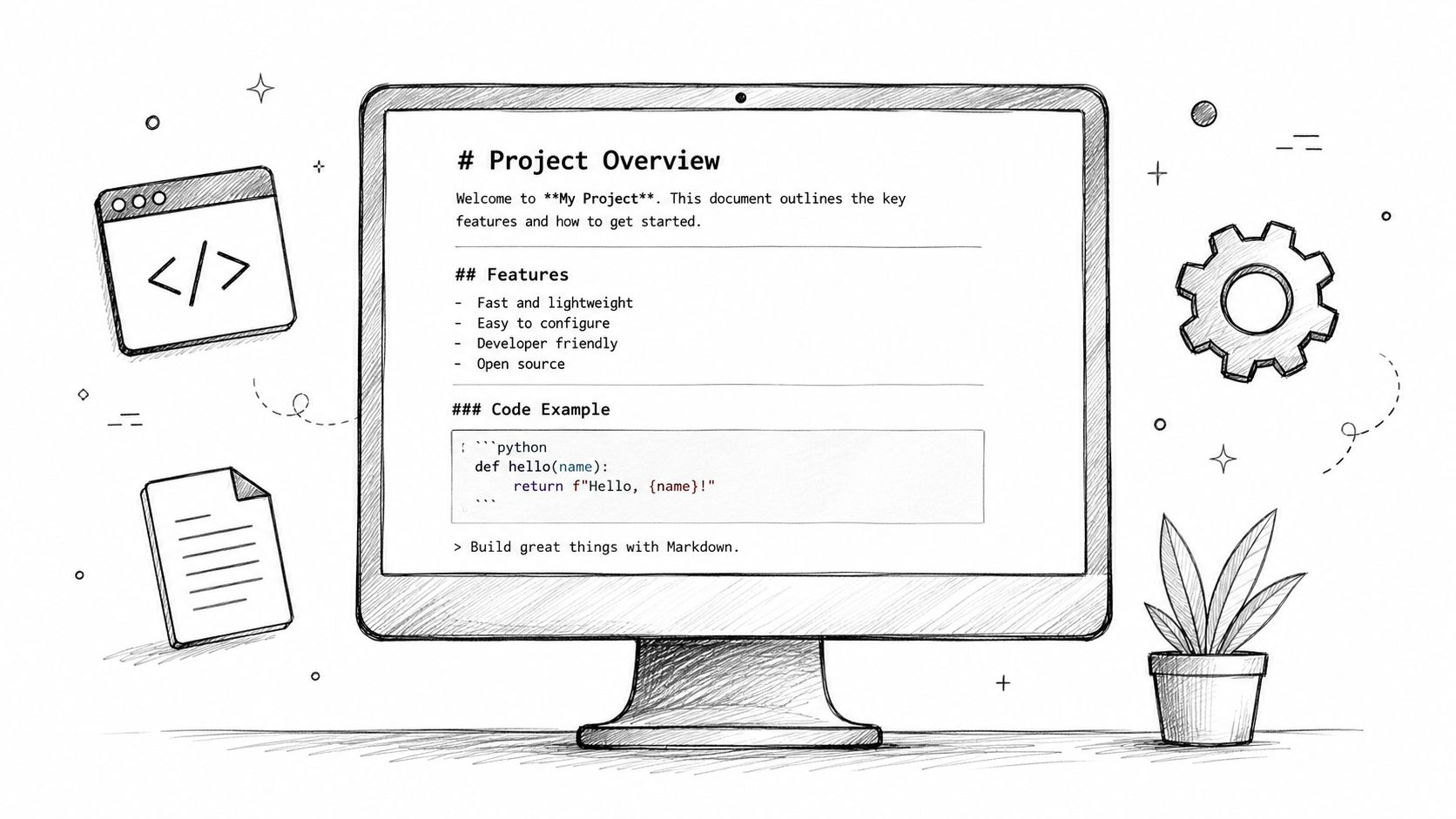
If you already work in Visual Studio Code, don't leave it. The built-in preview is the default answer for most developers because it's fast and keeps editing and viewing in the same place.
According to the documented shortcuts in this Stack Overflow answer on opening Markdown files, Ctrl+Shift+V opens the preview and Ctrl+K V opens a side-by-side preview in VS Code. That side-by-side mode is the sweet spot for real work because you can write in one pane and verify the rendered result in the other.
A simple comparison helps:
| Workflow | Best for | What it gets right | What it gets wrong |
|---|---|---|---|
| VS Code preview | Developers | Fast, built-in, side-by-side editing | Less friendly for non-technical users |
| Atom preview | Legacy setups | Still functional in some environments | Not a long-term recommendation |
| Visual Studio Markdown modes | Teams already in Visual Studio IDE | Offers split preview, open preview, and edit modes | Heavier than needed if all you want is simple reading |
If you want more editor options beyond VS Code, this guide to an open-source Markdown editor is useful for comparing lightweight tools and fuller writing environments.
For writers and general desktop users
Developers usually tolerate visible markup. Writers often don't want to. They want the document to look finished while they work.
That's where dedicated Markdown editors help. Tools such as Typora or iA Writer are easier for people who think in terms of paragraphs, headings, and flow instead of source text and preview panes. They reduce the mental split between “writing mode” and “reading mode.”
For general desktop users, the best choice often comes down to this short list:
- Use VS Code if you already have it installed and don't mind a code-editor interface.
- Use a dedicated Markdown editor if you write or review Markdown often and care about readability.
- Use a plain text editor only as a fallback when you need to inspect raw syntax rather than read the formatted content.
A plain text editor shows you Markdown. A Markdown viewer shows you the document.
A quick demonstration helps if you want to see the editor-style workflow in action.
For system-level previews on macOS
This is the setup many non-technical users want. They don't want a special editor. They want to click a file in Finder, press the spacebar, and preview it.
The catch is that OS-level Markdown preview is still awkward. On macOS, users often install a third-party preview tool and then miss the final enablement step. The system setting matters. You have to go to System Settings > General > Logon Items & Extensions > Quick Look and enable the Markdown preview extension.
That path is easy to miss because many tutorials stop at “install the app.” They don't explain that the extension may still be disabled at the operating system level.
If your goal is the smoothest desktop experience, this is the order I'd recommend:
- Developer working in code all day: stay in VS Code preview.
- Writer or editor reviewing content: use a dedicated Markdown app.
- Non-technical Mac user opening files from Finder: enable Quick Look support properly.
That last option feels simplest once configured, but it's usually the least obvious to set up.
Advanced Viewing for Terminal and Power Users
For many technical users, opening a separate app just to read Markdown feels slow. That's especially true when the file is part of a repo review, deployment note, runbook, or prompt library.
Guidance is still thin here, even though an estimated 35% of technical users work primarily in terminals, and community discussions point to tools like markfly or glow as practical ways to view Markdown without leaving terminal-first workflows, as noted in this discussion about viewing Markdown while writing in Vim and related environments.
Why terminal viewers matter
Terminal Markdown viewers solve a specific problem. They keep you in the environment where the rest of your work already happens.
That matters when you're:
- Reviewing docs in a repository: You can inspect rendered notes without switching windows.
- Working over SSH: GUI assumptions break down quickly.
- Building AI or automation pipelines: Terminal-native tools fit scripts and agent loops better than desktop apps.
glow is a strong example because it renders Markdown cleanly in the terminal and is easy to fold into everyday commands. markfly fills a similar gap in lightweight workflows. If you use Vim, Neovim, or Warp, these tools are often a better fit than opening a browser tab.
Stay in the terminal if the Markdown is part of an operational workflow, not just a document to read once.
A practical terminal workflow
The best terminal setup isn't the fanciest one. It's the one that reduces context switching.
A pragmatic pattern looks like this:
- Open raw Markdown in your editor when you need to inspect syntax.
- Render it in a terminal viewer when you need to confirm readability.
- Pipe it through other tools when the file becomes part of a script, retrieval process, or agent loop.
This becomes more useful in AI-heavy environments because terminal rendering can help you inspect the structure that matters to downstream systems. Headings, lists, code blocks, and table boundaries are easier to sanity-check before the content gets embedded, chunked, or passed into an assistant.
What doesn't work well is forcing terminal users into desktop-first advice. If your whole day happens in CLI tools, a side-by-side IDE preview may be less efficient than a simple command that renders the file where you already are.
Beyond Viewing Preparing MD Files for AI Workflows
Reading Markdown is one problem. Preparing clean Markdown for AI systems is a different one.
That difference matters more than typically expected. A Markdown file that looks fine to a human can still be messy for an LLM or a retrieval pipeline if the structure is inconsistent, tables are broken, headings are flattened, or the content came from a bad conversion upstream.
Viewing is only the first step
Many workflows fail at this stage. Teams focus on “can we open the file?” when the more important question is “is this file structurally clean enough to use downstream?”
If your source material starts as PDF, DOCX, HTML, screenshots, scans, or exported reports, the Markdown you end up with may inherit all kinds of junk. You can still view it, but that doesn't mean it's ready for chunking, search, or prompt injection into an assistant.
In practice, clean Markdown does a few important jobs:
- Preserves hierarchy: Headings and subheadings stay intact.
- Keeps lists and tables readable: Structure survives conversion.
- Reduces clutter: Boilerplate, broken layout artifacts, and unnecessary wrappers don't crowd the content.
- Improves reuse: The same file works for people, scripts, and language models.
What clean Markdown changes
For RAG systems and LLM workflows, structure is part of the data. A clean heading tree gives you better chunk boundaries. Stable list formatting makes retrieval cleaner. Predictable tables are easier to transform or validate.
The same principle applies when output has to move in the other direction. If you need a polished document after reviewing Markdown, it helps to generate PDF from Markdown so the final version is easier to share with clients, reviewers, or internal teams who won't read .md directly.
For teams building AI workflows, I'd treat Markdown as a normalization format rather than just a viewing format. It sits in the middle of the pipeline:
| Stage | Messy input | Useful output |
|---|---|---|
| Document intake | PDFs, web pages, exports, scans | Structured text |
| Human review | Hard-to-read source files | Readable Markdown |
| AI ingestion | Inconsistent layouts | Stable chunks and headings |
| Distribution | Raw working format | HTML, PDF, or app-ready content |
If you're working with assistants, retrieval, or internal knowledge systems, this guide to Markdown for AI is worth reading because it focuses on the structural side of Markdown rather than just visual rendering.
Clean Markdown is easier to read, easier to search, and easier to feed into systems that depend on structure.
That's the business-relevant shift. Viewing helps a person. Well-prepared Markdown helps the whole workflow.
Which Markdown Viewing Method Is Right for You
The right answer depends less on the file and more on your context.
If you're a non-technical user who just received a .md file once, start with an online previewer or a browser extension. It's the shortest path to “make this readable.”
If you're a writer, editor, or content lead, use a dedicated Markdown editor. You'll spend less time interpreting syntax and more time reviewing the document itself.
If you're a developer, the built-in preview in your editor is usually enough. Keep the file in VS Code or your preferred environment and use preview shortcuts instead of exporting or copying content around.
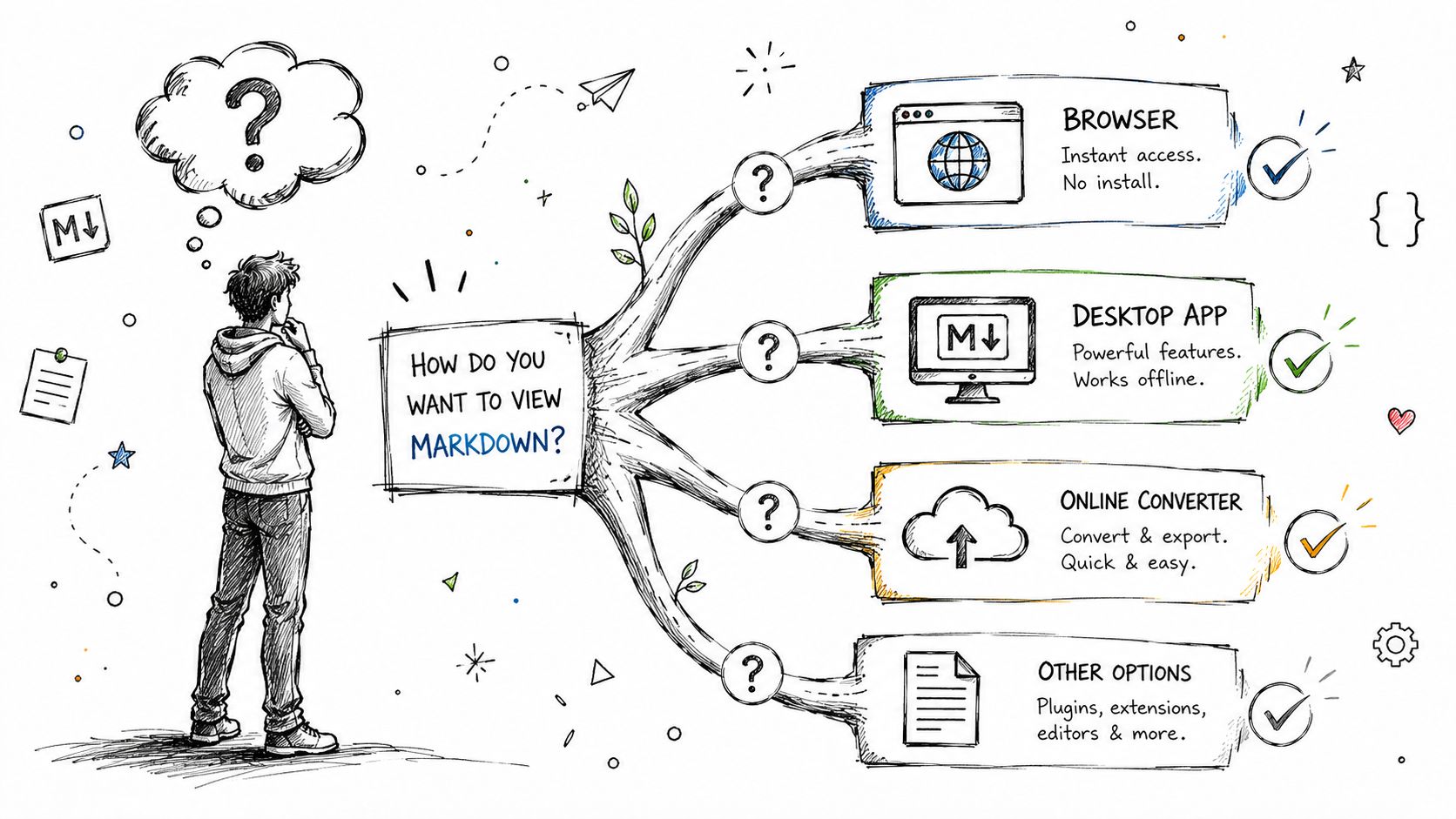
If you're an AI engineer, data engineer, or DevOps user, terminal viewers make more sense when Markdown is part of a larger workflow. They fit automation better and reduce tool switching.
If you're handling document pipelines, don't stop at “how to view md files.” Ask whether the Markdown is structured well enough to support search, retrieval, review, and downstream conversion.
A simple decision guide works well:
- Read one file quickly: browser or web preview.
- Read and write regularly: dedicated desktop editor.
- Work inside code every day: IDE preview.
- Stay in CLI tools: terminal viewer.
- Prepare content for LLMs or RAG: focus on clean, normalized Markdown, not just rendering.
The best viewer is the one that matches the job. For some people, that's a browser tab. For others, it's part of a much bigger content pipeline.
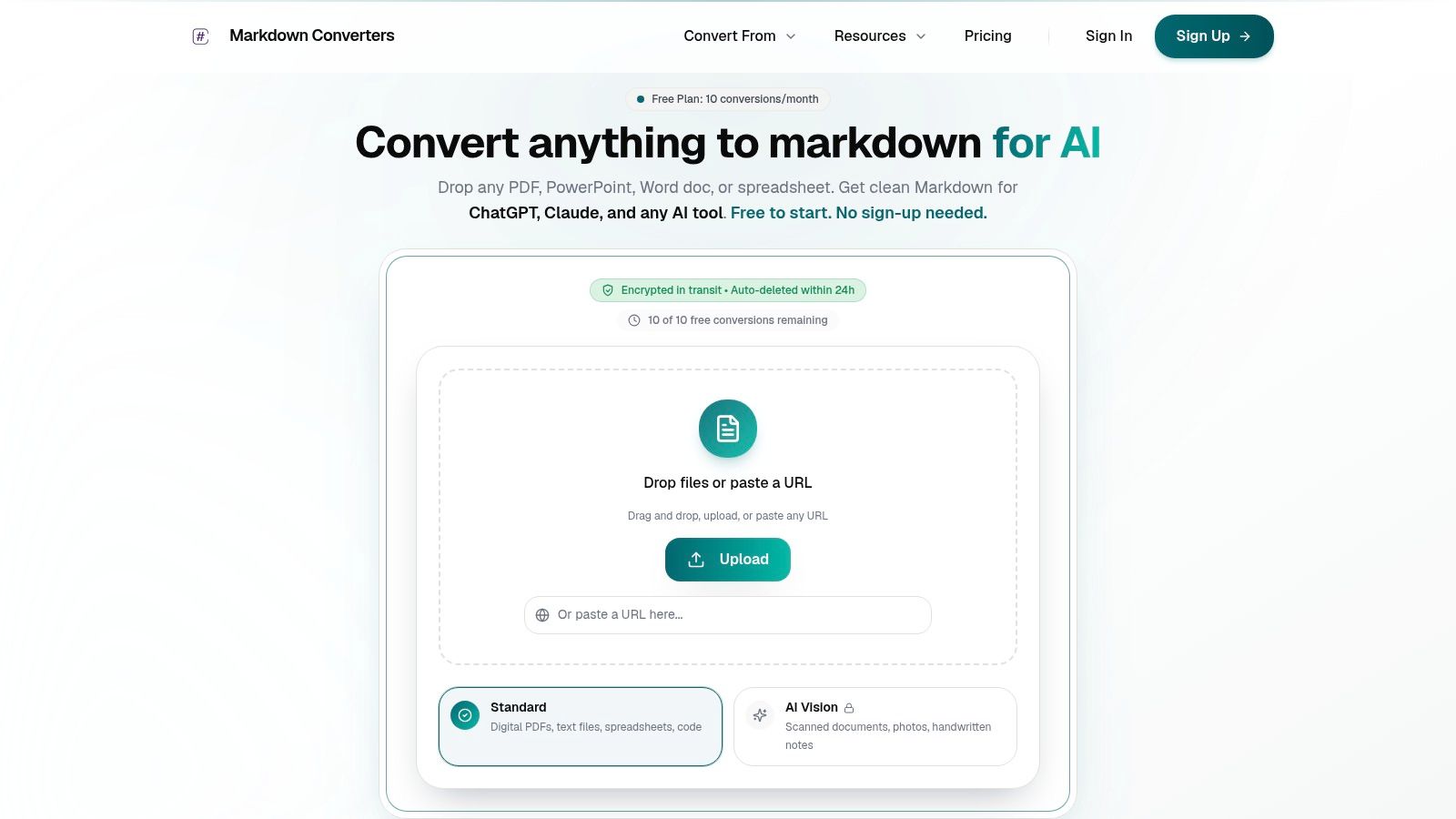
If you need more than a viewer and want clean, structured Markdown from PDFs, web pages, office files, scans, or other messy sources, Markdown Converters is built for that job. It turns mixed document formats into AI-ready Markdown that's easier to review, search, and use in LLM or RAG workflows.
Related Articles
Markdown Reader Windows: Best Tools for 2026
Markdown reader windows - Find the best markdown reader for Windows in 2026. Compare top tools to open, edit, and preview Markdown files effortlessly
Read articleMarkdown Table Editor: The Complete Guide for 2026
Struggling with Markdown tables? This guide covers everything from syntax and visual markdown table editor tools to automated conversion and LLM optimization.
Read articleHow to Download a Folder from Dropbox Without Losing Your
Learn how to download a folder from Dropbox quickly and easily, with step-by-step instructions for 2026.
Read article