
Markdown Table Editor: The Complete Guide for 2026
Struggling with Markdown tables? This guide covers everything from syntax and visual markdown table editor tools to automated conversion and LLM optimization.
You've probably done this recently. You copied a table out of Excel or a web page, pasted it into a Markdown file, and got a mess of broken pipes, uneven columns, and rendering that looked different in every preview. Then you spent more time fixing the table than using the data inside it.
That's why a good Markdown table editor matters. It isn't about making syntax prettier. It's about removing friction between structured data and the document, note, spec, or AI pipeline where that data needs to live. For simple tables, raw Markdown still works. For larger tables, imported spreadsheets, scanned PDFs, and RAG workflows, the editing method matters as much as the table itself.
Most tutorials stop at syntax. That's useful, but incomplete. The bigger win comes from choosing the right workflow for the source data and the downstream use case.
Why Mastering Markdown Tables Is Worth Your Time
You paste a CSV export into a README five minutes before a release. The columns drift, one header breaks, and now a simple status table has turned into manual cleanup. That is the point where Markdown tables stop being a formatting detail and start looking like what they are: structured data inside plain text.
That matters because the same table often serves multiple systems. A human reads it in GitHub. A teammate edits it in VS Code or Obsidian. A script converts it from CSV or HTML. Later, the same content may be chunked for retrieval or passed into an LLM. Good table hygiene keeps all of those steps easier to trust.
The payoff is practical. Clean Markdown tables are easy to diff, easy to version, and far easier to move across tools than screenshots, pasted spreadsheet fragments, or ad hoc HTML. If you need a quick refresher on the underlying format, this Markdown table syntax guide covers the baseline rules.
The workflow matters more than the syntax
Raw syntax still matters, but workflow decisions matter more.
- Manual editing fits small tables, quick fixes, and cases where you need to diagnose a rendering problem fast.
- Visual editors and conversion tools fit repeated edits, imported datasets, and anything another person will need to maintain later.
In practice, the friction usually comes from specific tasks: counting pipes, fixing uneven columns, escaping special characters, and checking whether a pasted row shifted one cell to the right. Visual editors reduce that overhead. Conversion workflows matter even more when the source already exists in CSV, Excel, HTML, or a scanned document.
Practical rule: Learn enough raw Markdown to repair a table by hand. Use editing and conversion tools for anything you would not want to rebuild twice.
What works and what wastes time
A few patterns hold up across documentation, research notes, and AI prep work.
- Small, stable tables are fine to write by hand. A feature matrix or short checklist usually stays manageable.
- Imported data should stay tied to the source format. Retyping spreadsheet data into Markdown creates avoidable errors.
- Wide or frequently edited tables benefit from a visual editor. You spend less time scanning raw delimiters and more time checking the content.
- OCR and document extraction are worth using when the table starts life in a PDF, image, or scan. The primary work is validation after conversion, not manual transcription.
Markdown tables also matter more now because they feed retrieval pipelines, not just docs. A well-formed table preserves labels, row relationships, and compact structure in a way that is easier to parse than a screenshot and cleaner to chunk than a paragraph blob. If you are preparing content for RAG or LLM workflows, table quality affects downstream retrieval quality.
The mistake is treating every table as a typing exercise. The better approach is to treat tables as portable structured data, then choose the fastest path from source to clean Markdown.
The Manual Method Mastering Raw Table Syntax
Every Markdown table editor is hiding the same basic structure underneath. If you can read and fix that structure directly, you're faster in any environment. You can patch a broken README in GitHub, clean up a note in Obsidian, or understand why a pasted table failed to render.
The core structure
A GitHub Flavored Markdown table has three parts:
- A header row
- A separator row
- One or more body rows
Here's a minimal example:
| Tool | Best for | Notes |
|---|---|---|
| VS Code extension | Technical docs | Good for frequent edits |
| Obsidian plugin | Research notes | Useful inside vault workflows |
| Web generator | Quick cleanup | Good when paste input is messy |
In raw syntax, that looks like this:
| Tool | Best for | Notes |
| --- | --- | --- |
| VS Code extension | Technical docs | Good for frequent edits |
| Obsidian plugin | Research notes | Useful inside vault workflows |
| Web generator | Quick cleanup | Good when paste input is messy |
The parser only needs the structure to be valid. Humans need it to be readable. That's why aligned pipes still matter, even when the renderer would accept a sloppier version.
If you need a quick refresher on baseline rules and examples, this Markdown tables primer is a useful reference.
Alignment and readability
The separator row also controls alignment:
:---means left-aligned---:means right-aligned:---:means centered
Example:
| Metric | Value | Status |
| :--- | ---: | :---: |
| Latency | 120 ms | OK |
| Errors | 3 | Review |
That produces a table where the first column is left-aligned, the second is right-aligned, and the third is centered.
A few habits make manual editing much less painful:
- Keep trailing pipes consistent. Some parsers are forgiving, but consistency makes visual scanning easier.
- Use one line per row. Don't try to cram formatting tricks into cells.
- Treat the separator row as structural, not decorative. If it's malformed, rendering breaks fast.
Raw syntax is the debugging layer. Even if you prefer a grid editor, this is the level where broken tables get fixed.
Common hand-editing mistakes
Most rendering issues come from a small set of errors:
- Column mismatch: One row has more or fewer cells than the header.
- Unescaped pipe characters: A literal pipe in cell content can break the row if you don't handle it carefully.
- Pasted multiline content: Standard Markdown tables don't behave well when a cell tries to hold paragraph-like content.
A short mental checklist helps:
| Check | What to look for |
|---|---|
| Header count | Every body row should match it |
| Separator row | One segment per column |
| Cell content | No accidental structure-breaking characters |
| Readability | Source should be legible without preview |
Manual syntax is still worth mastering. Just don't confuse “possible” with “efficient.”
Accelerate Your Workflow with Visual Table Editors
You feel the limit of raw Markdown the first time a simple edit turns into table surgery. A PM asks for one new column in the middle, the source data changes order, and now every pipe has to stay aligned while you hope nothing breaks in preview. At that point, a visual editor stops being a convenience and becomes the faster, safer way to work.
What a visual editor changes
A good table editor shifts the job from syntax maintenance to data editing. You work on cells, rows, and columns directly. That matters more than comfort. It reduces structural mistakes during the kind of edits that happen in real projects: reordering fields, cleaning up pasted data, and standardizing headers before the table goes into docs, a knowledge base, or an AI ingestion pipeline.
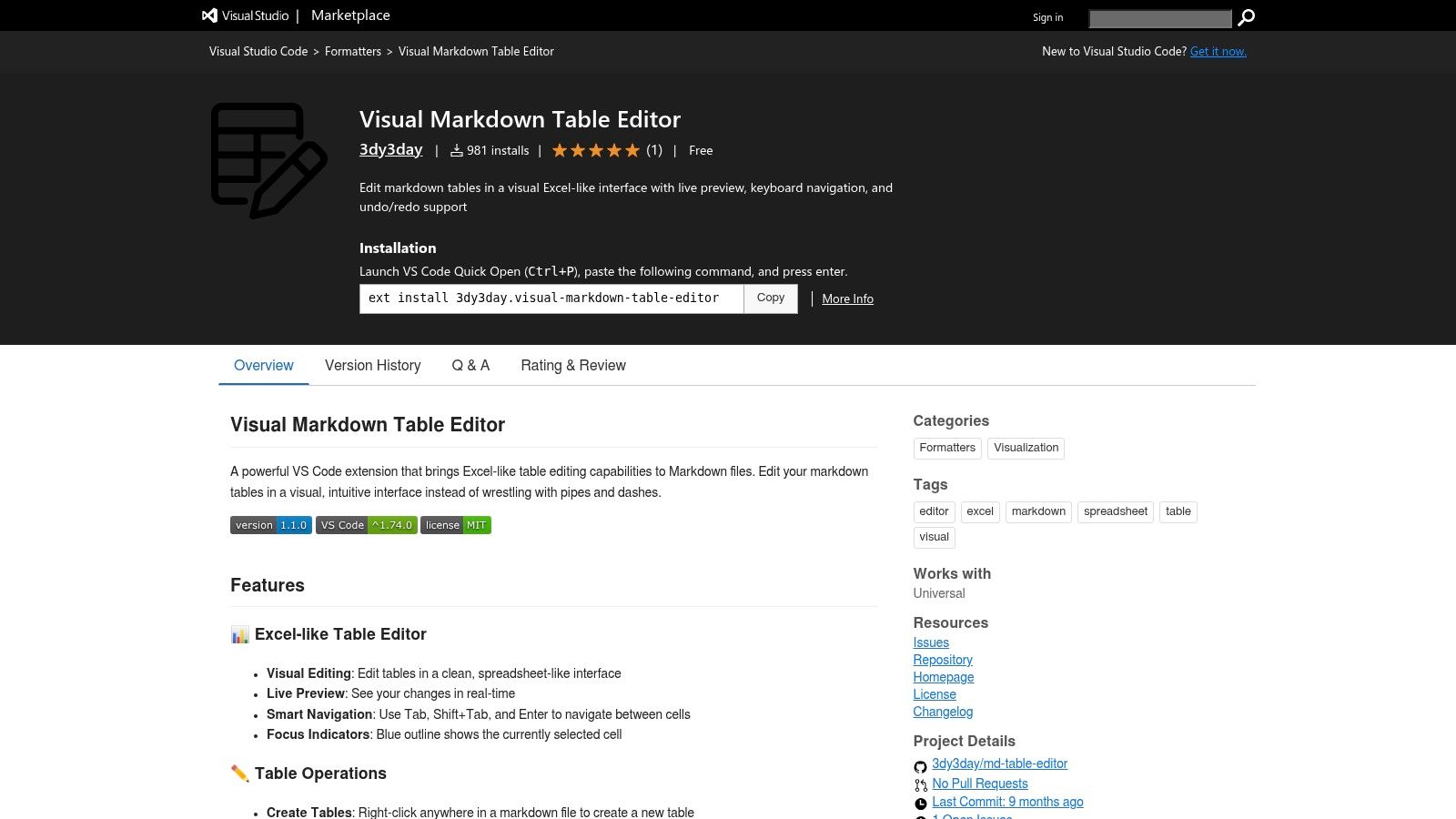
The Visual Markdown Table Editor marketplace listing describes a grid-based interface for editing Markdown tables inside VS Code. That is the right model for complex tables. Once a table has enough columns, direct cell editing beats hand-tuning pipes every time.
A practical VS Code workflow
VS Code is usually the best fit for engineering teams and technical writers already working in a repo. You keep Git history, review diffs, previews, and extension support in one place.
A workflow that holds up:
- Open the Markdown file and locate the table.
- Launch the table editor from the context menu or Command Palette.
- Make structural edits in the grid first.
- Return to raw Markdown only for a final sanity check.
- Preview the rendered output in the target environment.
The Interactive Markdown Table Editor extension page also highlights support for extended Markdown table formats. That matters if the same file needs to render predictably across GitHub, GitLab, or an internal docs stack.
For writers who want a less code-heavy editing experience, a WYSIWYG Markdown editor comparison is a useful next step. The key trade-off is simple. WYSIWYG tools reduce syntax friction, but code-adjacent editors still give better control over versioned content and review workflows.
Where Obsidian and similar editors fit
Obsidian works well for research-heavy note systems, internal knowledge bases, and personal documentation workflows. It is especially useful when tables sit inside a larger web of notes instead of a standalone repository. As noted earlier, its table tooling also helps with spreadsheet-style imports and keyboard-driven editing.
That makes it a better choice for exploration and synthesis than for strict documentation pipelines. I would still choose VS Code for team-owned specs and anything that will be reviewed through Git.
Visual editors also earn their place before AI processing. If a table starts in a PDF, convert it first with an online PDF to Markdown tool, then clean up the structure in a grid editor before sending it into embeddings, chunking, or retrieval workflows. That extra cleanup step improves header consistency, reduces malformed rows, and gives LLM pipelines data they can parse with less guesswork.
Pick the editor based on the job:
- VS Code: Best for repos, technical documentation, and collaborative editing with version control.
- Obsidian: Best for note collections, research workflows, and linked knowledge bases.
- Typora or similar tools: Best for document-first writing where visible syntax gets in the way.
One limitation stays the same across all of them. Visual tools make valid Markdown tables easier to edit. They do not add features the format does not support, such as merged cells, row spans, or complex nested layouts.
A quick demo helps if you want to see the interaction model before installing anything:
Automated Table Creation from Any Source
You get a PDF from legal, a CSV from analytics, and a screenshot of a table pasted into Slack by the operations team. None of that should be retyped into Markdown by hand. The efficient workflow is to convert the source, clean the structure, and only then worry about formatting.
That matters even more if the table will feed an AI system. Bad extraction creates bad headers, broken rows, and mixed cell content. Those errors do not stop at rendering. They carry into chunking, retrieval, and answer quality.
Import beats retyping
Start with the source of truth and preserve as much structure as possible. CSV and Excel exports are usually the cleanest starting point. HTML tables are often usable with minor cleanup. PDFs and scans are the expensive cases because extraction quality determines everything that follows.
A practical workflow looks like this:
- Export or copy the source data
- Convert it into Markdown table form
- Open it in a visual editor for cleanup
- Validate the final structure in the target renderer

In documentation work, this saves time. In AI pipelines, it also reduces downstream cleanup. A malformed table is not just ugly Markdown. It turns into noisy text, weak metadata, and retrieval results that miss the row you needed.
OCR and document extraction
Scanned tables are the point where lightweight Markdown advice stops being useful. If the document is image-based, extract the text first, then repair the table structure.
For scanned PDFs and image-heavy documents, use OCR before touching alignment or pipes. If you need a straightforward utility for PDF extraction, this online PDF to Markdown tool is a practical option to keep around, especially when the original document isn't text-selectable.
Spreadsheet and HTML sources create a different class of problems. They usually preserve rows and columns, but often introduce empty trailing columns, merged-header artifacts, or copied formatting that does not map cleanly to Markdown. The conversion step is usually fast. The validation step is where the main work happens.
The best Markdown tables usually start as structured data somewhere else.
What to validate after conversion
Automated conversion saves a lot of time, but the first result is rarely production-ready. Check the parts that fail in ways both humans and LLMs care about:
- Header integrity: Confirm the converter picked the correct header row, not the first visually bold row.
- Column consistency: Make sure every row has the same number of cells.
- Flattened content: Inspect multiline cells, footnotes, and wrapped text for broken meaning.
- Numeric fidelity: Recheck dates, decimals, percentages, and IDs after OCR.
- Readable labels: Rename vague column headers before the table lands in search or retrieval indexes.
- Rendering target: Test the output where it will live, whether that is GitHub, a docs generator, or a note app.
For RAG and LLM workflows, I would add one more rule. Prefer explicit headers and stable row structure over visual neatness. A compact table with ambiguous labels is harder for a retrieval system to use than a slightly longer table with clear column names and normalized values.
The practical takeaway is simple. Build tables manually when the content starts in Markdown and stays small. Convert first when the data comes from anywhere else, especially if that table will be indexed, embedded, or queried by AI later.
Advanced Techniques for Large and Complex Tables
A complex table usually fails long before rendering breaks. The true failure shows up in maintenance. Someone pastes in a spreadsheet export, wraps text inside a few cells, adds pseudo-subheaders, and six edits later the Markdown is technically valid but painful to review, diff, and reuse.
Markdown handles flat, regular data well. It handles presentation-heavy layouts poorly. That distinction matters more as tables move beyond docs and into AI indexing, retrieval, and automated conversion pipelines.
Where Markdown starts to strain
The practical limits are familiar:
- Merged cells are unavailable
- Nested structure is brittle
- Long prose inside cells destroys scanability
- Wide schemas turn line-based editing into a chore
- Multi-row visual headers usually collapse into ambiguity
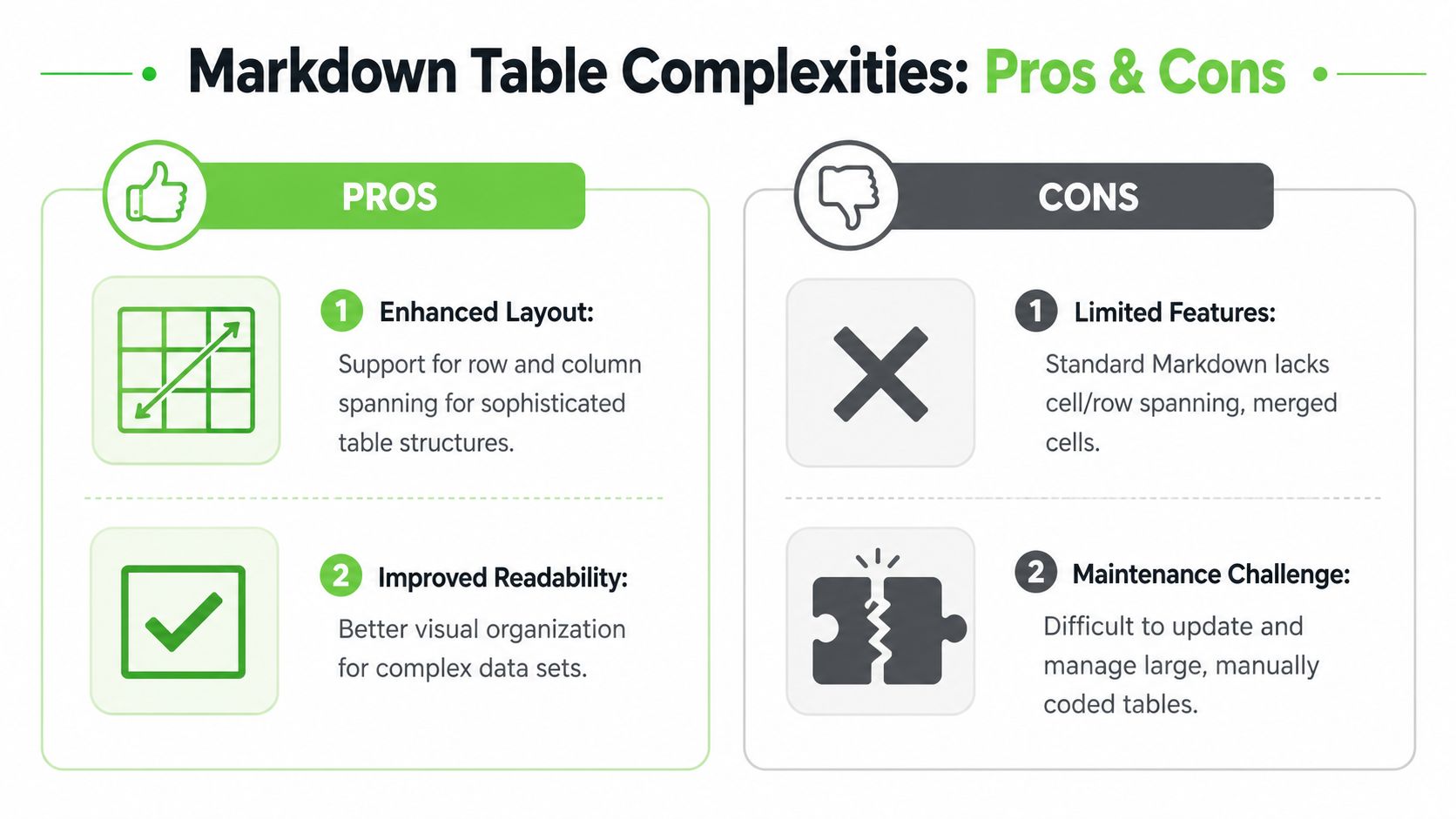
These are not just formatting annoyances. They affect whether the table stays usable after export, review, and ingestion into other systems. A human reader can sometimes infer intent from a messy layout. A parser or retrieval pipeline usually cannot.
I treat Markdown tables as a data structure first and a layout tool second.
Workarounds that hold up in production
A few patterns work consistently, but each comes with trade-offs.
- Use HTML inside Markdown if the document must preserve complex layout. This is fine in many docs systems, but portability drops and downstream text extraction gets less predictable.
- Split one large table into smaller purpose-built tables when the dataset has natural slices, such as pricing, limits, and feature support. This improves reviews and usually produces cleaner retrieval chunks.
- Replace verbose cells with references when a cell starts carrying paragraph-length explanation. Put the explanation below the table or in linked notes.
- Publish the full dataset separately when the Markdown table is only a summary. A CSV, spreadsheet, or database export is often the better system of record.
Field rule: if the meaning of a table depends on merged headers or visual grouping, Markdown is usually the wrong final format.
I see this mistake often in reporting workflows. Teams try to flatten board-ready dashboards, finance sheets, or audit matrices into Markdown because the rest of the document is Markdown. The result looks acceptable in a preview and becomes miserable to maintain a week later.
How to handle wide tables without creating future cleanup work
Wide tables are often valid Markdown and still a bad choice. The question is not whether they render. The question is whether someone can update them accurately and whether another system can interpret them without guessing.
Use this decision frame:
| Situation | Better format |
|---|---|
| Comparison across a few fields | Markdown table |
| Large operational dataset | Linked CSV or downloadable file |
| Complex visual hierarchy | HTML table or dedicated report format |
For tables that are wide but still worth keeping in Markdown, a few habits pay off:
- Keep the schema stable. Renaming columns casually creates noise in version history and confusion in retrieval indexes.
- Shorten headers aggressively. Put definitions outside the table, not inside the header row.
- Separate display columns from machine-useful columns. Human-friendly labels can coexist with normalized IDs or status fields, but cramming both into one giant table usually backfires.
- Edit in a grid-based tool, then review the raw Markdown before commit. Visual editing is faster. Raw review catches broken delimiters and accidental schema drift.
- Chunk by task, not by source file. If the table will feed an assistant later, smaller thematic tables retrieve better than one sprawling master table.
That last point gets missed in basic Markdown tutorials. Large tables are often reused downstream for search, retrieval, and prompt assembly. Splitting a monolithic table into cleaner units can improve both human maintenance and AI retrieval quality. If you are preparing source documents for that workflow, this guide on building a RAG-ready Markdown knowledge base is a useful next reference.
The key is to identify which tables benefit from Markdown's simplicity versus those that become a maintenance liability. For a broader view of why structure matters before generation starts, see LLMrefs' guide to AI search.
Optimizing Tables for RAG and LLM Pipelines
In modern AI workflows, a Markdown table often becomes part of the retrieval layer. The choices you make during cleanup affect whether a model can match the right row, interpret the columns correctly, and quote the result with enough context to be useful.
Markdown tables fit retrieval well because their structure is explicit without carrying the extra noise of heavier markup. Column headers establish field names. Rows create natural record boundaries. That makes chunking, field mapping, and validation easier when the same content moves from docs into embeddings, vector stores, or prompt assembly.
The primary win shows up earlier in the pipeline than many teams expect. If a table starts life as a spreadsheet, PDF, screenshot, or OCR pass, converting it into clean Markdown forces you to normalize headers, fix merged-cell damage, and remove layout artifacts before indexing. That cleanup step often matters more than the editor you used to make the table.
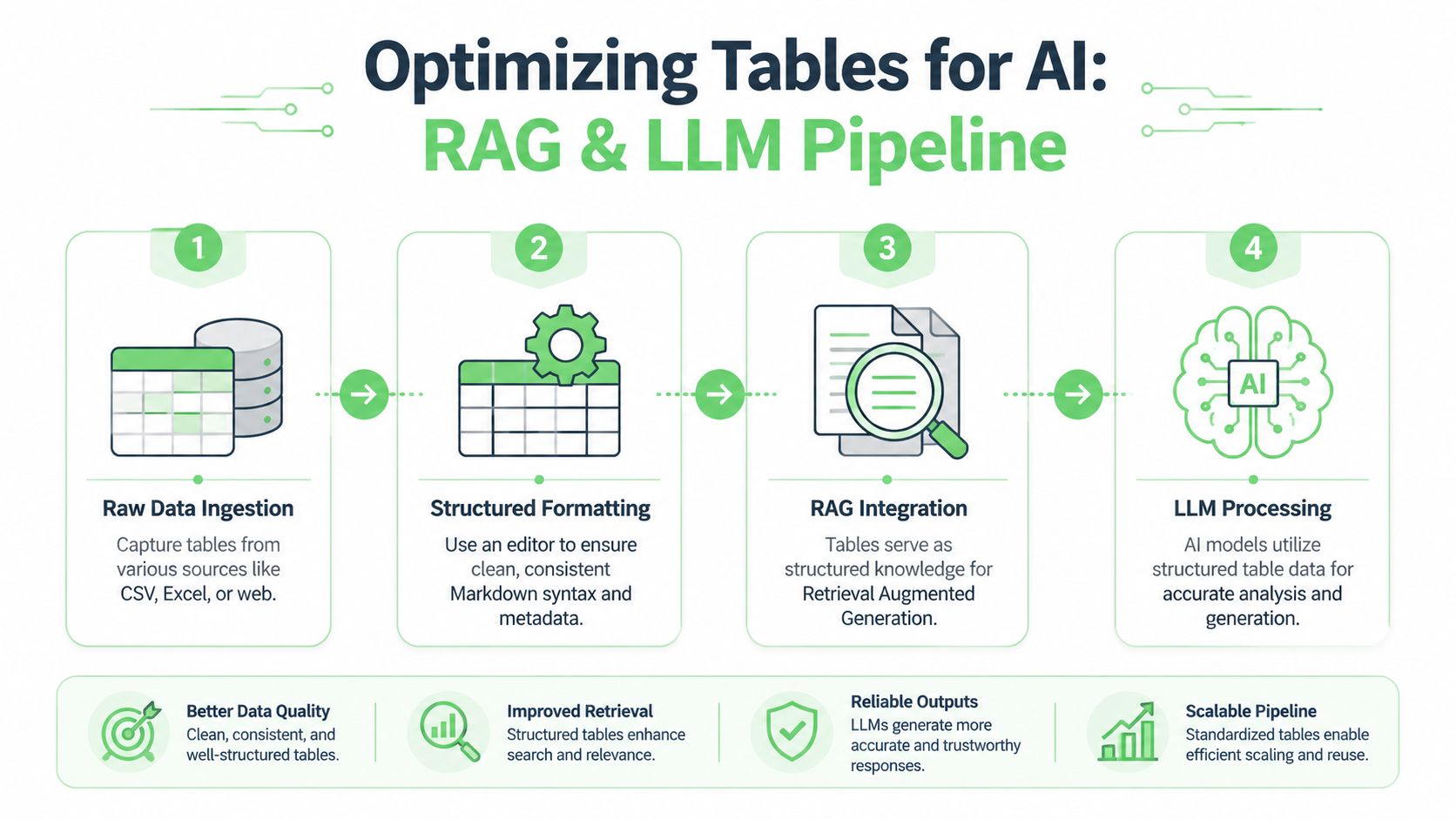
If you're designing retrieval around source quality rather than just model quality, LLMrefs' guide to AI search is a useful companion read because it explains why structure affects discovery before generation starts.
A practical preparation checklist
For LLM ingestion, the strongest tables usually share a few traits:
- Stable headers: Keep column names specific and consistent across files.
- One fact pattern per row: Each row should describe one entity, event, or record type.
- Predictable formatting: Remove decorative spacing, manual alignment tricks, and blank filler rows.
- Explicit values: Include units, date formats, and status labels in the cell text so retrieval does not depend on surrounding prose.
Document structure matters too. A clean table inside a messy knowledge base still retrieves poorly if headings, section labels, and neighboring text are inconsistent. For a broader system-level approach, this guide on building a RAG Markdown knowledge base is a strong reference.
I treat Markdown tables for AI as data assets, not just formatted content. A good table editor helps, but the harder problem is preserving schema during conversion and resisting visual formatting habits that break portability. Clean imports, predictable columns, and raw Markdown review before indexing usually beat fancy presentation features.
Related Articles
Batch PDF Conversion: A Practical Guide for 2026
Learn practical batch PDF conversion workflows, from simple UI uploads to automated API processing. Convert scanned PDFs with OCR and create AI-ready Markdown.
Read articleAngular Markdown Editor: A Guide to AI-Ready Integration
Learn how to integrate an Angular Markdown editor into your app. This step-by-step guide covers setup, autosave, and preparing content for LLM workflows.
Read articleMD File Reader Online: Convert for AI & LLM Workflows
Unlock the power of our MD file reader online. Convert any document to clean, AI-ready Markdown for RAG & LLM workflows. More than just viewing!
Read article