
Best Linux Markdown Editor for 2026: Top 10 Reviewed
Find the ideal Linux Markdown editor for 2026. Explore 10 top GUI & terminal apps for developers, writers, and researchers, with LLM tips.
You're probably in one of three situations right now. You need a Linux markdown editor that doesn't fight your desktop, you're tired of writing in a code editor that feels too heavy for notes, or you've realized your Markdown files now feed more than blog posts. They feed docs, research notes, knowledge bases, and increasingly, LLM and RAG workflows.
That last part changes what “good” looks like. A pleasant editor still matters. Fast preview matters. Clean export matters. But structure matters more than most roundup articles admit. If your headings are inconsistent, your tables break on export, or your notes live in a proprietary database with awkward extraction, downstream AI work gets messy fast. The useful linux markdown editor isn't just the one that looks nicest. It's the one that helps you produce stable, predictable Markdown.
Linux gives you better choices than it used to. The ecosystem includes at least 80 verified open-source projects in the markdown editor category, with actively maintained options such as PanWriter, Zettlr, and VS Code listed on SourceForge's markdown editor directory. That variety is good, but it also means you can waste a weekend testing the wrong tools for your workflow.
The shortlist below is organized by how people work. Some tools are best for developers who keep docs next to code. Some are better for writers who want a clean drafting surface. Some suit researchers who need citations, project search, and reliable export to other formats. I'm also judging them with a practical filter: install friction, Linux packaging, desktop fit, file portability, and whether the editor helps or hurts AI-ready Markdown.
1. Typora
Typora makes sense for a common Linux scenario. You need to draft a post, clean up tables, export a polished file, and stay focused on the document instead of the editor. Typora still does that better than many Markdown apps because the preview lives directly in the editing surface, so headings, lists, code blocks, and images read like a finished document while you work.
The trade-off is clear. Typora is proprietary, paid, and less flexible than plugin-heavy tools. For many Linux users, that will be a reason to skip it. For people who care more about drafting speed than extensibility, it is still one of the easiest editors to recommend.
Why Typora still wins on feel
Typora reduces mode-switching. You are not bouncing between raw Markdown on one side and a rendered preview on the other, which helps during longer writing sessions where small interruptions add up. It is especially good for documentation, blog posts, and client deliverables where structure matters but you do not want the editor to feel like an IDE.
Table handling is one of the practical reasons it stays relevant. Many Markdown editors technically support tables, but editing them can feel clumsy once the document gets dense. Typora is easier to live with if your work includes comparison charts, specs, or content briefs.
Linux packaging is better than it used to be, though this still depends on your distro and how strict you are about software sources. If you prefer native repo packages only, Typora may feel less comfortable than fully open-source options. If AppImage, .deb, or similar packaging is acceptable in your setup, installation is usually straightforward.
Practical rule: Choose Typora if your main job is producing clean Markdown files quickly, not building a customized note system.
Best fit
Typora fits writers, technical authors, and developers who write plenty of README files, docs, and articles but do not need backlinks, graph views, or a plugin ecosystem. It is also a good match for teams that want simple Markdown files on disk and a low training burden for non-technical contributors.
It is less suitable for researchers managing a large note archive or for power users who expect automation inside the editor itself. In those cases, Obsidian, Zettlr, or VS Code usually give you more room to grow.
For LLM and RAG workflows, Typora works best as a clean front end for source documents. If you are preparing Markdown for embeddings, retrieval pipelines, or AI content ops, consistent heading structure matters more than flashy features. A guide to Markdown for AI and retrieval-friendly document structure is useful here. Services like Markdown Converters are built around that reality, turning well-structured Markdown into content that downstream AI systems can parse with less cleanup.
2. Obsidian

Obsidian isn't my first pick for single-file drafting. It is one of my first picks for building a body of Markdown that keeps growing over months or years. If your notes connect to other notes, if you think in projects, or if you're assembling a knowledge base, Obsidian starts to make sense quickly.
Its local-first model is the biggest reason Linux users adopt it. Your vault is just files on disk. That keeps ownership clear and makes backup strategies straightforward.
Where Obsidian earns its place
Obsidian shines when your markdown editor is also your working memory. Bidirectional links, graph view, and community plugins help when you're collecting research, drafting outlines, and turning scattered notes into documents later.
The downside is that it can become a hobby. Many people install Obsidian to write and then spend too much time tuning themes, link behaviors, and plugin stacks. That's fine if you enjoy it. It's not fine if you just need to finish a paper or ship docs by Friday.
Obsidian is excellent for note systems. It's not automatically the best writing surface for every draft.
Best fit
This is the strongest option here for researchers, analysts, and anyone building reusable knowledge from linked notes. It also works well for teams that want a local file workflow before those notes move into AI retrieval systems.
That's where structure matters. Industry benchmarks discussed in Markdown for AI workflows show that normalized headings and tables can reduce context window usage by up to 70% in AI ingestion workflows. Obsidian won't enforce that discipline on its own, but its vault model makes it practical to maintain clean, linked Markdown that can later move into conversion and retrieval pipelines without copy-paste chaos.
3. Mark Text
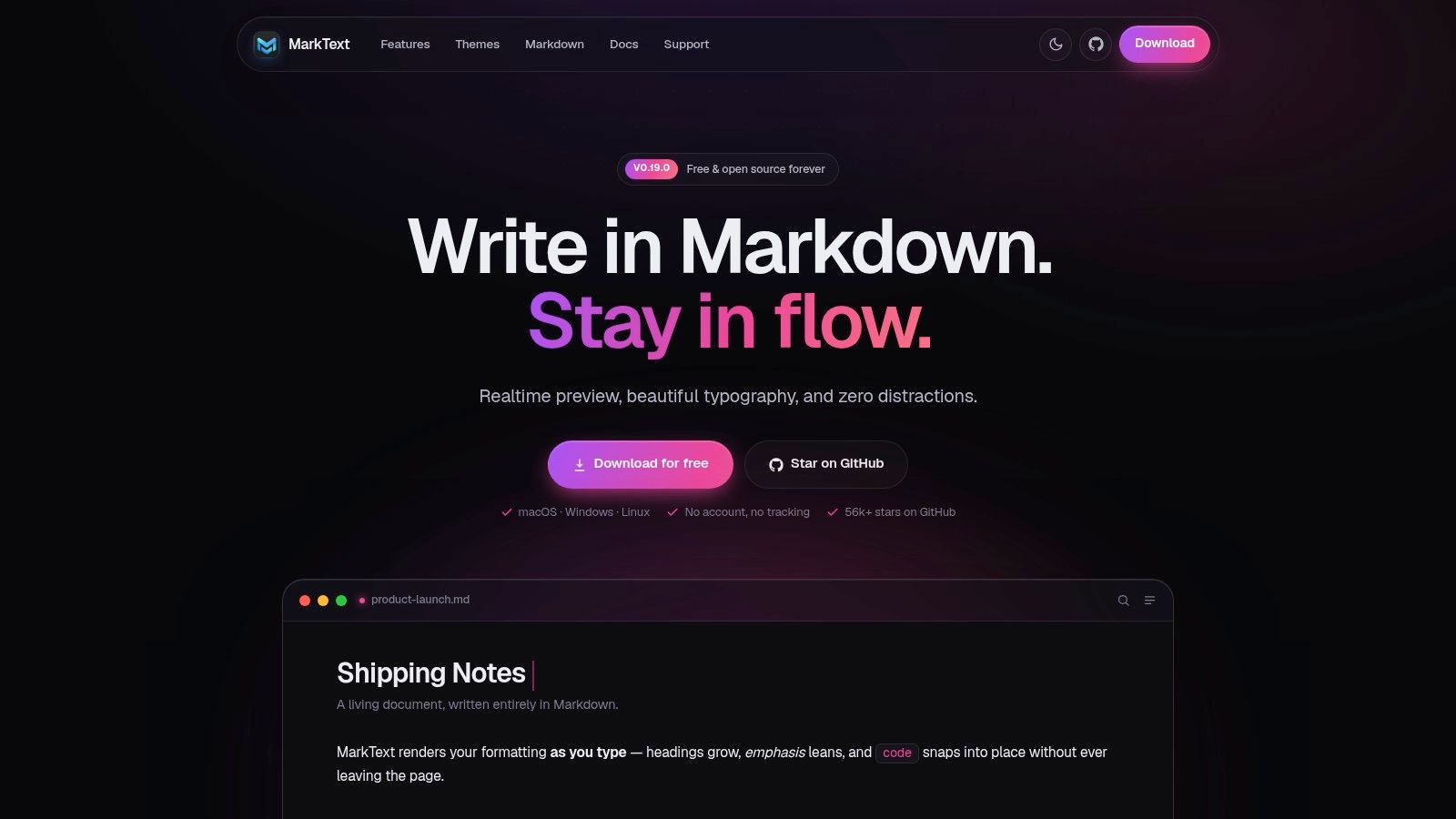
Mark Text is the answer for people who like Typora's style but want an open-source tool. That alone makes it attractive in Linux circles. It keeps the WYSIWYG-like editing approach, avoids most of the clutter that drags down larger apps, and feels approachable from the first launch.
In daily use, Mark Text is pleasant for straightforward drafting. It handles notes, blog posts, meeting writeups, and general writing without asking you to commit to a bigger ecosystem.
A strong open-source Typora alternative
The best part of Mark Text is its restraint. You get real-time rendering, focus modes, theme support, and a modern interface without the sense that the app wants to become your entire second brain.
The trade-off is that it doesn't have the same depth around knowledge management, citations, or plugin-driven workflows. That's not a flaw if your real need is a clean Markdown window and reliable file output. It only becomes limiting when your writing starts involving larger collections, publishing chains, or academic references.
A few practical notes matter on Linux. AppImage, DEB, and RPM availability make it reachable on many distributions, which is helpful if you bounce between Fedora, Ubuntu-based desktops, and Arch-family setups. The app can feel a bit less polished around edge cases than commercial alternatives, but for a free editor, it's a very fair exchange.
Best fit
Mark Text fits writers and general users who want an open-source linux markdown editor with low setup friction. It also suits people moving away from heavier note platforms and back to plain files.
If you mostly write standalone documents and don't need a graph view, notebook system, or IDE-level extension ecosystem, Mark Text stays in the sweet spot. It's one of the easiest tools here to recommend without a long caveat list.
4. Zettlr
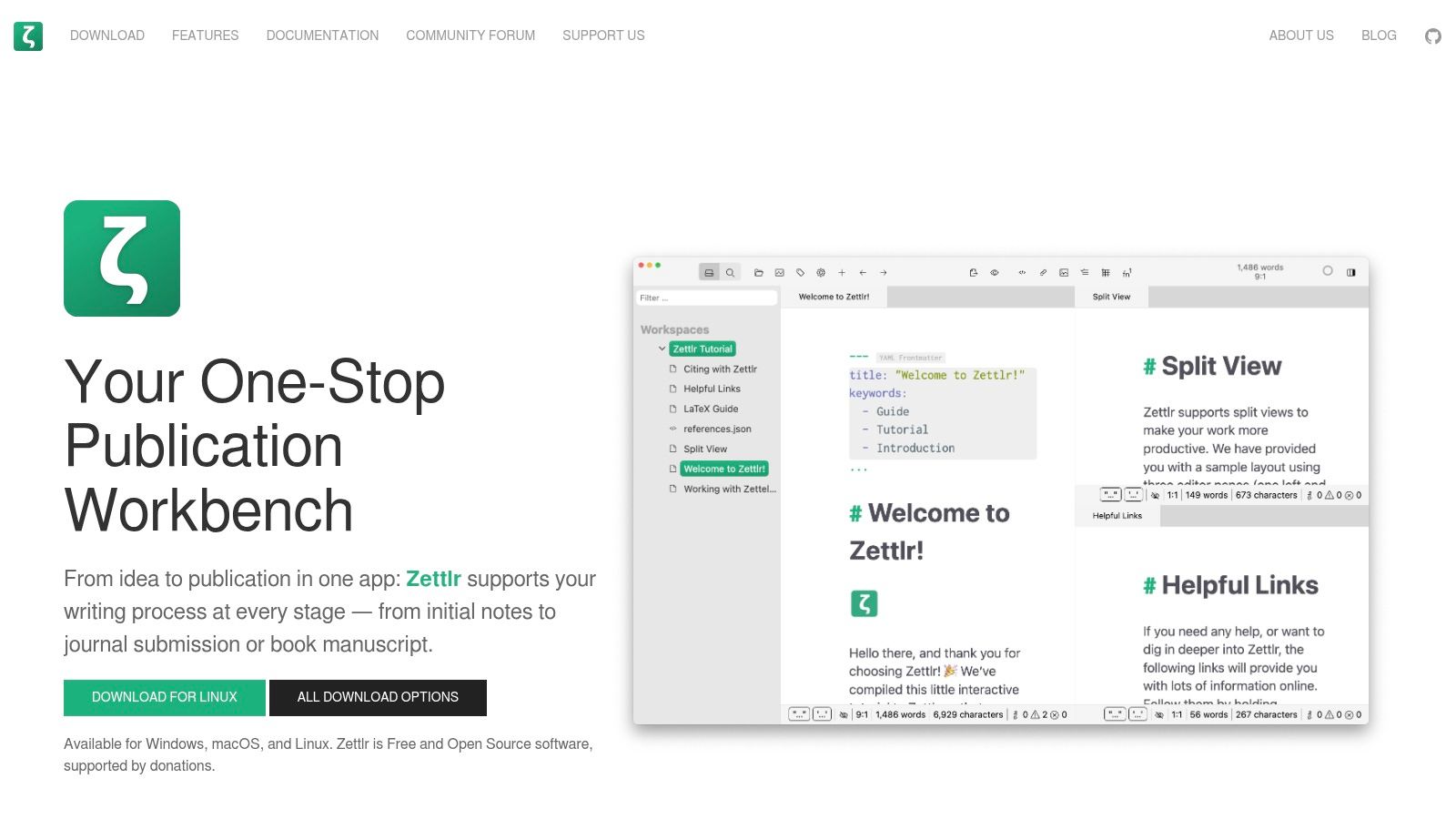
Zettlr is where this list starts leaning hard toward serious research and document production. It's one of the few tools that feels like it understands how academic and technical writing works on Linux. Citations, project organization, and export matter here, not just theme selection.
The strongest factual case for Zettlr is its documented role in the Linux markdown ecosystem. A review of Linux markdown editors notes that Zettlr is a free open-source editor shown on Fedora Linux with live preview, project organization, and Markdown formatting suitable for WordPress blogging, programming books, and technical documentation, while also being cross-platform and aligned with open-source principles in the Merge JSON Files Linux markdown editor guide.
Built for research-heavy writing
Zettlr gets better as your documents get more serious. If you need citations through Zotero, BibTeX, and CSL-driven output, it's built for that world. If you need Pandoc-based exports to formats beyond plain HTML, it's already living in that pipeline.
That said, Zettlr has setup baggage. To get the most from it, you may need Pandoc and possibly LaTeX installed and configured properly. On Linux, that's normal enough for researchers and technical writers, but it's still more work than launching a lighter editor and typing.
Field note: Zettlr is one of the few editors where “heavier” often means “more capable,” not just “more bloated.”
Best fit
This is the best pick in the list for researchers, graduate students, legal writers, and technical authors who need serious export flexibility. It also works well for teams preparing Markdown that later needs conversion into DOCX, PDF, LaTeX, or EPUB.
If your writing eventually moves into RAG or training-data workflows, Zettlr's project organization and Pandoc-friendly habits are useful. You can keep source files structured, export predictably, and avoid the formatting drift that often shows up when documents start in office suites and only later get pushed into Markdown.
5. ghostwriter KDE
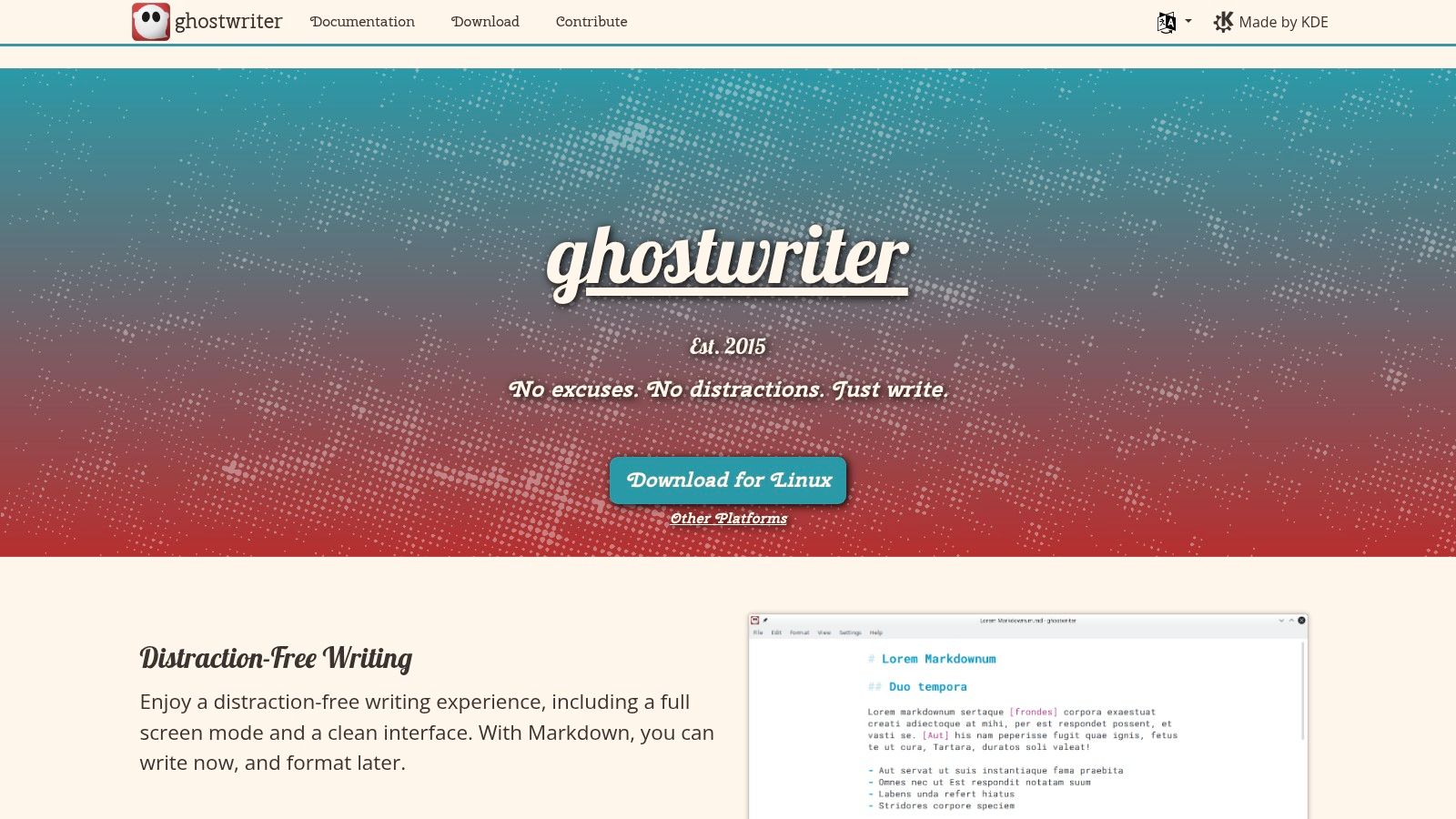
ghostwriter feels like it belongs on Linux in a way many Electron-based editors don't. On KDE and Qt desktops especially, it's comfortable, fast enough, and nicely focused on writing rather than workspace management.
If you write long-form text and don't need a whole note ecosystem, ghostwriter has a lot going for it. The live preview, focus mode, typewriter mode, and session statistics are practical features, not fluff.
A Linux-native long-form writer
What ghostwriter gets right is ergonomics. It supports the sort of writing session where you sit down to draft for an hour and don't want sidebars, vaults, canvases, or plugin prompts in your face. Dragging in images is simple, and the app's document statistics are helpful if you draft by session targets.
Its limitations are just as clear. Project management is thin. Export workflows usually depend on external Pandoc configuration if you need anything beyond basic use. That's fine for disciplined users, but it means ghostwriter can feel sparse compared with Zettlr or VS Code.
A practical Linux advantage is availability. It's commonly packaged in distro repositories and also appears in common universal package channels, so installation usually isn't the problem. The bigger question is whether your work lives in single documents or larger note structures.
Best fit
ghostwriter is best for writers on KDE, Linux users who prefer native-feeling apps, and anyone who wants to draft in Markdown without turning the editor into a platform. It's excellent for essays, blog posts, chapters, and documentation drafts.
If your workflow ends in a converter, static site generator, or Pandoc export, ghostwriter stays effective. If you need backlinks, notebooks, or citation-heavy academic work, one of the more structured tools will hold up better.
6. Apostrophe GNOME
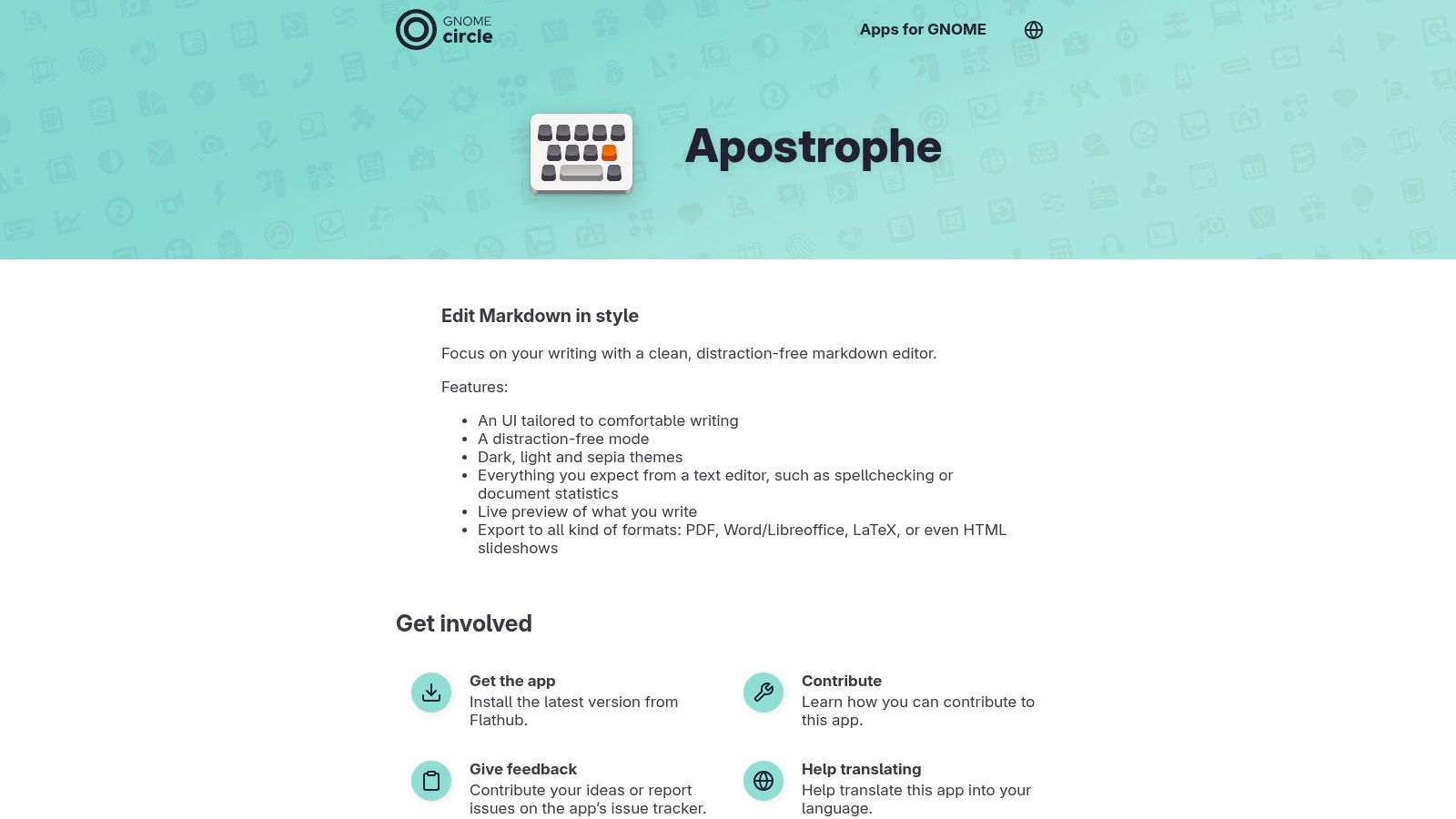
Apostrophe makes the strongest case for a GNOME-native linux markdown editor that keeps things calm. Its interface is spare, typography is polished, and the app feels designed for drafting instead of fiddling.
That desktop fit matters more than feature checklists suggest. On GNOME, Apostrophe feels coherent. If you care about visual calm and minimal setup, it's easy to like.
Clean drafting on GNOME
Apostrophe is not trying to compete with Obsidian on note systems or VS Code on extensibility. It's trying to give GNOME users a polished, focused Markdown workspace with real-time preview and useful writing stats. It succeeds at that.
Export options are broader than the minimalist interface suggests, which is good news if your draft needs to become a PDF, EPUB, HTML, or another format later. The trade-off is that power users will hit the ceiling sooner. There isn't much room here for deep customization, plugin-heavy workflows, or corpus management.
Use Apostrophe when desktop integration and writing comfort matter more than workflow sprawl.
Best fit
Apostrophe is a strong pick for GNOME users, casual writers, and people who want a Markdown editor that behaves more like a focused writing app than a developer tool. It's especially appealing if Flatpak is already part of your software routine.
For AI-ready content, Apostrophe is fine so long as you stay disciplined with headings and document structure. The editor won't optimize your Markdown for retrieval on its own, but it also won't bury your work in a proprietary note database.
7. Joplin
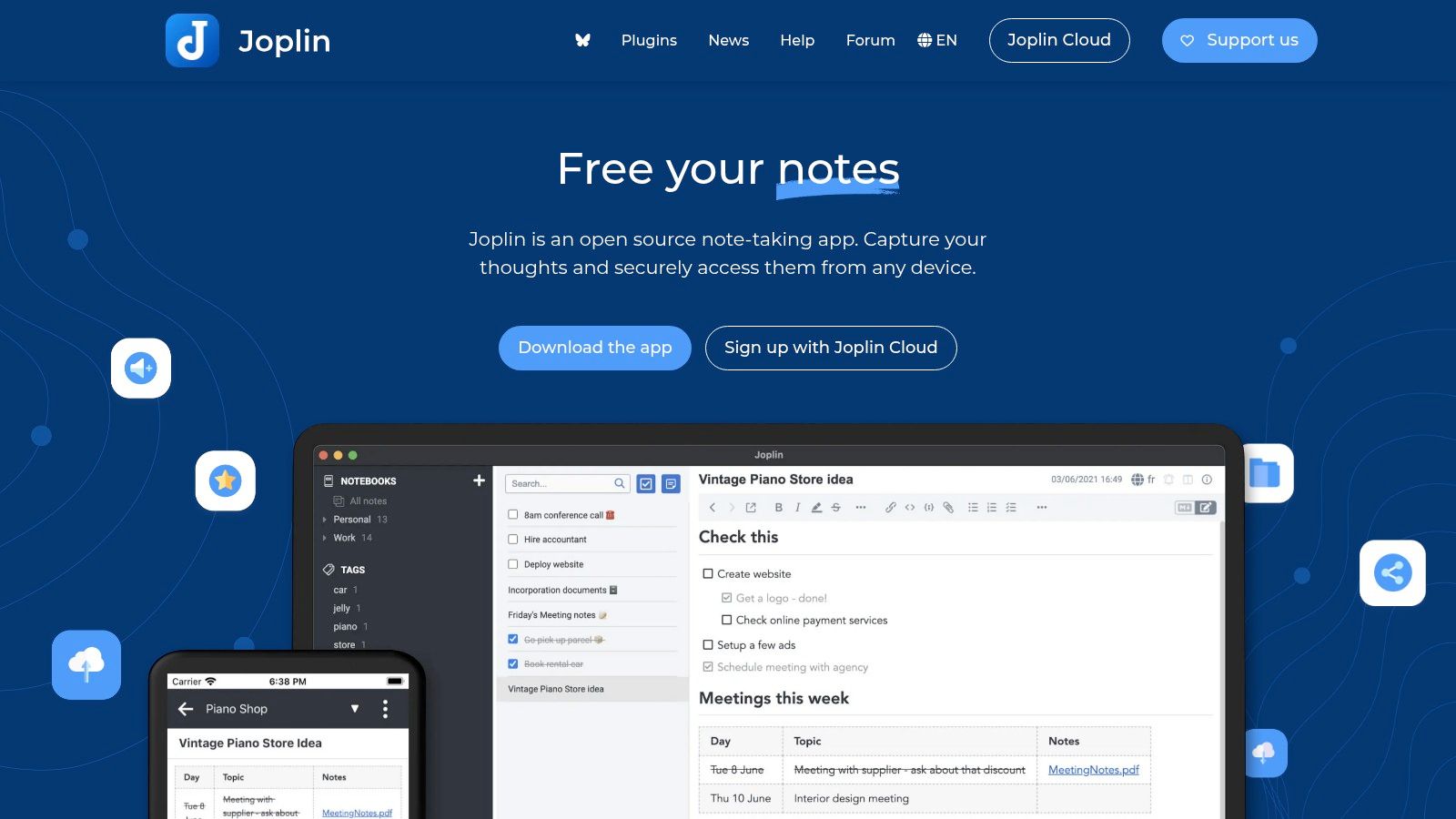
Joplin is less of a pure editor and more of a Markdown-based note system. That distinction matters. If you want notebooks, tags, attachments, sync choices, and a web clipper, Joplin is far more useful than a minimalist drafting app.
If you want the lightest possible writing environment, it won't feel elegant in the same way Typora or ghostwriter does. Joplin wins on organization, not on serenity.
More notebook than editor, and that can be useful
Joplin makes sense when your Markdown is part of a larger personal or team knowledge workflow. Its desktop, mobile, and terminal story is better than most tools in this list if you need access across devices and environments. End-to-end encryption and sync flexibility also appeal to privacy-conscious users.
The cost of that flexibility is weight. The UI can feel busier than dedicated editors, and the app is less satisfying for single-file drafting. Still, if your notes have to live across machines and stay in a Markdown-friendly system, that compromise is reasonable.
The open-source angle matters too. Users looking for alternatives to mixed-license note tools often land here for that reason. It's a practical option if you want something closer to a file-backed notebook environment than a bare editor, which is why guides to open-source Markdown editor options often end up discussing Joplin alongside simpler writing tools.
Best fit
Joplin is best for note-heavy workflows, multi-device users, and teams that need a structured note repository with Markdown at the core. It also suits users who want encryption and sync options without surrendering their notes to a fully closed platform.
For RAG preparation, Joplin is useful when your source material begins life as notes, meeting logs, or clipped web content. You'll still need cleanup before ingestion, but the notebook and tag structure can help you sort source material before conversion.
8. QOwnNotes
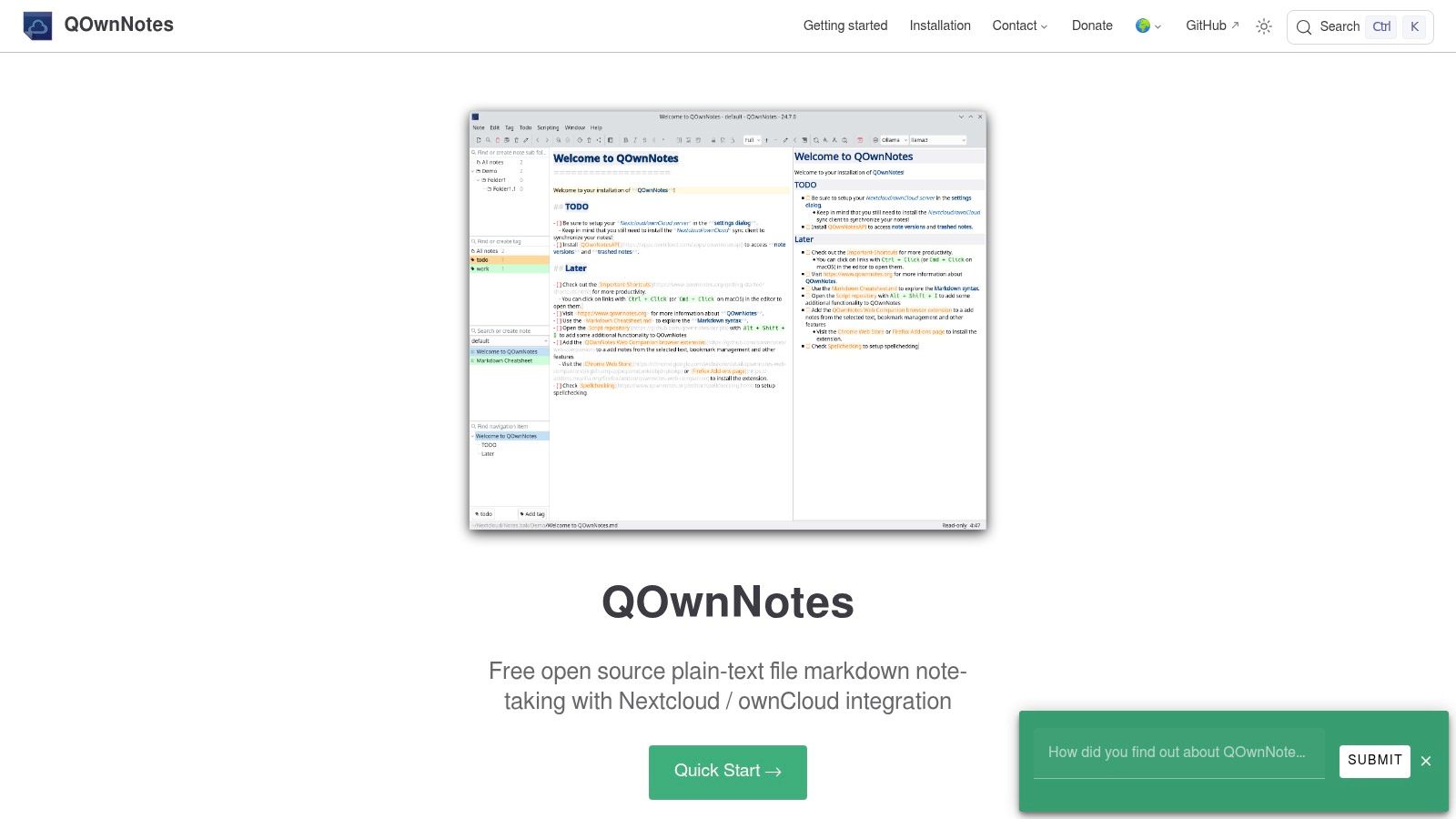
QOwnNotes is the tool I mention when someone says, “I want plain Markdown files, local control, and no nonsense.” Its interface is utilitarian, and that's part of the appeal. It doesn't try to impress you. It tries to keep your notes in files you control.
That makes it a very Linux answer to the note-taking problem. If you already run Nextcloud or ownCloud, QOwnNotes gets even more interesting.
Plain files first
QOwnNotes stores notes as local Markdown files and works well with folder-based organization. That means your backup plan can stay boring, which is a compliment. Rsync, Syncthing, Git, Nextcloud, whatever you already trust can keep working.
Its weaker side is obvious on first launch. The interface feels more practical than polished, and some of the best value only shows up if you pair it with your own cloud stack. Without that, it can feel like a file-focused note app with fewer creature comforts than Obsidian or Joplin.
Still, for privacy-minded users, that's often the point.
- Best reason to choose it: You want notes as normal
.mdfiles, not a proprietary vault format. - Biggest caution: If visual polish drives your motivation to write, QOwnNotes may feel austere.
- Where it fits well: Personal knowledge archives, local wikis, operational notes, and self-hosted sync setups.
Best fit
QOwnNotes is best for privacy-focused users, self-hosters, and people who think in files and folders first. It also works well for long-lived archives where durability matters more than UI sparkle.
If your eventual goal is exporting clean content into AI pipelines, file-based storage is an advantage. There's less extraction drama later, and you can process directories of Markdown with fewer surprises.
9. ReText
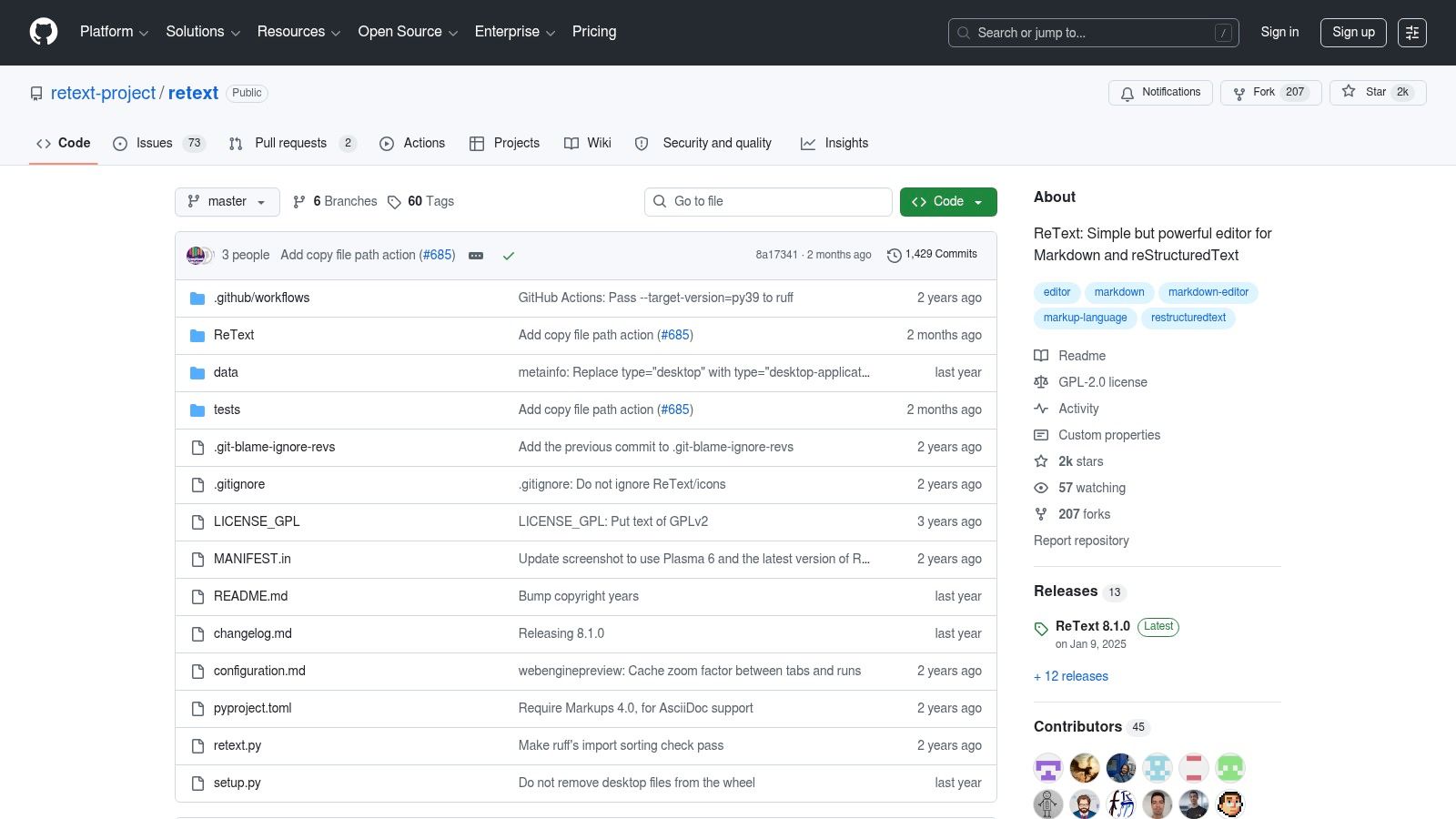
ReText is the kind of editor Linux users often appreciate more after living with several heavier options. It's small, direct, and doesn't ask for much. If all you need is to edit Markdown or reStructuredText with preview and syntax highlighting, it does the job.
That sounds modest, but modest can be valuable. Not every markdown workflow needs a plugin marketplace or note graph.
Simple, standards-friendly, and easy to trust
ReText is useful for quick edits, cleanup passes, and standards-conscious writing. It's often available through distro packaging, which lowers friction if you prefer software that fits neatly into your package manager rather than an app bundle ecosystem.
The weak point is ambition. ReText won't help much with project management, linked note systems, or advanced publishing workflows. It's not where I'd send a researcher juggling citations or a developer managing docs across a monorepo.
But it is easy to trust for small jobs. Open file, edit, preview, save, move on.
Best fit
ReText is best for quick document work, Linux users who prefer lightweight native-ish applications, and anyone who wants a small editor for Markdown hygiene. It's also handy when you need both Markdown and reStructuredText support without loading a full IDE.
For teams with simple file-based documentation, ReText can be enough. It's not flashy, but it avoids many of the distractions that make people overcomplicate plain-text writing.
10. Visual Studio Code
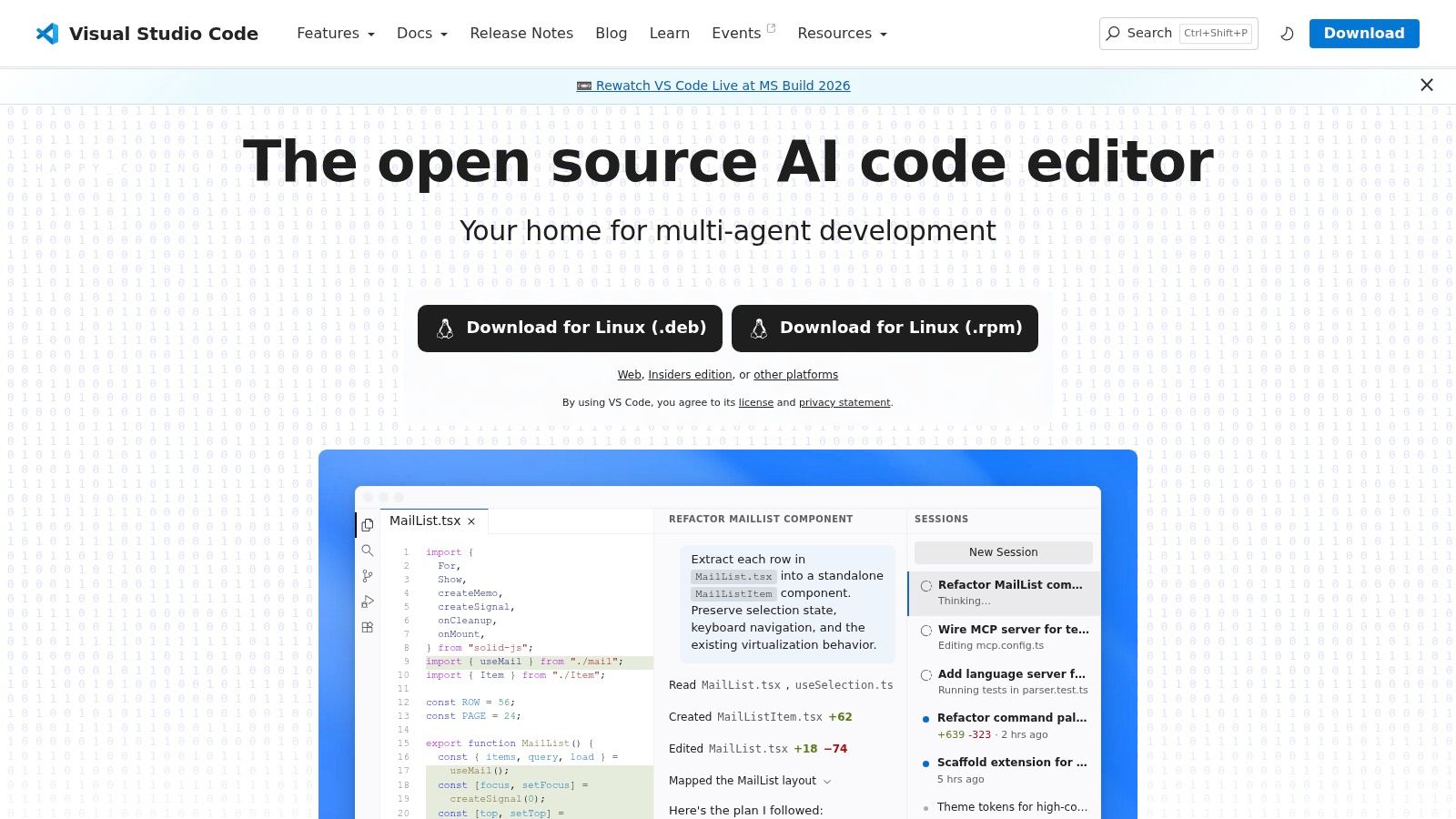
Visual Studio Code is the most practical answer for many developers because it's already open on their desktop. That alone explains a lot. As a linux markdown editor, VS Code is stronger than many dedicated writing apps once you add the right extensions and keep your setup disciplined.
Its adoption among Linux developers is the clearest signal. VS Code maintains a 75.9% adoption rate among Linux developers through 2024 and 2026, according to CommandLinux editor usage statistics. If your docs live next to code, that default matters.
The default choice for many developers
VS Code handles Markdown preview, multi-file editing, workspace search, Git integration, and extension-driven export better than most dedicated editors. It's especially good for README files, docs portals, docs-as-code repositories, and API documentation.
It is heavier than the focused editors in this list. That's the trade-off. You gain power, but you also gain tabs, panels, notifications, extension maintenance, and the temptation to treat every writing task like a development environment problem.
One place VS Code stands out is modern AI-adjacent work. Linux markdown editor guides often ignore token efficiency, even though one analysis points out that unstructured Markdown drives much of the token cost in LLM workflows and that editors with live preview and token-efficient Markdown can reduce context window usage substantially, as discussed in the SitePoint overview of Linux Markdown editor blind spots. VS Code is well positioned here because it sits where developers already prepare content before it enters automation.
If Markdown lives beside source code, issues, schemas, and scripts, VS Code usually beats switching to a separate app.
Best fit
VS Code is the best choice for developers, docs-as-code teams, and anyone who wants one editor for code plus Markdown. It's also the strongest option if you'll script conversions, lint content, or connect authoring directly to AI tooling.
That ecosystem scale shows up beyond developer habit. One market analysis says the global text editor market was valued at 2,397.5 USD Million in 2024 and is projected to reach 4,500.0 USD Million by 2035, with a 5.9% CAGR from 2025 to 2035, while the document editing segment is expected to generate 1,550.0 USD Million by the end of the decade in the Wise Guy Reports text editor market outlook. Broadly, that tracks with what Linux users already see in practice. Writing, docs, and structured content workflows are becoming more central, not less.
Top 10 Linux Markdown Editors, Feature Comparison
| Product | Core features | UX / Quality | Price / Value | 👥 Target audience | ✨ Unique selling points |
|---|---|---|---|---|---|
| Typora | Live in-place WYSIWYG, focus/typewriter, image helpers | ★★★★☆ Stable, distraction‑free | 💰 One‑time license; offline | Writers wanting minimal, fast authoring | ✨ True WYSIWYG; 🏆 very low‑friction writing |
| Obsidian | Local vaults, backlinks, graph view, plugins | ★★★★★ Scales to large knowledge bases | 💰 Free core; Sync/Publish paid | Knowledge managers, researchers | ✨ Bidirectional links & graph; 🏆 extensible ecosystem |
| Mark Text | Real‑time rendering, themes, focus mode | ★★★★☆ Clean Typora‑like experience | 💰 Free / Open‑source | OSS users who want WYSIWYG | ✨ Open‑source Typora alternative |
| Zettlr | Pandoc superset, Zotero/BibTeX citation, exports | ★★★★☆ Academic/export‑focused | 💰 Free (Pandoc/LaTeX needed) | Academics & technical writers | ✨ Built‑in citation + Pandoc toolchain; 🏆 export fidelity |
| ghostwriter (KDE) | Focus/Typewriter, live stats, image drag‑drop | ★★★★☆ Lightweight, ergonomic | 💰 Free | Long‑form writers on Linux/KDE | ✨ Native Qt feel; session/document stats |
| Apostrophe (GNOME) | Minimal UI, live preview, PDF/EPUB/ODT export | ★★★★☆ Polished typography | 💰 Free | GNOME users, focused drafters | ✨ Tight GNOME integration & typography |
| Joplin | Notebooks, E2EE, web clipper, multi‑device sync | ★★★★☆ Robust sync & privacy | 💰 Free / OSS; Cloud paid | Teams & privacy‑minded users | ✨ E2EE + flexible sync; plugin support; 🏆 strong privacy |
| QOwnNotes | Local .md files, Nextcloud/ownCloud integration | ★★★☆☆ Fast, file‑centric | 💰 Free / OSS | Privacy‑focused, Nextcloud users | ✨ Local file storage + Nextcloud sync |
| ReText | Markdown & reStructuredText, live preview | ★★★☆☆ Lightweight & standards‑friendly | 💰 Free | Quick editors & standards purists | ✨ reStructuredText support |
| Visual Studio Code | Built‑in Markdown preview, huge extensions | ★★★★★ Extremely extensible & performant | 💰 Free | Developers, docs with code | ✨ Massive extension ecosystem; 🏆 best for large repos and tooling |
Final Thoughts
The best linux markdown editor depends less on feature count than on what kind of work you do.
If you're a writer, Typora, Mark Text, ghostwriter, and Apostrophe are the cleanest options here. They help you stay in the draft. They don't force you into note graphs, sync systems, or extension hunting. Typora is the most polished of that group, Mark Text is the strongest open-source alternative, ghostwriter feels the most at home on KDE, and Apostrophe is the nicest fit for GNOME users who want calm typography and minimal clutter.
If you're a researcher or academic, Zettlr is the standout. It understands citations, larger projects, and export paths that lead somewhere useful. Obsidian can also be excellent if your real need is knowledge accumulation before final drafting. In that pairing, Obsidian is better for growing a body of linked notes, while Zettlr is better for turning serious research material into formal output.
If you're a developer, Visual Studio Code remains the obvious choice unless you specifically want a separate writing space. That isn't just momentum. Linux developers already use it heavily, and it fits naturally when Markdown lives inside repositories, docs folders, changelogs, and internal developer portals. ReText can still earn a place as a lighter side tool for quick edits, but VS Code is the realistic default for docs-as-code work.
If privacy and file ownership matter most, QOwnNotes and Joplin deserve a close look. QOwnNotes is better when you want plain .md files and self-managed sync. Joplin is better when you want a fuller notebook environment with mobile access, clipping, encryption, and cross-device organization.
One practical distinction matters more in 2026 than it did a few years ago. A markdown editor is no longer just where you write. It's often the first stage in a larger content pipeline. Notes become internal documentation. Documentation becomes retrieval data. Research notes become AI-ready corpora. That means stable headings, consistent tables, predictable exports, and easy access to raw Markdown files are no longer niche concerns. They're operational concerns.
That's also why I'd avoid choosing purely on screenshots or “best for everyone” claims. Pick the tool that matches your working style and your output path. A beautiful editor that traps content in a workflow you hate won't help. A plain editor that produces clean, portable Markdown often will.
If you also work across programming workflows, this roundup of top code editors for developers is a useful companion read. Many Linux users end up balancing one dedicated writing tool with one general-purpose editor, and that split is often more productive than forcing one app to do everything.
The short version is simple. Choose Typora if writing feel matters most. Choose Obsidian if linked knowledge matters most. Choose Zettlr if research output matters most. Choose VS Code if Markdown lives beside code. Choose QOwnNotes or Joplin if ownership and sync matter more than polish.
If your Markdown doesn't stop at writing and needs to become clean input for AI tools, Markdown Converters is worth a look. It converts files, web pages, scans, and mixed document formats into structured, AI-ready Markdown for LLM and RAG workflows, with OCR, API access, and in-chat integrations that remove a lot of the manual cleanup Linux users usually end up doing themselves.
Related Articles
Top 10 Windows Markdown Editor Free Tools for 2026
Find the best Windows Markdown editor free for your needs in 2026. Our list covers top tools for developers, writers, and LLM workflows, with detailed reviews.
Read article10 Best Windows Markdown Editor Options for 2026
Find the best Windows Markdown editor for your workflow. We review 10 top tools for developers, writers, and AI-data prep, from VS Code to Obsidian.
Read article10 Best MD Editors for Developers & Writers in 2026
Find the best MD editor for any workflow. Our 2026 guide reviews 10 top tools for developers, writers, and RAG pipelines, from Obsidian to Typora.
Read article