
10 Best Windows Markdown Editor Options for 2026
Find the best Windows Markdown editor for your workflow. We review 10 top tools for developers, writers, and AI-data prep, from VS Code to Obsidian.
You're probably in one of three situations right now. You need a Windows Markdown editor that's better than Notepad, you've outgrown a basic note app, or you're trying to clean up documents before they go into an AI workflow. Those are different jobs, and the wrong editor creates friction fast.
Markdown itself has been around since John Gruber created it in 2004, and it became the plain-text formatting standard adopted across places like GitHub, GitLab, and Stack Overflow. GitHub alone hosts over 10,000 Markdown-related projects and repositories as of 2025, which says a lot about how large the ecosystem has become (Markdown background on Wikipedia). That maturity is why the Windows editor field is crowded. The syntax is stable, but the workflows around it aren't.
What matters now isn't only preview panes, themes, or export buttons. It's whether your editor fits the rest of your work. A developer may need Markdown beside code and automation. A researcher may need backlinks, citations, and cross-note retrieval. A team building retrieval-augmented generation pipelines may care more about clean structure, predictable headings, and token-efficient output than polished typography.
This guide gets straight to the tools. I'm judging them by what changes day-to-day use on Windows: writing flow, search across files, export reliability, setup friction, and how cleanly each one feeds documentation systems or LLM-ready content pipelines.
1. Free Markdown Editor with Live Preview
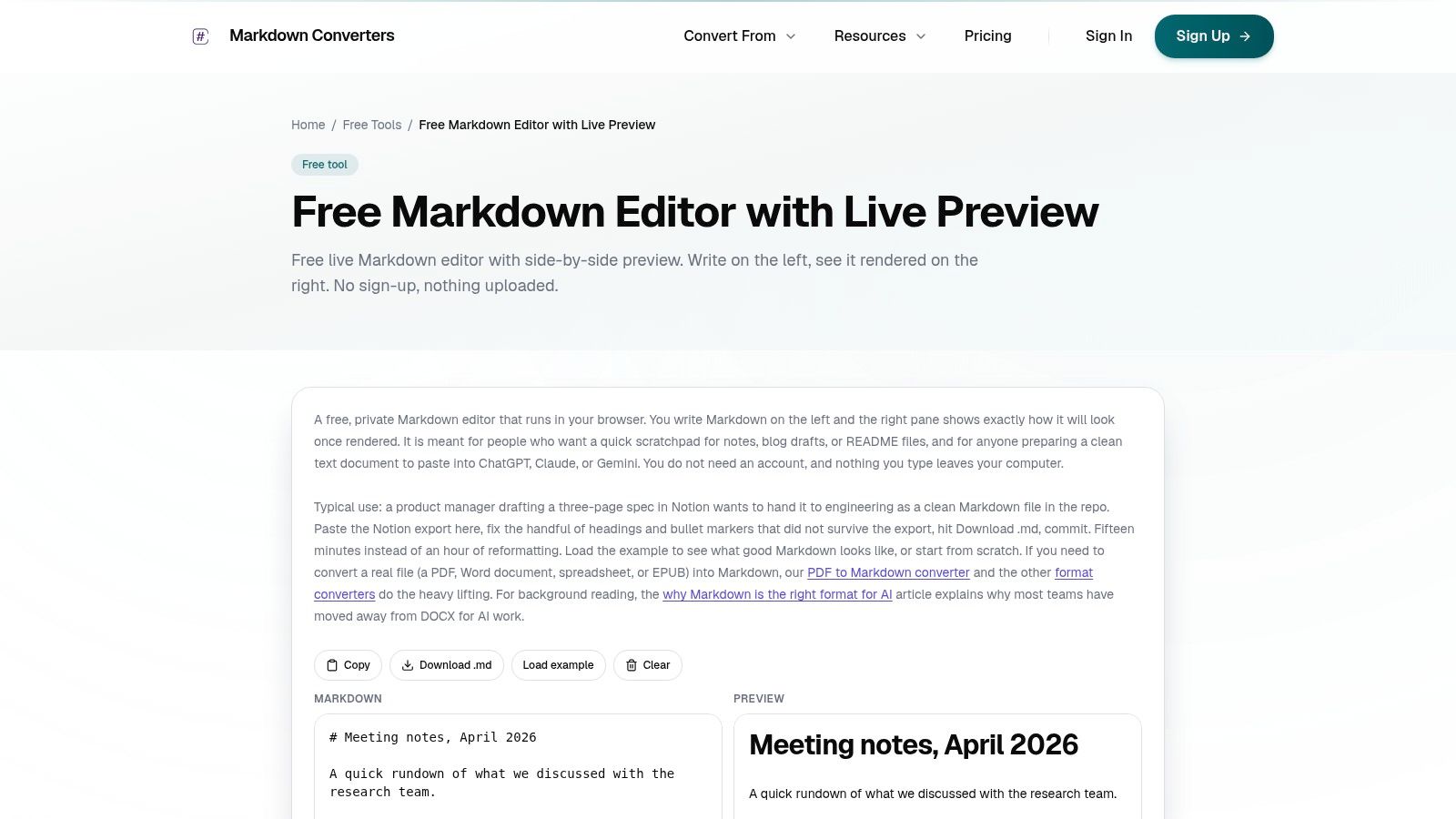
Sometimes the best Windows Markdown editor isn't an app you install. It's the one you open in a tab, type into immediately, and close when you're done. That's exactly where the Free Markdown Editor with Live Preview fits.
This tool is fast, local, and practical. It runs in your browser, gives you side-by-side preview, and keeps the interface stripped down enough that you can focus on the actual Markdown. For quick drafting, meeting notes, README cleanup, or preparing text before sending it into an AI tool, that simplicity is an advantage, not a limitation.
Why it works well for quick Windows workflows
The first thing I like here is the zero-install setup. On a managed Windows machine, or on a work laptop where you don't want another desktop app, that matters. Open it, paste your text, clean up the structure, copy the result, and move on.
It also handles the small conveniences that make a lightweight tool usable: live preview, word and character counts, line counts, copy-to-clipboard, and direct .md download. Those details make it easy to normalize rough notes into cleaner Markdown without committing to a full app ecosystem.
Practical rule: If you're cleaning text for an LLM, fewer editor layers usually means fewer formatting surprises.
That makes this editor a good match for AI prep work. In the broader business context around Markdown conversion, token-efficient Markdown can reduce context window usage by up to 70% compared with raw PDFs or HTML uploads, and standardized Markdown helps preserve headings, tables, and lists for more predictable chunking in retrieval workflows (Markdown conversion business context in Microsoft App Store listing).
Best fit
This is the one I'd use when the task is narrow and speed matters more than ecosystem depth.
- Best for quick notes: Open it, draft, export, done.
- Best for privacy-conscious drafting: Because it runs locally in the browser, it avoids the feeling of pushing text into yet another service.
- Best for AI cleanup: It's a simple staging area for turning messy text into structured Markdown before a conversion or retrieval step.
It's not trying to replace VS Code, Obsidian, or Typora. It doesn't have plugins, project panels, sync, or version history. But that's why it works. If you want a lightweight alternative before committing to a desktop app, this roundup of Markdown editor options is a useful next step, and developers who like lightweight utilities can also discover free web tools.
2. Typora
Typora is the editor I recommend when someone says, “I want Markdown, but I don't want to stare at syntax all day.” It removes most of the source-preview split and gives you an inline writing experience that feels much closer to a document editor.
That change sounds small until you write for hours. With Typora, tables are easier to manage than in many plain-text-first editors, headings read like headings, and the screen stays calm. For drafting documentation, policy docs, or long internal notes, it reduces visual noise.
Where Typora shines
Typora works best when writing flow matters more than extensibility. If your documents are mostly linear, and you don't need deep plugin systems or an IDE environment, it's one of the smoothest Windows Markdown editor experiences available. It also has strong export options and solid theme support, which helps when you need presentable output without a lot of setup.
For distraction-free work, that trade-off is often worth it. In enterprise editor comparisons for 2026, Typora is identified as the preferred option for distraction-free writing, which tracks with how many writers use it in practice (enterprise Markdown editor comparison on SourceForge).
- What works: Clean inline rendering, strong typography, good table handling, consistent feel.
- What doesn't: Less extensible than VS Code, proprietary license, weaker fit for automation-heavy workflows.
If you need a Windows Markdown editor that feels close to WYSIWYG without turning into Word, Typora sits in a very comfortable middle ground. If that editing style is what you're after, this guide to a WYSIWYG Markdown editor approach is worth reading.
3. Obsidian

Obsidian isn't just an editor. It's a local-first knowledge base built from plain Markdown files. That difference changes everything if your work involves dozens or hundreds of notes that need to connect to each other.
For single-document writing, Obsidian can feel like overkill. For research, case prep, literature review, meeting archives, and linked working notes, it's one of the best tools on Windows. Backlinks, graph views, templates, and plugins make it easier to build a note system instead of a pile of files.
Why researchers and heavy note users stick with it
Obsidian is especially strong when retrieval matters more than polished final output. You can keep files on disk, structure folders however you want, and add plugins only where they support the workflow. That makes it attractive for people building a personal research corpus or staging source material before it moves into another system.
The caveat is setup sprawl. Obsidian can become a hobby if you let it. Plugin depth is powerful, but it also means two people can both “use Obsidian” and have completely different experiences.
Search across notes matters more than most roundup articles admit. For large knowledge bases, weak cross-file search becomes the bottleneck before writing quality does.
That gap matters on Windows. One long-running critique of Windows Markdown apps is that the platform is under-served for people who need to work with and search through multiple notes at once, especially compared with more purpose-built knowledge tools (analysis of Windows Markdown editors and multi-note search limits). Obsidian helps address that better than most classic editors, and if your workflow already revolves around linked notes, this Comprehensive guide for Obsidian users goes deeper on one practical use case.
4. Visual Studio Code (VS Code)
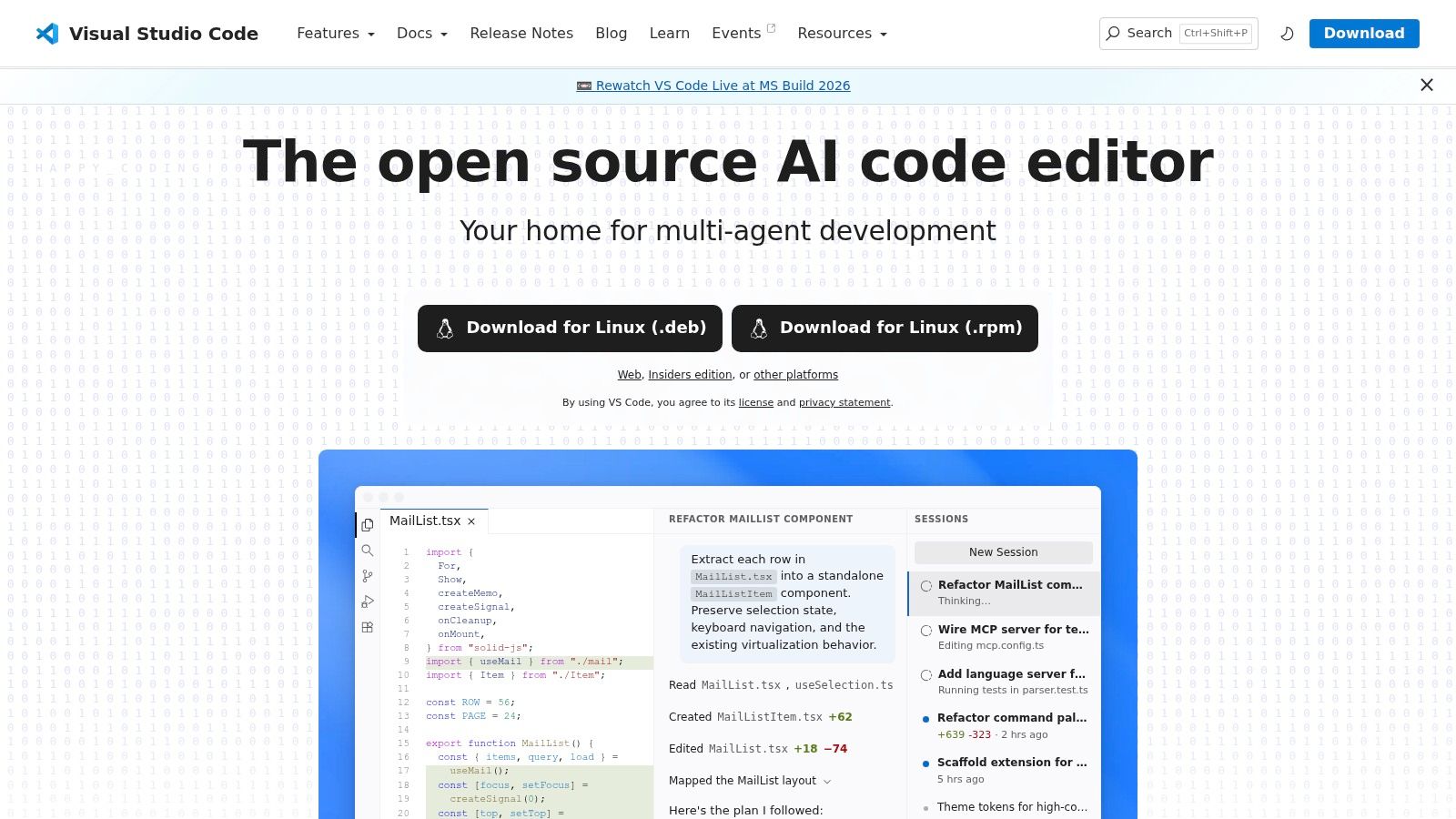
A common Windows setup looks like this. Markdown files sit in the same repo as application code, build scripts, test fixtures, and deployment config. In that situation, VS Code usually makes more sense than a writing-first editor because the document is only one part of the job.
Its value is workflow density. You can edit a README, inspect the file tree, preview Markdown, check Git diffs, fix a broken link, run a script, and commit the change from one workspace. For docs-as-code teams, that cuts context switching more than any typography feature ever will.
Best when Markdown is part of a working repository
VS Code fits technical documentation pipelines better than almost any other Windows Markdown editor. The built-in preview is good enough for routine editing, and extensions cover the rest: Mermaid rendering, markdownlint, Vale, front matter tooling, table formatting, and static site generator support. File move handling also matters in large doc sets, where broken relative links become a maintenance problem fast.
It also deserves attention for AI and RAG preparation work. I use it when Markdown needs cleanup before it goes into chunking, embedding, or retrieval workflows. Regex search, multi-file replace, visible whitespace, diff tools, and extension support make it easier to normalize headings, remove noisy formatting, and keep source files token-efficient without exporting everything into a separate preprocessing tool.
The trade-off is writing comfort. VS Code can be configured into a decent drafting environment, but it still feels like an editor built for repositories, not for quiet long-form writing. If the main task is producing polished prose from scratch, Typora or iA Writer usually feels better after the first hour.
Microsoft positions VS Code as a general-purpose editor for code, documentation, and extension-based workflows, which matches how it gets used in practice across engineering teams (Visual Studio Code documentation). That is where it wins on Windows. It works best for documentation that ships with software, research notes that need reproducible file handling, and Markdown that will eventually feed automation or retrieval systems.
5. iA Writer (Windows)
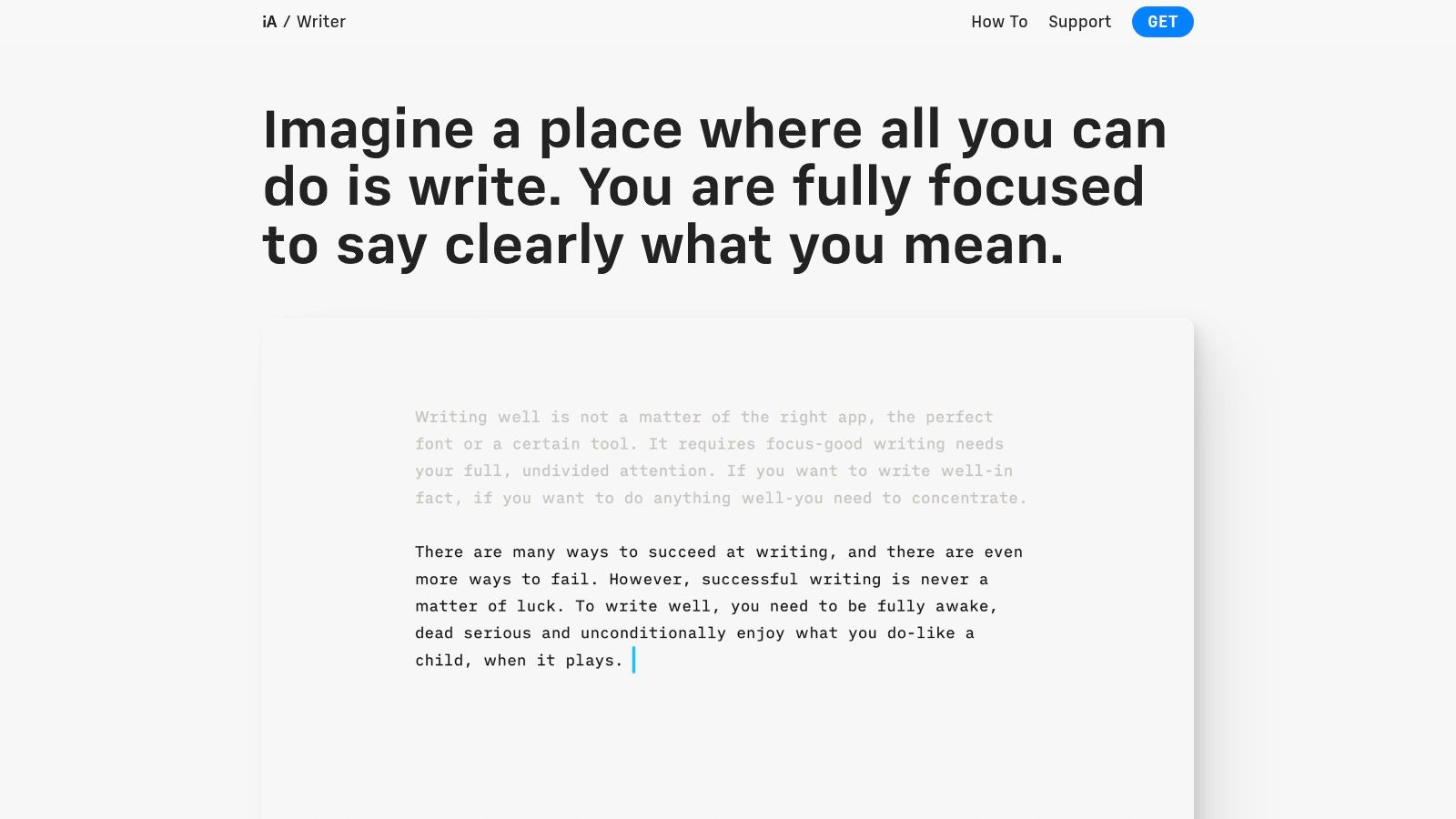
iA Writer is for people who want fewer decisions. Open the app, write, and keep going. Its interface stays out of the way, and the structure-focused syntax highlighting helps you notice headings, lists, and emphasis without turning the screen into an IDE.
That makes it a good fit for long-form drafting. Reports, essays, documentation drafts, and internal memos all benefit from that controlled environment. It's less flexible than Obsidian or VS Code, but that's often the point.
Best for controlled long-form drafting
What iA Writer does well is consistency. Exports are reliable, the presentation is clean, and the app nudges you toward a disciplined writing process. If your main need is drafting in Markdown and handing off to other formats later, it's a dependable choice.
The catch is extensibility. You won't get the plugin ecosystems, note graphing, or workspace complexity available in other tools. It also uses a per-platform purchase model, which can be annoying if your work moves between machines and operating systems.
For users who care a lot about editing flow and eventually need Word, PDF, or HTML output, iA Writer is one of the more straightforward options. I'd choose it over heavier apps when the document itself matters more than the surrounding system.
6. Joplin
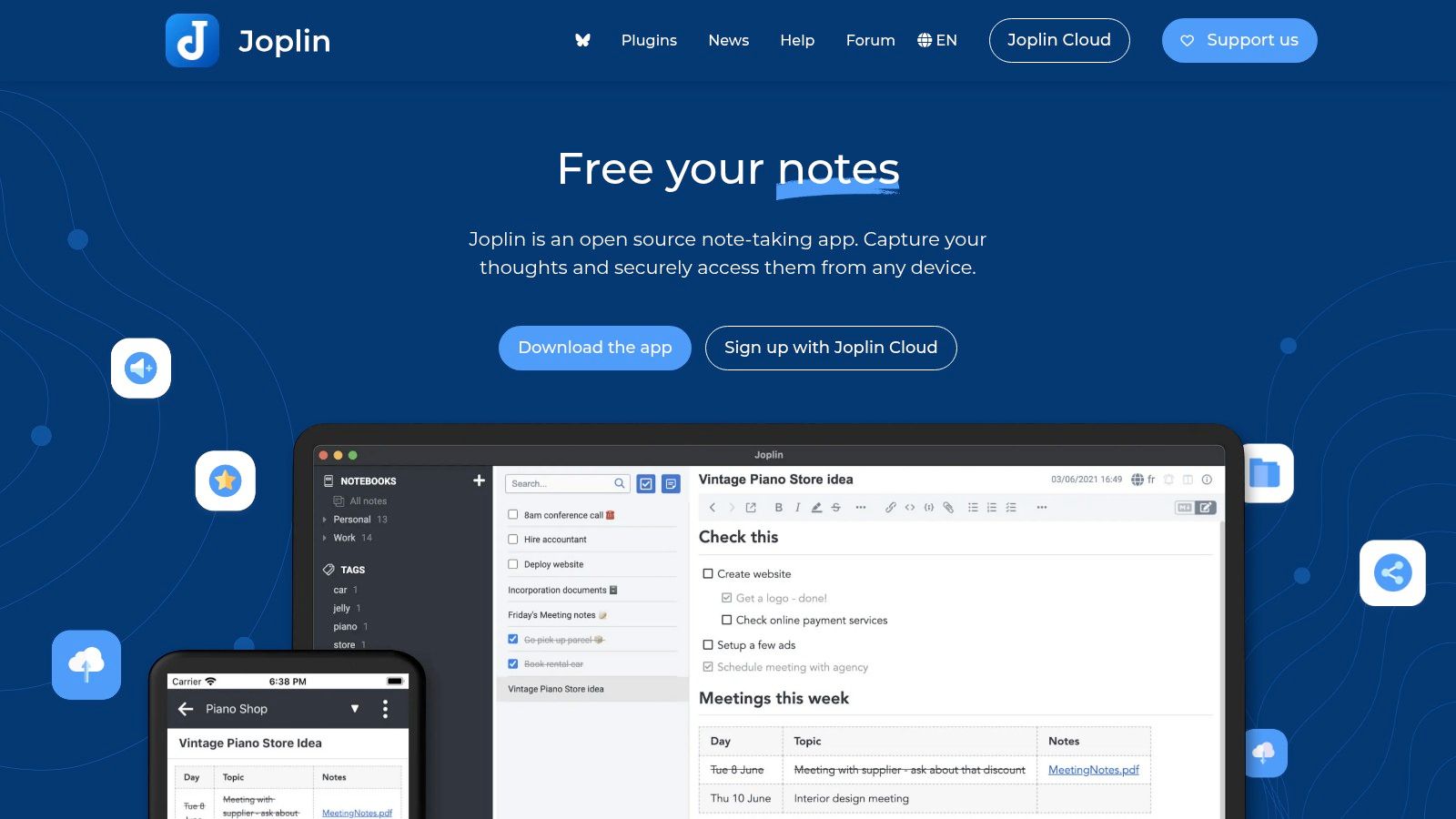
Joplin sits in a useful middle ground between note manager and Markdown editor. It's open source, works across desktop and mobile, and gives privacy-minded users more control than many cloud-first note apps.
I usually point people to Joplin when they want notebooks, tags, attachments, and sync flexibility more than they want a polished writing experience. It's practical, not luxurious. That's often enough.
Where Joplin makes sense
Joplin works well for users who need an offline-capable repository of notes with Markdown at the center. It's especially reasonable for teams or individuals who want local control first and optional sync second. End-to-end encryption and flexible sync targets strengthen that position.
- Good fit: Personal knowledge stores, technical notes, clipped references, operational runbooks.
- Less ideal: People who want the best writing UI, advanced inline editing polish, or low-friction collaboration by default.
Joplin is the editor I pick when ownership of the notes matters more than elegance of the writing surface.
Its editor is more utilitarian than Typora or iA Writer, and the stronger collaboration path usually involves Joplin Cloud. But if open source and local control are essential requirements, it earns its place. For readers comparing open tools more broadly, this overview of a Markdown editor open-source landscape is a helpful companion.
7. Zettlr
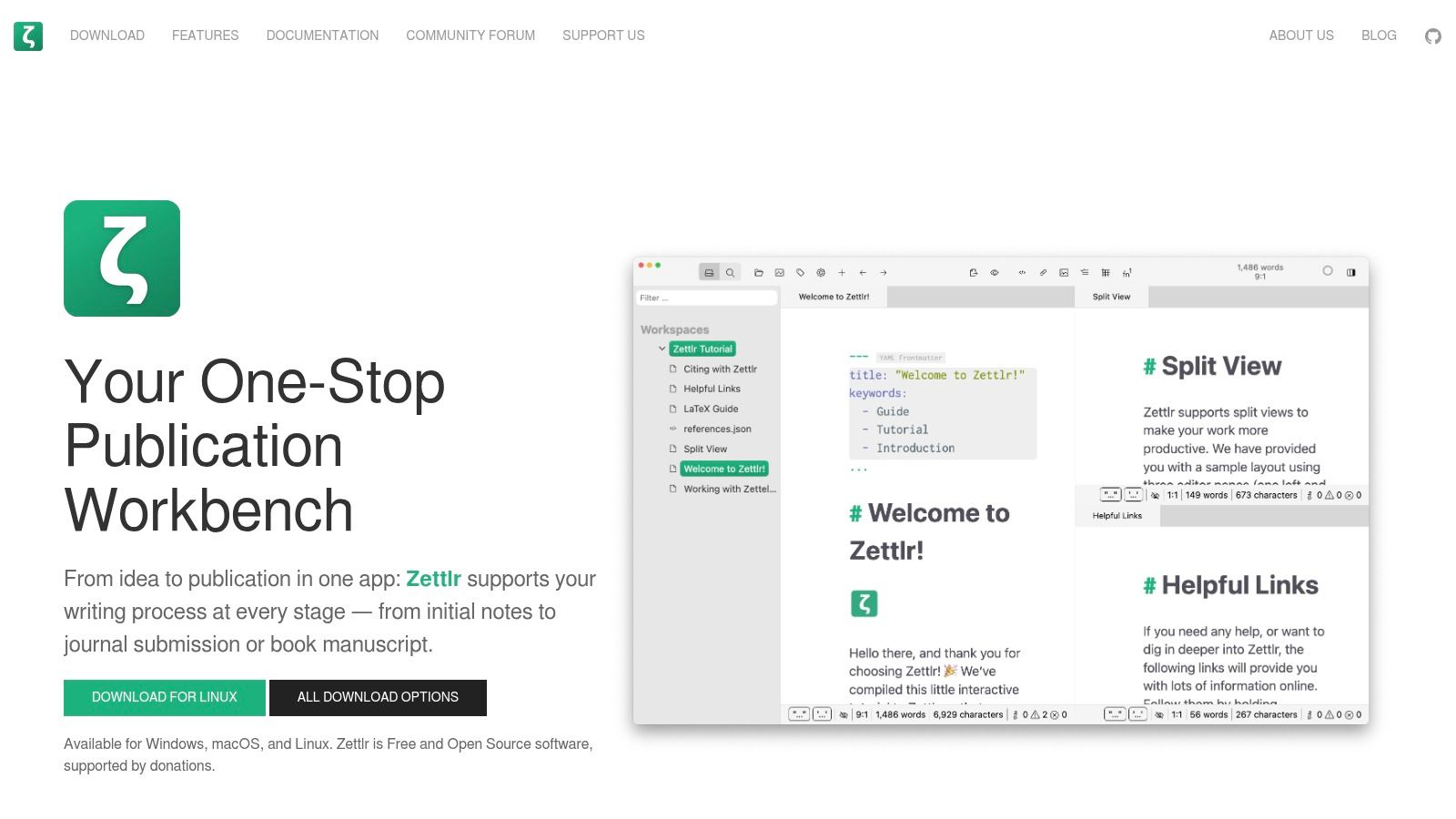
Zettlr is the editor I bring up when the user isn't really “just writing Markdown.” They're managing citations, drafting research papers, preparing legal analysis, or assembling long documents that need structured export control.
It offers more academic scaffolding than most general Markdown editors. Citation support, Pandoc-based export workflows, project organization, and support for tables and figures make it useful beyond software documentation. If your output eventually lands in DOCX, PDF, or a manuscript pipeline, Zettlr is built with that reality in mind.
Strong choice for academic and legal writing
Zettlr has a steeper learning curve than minimalist editors, but the extra structure pays off when your work has references and formal outputs. It feels less sleek than Typora, yet more grounded for serious document production where metadata, citations, and conversion options matter.
That also connects to a real Windows pain point. People often ask for a good markup editor on Windows where the primary requirement is export to Word, but many editor roundups don't explain a workable path for preserving structure in DOCX-oriented collaboration (Reddit discussion on needing Word export from a Windows markup editor). Zettlr at least directly addresses that problem space, even if some export workflows still depend on external tools like Pandoc.
If your downstream world is academic review, legal markup, or formal document exchange, Zettlr is one of the more practical options on this list.
8. Markdown Monster
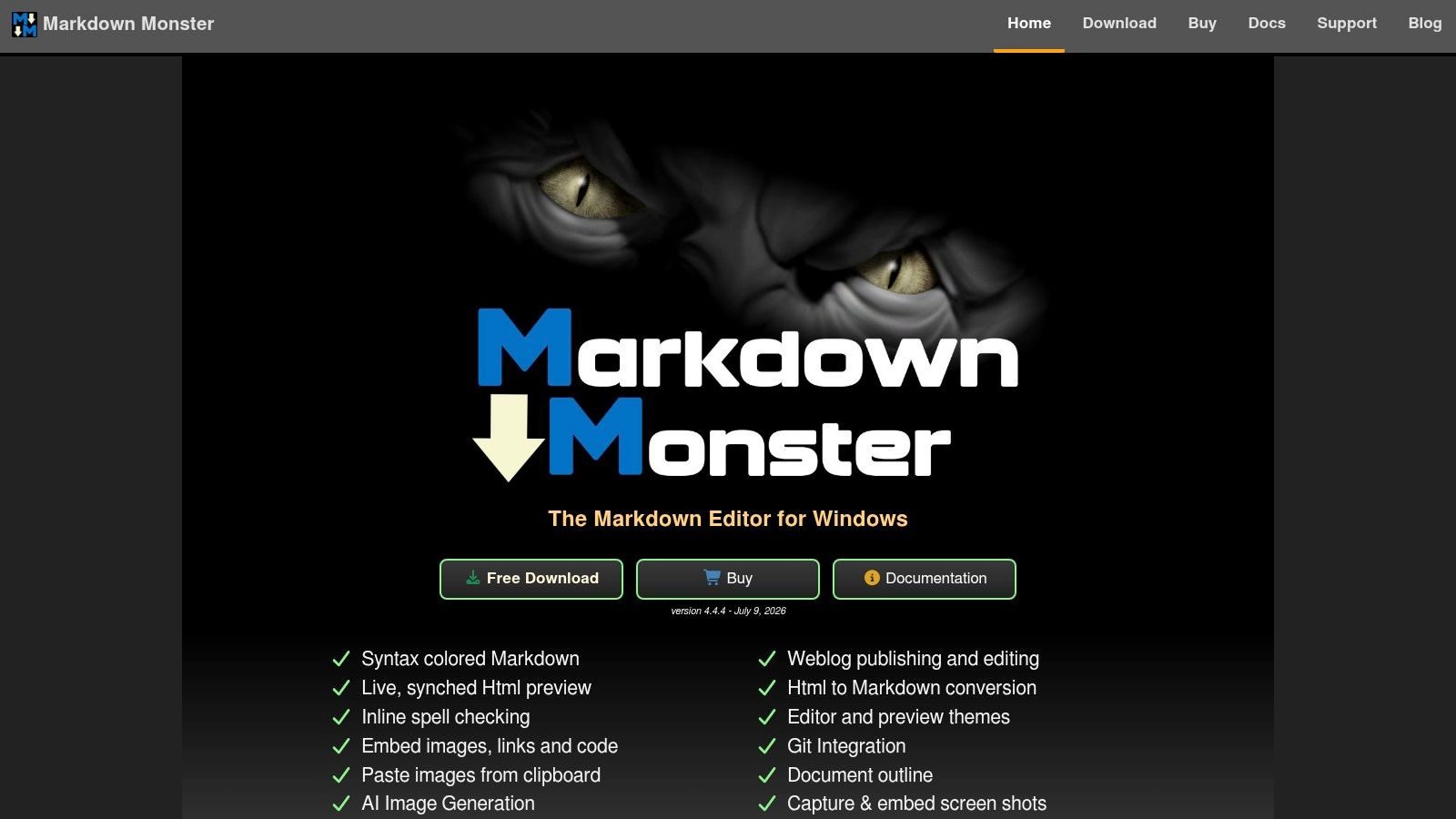
Markdown Monster feels unapologetically Windows-first. That's its appeal. It doesn't try to be a minimalist writing retreat or a note graph system. It gives you a capable editing surface, live preview, publishing helpers, and a workflow that makes sense for technical writers and bloggers working on Windows every day.
The tooling around images, templates, file handling, and preview is where it starts to stand out. If you publish technical posts, maintain docs, or work with lots of snippets and structured content, those touches save time.
Best for Windows-first technical publishing
This is a practical fit for people who want more power than a minimalist editor but don't want to live inside a full IDE. It handles technical writing tasks well, especially when your work includes code fences, screenshots, image insertion, and repetitive formatting.
What it doesn't solve is cross-platform flexibility. If your work spans macOS or Linux, Markdown Monster won't follow you there. It's also commercial, so it makes the most sense when Windows is your fixed home base.
For a lot of solo technical writers, that's perfectly fine. If your desktop is Windows and your output is docs, knowledge articles, and blog posts, this tool feels purpose-built.
9. Mark Text
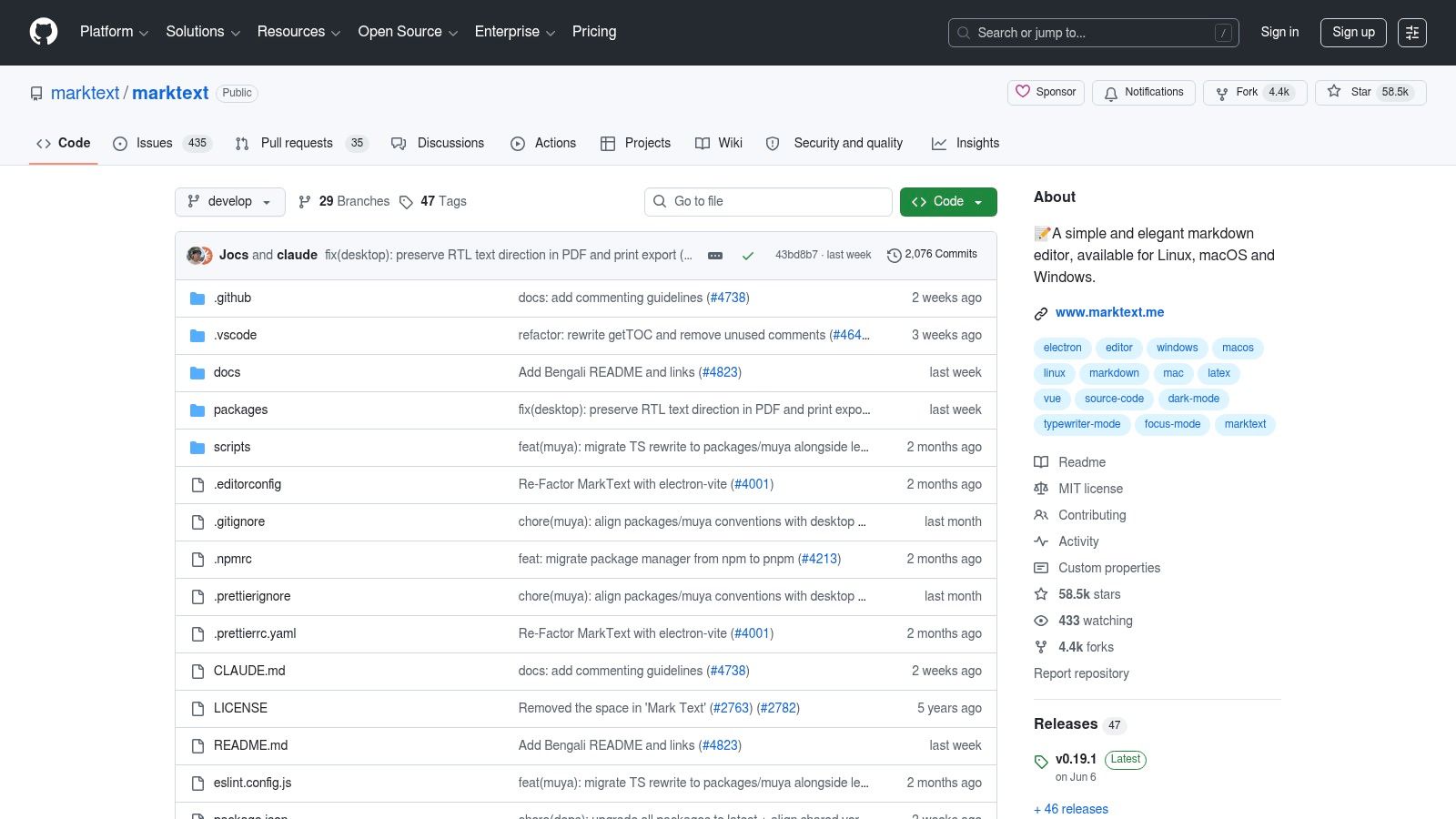
Mark Text is what I usually suggest when someone wants a Typora-like experience but prefers a free, open-source option. It's clean, simple, and focused on the editing experience rather than broader workflow infrastructure.
That simplicity is its strongest quality. You get live preview behavior, support for CommonMark and GitHub Flavored Markdown, and a writing surface that doesn't overwhelm casual users. For personal notes, small docs, and straightforward writing, it's easy to like.
Good free choice if you want simplicity
Mark Text is best when your needs are modest. If you don't need graph views, enterprise collaboration, advanced citation workflows, or a huge plugin ecosystem, it covers the basics well enough. It's a sensible “just write in Markdown” app.
The trade-off is feature depth and development pace. Commercial tools often feel more polished in edge cases, and heavier tools cover more workflow territory. Mark Text stays lean, which is both the attraction and the limitation.
If Typora feels right but the license doesn't, Mark Text is one of the first alternatives worth trying on Windows.
10. ghostwriter (KDE)
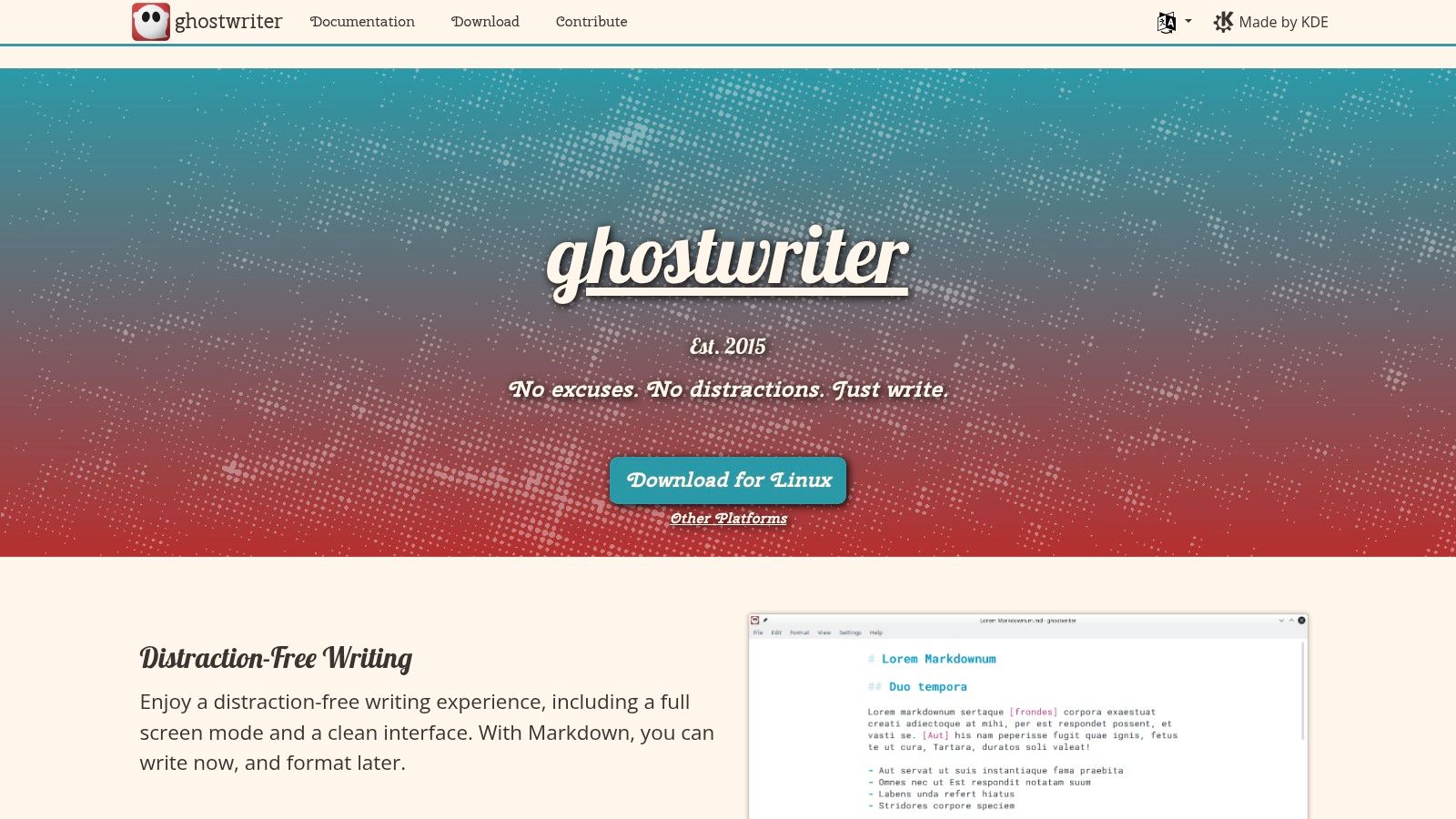
ghostwriter is a thoughtful writing app. It doesn't try to do everything, and that restraint works in its favor. Focus mode, darkroom-style presentation, live statistics, and a calm interface make it appealing for long sessions where attention matters.
I like ghostwriter for drafting more than for workflow orchestration. It's a good writing room, not a full information system. That distinction helps set expectations.
Where ghostwriter fits
ghostwriter suits writers who want a free Windows Markdown editor with strong focus features and enough export flexibility to remain useful. It can detect installed processors and use tools like Pandoc or cmark-gfm for preview and export, which gives advanced users room to extend it without bloating the core app.
That same design creates the main downside. Some of the more powerful export and processing workflows depend on external tools, so the experience gets better only if you're willing to configure it. Users who want everything bundled in one place may find that annoying.
Still, for long-form drafting, session stats, and distraction control, ghostwriter is one of the nicer free options on Windows.
Top 10 Windows Markdown Editors Comparison
| Product | Core features | UX / Quality (★) | Price / Value (💰) | Target audience (👥) | Unique selling points (✨ / 🏆) |
|---|---|---|---|---|---|
| Free Markdown Editor with Live Preview | Local browser editor, side-by-side live preview, word/char/line counts, one-click .md export | ★★★★, instant, lightweight | 💰 Free; runs locally, privacy-first | 👥 Quick notes & prepping LLM-ready Markdown | ✨ Privacy-first local execution; one-click export; LLM-ready output 🏆 |
| Typora | True inline WYSIWYG, export to PDF/HTML, theming & tables | ★★★★★, seamless writing flow | 💰 Paid license (one-time) | 👥 Long-form writers & docs authors | ✨ Real WYSIWYG inline rendering; polished typography 🏆 |
| Obsidian | Local Markdown vault, graph/backlinks, rich plugin ecosystem, optional sync | ★★★★★, highly extensible | 💰 Core app free; paid Sync/Publish tiers | 👥 Researchers, Zettelkasten, RAG note workflows | ✨ Backlinks/graph + plugins for complex workflows 🏆 |
| Visual Studio Code (VS Code) | Built-in preview/outline, massive extensions (Mermaid, math), automation | ★★★★★, powerful & customizable | 💰 Free; some paid extensions | 👥 Developers & automation/ML workflows | ✨ Extensive extensions & automation for code+Markdown 🏆 |
| iA Writer (Windows) | Minimal UI, syntax highlighting, export templates | ★★★★, distraction-free, consistent output | 💰 Paid (one-time per platform); 7-day trial | 👥 Authors & long-form drafters | ✨ Clean typography and reliable formatted exports |
| Joplin | Notes/notebooks, attachments, E2E encryption, multi-device sync | ★★★★, privacy-focused, utilitarian editor | 💰 Free & open-source; optional paid Cloud | 👥 Privacy-minded note-takers & offline users | ✨ End-to-end encryption and flexible sync targets |
| Zettlr | Citation management (BibTeX/CSL), Pandoc exports, project view | ★★★★, research-oriented feature set | 💰 Free & open-source | 👥 Academics, researchers, legal writers | ✨ Built-in citation + Pandoc export for academic workflows 🏆 |
| Markdown Monster | Live preview, template expansions, blog publishing, Windows integration | ★★★★, Windows-first, developer-friendly | 💰 Commercial license | 👥 Technical writers & Windows bloggers | ✨ Deep Windows tooling and publishing add-ins |
| Mark Text | Real-time preview, CommonMark/GFM support, cross-platform | ★★★, simple, pleasant writing UX | 💰 Free & open-source | 👥 Users wanting a Typora-like FOSS editor | ✨ Typora-like live preview under an open-source license |
| ghostwriter (KDE) | Focus/darkroom modes, live stats, export via Pandoc/cmark-gfm | ★★★, focused writing, external-export reliant | 💰 Free & open-source | 👥 Long-form writers who want minimal UI | ✨ Focus mode and session stats; lightweight long-form UX |
The Best Editor Is the One That Fits Your Workflow
You open a draft on Windows, clean up a few headings, paste in notes from a PDF, then realize the file needs to do three jobs at once. It has to read well for humans, survive Git review, and stay structured enough for chunking in a RAG pipeline. The right Markdown editor is the one that makes that chain easier, not the one with the longest feature grid.
Writers who spend most of the day drafting usually do better with Typora, iA Writer, or ghostwriter. Typora keeps formatting close to the text, which helps during revision. iA Writer is stricter and more controlled, which is useful if consistency matters more than customization. ghostwriter works well for long sessions when you want a quiet interface and do not need a large plugin ecosystem.
Obsidian and Joplin fit a different job. They are less about polishing a single document and more about building a usable body of notes over time. Obsidian is a better fit for linked documentation, research trails, and plugin-heavy setups built around local Markdown files. Joplin makes more sense if you care about notebook structure, offline access, sync targets, and privacy controls.
For technical documentation, workflow usually decides the winner quickly. VS Code fits teams already working in Git, static site generators, CI checks, or docs-as-code repos. Markdown Monster is easier to adopt if your work stays mostly on Windows and you want publishing support, template features, and desktop-style convenience without configuring an editor like an IDE.
Zettlr earns its place because academic and citation-heavy writing has different constraints. It is not the lightest tool here, but it handles references, exports, and project-based writing in a way that matches real research workflows. If the document eventually becomes a paper, thesis chapter, legal draft, or Pandoc-based output, those trade-offs matter more than visual polish.
The browser-based editor at Markdown Converters solves a narrower problem, but it solves it well. It is useful when you need clean Markdown fast and do not want to install another app just to normalize source text. That matters for AI data prep, especially when you are cleaning copied material before ingestion or standardizing messy inputs for retrieval systems.
Editor choice also affects downstream quality. Clean headings, stable list structure, readable tables, and predictable spacing make documents easier to review in a team and easier to process later. A file that looks fine in an editor but exports inconsistent Markdown can create avoidable cleanup work in documentation pipelines and noisy chunks in LLM retrieval.
Choose for the primary workflow first. A focused writing tool, a note system, a docs-as-code editor, and a Markdown cleanup utility can all belong in the same stack. Trying to force one application to cover drafting, note-taking, citation management, publishing, and AI staging usually adds friction instead of removing it.
Related Articles
Top 10 Markdown Editor Open Source Tools for 2026
Discover the best markdown editor open source for 2026. We review 10 top tools for writers, developers, and AI engineers, from VSCodium to Joplin.
Read articleTop 10 Windows Markdown Editor Free Tools for 2026
Find the best Windows Markdown editor free for your needs in 2026. Our list covers top tools for developers, writers, and LLM workflows, with detailed reviews.
Read articleBest Markdown Writing App: Top Tools for 2026
Discover the best markdown writing app for your needs. We review 10 top tools for developers, writers, & researchers, covering LLM, academic, & API uses.
Read article