
Your Guide to Choosing a Markdown File Reader for Any Task
Learn how to open, view, and choose a Markdown file reader on any platform. This guide covers everything from simple viewers to tools for AI and RAG workflows.
You've probably hit this article because a file with the .md extension just landed in your downloads folder, and double-clicking it didn't do what you expected. Maybe it opened as plain text. Maybe your computer asked which app to use. Maybe you opened it and saw a wall of symbols, headings, and links that looked half-readable and half-technical.
That's normal. Markdown sits in a useful middle ground. It's simple enough to read as text, but structured enough to render cleanly as documentation, notes, articles, and AI-ready source material. The same file that feels awkward in a default text editor can become pleasant to read in the right markdown file reader, and powerful to process in a professional workflow.
There's also a bigger reason this matters now. Markdown isn't just a writer's format anymore. Teams use it for docs, knowledge bases, developer handoffs, and increasingly as an intermediate format for AI systems and retrieval pipelines. If you choose the right way to view and clean it, you're not just solving today's “how do I open this file” problem. You're setting yourself up for better downstream use.
What Is a Markdown File and Why Does It Matter
A Markdown file is just a text file with lightweight formatting. Instead of clicking toolbar buttons for headings, bold text, or lists, you type simple markers directly into the file. A hash symbol becomes a heading. Asterisks can mark emphasis. Dashes can become list items. The file stays readable even before it's rendered.
That's why Markdown keeps showing up in so many places. Developers use it for README files. Writers use it for drafts. Teams use it for internal documentation because plain text travels well between tools, version control systems, and publishing platforms. If you want a quick refresher on the syntax itself, this Markdown basics guide is a useful starting point.
A lot of confusion comes from the phrase markdown file reader. People assume it means one special app. In practice, it can mean several different things:
- A plain text editor that shows the raw file contents
- A preview tool that renders headings, links, tables, and lists
- A dedicated editor that lets you write and preview side by side
- A processing step that turns mixed document formats into structured Markdown for AI systems
Practical rule: If you only need to inspect a file, almost any text editor works. If you need to understand the document quickly, rendered preview matters much more than editing features.
The important shift is this. Markdown starts as a human-readable format, but it also works extremely well as a machine-readable one. That makes it useful far beyond note-taking. A file you open today in a simple viewer could later become source material for search, summarization, or retrieval workflows. That's why choosing the right tool matters more than it first appears.
Fastest Ways to Open and Preview Markdown Files
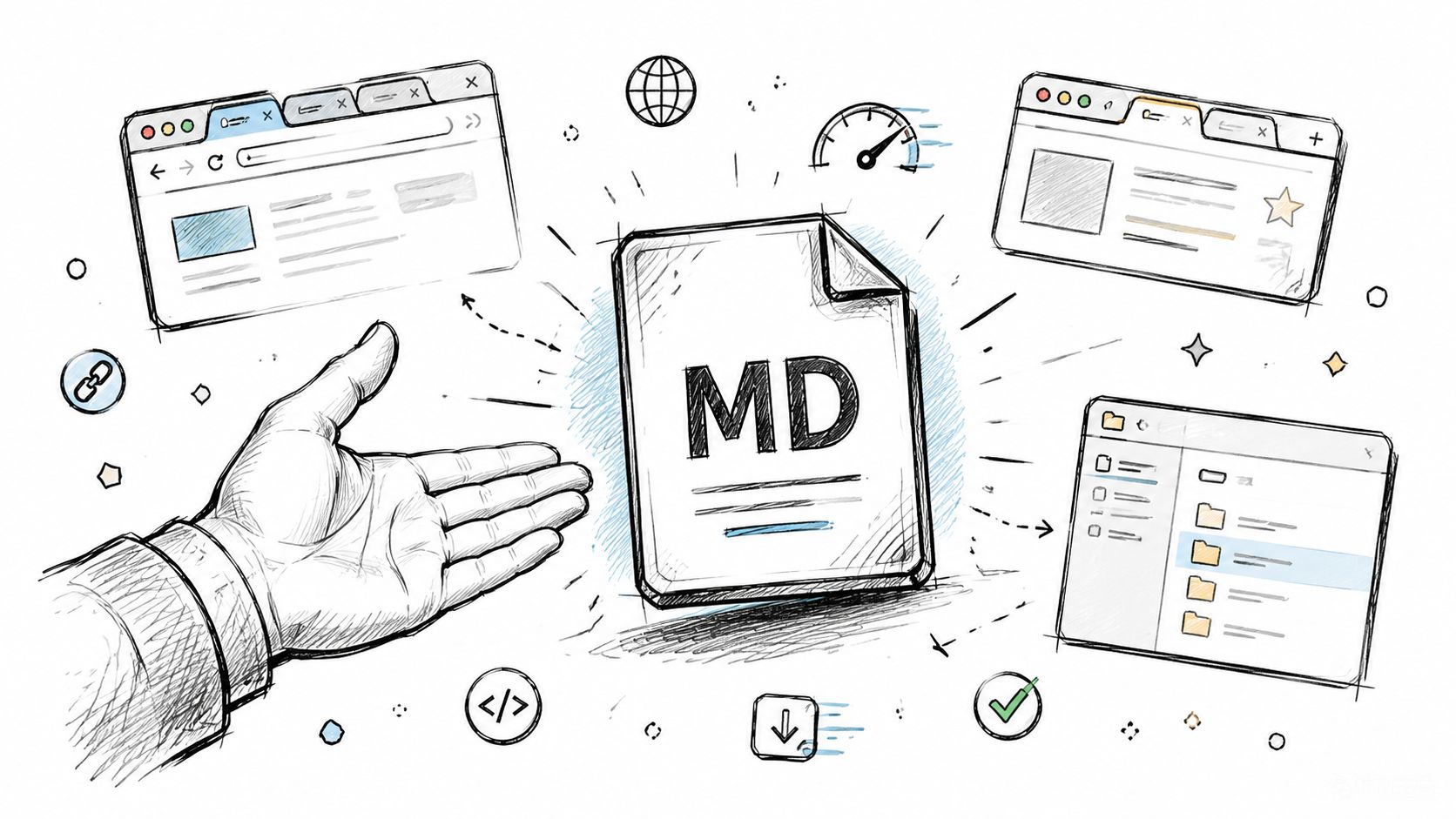
If your goal is simple, keep the solution simple. You don't need to install a full writing environment just to open one file. Start with the tools already on your machine, then move up only if the file is something you'll revisit often.
Open it immediately on Windows
On Windows, the fastest path is usually Notepad. Right-click the file, choose Open with, and select Notepad. You'll see the raw Markdown syntax, which is often enough for short files like README documents, release notes, or instructions.
That said, Notepad is a survival tool, not a good markdown file reader. It won't render headings or tables in a pleasant way, and longer files become tedious fast. If you expect to open Markdown more than occasionally, installing a lightweight editor from the Microsoft Store is usually worth it. Even basic editors with syntax highlighting make files easier to scan.
Use the built-in option when:
- You only need a quick glance: Raw text is fine for short notes or setup instructions.
- You're checking file contents before sharing: A plain editor shows exactly what's in the file.
- You don't want extra setup: For one-off use, that's often enough.
Use built-in Mac tools first
On macOS, TextEdit can open Markdown files as plain text, and Quick Look is the overlooked shortcut many people miss. Select the file in Finder and press the space bar. For a quick inspection, that's often faster than launching a separate app.
Preview quality depends on the file and your setup, so don't expect a polished rendered document every time. But for common Markdown files, Mac users often get farther with built-in tools than Windows users do. If the file is short and structurally clean, Quick Look can save you a trip into a full editor.
A good default habit is to inspect first, then upgrade tools only when the file becomes part of your routine.
Later, if you need a better workflow, a dedicated app will give you cleaner rendering, search, and live preview. But for “I just received this file and need to read it now,” Finder plus TextEdit is hard to beat.
Here's a visual walkthrough if you want to see a few of these options in action:
Preview Markdown in a browser
Browsers are surprisingly practical here. If you drag a Markdown file into Chrome or Firefox, you'll usually see the raw text. That's not enough by itself, but browser extensions can render Markdown cleanly with very little friction.
This route works well when you:
- Review docs from downloads often: A browser tab is faster than opening a full editor every time.
- Need readable formatting but not editing: Extensions are viewers first.
- Share across devices: Browser-based habits travel well.
A browser-based markdown file reader isn't the best long-term tool for writing, but it's excellent for lightweight consumption. I've found it especially useful for project readmes, meeting notes exported from another app, and documentation files that don't need modification.
The trade-off is obvious. Browsers are good viewers, weak editors, and inconsistent across extensions. If your work goes beyond reading and quick copy-paste, move to a dedicated editor.
Using Dedicated Editors for a Better Markdown Experience
Once Markdown shows up in your daily work, basic viewers start getting in the way. You want clearer formatting, faster navigation, better search, and fewer context switches. That's where dedicated tools earn their keep.
VS Code for technical work
If you already live in development tools, Visual Studio Code is the obvious upgrade. It opens Markdown cleanly, supports syntax highlighting, and includes built-in preview. You can write in one pane and render in another without leaving the editor you already use for code, Git, and terminal work.
VS Code gets better when Markdown is part of a larger workflow:
- Docs near code: README files, architecture notes, and changelogs stay close to the repo.
- Extension support: Linting, table formatting, spell check, and link validation are easy to add.
- Git-friendly editing: Reviewing Markdown diffs in pull requests is much easier than diffing binary formats.
For engineers, this is usually the best practical default. It's not the prettiest writing environment, but it removes tool switching. That matters more than people admit.
Obsidian, Typora, and note-first tools
If your work is writing-heavy rather than repo-heavy, tools like Obsidian and Typora feel better immediately. Obsidian is strong for personal knowledge management, linked notes, and long-lived document collections. Typora focuses on a smoother writing experience where the Markdown syntax fades into the background.
These tools shine in different ways:
- Obsidian works well when files belong to a growing note system with folders, backlinks, and cross-references.
- Typora is great when you want near-WYSIWYG editing but still want portable Markdown files.
- Joplin fits people who want notes plus sync while keeping Markdown at the center.
If you're comparing options, this roundup of 12 best markdown editors reviewed is useful because it frames tools by actual use rather than by feature lists alone. For people who prefer a more visual editing style, this overview of a WYSIWYG Markdown editor is also worth reading.
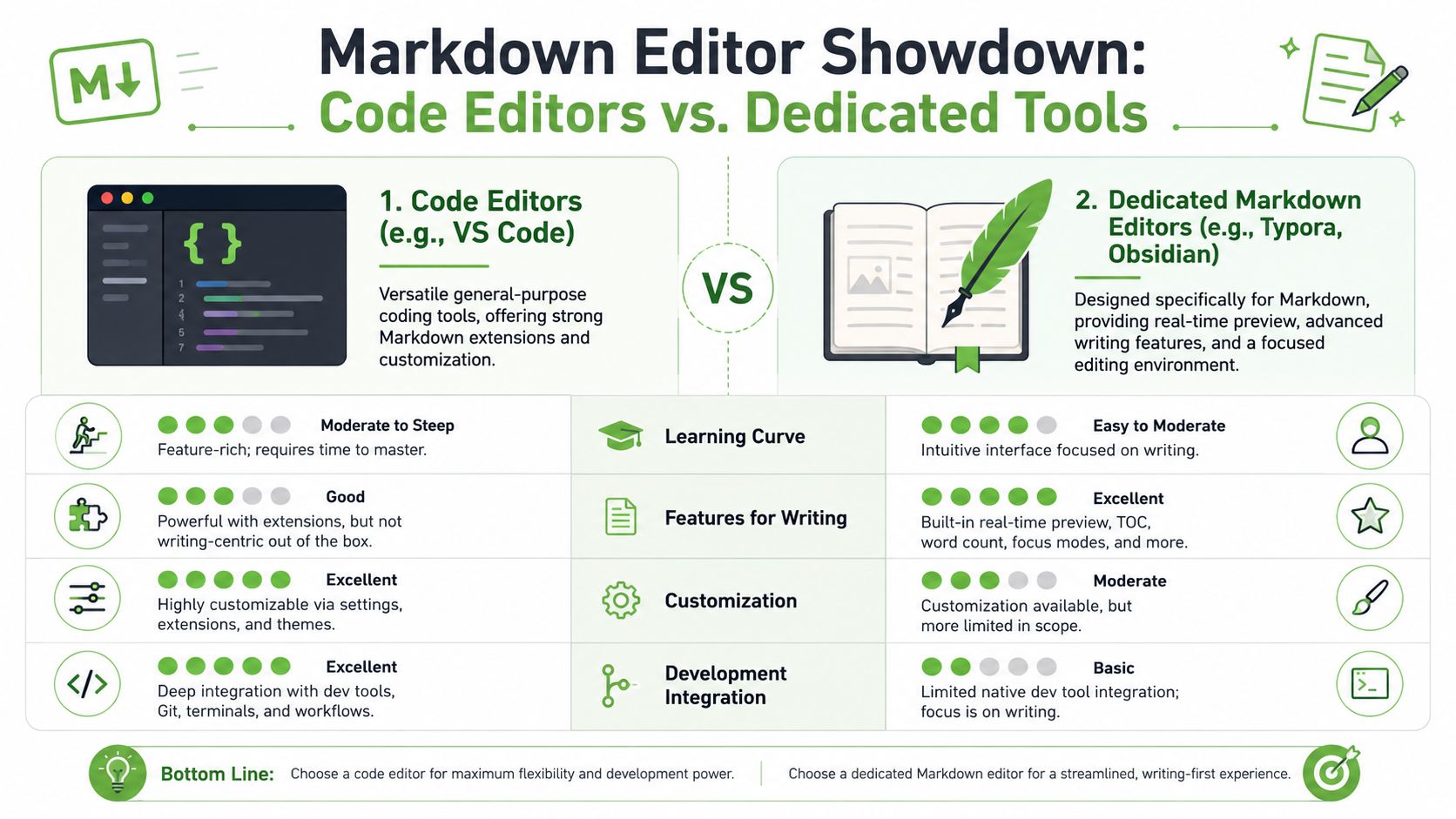
Working advice: Choose a code editor when Markdown supports engineering work. Choose a dedicated Markdown app when Markdown is the work.
Which category works better
There isn't a universal winner. There's a better fit for the job in front of you.
| Tool category | Best for | Friction point |
|---|---|---|
| Code editors | Technical docs, repo files, team collaboration | Can feel busy for pure writing |
| Dedicated Markdown editors | Notes, articles, research, focused drafting | Weaker integration with dev workflows |
| Hybrid note apps | Personal knowledge bases and connected documents | Plugin setups can get messy |
What doesn't work well is forcing one tool into every role. I've seen teams use Obsidian for software documentation that really belonged in Git, and I've seen engineers draft long-form content in VS Code when a calmer editor would've been easier. Both choices are possible. Neither is ideal.
How to Choose the Right Markdown Reader for Your Task
The best markdown file reader depends less on features and more on the job you need done. People get stuck when they compare tools as if they're all solving the same problem. They aren't. Opening a downloaded file, drafting notes, reviewing docs in Git, and preparing content for AI all ask different things from the tool.
Choosing Your Markdown Tool
| Use Case | Recommended Tool Type | Key Feature |
|---|---|---|
| Simple viewing and quick edits | Built-in text editor or browser preview | Fast access with no setup |
| Personal writing and note-taking | Dedicated Markdown editor or note app | Live preview and organization |
| Technical documentation and collaboration | Code editor | Git integration and extensions |
| AI and RAG preparation | Structured conversion and validation workflow | Clean, consistent Markdown output |
Match the reader to the job
For simple viewing, speed wins. Open the file in Notepad, TextEdit, Quick Look, or a browser extension and move on. Don't overengineer this. If Markdown is still occasional in your world, a lightweight approach is fine.
For writing and note-taking, the experience matters more than raw capability. Obsidian, Typora, and similar tools reduce friction because they make files readable while you write them. Search, backlinks, tags, and folder structure become more important than development features.
For technical documentation, I'd choose VS Code almost every time. Docs in repositories benefit from pull requests, version history, extension-based linting, and side-by-side file work. When Markdown belongs to a codebase, keeping it in the same environment prevents process drift.
When the reader is no longer a person
This is the point many teams miss. Sometimes the actual reader isn't a human at all. It's a script, an indexing pipeline, a search system, or an LLM that will later chunk, embed, retrieve, and summarize the content.
That changes what “good” looks like.
A human can tolerate ugly formatting, broken spacing, and clutter around the useful content. An AI pipeline handles those issues badly. Headings matter. Tables matter. Section boundaries matter. Random navigation text, footer junk, OCR noise, and copied formatting artifacts all make the content less reliable downstream.
Here's the practical distinction:
- For people, readability is enough
- For automation, structure has to survive
- For retrieval, consistency matters more than visual polish
If a document will feed an AI system later, treat Markdown as a normalized source format, not just a viewing format.
That's why the tool choice shifts at the professional end of the spectrum. The best reader for an engineer inspecting a file isn't necessarily the best approach for a team preparing mixed documents for retrieval workflows. At that point, you're no longer just choosing how to open Markdown. You're choosing how to produce Markdown that holds up under indexing and chunking.
Creating Clean AI-Ready Markdown from Any Document
A lot of teams start AI work by feeding raw PDFs, DOCX files, exported HTML, or copied web pages directly into prompts and retrieval systems. That usually works just enough to be misleading. You get some usable output, so it feels acceptable. Then the edge cases pile up.
Why raw source files create problems
PDFs often carry layout baggage instead of clean reading order. DOCX files can bring styling noise and odd structure. Web pages mix the main content with menus, footers, cookie prompts, and unrelated links. Scanned files add OCR uncertainty on top of that.
For RAG workflows, this creates several practical problems:
- Unstable chunking: Section boundaries become hard to detect consistently.
- Messy retrieval anchors: Headings, lists, and tables may be flattened or distorted.
- Wasted context: The model spends tokens on irrelevant material instead of useful content.
- Harder debugging: When an answer is wrong, tracing the source text becomes painful.
A related perspective appears in this article on Webclaw for LLM data extraction, which is worth reading if you deal with web content specifically. Converting source material into cleaner Markdown isn't cosmetic. It changes how usable the material is for downstream AI tasks.
What clean Markdown does better
Clean Markdown acts like a normalization layer between messy source files and AI systems. It preserves the parts that matter semantically, such as headings, lists, tables, and readable section breaks, while stripping the noise that tends to confuse retrieval and generation.
That matters because retrieval pipelines need predictable structure. If a heading consistently marks a new topic, chunking logic can use it. If a table survives conversion, the model has a better chance of grounding an answer in the actual source. If the text is readable and compact, prompt construction becomes easier.
A strong workflow here usually includes:
- One normalized format: Markdown is easier to inspect, diff, store, and split than many original file types.
- Preserved document structure: Headings and lists should survive intact whenever possible.
- Support for difficult inputs: Scanned pages, photos, and low-quality files need OCR that returns usable structure, not just raw text.
- Automation options: APIs and chat-based integrations reduce manual preprocessing.
If you're evaluating this path for retrieval work, this guide to Markdown for AI captures the core idea well.
Clean Markdown gives both humans and machines the same advantage. They can find the important parts without fighting the file format first.
A practical conversion workflow
For ad hoc use, drag-and-drop conversion is enough. For team workflows, I'd standardize the process more aggressively. Convert incoming PDFs, office docs, exports, and web pages into Markdown first. Inspect the result. Then chunk and index the normalized output rather than the original file.
That approach works better than trying to write custom cleanup logic for every source type. It also makes quality checks easier because humans can read the intermediate file. When a retrieval result looks off, you can inspect the Markdown and see whether the issue came from conversion, chunking, or ranking.
What doesn't work well is skipping this normalization step and hoping prompt engineering will cover for weak source material. It usually won't. If the underlying text is noisy, the rest of the pipeline inherits that mess.
Frequently Asked Questions About Markdown Files
Can I edit a Markdown file in any text editor
Yes. Markdown is plain text, so any text editor can open and edit it. The difference is that a basic editor shows the raw syntax, while a stronger markdown file reader or editor can render the formatting as headings, lists, tables, and links.
If you only need to change a sentence or fix a link, any editor works. If you write in Markdown often, preview becomes much more important.
What's the difference between Markdown and a Word document
Markdown is text-first. Word documents are format-first. In Markdown, the content stays portable, easy to version, and readable in many tools. In Word, formatting is richer, but the file is more tightly tied to document software and less pleasant to diff or process in developer workflows.
That doesn't make Markdown better for every job. It makes it better for jobs where portability, version control, and structured plain text matter.
Is all Markdown the same
Not exactly. There's a common core, but different platforms support different features. You'll run into variations like CommonMark and GitHub Flavored Markdown. Tables, task lists, footnotes, and callouts may work in one tool and render differently in another.
The practical takeaway is simple. If a file will be shared across systems, test the rendering in the environment that matters most.
How do I read Markdown on the command line
If you spend a lot of time in the terminal, tools like glow or pandoc can help. glow is good for readable terminal rendering. pandoc is broader and useful when you need conversion as well as viewing.
For power users, command-line viewing is often the fastest way to inspect docs in a repo or over SSH. For everyone else, a desktop editor is usually easier.
Do I need a special app to open a .md file
No. You need a special app only if you want better rendering or a smoother writing experience. Plain text editors can open the file. Dedicated apps make the file easier to read and work with.
Why do Markdown files matter for AI workflows
Because structure survives better than in many raw formats. Clean Markdown gives AI systems readable text with recognizable sections, which makes chunking, retrieval, and inspection more reliable than using messy source files directly.
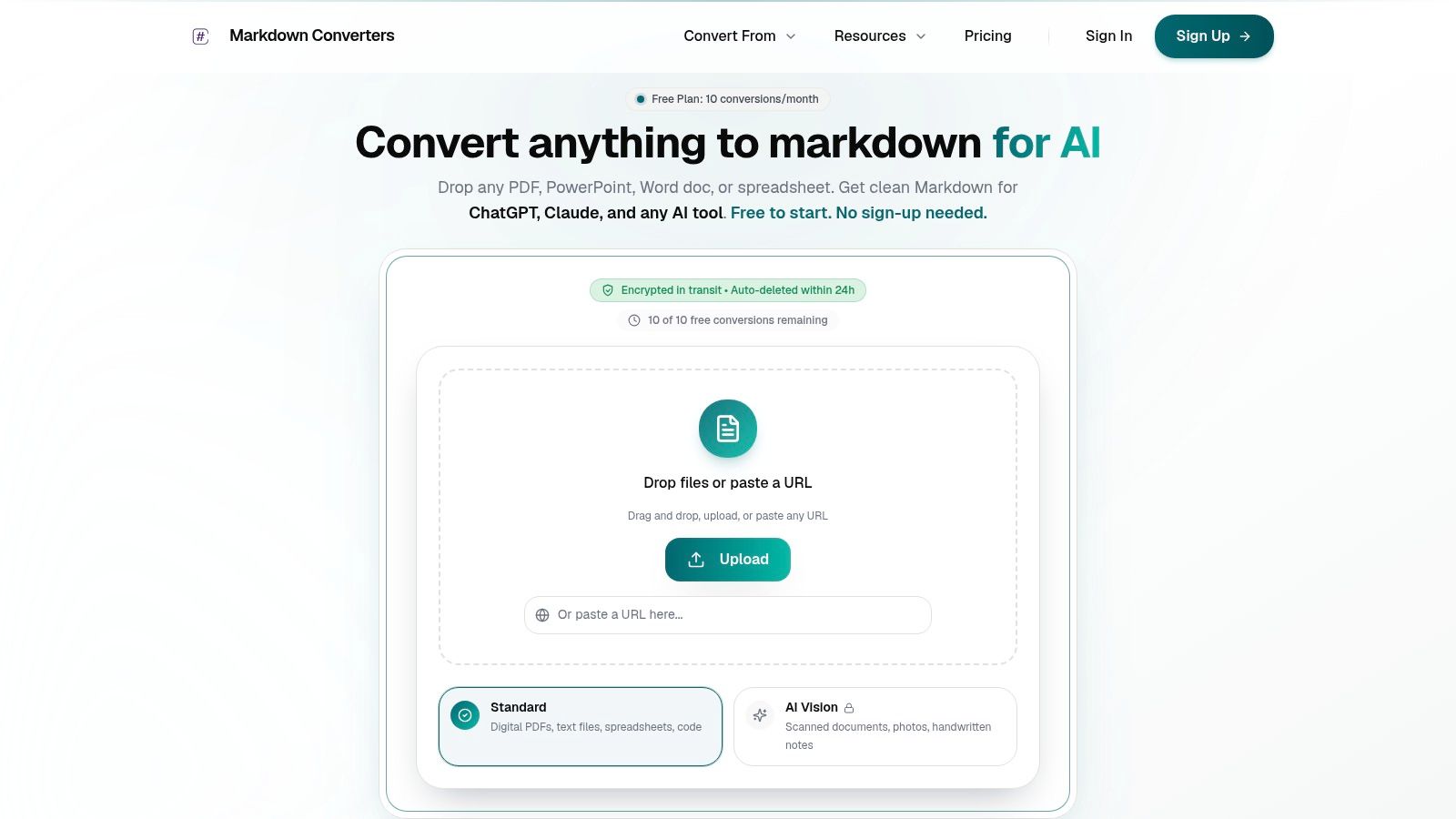
If you need more than a basic markdown file reader and want a cleaner path from PDFs, web pages, office files, or scans into structured Markdown, Markdown Converters is worth a look. It's especially useful when the primary goal isn't just reading the file, but preparing dependable Markdown for LLM prompts, internal search, and RAG pipelines.
Related Articles
Batch PDF Conversion: A Practical Guide for 2026
Learn practical batch PDF conversion workflows, from simple UI uploads to automated API processing. Convert scanned PDFs with OCR and create AI-ready Markdown.
Read articleAngular Markdown Editor: A Guide to AI-Ready Integration
Learn how to integrate an Angular Markdown editor into your app. This step-by-step guide covers setup, autosave, and preparing content for LLM workflows.
Read article10 Best Windows Markdown Editor Options for 2026
Find the best Windows Markdown editor for your workflow. We review 10 top tools for developers, writers, and AI-data prep, from VS Code to Obsidian.
Read article