
MD File Reader Online: Convert for AI & LLM Workflows
Unlock the power of our MD file reader online. Convert any document to clean, AI-ready Markdown for RAG & LLM workflows. More than just viewing!
You open a PDF in ChatGPT or Claude, ask a simple question, and the answer comes back half-right because the document structure fell apart on the way in. Tables flatten into paragraphs. Headings disappear. Footnotes merge with body text. If the file is scanned, the model may miss key clauses entirely.
That's why so many people start with a search for an MD file reader online and then realize viewing isn't the hard part. The hard part is turning whatever you have, PDF, DOCX, HTML, slides, spreadsheets, screenshots, or a photographed contract, into clean Markdown that an LLM can read reliably.
A browser preview solves the first problem. An AI-ready Markdown pipeline solves the second one.
Why Everyone Is Searching for an MD File Reader
Interest in Markdown viewers has jumped because people want a fast way to open README files, notes, and docs without installing anything. But the search trend points to a bigger shift. The term “best markdown viewer” saw 767% year-over-year growth according to DataForSEO market research summarized here, and that same reference also notes a 2024 NIST finding that 68% of enterprise AI pipelines fail due to poor document structure extraction from non-Markdown sources.
That mismatch explains why so many “md file reader online” guides feel incomplete. They answer the narrow question, “How do I open an .md file in my browser?” They don't answer the question teams run into five minutes later, “How do I turn this messy source document into Markdown my model can use?”
For day-to-day software work, a viewer is often enough. Open a README. Check a changelog. Skim a documentation file. Done.
For AI work, the input is rarely that clean.
Legal teams deal with scanned agreements and email exports. Researchers juggle PDFs with tables, references, and appendices. Healthcare staff often work from clinical documents that were never authored as Markdown in the first place. In each case, the model performs better when the source gets normalized into a structure it can parse consistently.
Most failures don't come from the model first. They start in preprocessing.
A practical way to think about it is this:
| Need | Basic viewer | Conversion pipeline |
|---|---|---|
Open an existing .md file |
Good fit | Also works |
| Preview syntax and layout | Good fit | More than needed |
| Turn PDF into usable Markdown | Not enough | Required |
| Preserve headings, lists, tables | Limited to original file | Core job |
| Feed content into RAG or chat tools | Awkward | Built for it |
The useful mental shift is moving from reading Markdown to producing reliable Markdown. Once you make that shift, an online MD reader stops being just a convenience tool and becomes the front end of your document ingestion workflow.
Instant In-Browser Rendering for Quick Previews
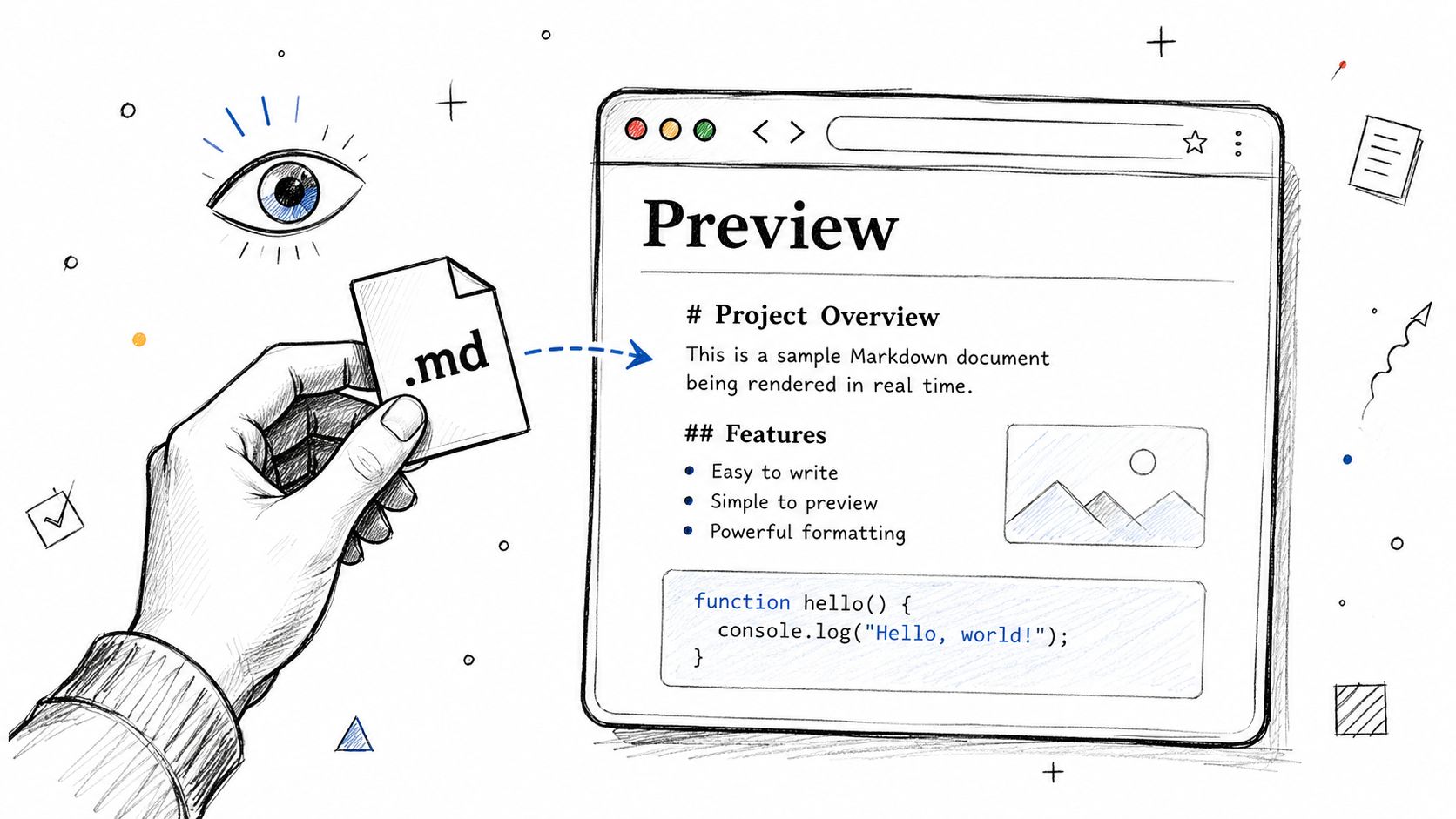
A product manager drops a README.md into chat five minutes before a review. You do not need a conversion pipeline for that. You need a fast preview that shows whether the file is readable, formatted correctly, and ready to use.
When a viewer is enough
Browser rendering works well for files that are already Markdown. Typical examples include README.md, release notes, handoff docs, and internal knowledge base pages. Open the file, confirm the structure, and decide whether it is clean enough to pass into the next AI step without extra cleanup.
That last part matters. In my team's workflow, previewing is not the end goal. It is a quick gate. We check whether headings, lists, code fences, and tables survived authoring cleanly. If they did, the file can move straight into chunking, indexing, or prompt assembly. If they did not, we fix the Markdown or convert the source again instead of feeding messy text into retrieval.
If you need the basics first, this guide to view MD files in a browser covers the common ways to open and render .md files online.
What a browser preview should confirm
A useful MD file reader online should make a few things obvious right away:
- Hierarchy is intact. Headings should show the document outline clearly.
- Lists stay grouped correctly. Broken nesting creates bad chunks later.
- Code blocks are readable. Fences, spacing, and language tags should render cleanly.
- Tables remain tables. If columns collapse in preview, they often fail in downstream parsing too.
- Links and images resolve as expected. Missing assets usually point to path or export issues.
This is a fast QA step, not just a convenience feature.
A good preview also helps content teams catch issues before the file reaches an LLM workflow. That matters for documentation operations, search indexing, and broader editorial systems discussed in this guide for AI content strategy.
The practical limit of preview tools
A browser preview answers one question well: "Is this existing Markdown file usable?"
It does not answer the harder question AI teams face. "How do we get clean Markdown from a PDF, DOCX, scan, slide deck, or exported HTML file?" Preview tools do not recover reading order, reconstruct table structure, or strip repeated headers from page-based formats. They render what is already there.
That is why I treat in-browser rendering as a triage step. Use it to verify Markdown quickly. Use conversion workflows when the source was never Markdown to begin with.
Going Beyond Viewing to AI-Native Conversion
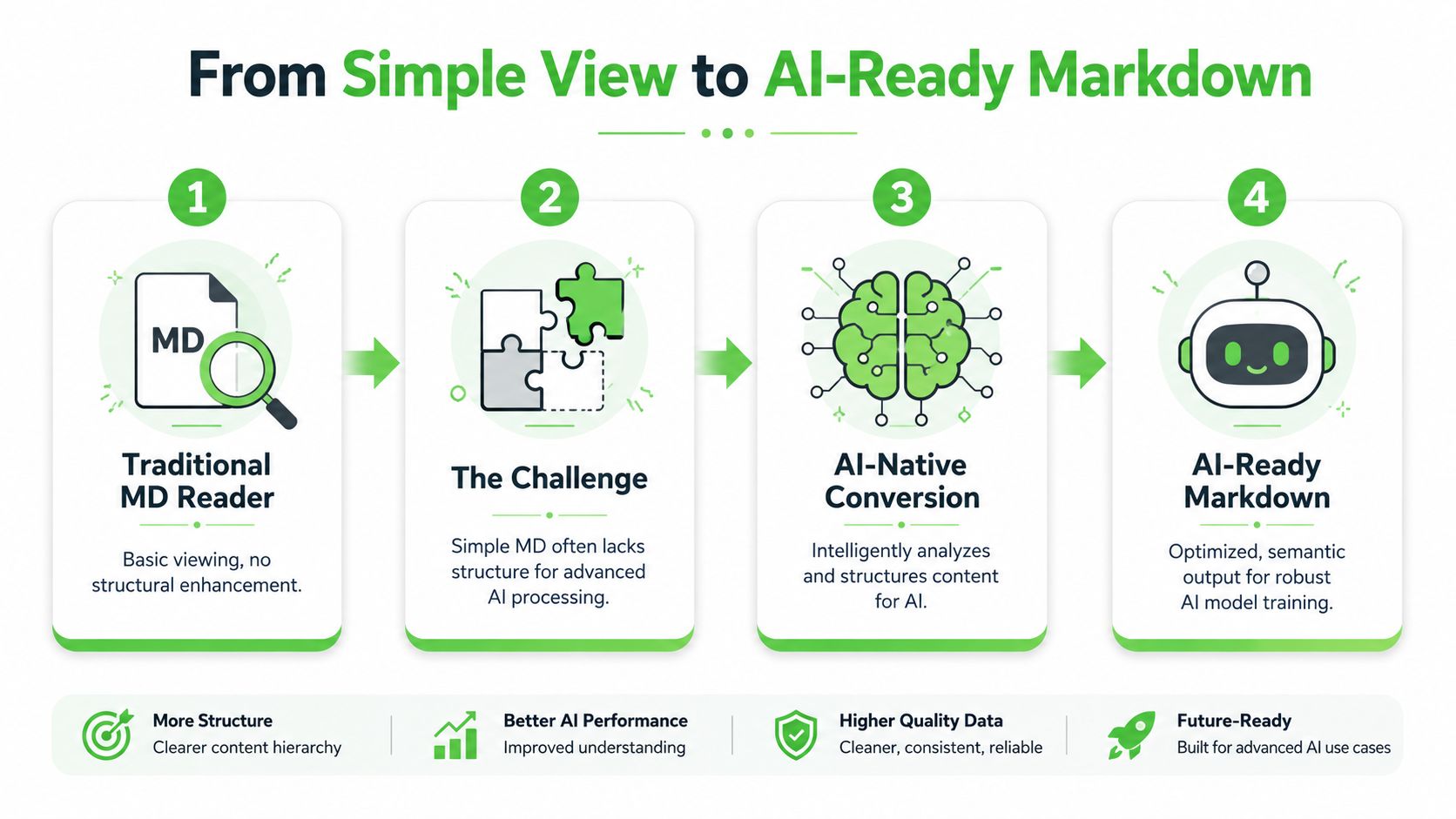
A team uploads a polished PDF to an LLM, gets weak answers back, and assumes the model is the problem. In practice, the document usually failed first.
A page-based file can look clean to a person and still arrive as junk to a retrieval pipeline. Repeated headers, footers, broken reading order, split table rows, and OCR noise all get carried into embeddings and prompts. An MD file reader online helps you inspect Markdown that already exists. It does not turn a messy source document into a reliable AI input.
Why raw documents break AI workflows
For AI tasks, structure carries meaning. A heading defines scope. A bullet list groups related facts. A table preserves field relationships. If those signals collapse during extraction, chunking quality drops, retrieval gets noisy, and answer grounding gets harder.
I have seen this show up in the same pattern across RAG projects. A support manual in raw PDF form produces chunks polluted with page furniture. The same manual converted into clean Markdown becomes much easier to split by section, index by heading, and trace back to source. That is the difference between "the model saw the text" and "the system can use the document reliably."
This is why conversion sits upstream of prompting. The goal is not prettier text. The goal is stable, predictable structure that downstream systems can parse without custom cleanup for every file type.
For PDF-heavy workflows, a dedicated PDF to Markdown conversion path usually gives better results than raw upload because it normalizes layout before the content reaches your model.
What clean Markdown changes
Clean Markdown reduces several failure modes at once. It strips page chrome, restores hierarchy, keeps lists intact, and gives tables a format that parsers can work with. That matters for retrieval quality, but it also matters for operations. Once documents land in one consistent format, prompt templates, chunking rules, and validation checks stop changing every time the source format changes.
Here is the practical difference:
| Input style | Common failure in AI workflows | After clean Markdown conversion |
|---|---|---|
| Raw PDF upload | Reading order and page furniture pollute chunks | Sections map cleanly to headings and paragraphs |
| Copy-pasted DOCX | Lists, indentation, and tables flatten into plain text | Structure stays intact enough for chunking and retrieval |
| HTML page source | Navigation, cookie text, and boilerplate waste context | Main content is easier to isolate and index |
Clean Markdown also makes review easier. Engineers can diff it, editors can scan it, and data teams can run simple checks for heading depth, broken tables, or missing links before ingestion.
If you are also planning how source formatting affects search visibility, internal knowledge reuse, and agent consumption, this guide for AI content strategy adds the editorial side of the same problem.
The important shift is this: viewing Markdown is a QA step. Converting documents into AI-ready Markdown is the actual production workflow.
How to Convert Any Document to Markdown Online
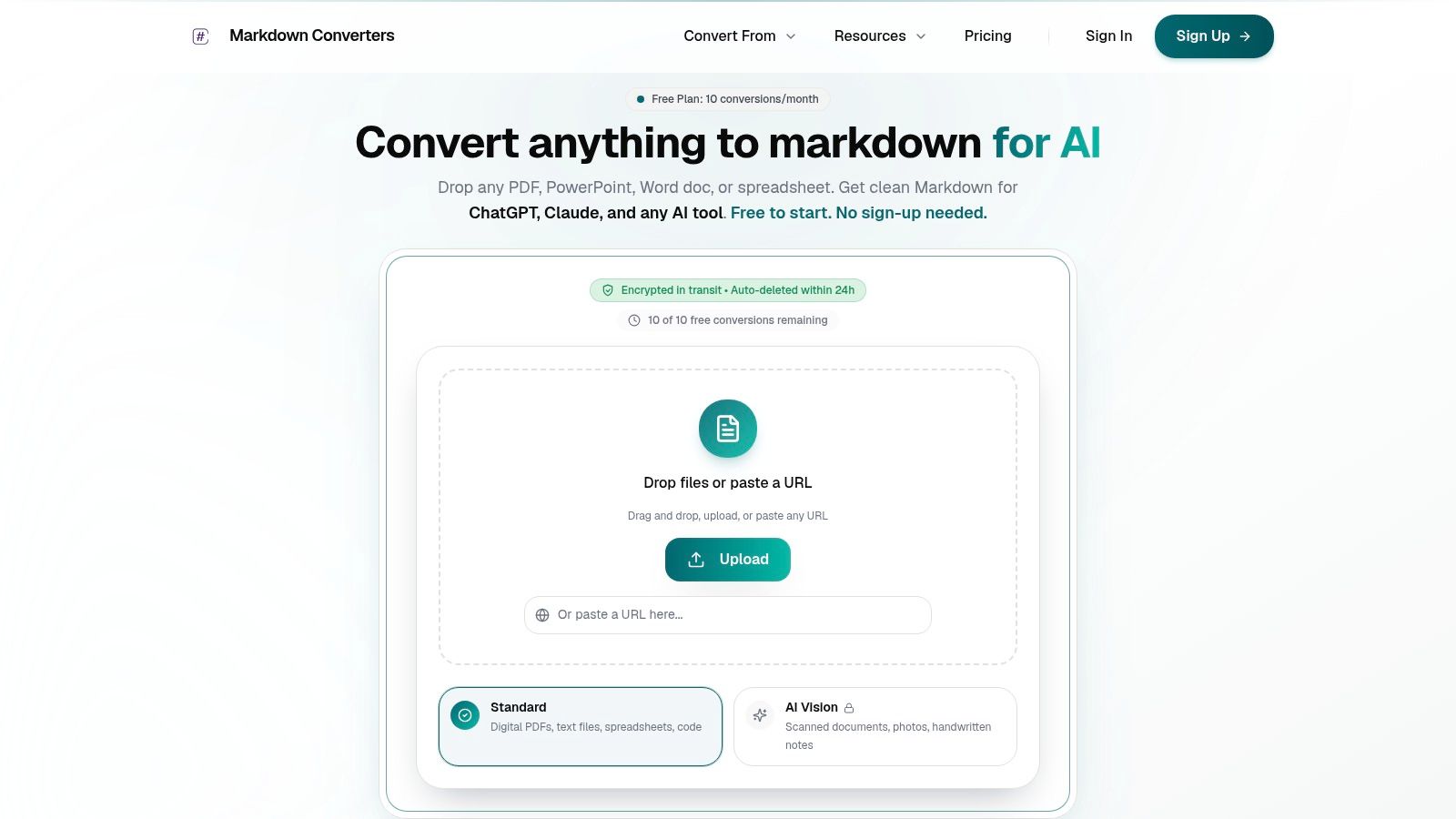
The most effective workflow is simple: start from the source file you already have, convert it into structured Markdown, then inspect the output before it reaches your model.
Start with the file you actually have
Don't waste time re-saving a document into three other formats first. If the source is a PDF, use the PDF. If it's a DOCX, upload that. If it's a web page, use the URL.
In practice, there are two common paths:
Upload a local file
- A scanned contract
- A report exported from Word
- Slides, spreadsheets, or image-based notes
Submit a URL
- A help center article
- A policy page
- A public research page with too much HTML clutter
The goal is consistent output, not format purity. A good converter should flatten all those inputs into the same target format so your prompts and retrieval logic don't have to change every time the source changes.
For scanned documents, photographed pages, or hard-to-read source material, a dedicated OCR path matters a lot more than people expect. Plain extraction often misses layout boundaries. OCR plus structure-aware conversion usually gives cleaner headings, better paragraph joins, and fewer broken tables.
Choose the right mode for the document
Different inputs fail in different ways, so the mode should match the source.
- Standard conversion: Best for digital PDFs, DOCX, HTML, spreadsheets, and exported text-heavy docs.
- Vision or OCR mode: Best for scans, screenshots, photographed pages, low-quality PDFs, and handwritten notes.
- URL conversion: Best when the document lives on a website and you want content instead of page chrome.
If your source is a PDF and you want a direct path, use a dedicated PDF to Markdown converter rather than copy-pasting text from a PDF viewer. Copy-paste often loses reading order before the model ever sees the file.
A practical review loop looks like this:
- Check heading hierarchy: Main sections should be
#,##, and###in a logical order. - Inspect tables early: Tables break without warning. If one matters to your question, verify it before upload.
- Remove decorative junk: Footers, repeated headers, and page numbers should not dominate the output.
- Preserve meaningful lists: Policies, procedures, and requirements often live in bullet structure.
If the converted Markdown is easy for a human to skim, it's usually much easier for a model to reason over.
A short demo helps if you want to see the workflow in motion:
Check the output before sending it to a model
This is the step people skip, and it's where most quality gains happen.
Don't ask the model to clean the document and answer your question at the same time unless you have to. That mixes preprocessing with reasoning. It's better to inspect the Markdown first, especially for files that contain tables, clause numbering, citations, or appendices.
A quick quality check should answer three things:
| Question | What to look for |
|---|---|
| Is the document complete? | Missing pages, skipped sections, broken OCR |
| Is the structure intact? | Logical headings, readable lists, aligned tables |
| Is it ready for chunking? | Clear section boundaries and stable labels |
For RAG systems, this review pays off immediately. Better structure creates better chunks. Better chunks create more relevant retrieval. More relevant retrieval gives the model less room to guess.
That's the primary job of an online MD reader in modern workflows. It's not just there to display Markdown. It's there to help create a version of the source that your AI stack can trust.
Automate Conversions with API and Chat Integrations
Manual conversion is fine when you're handling a few files a week. It breaks down when documents arrive continuously from inboxes, shared drives, web sources, or customer uploads.
At that point, the useful question isn't “How do I open this file?” It's “How do I make conversion happen automatically before anyone asks the model anything about it?”
Where automation pays off
API-based conversion works best when document handling is part of an existing pipeline. Think ETL jobs, ingestion workers, nightly syncs, or internal research tooling.
Typical high-value uses include:
- Batch document ingestion: Convert PDFs, DOCX files, and HTML pages before embedding.
- Agent loops: Standardize documents before tools pass them into a reasoning step.
- Operational dashboards: Let internal apps request clean Markdown on demand.
- Monitoring pipelines: Reprocess source material when a document changes upstream.
If you're building a broader automation layer around scraping, collection, or workflow orchestration, resources like Discover Apify automation actors can help map the collection side before conversion starts.
The technical requirement is consistency. The same endpoint should handle multiple document types and return output your downstream system already expects. A reference point for that style of setup is a dedicated document conversion API endpoint, where the conversion step becomes part of the system rather than a separate manual task.
Why chat integrations matter
The more interesting change is what happens inside chat tools.
When a team uses Claude, Cursor, or another assistant for document analysis, copy-paste becomes a hidden quality problem. Users paste incomplete excerpts. They lose filenames and provenance. They omit tables because they don't paste cleanly. Then they blame the model.
That's where MCP-style chat integrations become valuable. According to the benchmark summary on mdedit.ai's Markdown viewer page, integrating MCP Server protocols into an online MD workflow can improve retrieval grounding accuracy by 25% by eliminating copy-paste friction and sending structured data directly into chat.
That matches what many engineers see in practice. Chat works better when the assistant can fetch the actual converted document instead of relying on whatever a user manually pasted into the conversation.
A strong chat-connected workflow usually does four things well:
- Converts before reasoning so the model sees normalized Markdown.
- Keeps document context attached such as filename or source URL.
- Supports retrieval across previous files instead of one-off uploads.
- Reduces manual handling so users don't trim away important context.
The best document workflow is the one users don't have to remember to perform manually.
That's why automation isn't just about speed. It's about reliability. The fewer handoffs between file, conversion, and model, the fewer chances you have to lose structure along the way.
Security Best Practices and Common Issues
A team gets clean answers from an LLM in staging, then strange ones in production. The model did not suddenly get worse. The document pipeline changed. A PDF upload passed through a converter that flattened tables, dropped equation syntax, and kept a copy longer than the team expected.
That is the security and reliability problem with online Markdown tools. The risk is not limited to exposure. Bad conversion creates bad context, and bad context reaches the model with a false sense of structure.
What to verify before uploading sensitive files
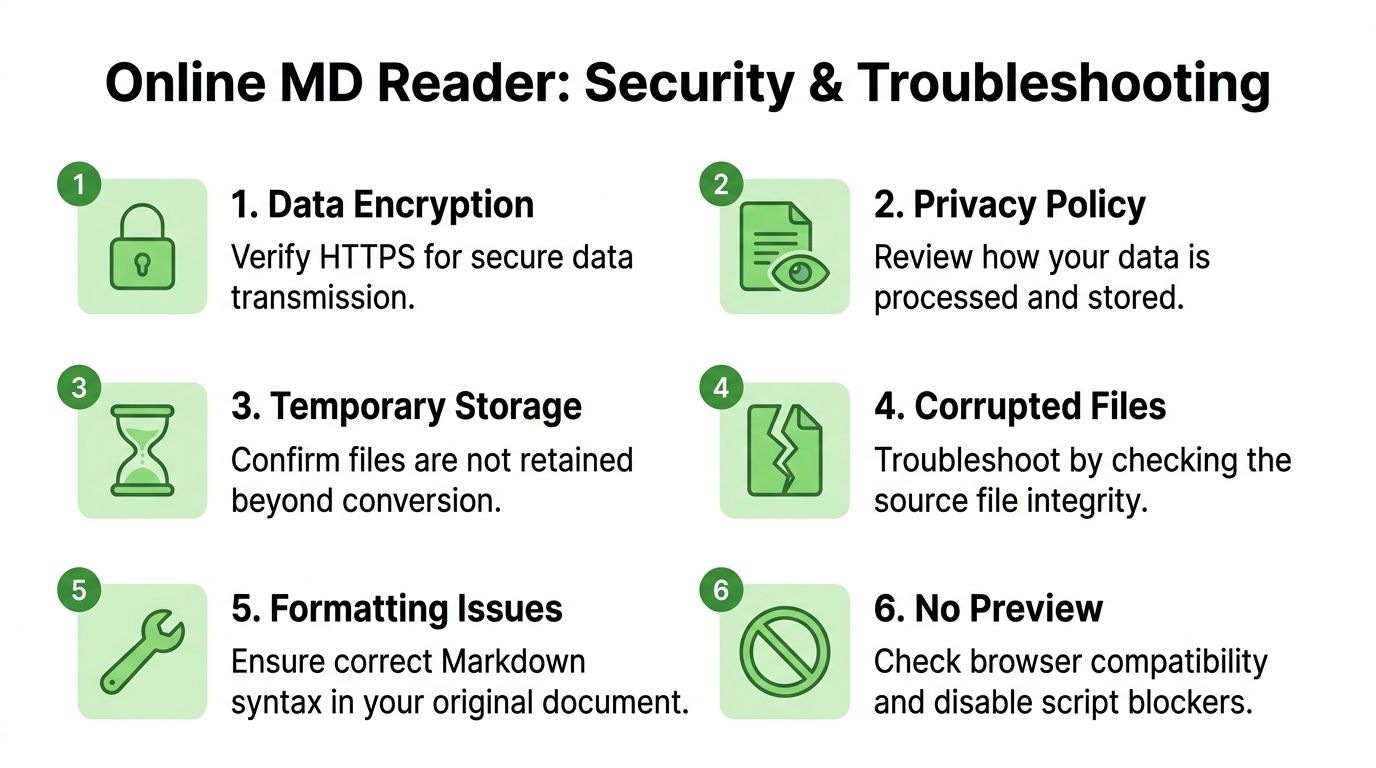
Start with the data path. For plain .md preview, browser-only rendering is usually the safest option because the file never needs server-side conversion. For PDFs, DOCX, images, or scans, the questions change. You need to know whether the service stores the file, how long derived text is retained, whether logs capture content, and whether the converted Markdown is reused for model training or debugging.
Use this checklist before sending anything sensitive:
- Confirm where processing happens: Browser only, transient server job, or persistent storage are very different risk profiles.
- Check retention and deletion terms: Temporary upload, cached output, and backup retention are separate things.
- Inspect access controls: Shared team workspaces and public result URLs create avoidable exposure.
- Review OCR and AI settings: Some tools call third-party services during extraction, classification, or summarization.
- Test with a redacted sample first: Verify output quality and handling before uploading contracts, patient records, source code, or internal specs.
- Ask better vendor questions: If your team is reviewing AI tooling more broadly, an external AI code security audit can help shape what to ask about storage, logging, permissions, and incident response.
For AI work, privacy review and output review belong together. A converter that protects the file but mangles headings, tables, or references still creates downstream risk because retrieval quality falls apart.
Common rendering and conversion failures
The failure patterns are usually predictable. Markdown viewers tend to fail at rendering extensions they were never configured to support. Conversion pipelines fail when the source document has weak structure, poor scan quality, multi-column layout, or embedded objects that the extractor treats as decoration instead of content.
Here is where teams lose time:
| Problem | Usual cause | What to do |
|---|---|---|
| Broken tables | Weak extraction or complex source layout | Re-run with a layout-aware conversion mode and inspect column boundaries |
| Missing math | LaTeX syntax stripped during conversion | Use a converter that preserves math blocks and test downstream rendering |
| Mermaid not rendering | Viewer or parser lacks Mermaid support | Validate diagram support before adopting the tool for technical docs |
| Garbled scan text | OCR fails on skewed or low-contrast pages | Correct orientation, increase image quality, or switch to OCR-focused processing |
| Lost list structure | Text copied from a PDF viewer instead of converted from the file | Convert from the original source file, not pasted text |
| Missing citations or footnotes | Reference markers separated from body text during extraction | Review long-form documents manually before indexing them for RAG |
One rule saves a lot of wasted debugging time. If the Markdown is wrong before ingestion, retrieval and generation will be wrong after ingestion.
My team learned this the hard way with PDF-heavy workflows. We spent more time diagnosing hallucinations than fixing the actual source problem. Once we started reviewing converted Markdown as a first-class artifact, not just an intermediate file, answer quality became much more stable.
Reliable AI output starts with reliable Markdown. For document-heavy pipelines, viewing the .md file is only the first check. The harder and more useful job is producing clean, structured Markdown that your retriever and model can trust.
If you want a practical way to turn PDFs, DOCX files, web pages, images, and scans into structured Markdown for chat, RAG, or internal pipelines, Markdown Converters gives you one place to handle upload, OCR, API automation, and chat-connected retrieval without rebuilding the conversion layer yourself.
Related Articles
Batch PDF Conversion: A Practical Guide for 2026
Learn practical batch PDF conversion workflows, from simple UI uploads to automated API processing. Convert scanned PDFs with OCR and create AI-ready Markdown.
Read articleAngular Markdown Editor: A Guide to AI-Ready Integration
Learn how to integrate an Angular Markdown editor into your app. This step-by-step guide covers setup, autosave, and preparing content for LLM workflows.
Read articleBulk File Conversion: From Chaos to AI-Ready Data
Learn how to manage bulk file conversion at scale. Our guide covers planning, tooling, APIs, OCR, and automation for creating clean, AI-ready data.
Read article