
Markdown to LaTeX: The Ultimate 2026 Conversion Guide
Convert Markdown to LaTeX with ease. Explore Pandoc workflows for math, citations, and custom templates. Automate your conversion process effectively in 2026.
You already have the content. The problem is the destination.
A paper written in Markdown needs to go to a journal that only accepts LaTeX. A thesis draft has to match a university class file. A technical report lives in Git, but stakeholders want a polished PDF with citations, tables, and numbered figures. That's where markdown to LaTeX stops being a convenience and starts becoming infrastructure.
A common mistake is treating conversion as a one-time export. That works until the document changes, a template gets updated, or the same content has to flow into a PDF build, a repository, and an LLM ingestion pipeline. Reliable workflows come from repeatable commands, predictable source structure, and a clear boundary between content and presentation. If your Markdown is clean, your LaTeX output becomes much easier to control. If it isn't, conversion exposes every shortcut.
If you need a refresher on source formatting before you start, these Markdown basics are worth reviewing. Clean input matters more than any post-processing trick.
Why Convert Markdown to LaTeX
Markdown is where many documents are easiest to write. LaTeX is where many formal documents are easiest to finish.
That split is useful, not inconvenient. Markdown gives you readable plain text, easy diffs in Git, and low-friction collaboration. LaTeX gives you stable numbering, bibliography handling, cross-references, and the kind of page layout that publishers, universities, legal teams, and research groups often require. Putting both together lets you draft quickly without giving up final-format control.
In practice, this approach works best when you separate three concerns:
- Content lives in Markdown: Headings, lists, notes, citations, and code stay readable in the source file.
- Formatting lives in LaTeX templates: Fonts, margins, title pages, and institutional requirements stay out of the prose.
- Conversion lives in scripts: Nobody should rebuild important documents by clicking around manually.
That last point matters more than people think. A conversion process you can rerun is easier to debug, easier to review, and much easier to drop into CI.
Practical rule: If you expect the document to change more than once, treat conversion as a build step, not an export step.
Markdown to LaTeX also solves a common version-control problem. Raw .tex files are powerful, but they can become noisy fast when multiple people edit formatting, package imports, and layout directives alongside the writing itself. Markdown keeps the authoring surface simpler. LaTeX takes over only when it's time to typeset.
The payoff isn't limited to publishing. The same structure helps with archives, reproducible reports, and machine-readable document pipelines. If your team generates PDFs for compliance, academic review, or internal documentation, the workflow has to survive repeated changes. That's where disciplined conversion beats ad hoc editing every time.
The Pandoc Powerhouse Your Core Workflow
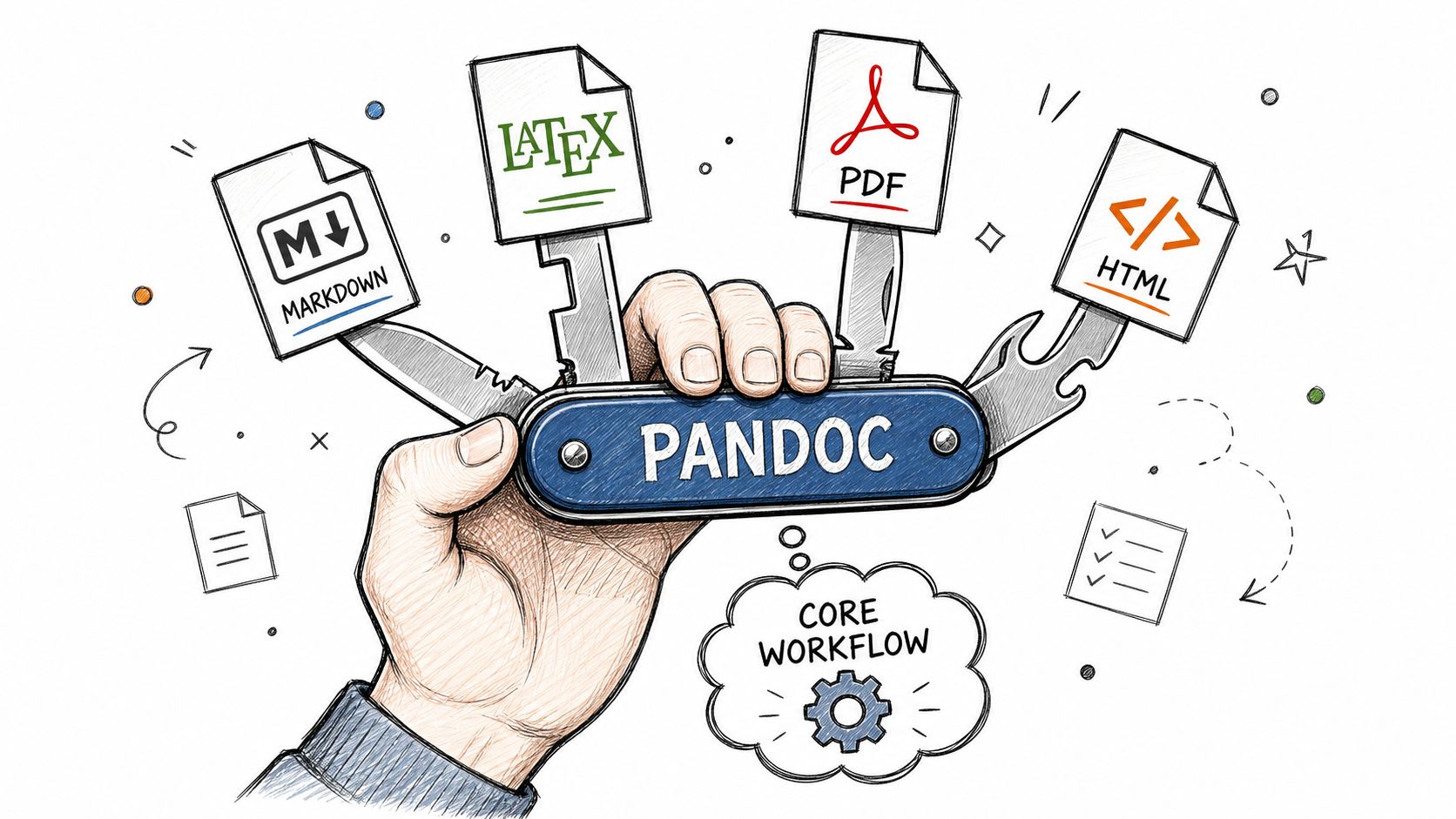
Pandoc is the default choice for serious markdown to LaTeX work because it handles the broadest range of real documents with the least drama. It has been actively developed since 2006, supports over 50 input and output formats, and researchers report that it cuts manual conversion time by approximately 70% in academic environments because it preserves complex structure well, according to this Pandoc review and workflow analysis.
Start with the smallest possible command
Don't start with PDF output, templates, or custom metadata. Start by generating a .tex file and reading it.
pandoc input.md -o output.tex
That command does one important thing. It gives you an inspectable intermediate file. If the final PDF later breaks, you'll want to know whether the issue came from Markdown structure, Pandoc conversion, or the LaTeX engine.
A minimal project folder might look like this:
input.mdfor your sourceoutput.texfor generated LaTeXreferences.bibif you're using citationstemplate.texwhen you need custom styling
If input.md is in a different directory, change into that directory first so relative image paths and bibliography paths resolve correctly.
cd path/to/project
Then run the conversion again.
pandoc input.md -o output.tex
Open output.tex in an editor. Check headings, figure blocks, code blocks, and any raw math. If that file looks sane, the workflow is on solid ground.
Build toward a real PDF workflow
Once the .tex file looks right, generate a PDF directly.
pandoc input.md -o output.pdf
For many documents, that's enough. But production work usually needs an explicit engine. Unicode-heavy documents, non-default fonts, and multilingual text often behave better with xelatex.
pandoc input.md -o output.pdf --pdf-engine=xelatex
If you want a standalone LaTeX document instead of a fragment, add -s.
pandoc -s input.md -o output.tex
A more realistic command for academic writing often looks like this:
pandoc -s input.md -o paper.pdf --pdf-engine=xelatex --toc
That gives you a standalone document, a PDF output target, a chosen LaTeX engine, and a table of contents. Keep the command readable. Long one-liners are fine in scripts, but for day-to-day use, clarity matters.
Here's the practical interpretation of the common flags:
| Flag | What it does | When to use it |
|---|---|---|
-o |
Sets output file | Always |
-s |
Produces a standalone document | When generating full .tex or PDF |
--pdf-engine=xelatex |
Chooses the LaTeX engine | When fonts or Unicode matter |
--toc |
Adds a table of contents | For reports, theses, manuals |
--template=... |
Applies custom LaTeX structure | When style compliance matters |
What works and what usually breaks
Pandoc is strong, but it isn't magic. It works best when the Markdown is structured and consistent.
What usually works cleanly on the first pass:
- Standard headings: Properly nested
#,##, and###levels. - Lists and emphasis: Bullet lists, numbered lists, bold, italics, and links.
- Basic code fences: Especially when fenced with triple backticks and a language tag.
What often needs inspection:
- Tables: Especially wide or irregular ones.
- Math-heavy sections: Display equations, alignment environments, and inline notation mixed with prose.
- Custom front matter: Metadata fields that don't map cleanly to your LaTeX template.
Pandoc rewards disciplined Markdown. It punishes “mostly valid” Markdown that humans can read but parsers have to guess at.
In production, I recommend two habits. First, keep the Markdown source boring. Second, save your command in a script or Makefile as soon as it works. The best conversion command is the one your team can rerun without remembering which flags you used last month.
Preserving Complex Document Elements
A markdown to LaTeX pipeline usually fails at the edges. The prose converts. The build breaks on a table, a citation key, an image path, or a math block copied from a rich text editor. In production, those are the parts worth standardizing first because they are also the parts that break CI jobs, review PDFs, and downstream indexing for retrieval systems.
Mathematics and citations
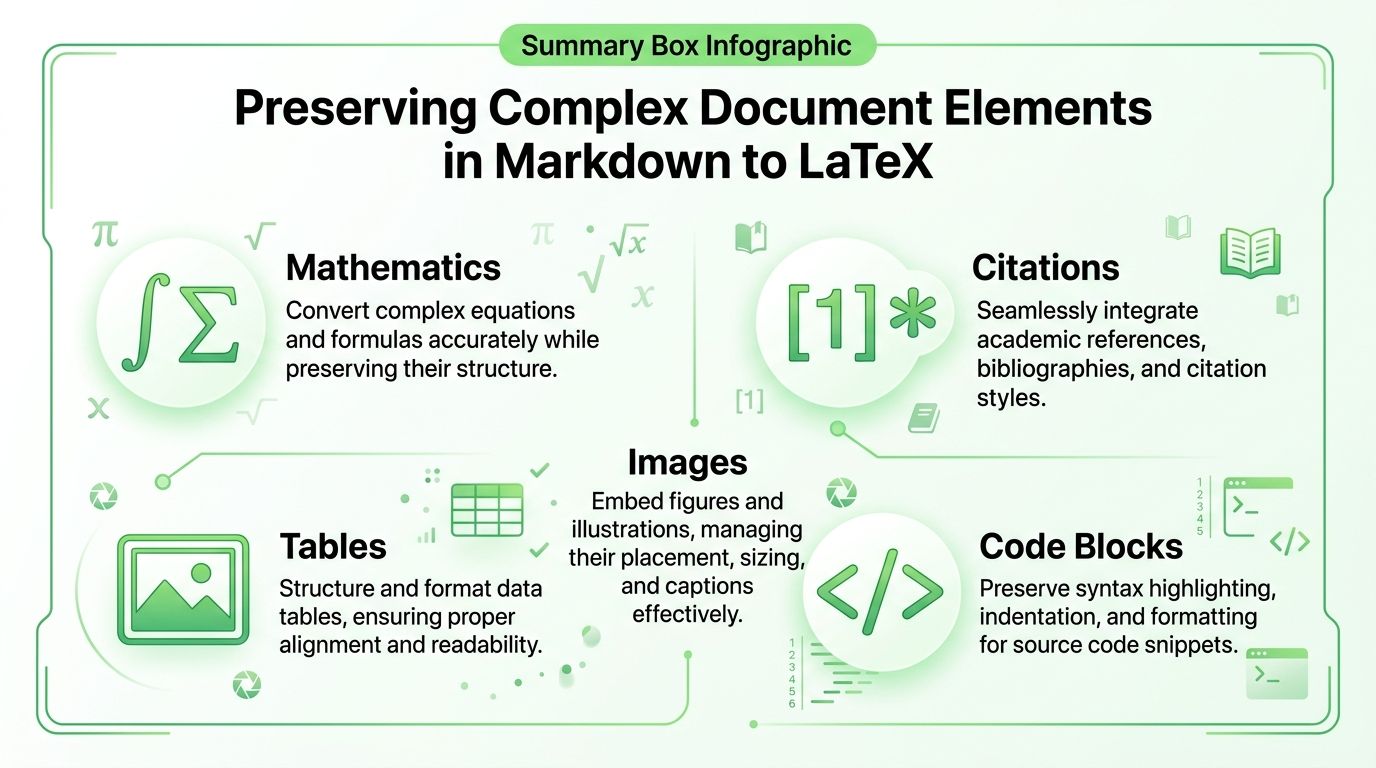
Math usually survives conversion well if the source stays close to LaTeX conventions. Inline expressions belong in single dollar delimiters. Display equations need their own block. Problems start when authors paste Unicode symbols, equation screenshots, or editor-formatted text that only looks mathematical to a human reader.
Use inline math like this:
The loss is defined as $L = \sum_i x_i^2$.
Use display math like this:
$$\int_0^1 x^2 dx$$
Lightweight converters can handle simple formulas, which is useful for quick scripts and narrow workflows. For long-lived document pipelines, Pandoc still gives better results once citations, cross-references, metadata, and PDF builds enter the picture. The trade-off is setup complexity. Smaller tools are easier to drop into a single-purpose script. Pandoc is easier to keep consistent across reports, papers, and automated builds.
Citations reward the same discipline. Keep references in a .bib file and let the converter assemble the bibliography during the build.
pandoc -s paper.md --bibliography=references.bib -o paper.pdf
That approach matters even more in versioned projects. Hand-typed bibliographies drift out of sync, and they are hard to reuse in other outputs such as HTML, DOCX, or chunked text prepared for RAG pipelines.
Images, tables, and code blocks
Images should use stable relative paths and live in the repository with the document source. A path that only works on one laptop is a build failure waiting to happen.
A common pattern is:
``
Tables need more care than authors expect. Simple pipe tables are usually fine. Wide tables, multiline cells, and merged-cell layouts often need manual review after conversion, or a direct LaTeX table for the final version. If tables are a major part of the document set, standardize one table style early and document it for the team. For authors who struggle with table syntax, a dedicated Markdown table editor reduces source errors before they reach LaTeX.
Code blocks should always be fenced and tagged with a language when possible. That keeps syntax highlighters, converters, and static site tooling aligned.
def convert(path):
    return path
Indented code can still parse, but it is easier to break during editing, especially inside lists or callout blocks.
Rules that hold up in production
The best results come from predictable source rules, not heroic cleanup at the end. Teams maintaining a repeatable pipeline should agree on a few conventions and enforce them in review or linting.
Use these rules:
- Escape special characters in plain text: Ampersands, underscores, percent signs, and similar characters can break LaTeX compilation outside the right context.
- Keep heading levels consistent: Skipped levels create awkward structure in both LaTeX output and derived formats used for search or chunking.
- Test complex blocks in isolation: Put a difficult table, equation set, or code listing in a short file and compile it before merging it into a larger document.
- Store assets in fixed repo paths: Keep images and bibliography files in predictable locations so local builds, CI runners, and containerized jobs resolve the same files.
- Prefer text-native elements over screenshots: Equations, tables, and code should remain machine-readable if the document will later feed indexing, summarization, or retrieval systems.
That last point gets ignored in many markdown to LaTeX tutorials. A PDF that looks correct is only one output target. In many teams, the same source also feeds publishing workflows, archival storage, and LLM ingestion. Clean math markup, structured citations, and real table text are easier to convert, easier to diff, and easier to parse later. Write the source so both LaTeX and the next tool in the pipeline can understand it.
Customizing Output with LaTeX Templates
A document passes local compilation, then fails at the last mile because the PDF does not match the house style, journal class, or client branding. That is usually a template problem, not a Markdown problem.
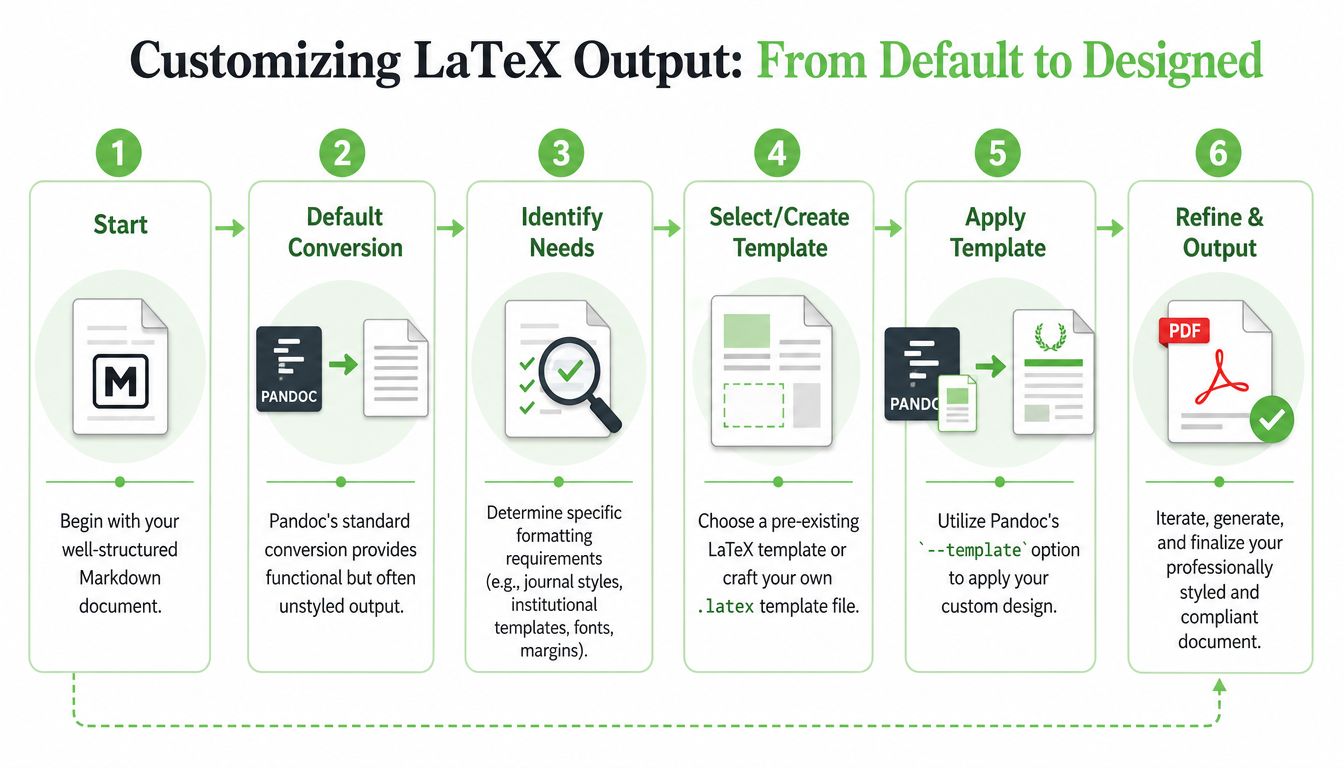
Pandoc's template system controls the LaTeX wrapper around your content. In production, that wrapper decides whether the same Markdown source can produce a draft PDF on a laptop, a submission-ready manuscript in CI, and a consistent archive artifact months later.
Treat the template as part of the build
Templates belong in version control with the document source, bibliography files, and build scripts. A template change can alter margins, break bibliography output, or switch a package that only works with one engine. Those are build-level changes and should be reviewed that way.
A reliable baseline command looks like this:
pandoc -s input.md -o output.pdf --template=template.tex --pdf-engine=xelatex
Use the template flag deliberately. It is often the difference between a PDF that merely exists and one that satisfies institutional rules.
For teams that plan to automate document builds later, keep the template path stable from day one. The same command should work locally and in CI. If you want a concrete automation pattern after the template is stable, this GitHub Actions markdown pipeline guide is a practical next step.
For a visual walkthrough of the Pandoc side, this video is a good companion before you start editing templates by hand.
A practical template workflow
Writing a template from scratch is rarely the right first move. Start from Pandoc's default template, a publisher skeleton, or an internal class file that already matches the document family.
Then change only what the workflow needs:
- Document class and packages:
article,report,book, or a provided class file, plus only the packages required for your content. - Engine-specific typography: Fonts and Unicode handling differ between
pdflatex,xelatex, andlualatex. Pick one engine and keep it fixed in the build. - Page layout: Margins, headers, footers, section numbering, and front matter behavior.
- Metadata mapping: YAML fields such as title, subtitle, authors, affiliations, abstract, and keywords need explicit placement in the template.
- Reusable variables: Add template variables for logo paths, confidentiality labels, revision numbers, or watermark text if those vary by document.
A minimal front matter block might look like this:
---
title: "Quarterly Technical Report"
author: "Research Team"
date: "2026-01-15"

---
If those fields do not appear where expected, inspect the template placeholders first. In practice, the failure is usually a missing variable such as $title$ or custom logic that no longer matches the YAML schema.
Where template work pays off
Template customization pays for itself in three situations.
Academic publishing is the obvious one. Journal classes, citation packages, and front matter rules leave little room for manual fixes.
Corporate reporting is close behind. Brand fonts, cover pages, disclaimers, and approval blocks need to stay consistent across dozens of documents, not just one polished export.
Regulated documentation has the strictest failure mode. A visually acceptable PDF may still be rejected if revision tables, signatures, or controlled headers are wrong.
I also recommend thinking beyond the PDF. A good template strategy supports a broader document pipeline. The Markdown remains readable, the LaTeX output stays predictable, and the same repository can feed archival builds, review copies, and downstream parsing for retrieval systems. Template discipline helps here because metadata stays structured instead of being patched into a finished PDF by hand.
If your template includes generated diagrams or SVG-based brand assets, keep that asset conversion reproducible too. Teams handling visual reporting at scale often need streamlining image creation for B2B so the same source graphics render consistently before Pandoc hands them to LaTeX.
A narrow template usually outperforms a generic one. Build one template for a thesis, another for a client report, another for a controlled SOP. That split reduces conditionals, keeps failures easier to diagnose, and produces cleaner outputs over time.
Automating Conversion for Modern Workflows
Manual conversion is acceptable for one draft. It doesn't scale to a living document set, a shared repository, or an AI data pipeline.
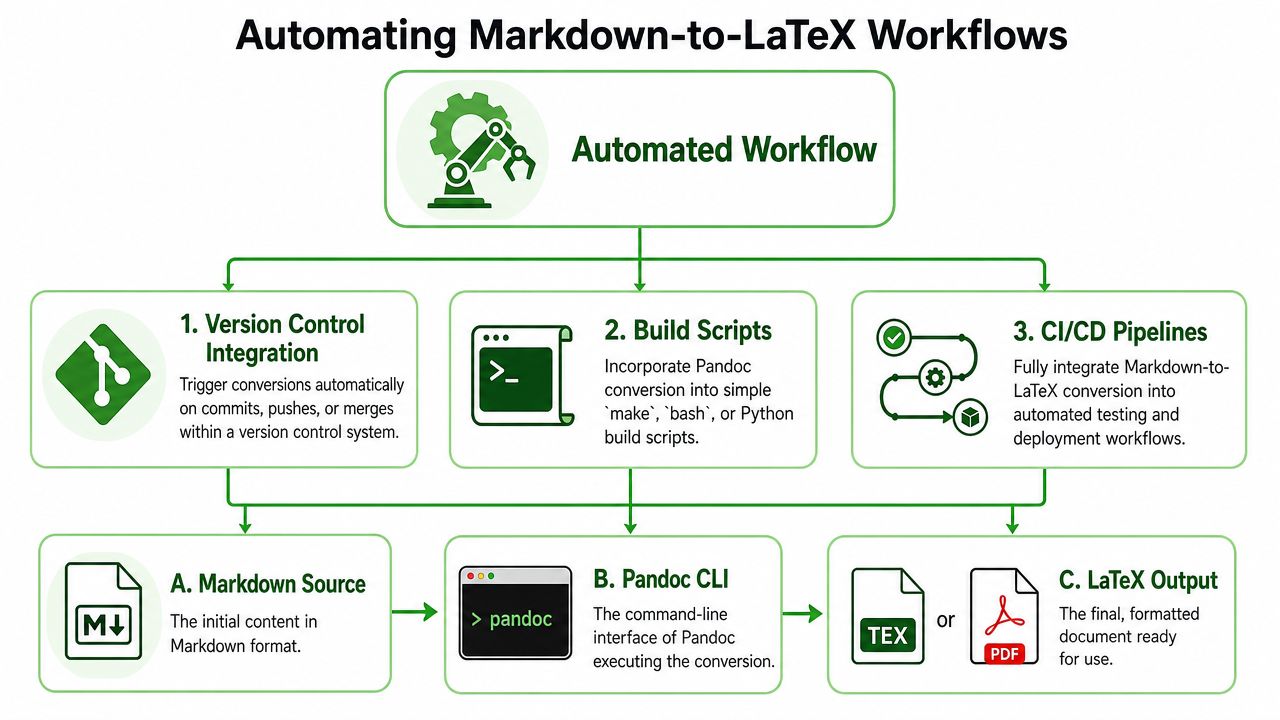
Automation starts small. A shell script or Makefile is often enough to turn a fragile personal command into a team process. Once that works, CI can take over.
Build scripts before CI
A local script is the right first step because it keeps the build visible.
A small Makefile can be enough:
pdf:pandoc -s report.md -o report.pdf --pdf-engine=xelatex --template=template.tex
Or use a shell script if you need argument handling, conditional checks, or per-document builds. The point is consistency. Team members shouldn't have to remember command flags, engine choices, or file order.
For document-heavy organizations, build scripts also help with asset preparation. If your reports include diagrams generated from source, you can pair the document build with utilities for streamlining image creation for B2B, especially when SVG-based diagrams need to become reproducible image assets before they're embedded in LaTeX output.
A simple GitHub Actions pattern
Once the local build is stable, put it in CI so every push can rebuild the PDF.
A practical GitHub Actions flow usually does four things:
- Check out the repository: Pull the Markdown, template, images, and bibliography files into the runner.
- Install Pandoc and LaTeX dependencies: Keep versions explicit where possible.
- Run the same script used locally: CI should execute the same build logic, not a second undocumented process.
- Publish the artifact: Store the generated PDF or deploy it where the team expects it.
If you want a concrete implementation pattern, this guide on running GitHub Actions for a Markdown pipeline is a useful reference point.
Keep one source of truth for the build. If local and CI commands diverge, debugging turns into archaeology.
Where markdown to latex fits in RAG pipelines
This is the part most tutorials skip.
Markdown to LaTeX isn't only for pretty PDFs. It also sits in the middle of content pipelines where structured text has to move between authoring systems, repositories, and LLM workflows. A clean Markdown source can produce formal typeset output for humans while also acting as a normalized intermediate form for retrieval, chunking, and downstream audit.
That matters for research teams, legal groups, and technical documentation systems. In those settings, the same source may feed a PDF deliverable and a retrieval workflow. Conversion scripts become part of data preprocessing, not just publishing.
There's also a tool trade-off here. Pandoc is the safer choice for broad document fidelity. md2tex is useful when latency matters more than breadth. It processes documents under 10,000 characters in under 500ms and its CLI works well with REST APIs and agent loops, according to the md2tex performance overview. That makes it attractive for chat assistants that need immediate feedback on simple inputs.
Use Pandoc when the document is complex. Use a lightweight converter when the document is simple and response time is the priority.
Troubleshooting Common Conversion Pitfalls
Conversion errors usually aren't random. They're symptoms of a specific mismatch between source Markdown, generated LaTeX, and the engine compiling it.
The fastest way to debug is to stop staring at the final PDF error and inspect the intermediate .tex file.
Read the intermediate tex file first
If a PDF build fails, regenerate LaTeX first:
pandoc -s input.md -o debug.tex
Then open debug.tex and go straight to the area around the failing section. Look for malformed environments, broken escaping, image paths, or heading structures that produced invalid nesting.
This debugging habit mirrors good programming practice. If you want a general framework for isolating logic mistakes rather than guessing, Flaex.ai's guide on identifying code errors is useful because the same mindset applies here.
The errors that show up most often
A few categories account for most failures in real projects:
- Special character problems: Plain-text ampersands, underscores, or other LaTeX-sensitive characters appear where escaping is required.
- Heading mismatches: Markdown heading levels jump inconsistently and generate awkward or invalid structure downstream.
- Code block ambiguity: Indented snippets get parsed incorrectly because the source wasn't fenced clearly.
- Platform-specific font issues: A template expects a font your local machine or CI runner doesn't have.
Don't fix symptoms in the PDF. Fix the source or the template so the next build also works.
R Markdown needs extra care
R Markdown introduces a narrower but important class of problems. Metadata and title handling can leak into LaTeX output in ways that look like Pandoc bugs but are really template or front matter mismatches. More than 60% of R users encounter broken title rendering or YAML leakage when converting R Markdown to LaTeX via Pandoc, while fewer than 5% of Stack Overflow threads address it, according to this discussion of compact title and YAML leakage issues.
When that happens, check the YAML fields first. Then compare them against the template's expected variables. If you're converting from R Markdown, don't assume a generic Pandoc template will interpret every metadata field the way your R workflow produced it.
If you're building document pipelines for publishing, compliance, or LLM ingestion, Markdown Converters is worth a look. It's built for turning messy source files, web pages, scans, and structured documents into clean Markdown that works well in automated workflows, retrieval systems, and chat-based assistant pipelines.
Related Articles
Markdown Reader Windows: Best Tools for 2026
Markdown reader windows - Find the best markdown reader for Windows in 2026. Compare top tools to open, edit, and preview Markdown files effortlessly
Read articleHow to Download a Folder from Dropbox Without Losing Your
Learn how to download a folder from Dropbox quickly and easily, with step-by-step instructions for 2026.
Read articleOCR Handwriting Recognition: A Practical Guide for 2026
Unlock the power of your handwritten data. Our guide to OCR handwriting recognition covers methods, metrics, and how to integrate it into RAG workflows.
Read article