
10 Best Free PDF Converter Tools for 2026
Discover the best free pdf converter tools of 2026 with OCR, batch, privacy, and platform features. Compare pros, cons, and use-case tips.
Free PDF converters are not interchangeable. Daily caps, OCR reliability, upload policies, and export formats create large practical differences between tools that look similar on a feature grid.
Those differences show up fastest in scanned documents. A student converting one clean lecture handout can tolerate weaker OCR or a queue limit. A legal team reviewing exhibits cannot. A healthcare unit handling patient files has a different constraint again, because local processing and retention policy matter as much as output quality. For research teams and ML ingestion pipelines, the format of the extracted text also matters. Markdown is often easier to parse, chunk, and version than PDF or messy DOCX. Our guide to OCR for scanned documents and Markdown extraction workflows covers that problem in more detail.
Many roundups still treat PDF conversion as a simple PDF-to-Word decision. That misses the current use cases. The meaningful comparison is across five factors that change downstream results: OCR quality on scanned pages, privacy model, batch processing limits, platform support, and whether the tool can fit an LLM-ready Markdown workflow instead of only producing office formats.
This list uses that frame to compare ten free options with different strengths. Some are better for occasional browser-based conversion. Others are stronger for offline privacy, high-volume batches, or document extraction that needs to survive legal review, clinical handling, research citation, or machine ingestion.
1. Adobe Acrobat Online
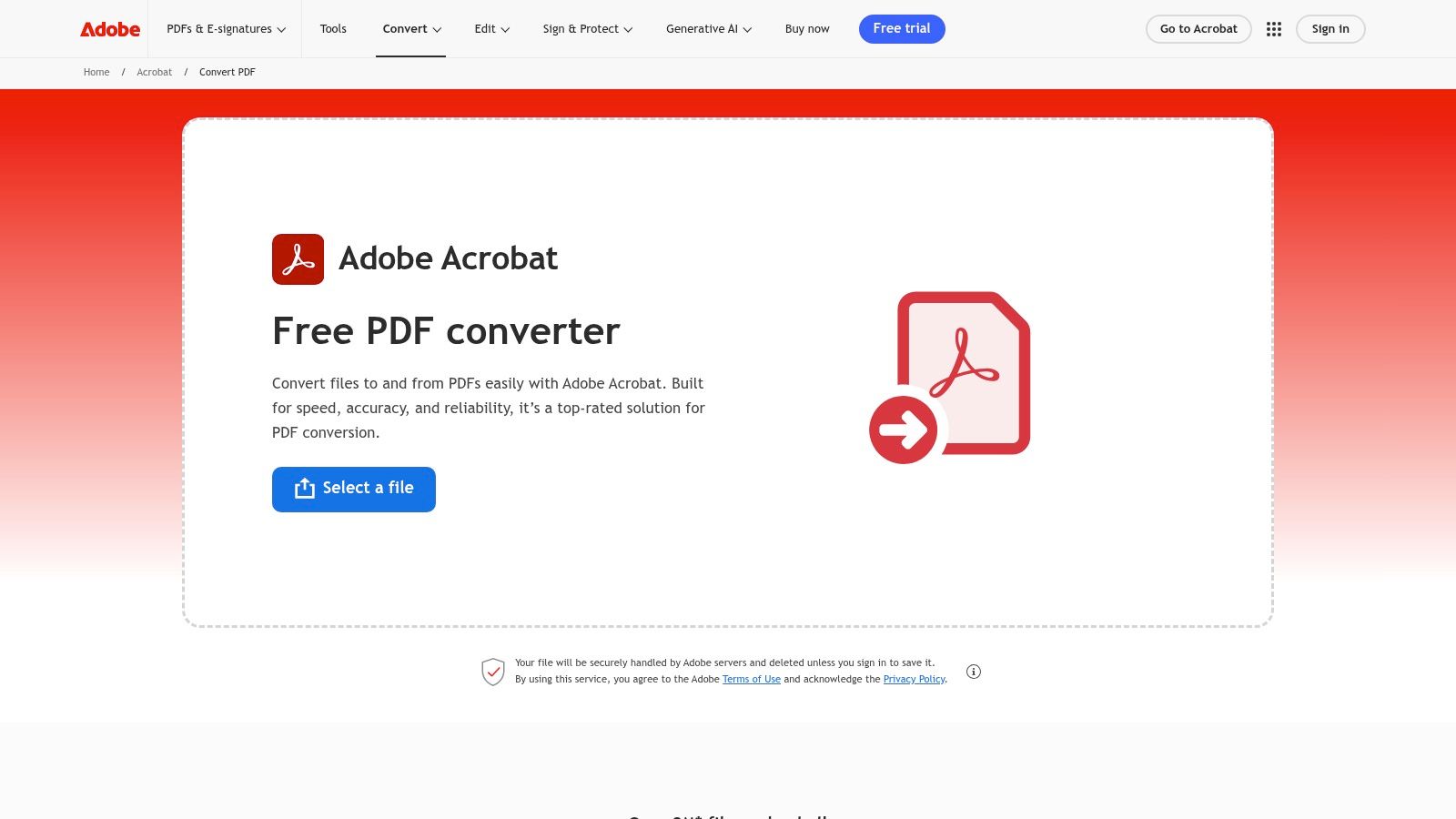
Adobe Acrobat Online is the reference point in this category because conversion quality is usually stronger than the free tier's volume limits. That tradeoff matters. A legal team reviewing a small set of scanned exhibits may care more about readable text and preserved layout than how many files can be processed in one sitting.
Adobe's strongest case is OCR and layout fidelity. As noted earlier in the article, comparative testing places Adobe near the top for difficult scanned documents, especially older copies, low-contrast pages, and files with mixed text and tables. That makes it more relevant for healthcare records, research archives, and contract review than for bulk admin work.
Where Adobe stands out
The free web tool fits low-volume, high-consequence documents. If the output is headed to Word for revision, or into a review workflow where formatting errors create manual cleanup, Adobe is often the safer first pass.
It is less attractive for teams that need scale, local processing, or LLM-oriented exports.
- Strong OCR for poor scans: Better suited to faded records, exhibits, and archived reports where recognition errors can change meaning.
- Good Office fidelity: Usually a better pick when headings, tables, and pagination need to survive PDF-to-Word conversion with minimal repair.
- Weak fit for batch queues: Free browser limits make repetitive folder-level jobs inefficient. Teams comparing tools for batch PDF conversion workflows should treat Adobe as a quality-first option, not a throughput-first one.
- Mixed privacy fit: Documents are processed in Adobe's cloud, which may rule it out for stricter legal, clinical, or internal policy environments.
- Limited Markdown path: Adobe is useful for extracting editable text, but it is not designed around LLM-ready Markdown output or structured ingestion pipelines.
A practical way to use Adobe is selective triage. Send the hardest scanned PDFs here first. Use other tools for bulk digital-native files, privacy-sensitive local work, or downstream Markdown conversion.
If your main problem is scanned paperwork rather than digital PDFs, it helps to understand how OCR changes scanned document conversion quality. That matters most in healthcare records and research archives, where small recognition errors can distort search, summarization, and later model ingestion.
2. Smallpdf
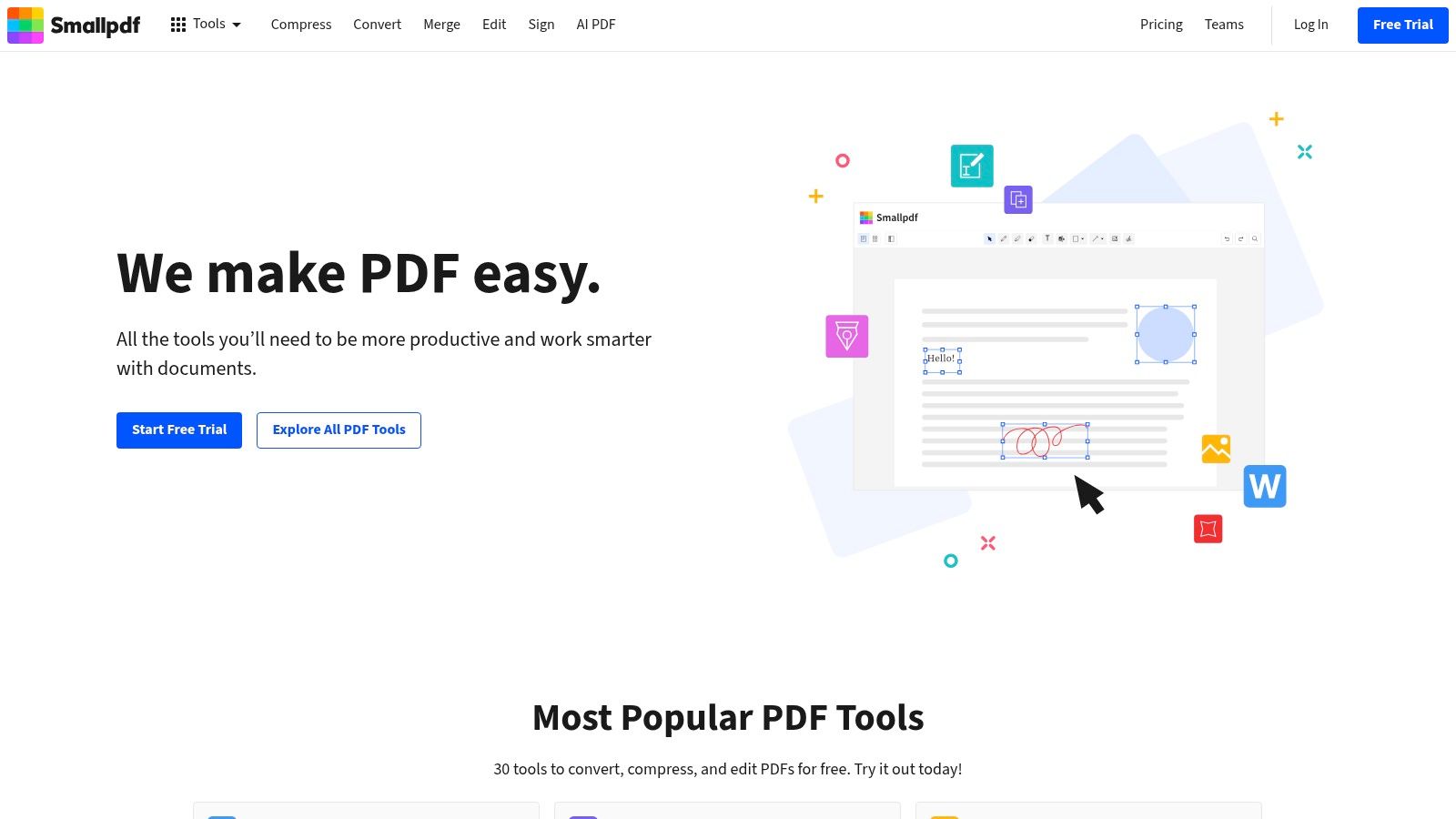
Smallpdf is optimized for low-friction browser use. The interface is clear, task labels are obvious, and the service is easy to hand to a colleague who only needs to convert or compress a document without training.
The free tier changes the recommendation more than the interface does. As noted earlier, Smallpdf limits daily free use enough that it fits occasional conversion far better than sustained document handling. That distinction matters in legal review, healthcare records intake, and research admin work, where volume arrives in bursts rather than as isolated files.
Where Smallpdf performs well, and where it does not
Smallpdf is strongest with digital-native PDFs and light office tasks. If the document already contains selectable text, the workflow is quick and predictable. If the file is a poor scan, OCR quality becomes a bigger question, and Smallpdf is not the first tool in this list to choose when recognition accuracy has downstream consequences.
That affects more than editability. OCR errors can alter clause language in contracts, patient details in scanned charts, citation text in research archives, or extracted training data headed into an ML pipeline. Teams comparing online and desktop document converters for privacy and throughput should treat Smallpdf as a convenience-first web tool, not a high-control processing environment.
- Good fit for one-off jobs: Converting a single form, article appendix, or office PDF is fast and easy.
- Weak fit for batch processing: Free-tier limits make folder-level work slow, especially when deadlines compress several files into one session.
- Mixed privacy fit: Files are processed in the cloud, with a stated deletion window that is clearer than what many smaller web tools provide, but still less suitable than local processing for stricter compliance environments.
- Limited Markdown path: Smallpdf can get text into editable formats, but it is not built for structured, LLM-ready Markdown output or repeatable ingestion workflows.
- Broad platform access: Web, desktop, and mobile availability help distributed teams, though platform coverage does not offset free-tier throughput limits.
The practical recommendation is narrow but useful. Smallpdf works for individuals and small teams handling a few clean PDFs at a time. It becomes less convincing once the job requires batch queues, higher-confidence OCR, stricter data handling, or structured export for legal analysis, healthcare documentation, research corpora, or model ingestion.
3. iLovePDF
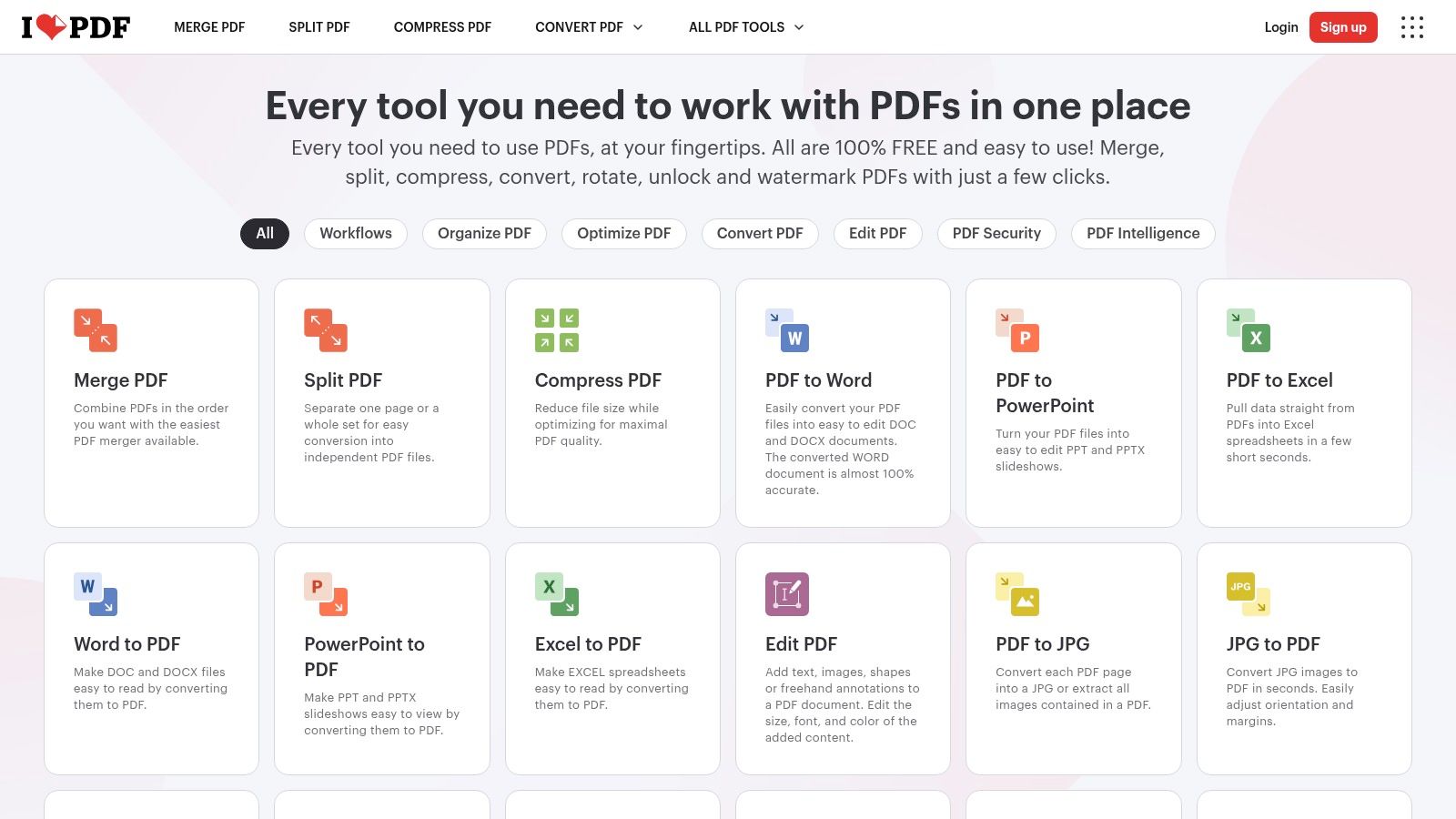
iLovePDF sits in an interesting middle ground. It's broader than a simple converter, lighter than a full desktop PDF suite, and usually clearer than many free tools about what each function does.
What makes it notable in this list isn't a standout benchmark stat. It's coverage. Conversion, organization, signing, and workflow-style actions live in one interface, which reduces context switching for teams that don't want a separate tool for every PDF task. That breadth makes iLovePDF more useful than pure converters for operations teams and admin-heavy roles.
Where it fits in real workflows
The strongest use case for iLovePDF is a web-first team that wants one toolbox, not one best-in-class feature. It works well for intake desks, academic admins, and small business operations where files arrive in mixed formats and the process includes more than conversion.
Its limitation is the same one that affects many online suites. Once privacy concerns rise or volume grows, desktop-first alternatives become easier to justify.
- Good for mixed document tasks: Converting, merging, splitting, and signing in one place reduces app switching.
- Helpful for distributed teams: Web access plus desktop and mobile apps support inconsistent device environments.
- Less compelling for AI ingestion: General-purpose outputs are useful, but they don't solve structure-preserving Markdown needs on their own.
If your team is deciding between browser tools and local apps, online versus desktop document converters is the more important comparison than any single feature page. For legal and healthcare work, deployment model often matters more than UI.
4. Sejda
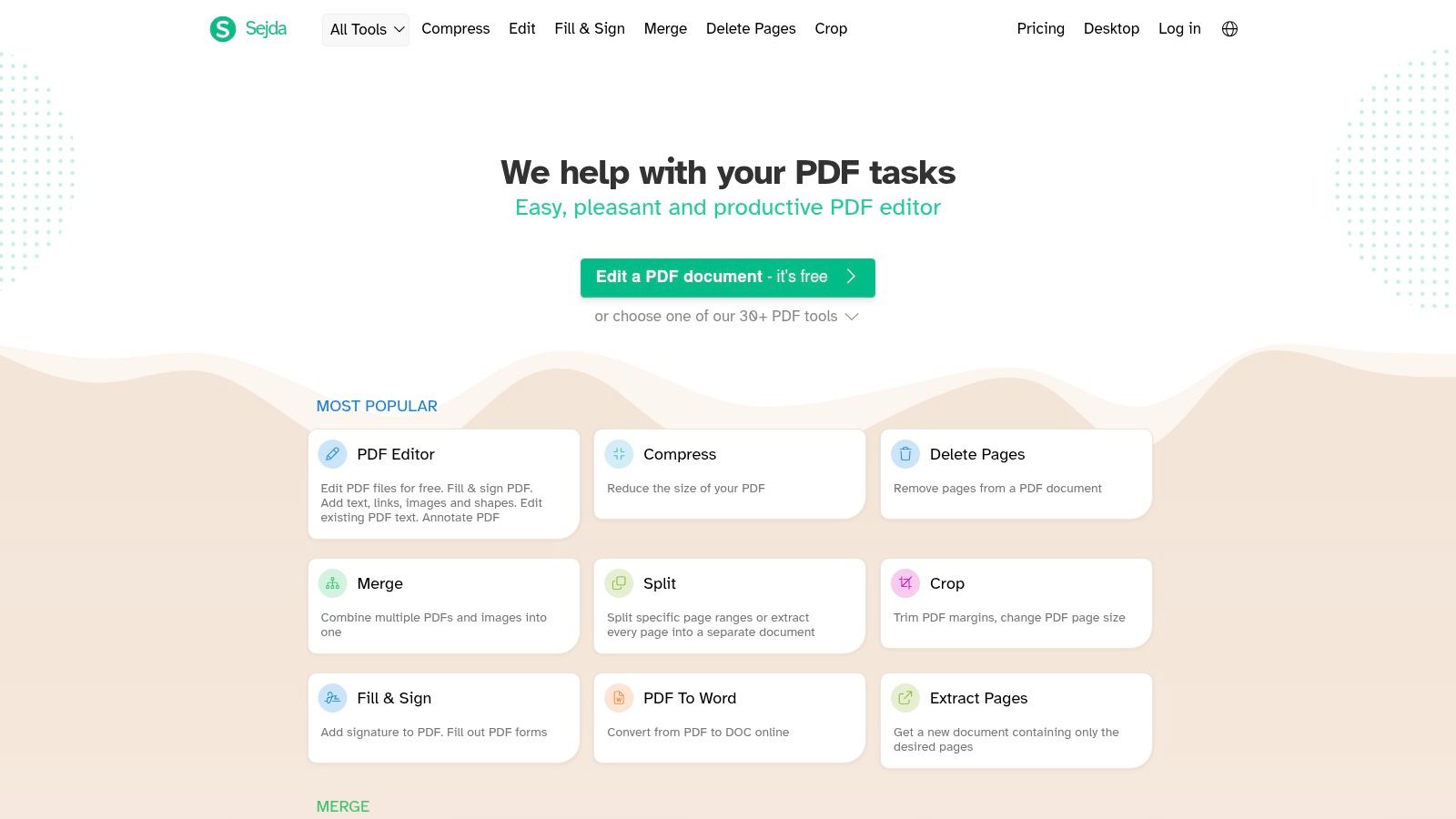
Sejda stands out for a different reason than the broader PDF suites above. Its free plan is constrained, but the constraints are explicit. For anyone converting scanned filings, consent forms, journal articles, or small document batches, that predictability matters more than an oversized feature menu.
The key question is whether Sejda does enough with OCR and local processing to justify those limits. For light to moderate workloads, the answer is often yes. It is more credible than basic file converters when the source PDF contains scanned pages instead of selectable text, and the desktop version gives privacy-sensitive users a way to keep documents off the web.
That combination makes Sejda easier to place by use case.
Where Sejda fits best
Sejda's free tier allows documents up to 200 pages or 50 MB, with a limit of 3 tasks per hour. Those caps rule it out for back-office batch queues, large discovery sets, and ML ingestion pipelines that depend on steady throughput. They are manageable for individual professionals reviewing a contract set, converting a small packet of patient paperwork, or extracting text from a handful of research PDFs.
Its desktop option also changes the privacy calculation. Browser-based conversion can be acceptable for low-risk files. Local processing is easier to justify for legal review, healthcare administration, and research teams working with unpublished or sensitive material.
From an LLM workflow perspective, Sejda is serviceable but not specialized. It can help get text out of scanned PDFs, which is the first bottleneck in any Markdown or downstream AI workflow. It does not position itself as a structure-preserving Markdown tool, so teams preparing documents for retrieval, chunking, or model training may still need another step to clean headings, tables, and citations.
- Best for occasional OCR-heavy work: A reasonable choice when scans are part of the input and volume stays low.
- Better than web-only tools for sensitive files: The desktop app gives legal, healthcare, and research users a local-processing option.
- Weak for batch processing: The hourly task cap becomes a practical blocker for operations teams and ML ingestion pipelines.
- Only a partial fit for LLM-ready workflows: It helps extract text, but it is not built around Markdown-first output or structure retention.
Sejda works best for solo practitioners and small teams that value OCR, clear limits, and a local option more than raw throughput. If your priority is high-volume conversion or clean Markdown for AI pipelines, its free plan will feel narrow quickly.
5. PDF24 Tools
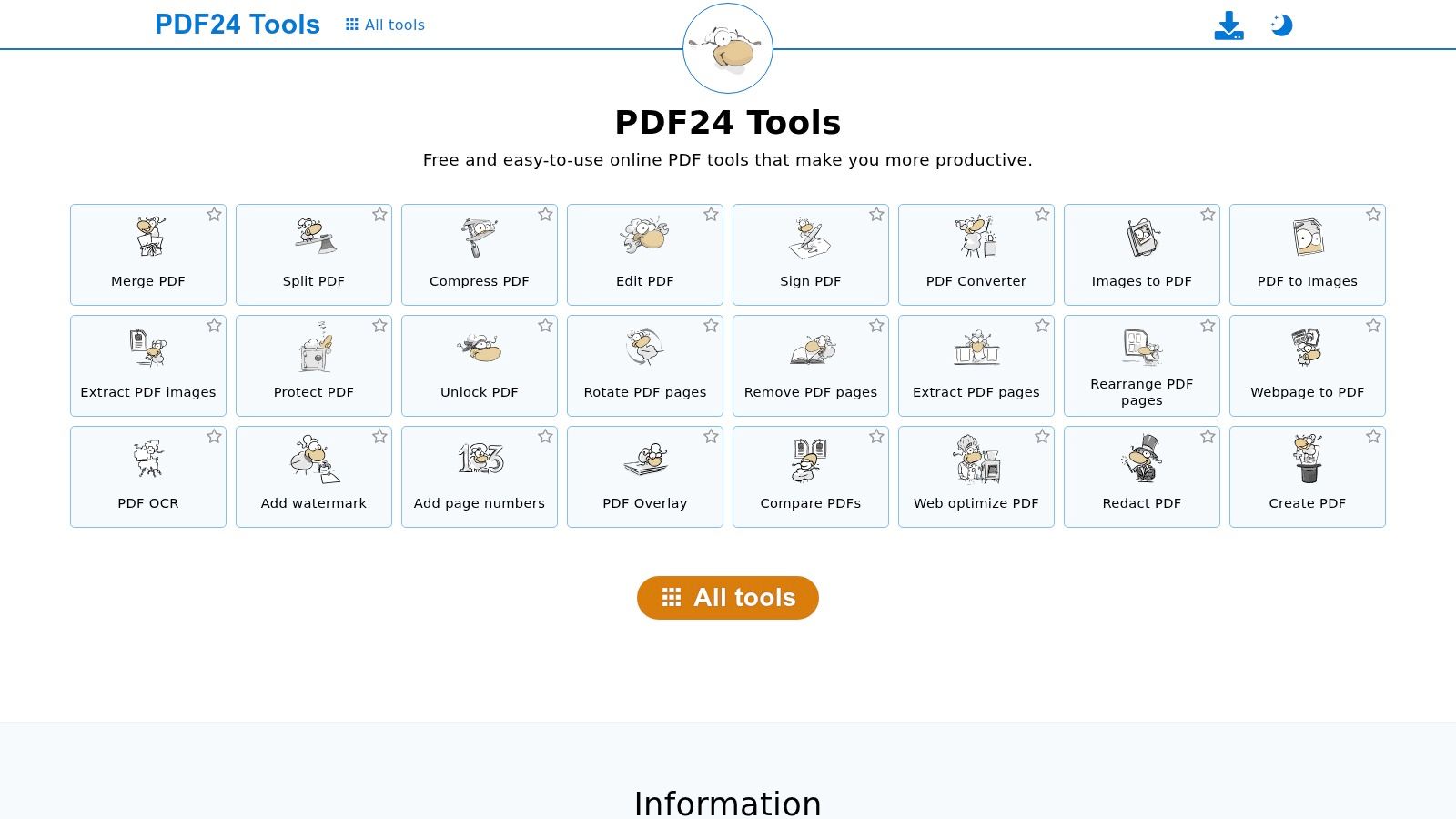
If privacy is your first filter, PDF24 Tools jumps near the top immediately. It was identified as the best completely free PDF converter for Windows because its fully offline architecture keeps user data on the local computer, a major advantage for legal and healthcare organizations processing sensitive documents (HowToConvert's PDF converter apps review).
That offline design changes the decision more than another conversion feature would. Many free online tools are acceptable for public files, published papers, and internal drafts. They're much harder to defend for patient records, contracts, HR files, and compliance documents.
Why PDF24 is the privacy-first pick
PDF24 also stands out because it doesn't behave like a bait-and-switch free tier. The same review identified it as offering unlimited conversions with no watermarks, which is rare among tools that still call themselves free.
For Windows-heavy organizations, that combination is unusually practical.
- Best for legal and healthcare: Local processing aligns better with confidentiality expectations.
- Best for high-volume free use on Windows: Unlimited local conversion removes the daily-token problem.
- Main drawback: The desktop app is Windows-only, so mixed-device teams may need a second tool.
For regulated environments, an offline converter often beats a more polished cloud tool. The security posture is easier to explain and easier to audit.
PDF24 isn't the most stylish interface in this list. It may be the most defensible operational choice.
6. PDF Candy
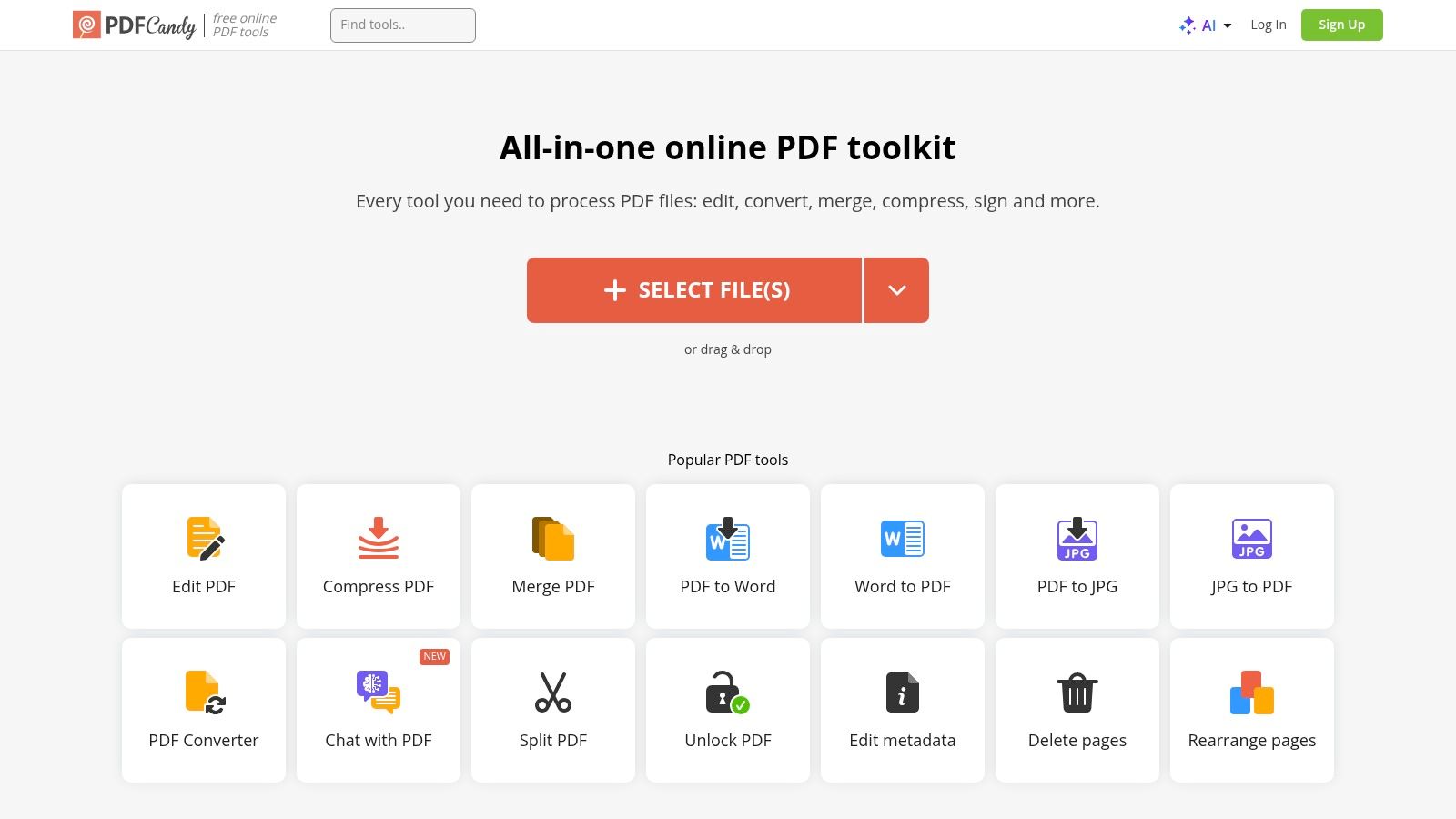
PDF Candy is the kind of tool that works best when you don't want to think very hard about setup. It covers the expected conversions, includes lightweight PDF management features, and offers a Windows desktop app for local work.
That combination makes it a reasonable compromise pick. It won't be the top recommendation for OCR precision, nor the first name for developer automation. But for a small team that needs a mix of browser convenience and occasional offline processing, PDF Candy stays in contention.
Who should choose it
The strongest case for PDF Candy is a general business workflow with mixed sensitivity. Public-facing files can move through the web app, while more sensitive documents can stay on desktop. That split isn't elegant, but it's practical.
Its free tier still comes with usage caps, so it's not a true high-volume answer. That said, it's less intimidating than many all-in-one suites and easier to adopt for ordinary office use.
- Good for mixed online and offline work: Web plus Windows desktop gives teams more flexibility than browser-only tools.
- Good for lightweight editing plus conversion: Merge, split, protect, and convert actions cover common admin tasks.
- Not ideal for demanding scan recovery: If OCR quality is the deciding factor, stronger evidence-backed tools are safer bets.
For researchers and back-office teams, PDF Candy is often “good enough” in the positive sense. It handles broad needs without requiring a dedicated PDF operations specialist.
7. CloudConvert
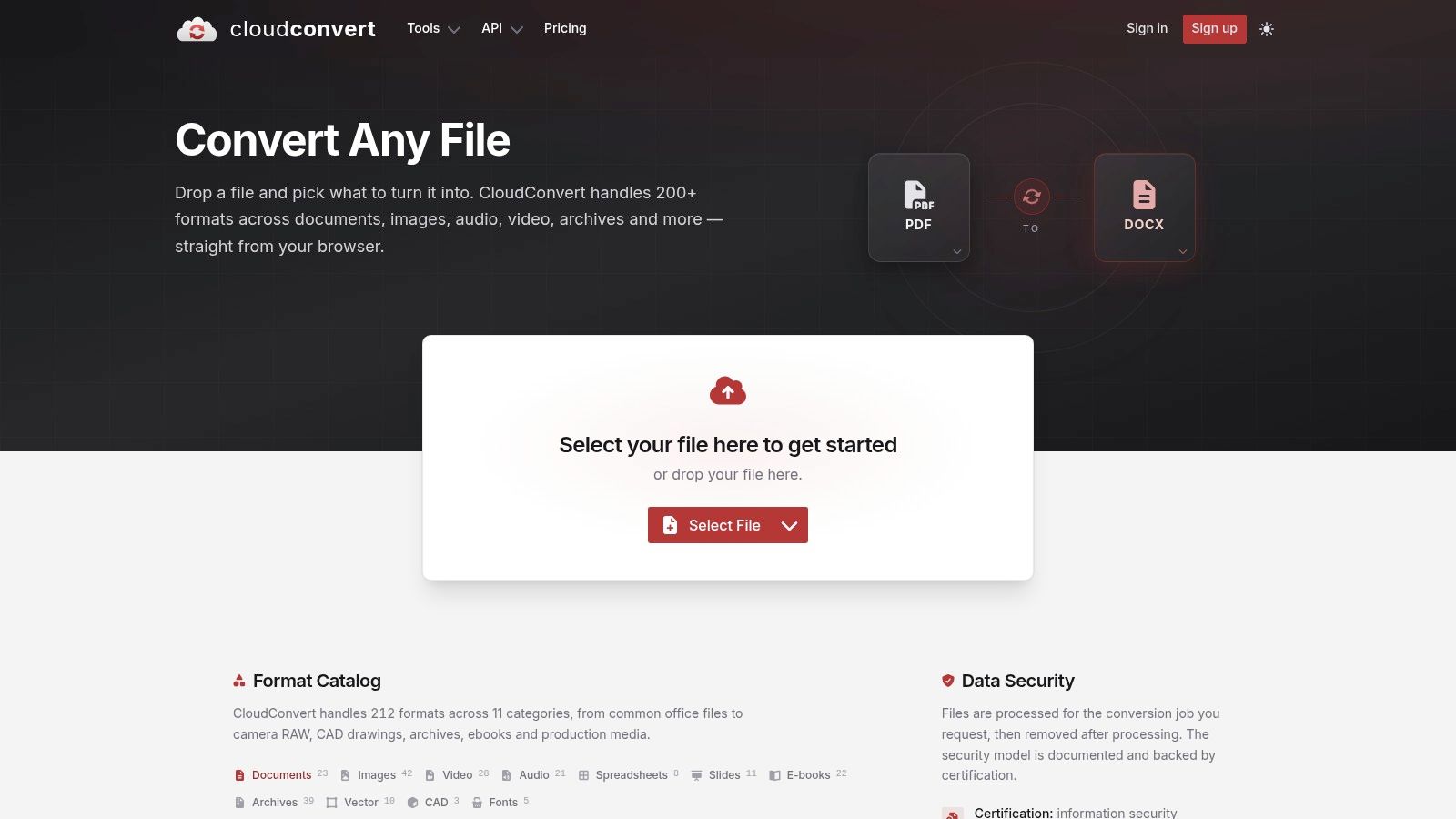
CloudConvert belongs on this list for a different reason than most of the others. It's not primarily a “PDF utility suite.” It's a format-conversion platform with PDF support that appeals to users who care about configuration and automation.
That makes CloudConvert more relevant to technical teams than to casual users. If you're moving documents through scripts, internal tools, or broader ETL-style flows, the API and format breadth matter more than a glossy PDF editor interface.
Where the developer angle matters
CloudConvert is well suited to ML engineers, operations developers, and technical documentation teams that need reliable file transformation inside larger systems. Its free model is credits-based and includes processing constraints, so it isn't the easiest tool for someone doing occasional ad hoc work.
The tradeoff is clear. You get stronger control and automation hooks, but not the simplicity of a dedicated PDF-only service.
- Best for developers: API access and wide format support fit automated pipelines.
- Good for technical operations: When PDF conversion is one step inside a larger workflow, CloudConvert makes more sense than consumer-first tools.
- Weak for OCR-heavy scanned archives: Time-limited free processing can become a bottleneck on difficult files.
CloudConvert is a strong infrastructure choice. It's a weaker recommendation for legal review staff or clinicians who just want predictable manual conversion without credits and processing rules.
8. Convertio
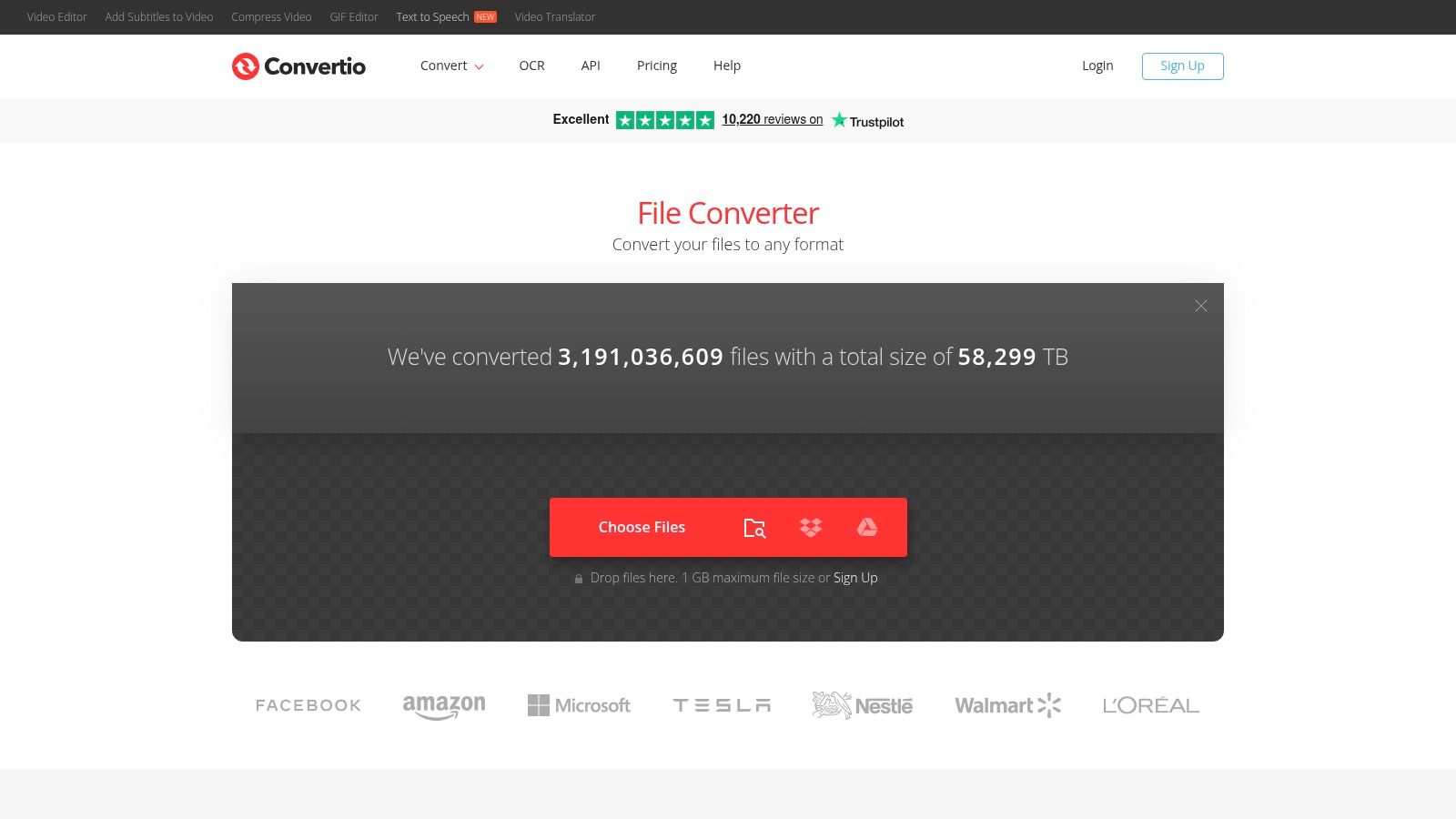
Convertio is one of the better examples of a free converter designed for steady light usage rather than isolated one-off tasks. It supports broad format conversion and allows concurrent jobs, which makes it noticeably more usable than free tiers built around one-file-at-a-time friction.
That matters for teams doing lots of small documents. If your workload is ten short files rather than one giant scan, throughput mechanics matter as much as raw capability.
Throughput versus control
Convertio fits users who want more daily movement than ultra-restricted browser tools without stepping into a full desktop workflow. It's especially handy for researchers, operations staff, and support teams handling frequent but modest conversion queues.
Its ceiling shows up when files become complex or OCR becomes central. At that point, concurrency doesn't compensate for the limits of a browser-first free tier.
- Good for small batches: Concurrent conversions improve flow when many modest files arrive at once.
- Good for general-purpose format switching: Broad support helps teams dealing with mixed document and image inputs.
- Less suited to sensitive data: Like most browser-first tools, it requires extra caution in regulated environments.
Convertio is a throughput play, not a privacy play. That distinction should drive the choice.
9. FreeConvert
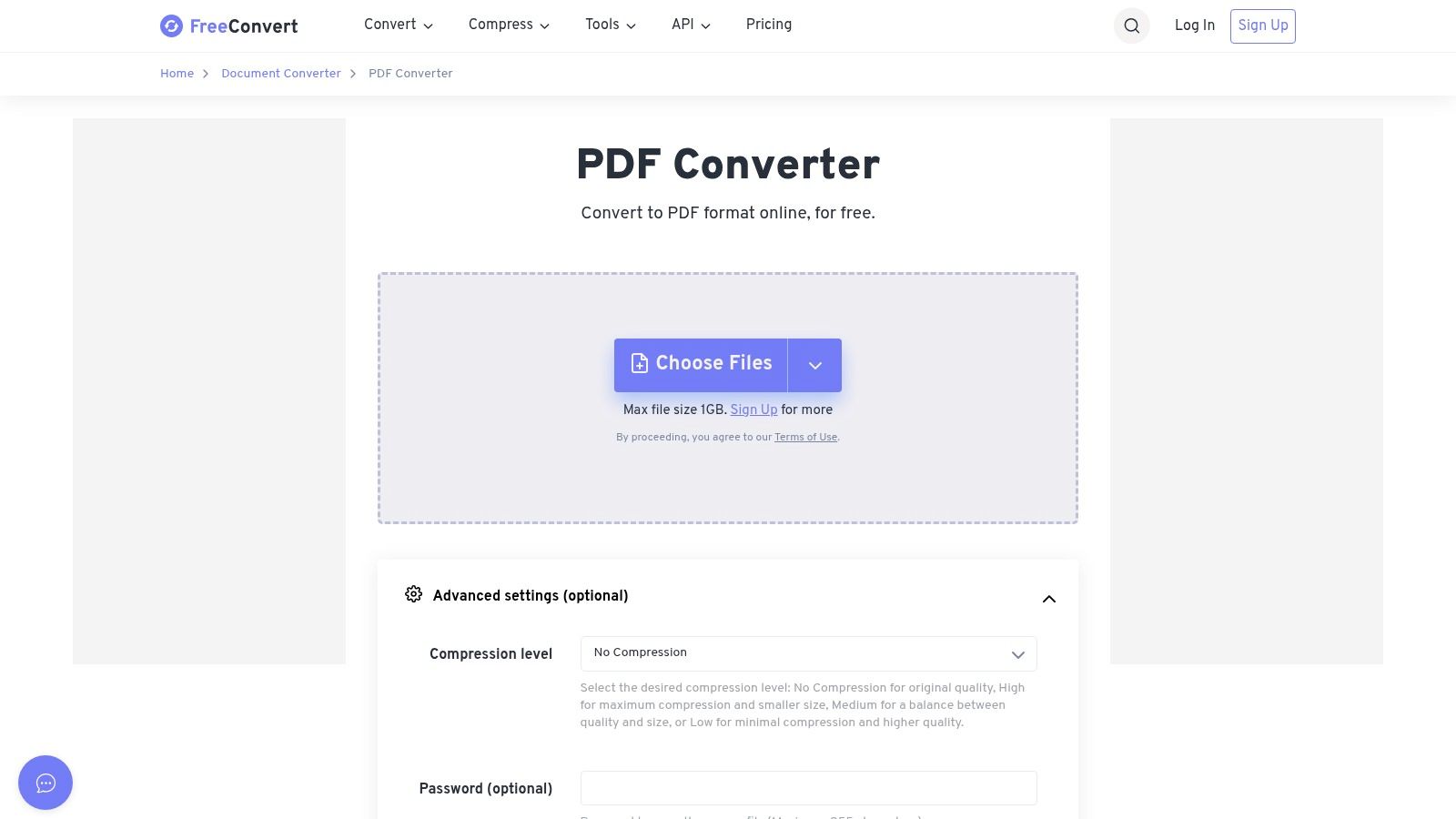
FreeConvert stands out for one practical reason. Its free web tier is usually easier to work with than converters that restrict users to only a handful of actions before stopping. That changes the math for students, researchers, and small teams processing mixed document queues across a week rather than a single file once a month.
The more important question is fit. FreeConvert is strongest as a general browser converter with OCR available for ordinary scanned PDFs. As noted earlier in the article, outside testing has placed its OCR in a credible range for common business layouts. That is useful, but it does not make FreeConvert the safest choice for high-error-cost work such as legal review, medical records handling, or archival restoration of poor scans.
Where FreeConvert fits
FreeConvert makes sense when convenience matters more than strict data controls or downstream document structure. If the goal is to turn a scan into an editable file quickly, it can do the job. If the goal is LLM-ready Markdown, table-preserving extraction, or repeatable ingestion into ML pipelines, browser OCR output is usually too inconsistent to trust without manual cleanup.
That distinction matters by use case.
- Good for ad hoc OCR and conversion: Useful for invoices, forms, class materials, and standard office PDFs.
- Weaker for privacy-sensitive work: Browser upload workflows require caution in legal, healthcare, and other regulated settings.
- Limited for batch-heavy operations: It is more practical for occasional queues than for department-scale document runs.
- Weak for Markdown-first workflows: Users preparing documents for RAG, embeddings, or structured research corpora will often need additional reformatting.
FreeConvert is best treated as a flexible fallback. It works for light OCR, mixed-format conversion, and occasional batch needs, but it is not the strongest option for high-accuracy OCR, strict privacy requirements, or clean document-to-Markdown pipelines.
10. Zamzar
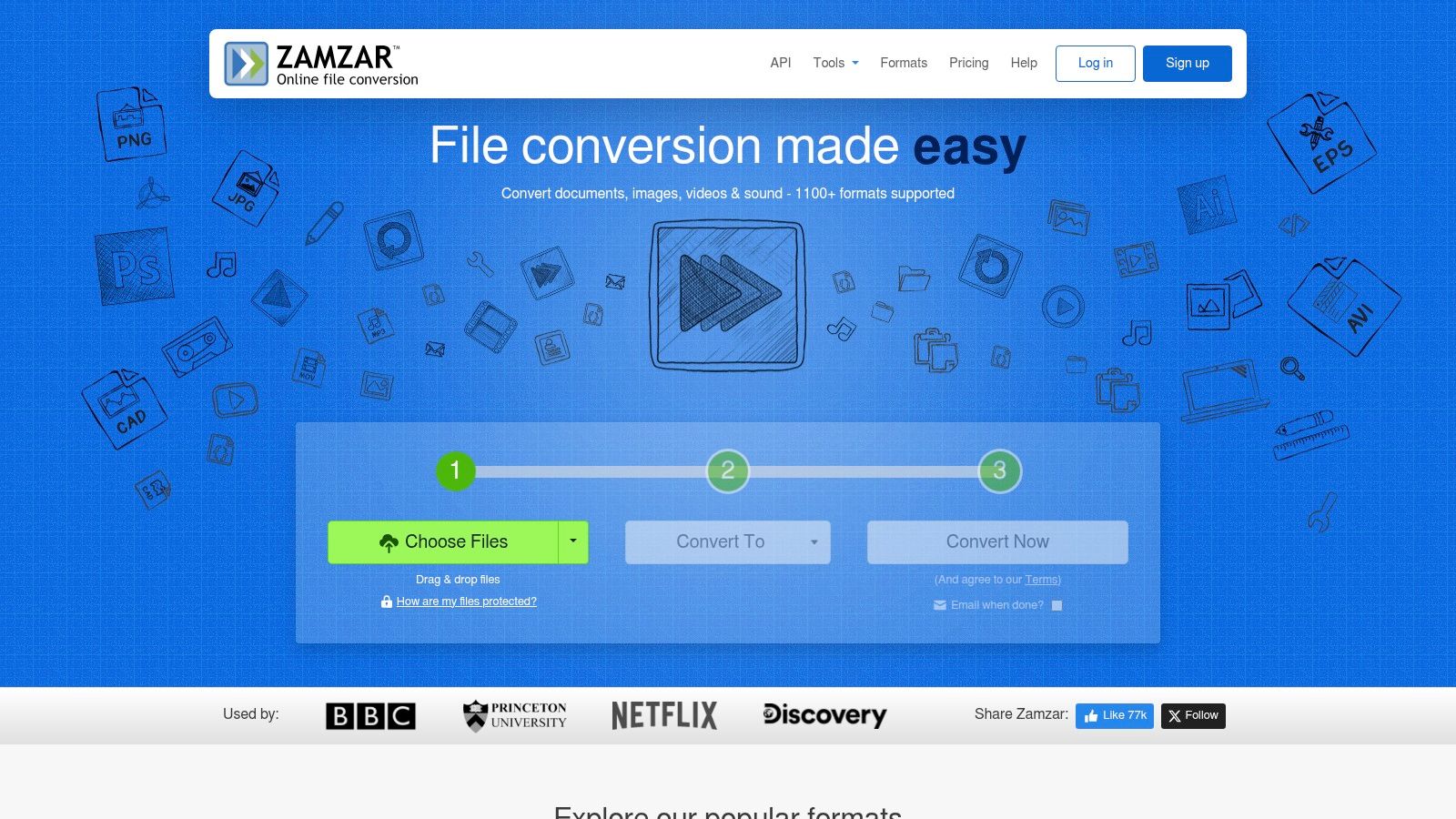
Zamzar is one of the oldest names in web-based file conversion, and that history matters less than its current operating model. The service is built for quick, browser-based format changes, not for document workflows that depend on OCR accuracy, controlled data handling, or repeatable batch throughput.
Its free tier reflects that positioning. As noted earlier, free use is constrained by small-file limits and narrow usage allowances. That keeps Zamzar practical for a one-off PDF to DOCX or image conversion, but it narrows its value fast once scanned documents, long reports, or recurring queues enter the picture.
The bigger limitation is strategic, not just numerical.
Zamzar is weakest in the areas that separate a casual converter from a document-processing tool: OCR transparency, privacy controls, and structured output for downstream systems. If you need to extract text from scanned legal filings, medical records, or research PDFs, the main question is not whether a file converts. It is whether the text is accurate, whether the upload model fits your compliance requirements, and whether the result can move cleanly into review software, archives, or Markdown-based LLM pipelines. Zamzar does not stand out on those dimensions.
That makes its use case fairly narrow:
- Best for lightweight format changes: Good for small PDFs, images, and office files where speed matters more than document structure.
- Weak for OCR-dependent work: It is not the strongest fit for poor scans, dense tables, handwritten annotations, or records that need high text fidelity.
- Weak for privacy-sensitive documents: Browser upload workflows need extra caution in legal, healthcare, and regulated environments.
- Limited for batch processing: Teams converting large sets of files will run into free-tier friction quickly.
- Poor fit for LLM-ready Markdown workflows: Users preparing corpora for RAG, embeddings, or ML ingestion will usually need another step to clean formatting and rebuild structure.
Zamzar remains useful as a simple converter of last resort. For legal review, healthcare records, research archives, or ML ingestion pipelines, other tools in this list make their tradeoffs clearer and support those workflows more directly.
Top 10 Free PDF Converter Comparison
| Product | Core features | Quality (★) | Pricing / Value (💰) | Target & USP (👥 ✨🏆) |
|---|---|---|---|---|
| Adobe Acrobat Online | PDF ↔ Office, compress, organize, cloud storage | ★★★★☆ | 💰 Free w/ daily/weekly caps; paid tiers for more | 👥 Office users; ✨ Best MS Office fidelity; 🏆 Trusted vendor |
| Smallpdf | 20+ PDF tools, web/desktop/mobile, quick conversions | ★★★★☆ | 💰 Free limited tasks/day; Pro for batch/features | 👥 Beginners & occasional users; ✨ Clean UI; 🏆 Fast one-off tasks |
| iLovePDF | Conversions, OCR, redaction, e-sign, apps | ★★★★☆ | 💰 Free essentials w/ per-tool limits; paid for AI/credits | 👥 Frequent web converters; ✨ Wide toolset + OCR; 🏆 Granular plan caps |
| Sejda | Convert/edit/merge, OCR, web & desktop (local) | ★★★★☆ | 💰 Free up to 200 pages/50MB & 3 tasks/hr; upgrades available | 👥 Privacy-conscious users; ✨ Desktop local processing; 🏆 Clear limits |
| PDF24 Tools | Convert/edit/sign, web + Windows desktop (offline) | ★★★★☆ | 💰 100% free desktop; ad-supported web tools | 👥 Windows/offline users; ✨ Full local Creator; 🏆 No subscription needed |
| PDF Candy | Web + Windows app, no-account core tools, editing | ★★★★☆ | 💰 Forever free core tools w/ caps; paid for higher limits | 👥 No-signup users; ✨ Web no-account + desktop; 🏆 Easy free usage |
| CloudConvert | Hundreds of formats, strong API, granular options | ★★★★☆ | 💰 10 credits/day free; 1 GB max; 5-min processing cap | 👥 Developers & power users; ✨ Granular format control + API; 🏆 Format breadth |
| Convertio | Broad format support, OCR, concurrent conversions | ★★★★☆ | 💰 10 credits/day; up to 1 GB; multiple concurrent tasks | 👥 Regular light users; ✨ Fast UI & concurrency; 🏆 Good throughput |
| FreeConvert | Robust PDF tools, web + API, higher daily minutes | ★★★★☆ | 💰 20 conversion minutes/day; 5-min/file cap; ads | 👥 Occasional higher-volume users; ✨ Larger daily allowance; 🏆 Generous free quota |
| Zamzar | 1,100+ formats, email-to-convert, cloud integrations | ★★★☆☆ | 💰 2 conversions/day free; 50 MB limit; paid API | 👥 Users needing many formats; ✨ Email/cloud integrations; 🏆 Vast format support |
Next Steps Choosing Your Converter
The best free PDF converter isn't a single winner. It's a set of tradeoffs, and the right choice changes based on what breaks your workflow first.
If OCR quality is the priority, Adobe Acrobat Online and Sejda deserve the first test. Adobe has the strongest evidence in this list for difficult scanned-text recognition, especially on degraded material. Sejda is the more balanced alternative when you want transparent limits and a desktop option. For legal teams reviewing scanned filings or researchers working from archives, those two are the most sensible starting points.
If privacy is paramount, PDF24 should move to the front. Its offline Windows architecture makes it the strongest fit for healthcare organizations, law firms, and any operation where uploading confidential files to a browser tool creates compliance headaches. PDF Candy and Sejda can also support more privacy-conscious workflows because they offer desktop paths, but PDF24 is the clearest privacy-led recommendation.
If batch handling and general throughput matter more than OCR depth, your shortlist changes. Smallpdf is easy to use but too limited for repeated free use. Convertio and FreeConvert are more practical for small batches, while CloudConvert is the better fit for technical teams that need automation hooks and a broader conversion layer around PDF tasks. For ML and data engineering teams, that distinction matters. A tool that fits into scripts and pipelines can save more operational time than a nicer web UI.
The biggest gap across most free converter roundups is LLM-ready output. General PDF conversion tools mostly aim for Word, images, or raw text. That's useful for editing, but weak for retrieval pipelines. Existing comparison content still misses the AI-ingestion problem even though token-lean Markdown can reduce context window usage by up to 70% compared with raw PDFs, as noted earlier. For research groups, AI product teams, and anyone building RAG systems, this is the point many buyers overlook. The winning converter isn't always the one with the most tools. It's the one that preserves structure well enough for chunking, retrieval, and prompt efficiency downstream.
A practical way to choose is simple. Test your top two tools against the document type that causes the most friction today. Don't use a clean digital PDF if your real problem is scans. Don't test a public white paper if your real concern is confidential intake forms. Run one realistic file through each candidate, then judge the result on four things: readability, formatting loss, privacy fit, and whether the output is usable in the next step of your workflow without manual repair.
That last point is where many teams save the most time. The converter is only one stage. The goal is a document pipeline that doesn't force repeated cleanup.
If your end goal isn't just conversion but clean AI-ready output, Markdown Converters is the better next step. It turns PDFs, scans, images, office files, web pages, and more into structured Markdown built for LLMs and retrieval workflows, with OCR, API access, and chat integrations that make document ingestion far easier than general-purpose PDF converters.
Related Articles
Markdown Reader Windows: Best Tools for 2026
Markdown reader windows - Find the best markdown reader for Windows in 2026. Compare top tools to open, edit, and preview Markdown files effortlessly
Read articleHow to Download a Folder from Dropbox Without Losing Your
Learn how to download a folder from Dropbox quickly and easily, with step-by-step instructions for 2026.
Read articleOCR Handwriting Recognition: A Practical Guide for 2026
Unlock the power of your handwritten data. Our guide to OCR handwriting recognition covers methods, metrics, and how to integrate it into RAG workflows.
Read article